Skills in AI tools are reusable sets of instructions that teach an AI assistant how to handle one kind of task your way. You save a skill once, and the tool loads it whenever a request matches. These AI skills can hold written steps, example files and small scripts, so the result looks the same every time.
Most of us start by typing the same long prompt again and again. We paste the brand rules, explain the format, remind the tool what we did last week and then fix the parts it forgot. Skills remove most of that repetition.
One note before we start. In this guide an AI skill means a package of instructions inside an AI tool. It does not mean a voice app for a smart speaker, and it does not mean the abilities a person needs to work with AI, although we cover that second meaning briefly near the end.
Skills in AI tools in short
- What they are: folders of instructions, scripts and resources that an AI tool reads when a task fits.
- What is inside: a main file called SKILL.md, plus optional examples, references and scripts.
- How they run: the tool sees only the name and description first, and loads the rest when needed.
- Where they work: Claude, ChatGPT, Codex, Cursor, Kimi and other tools that follow the same format.
- What to watch: a weak description, an untrusted source and plan limits.
What are skills in AI tools?
A skill is a small package that tells an AI tool how to do a specific, repeating job. Instead of explaining the job in every chat, you write the rules once and let the tool pick them up on its own. Agent skills are the same idea in tools that act on tasks for you, such as coding assistants and document agents.
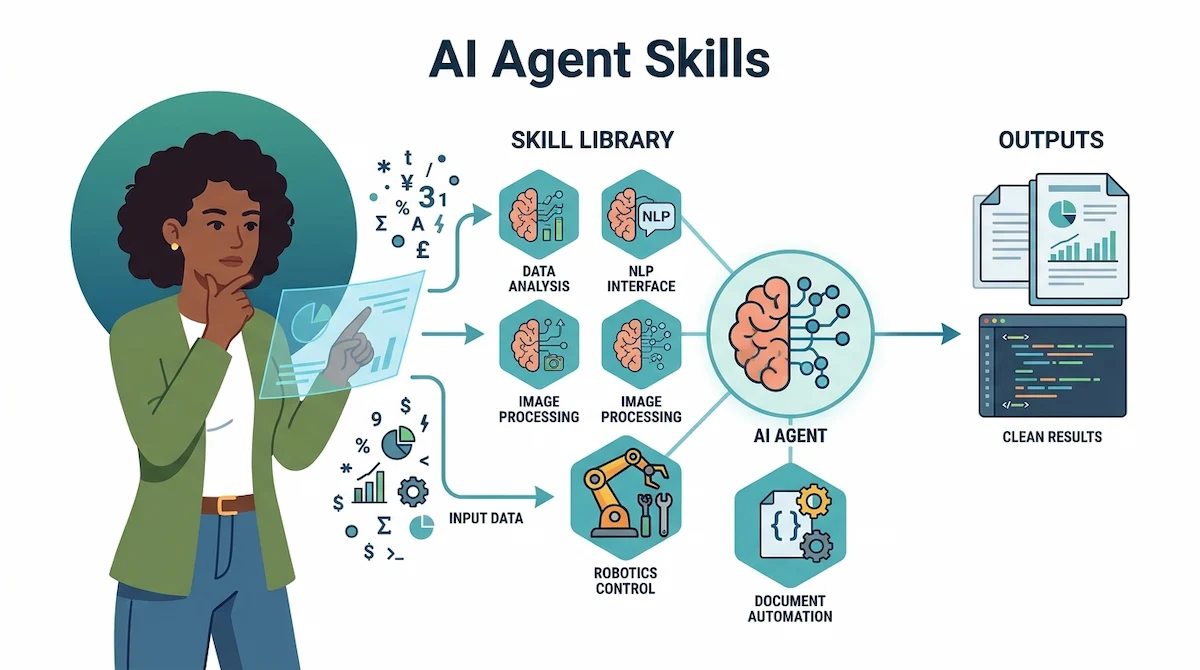
What is an AI skill in plain words?
We think of a skill as a recipe card kept in a drawer. The cook, in this case the AI tool, knows how to cook in general. The card tells it how you want this one dish made, which steps come first and what the plate should look like. When you ask for that dish, the tool takes out the card and follows it. A short list of unfamiliar terms is easy to check in our AI terms glossary.
What is inside a skill?
Most skills have the same parts:
- SKILL.md: the main file, with the name, a short description and the instructions.
- Description: one or two lines that tell the tool when the skill applies.
- Instructions: the steps, rules and output format, written in plain language.
- Scripts: optional small programs for steps that must be exact, such as a calculation.
- References: optional documents the tool reads only when it needs them.
- Assets: optional templates, logos or example files.
Is a skill just a saved prompt?
Not quite. A saved prompt is pasted into the chat in full, so it takes space every time. An AI skill sits outside the chat, and the tool reads only the name and description until the task fits. It also can carry files and scripts, which a prompt cannot do on its own.
Why do skills in AI tools exist?
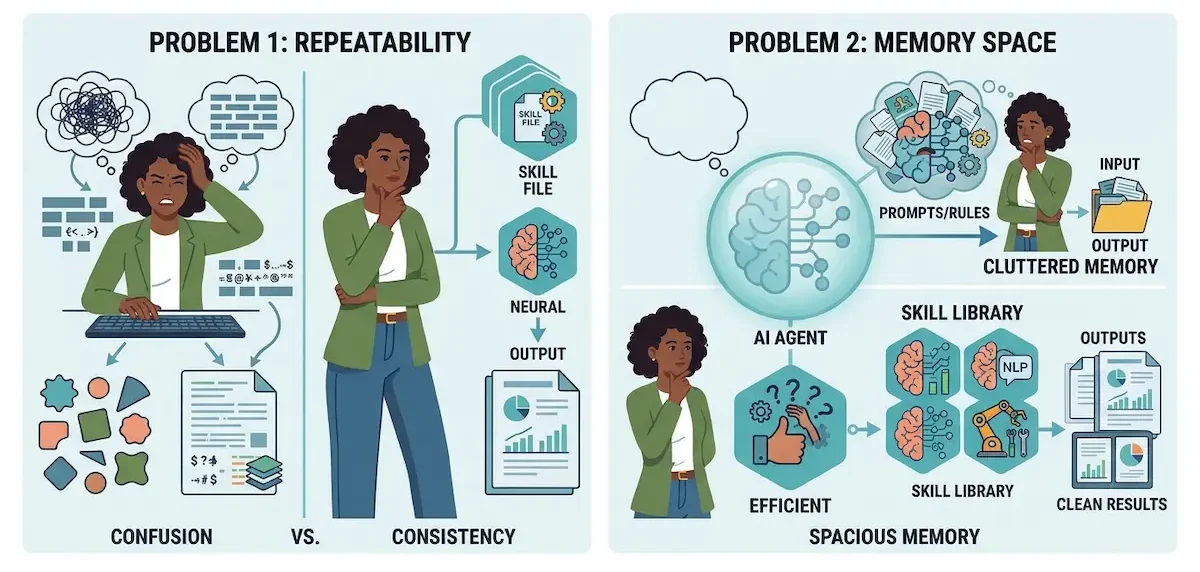
Skills solve two problems that every regular user of AI runs into sooner or later. Both are easy to see once you have typed the same request a few times.
Prompts are hard to repeat
Ask the same thing twice in two chats and the answers can differ in structure, tone and detail. A long prompt helps, but it depends on you remembering every rule each time. AI skills move those rules out of your memory and into a file, so the tool follows the same steps without being reminded.
The working memory of the tool is limited
An AI tool can only hold so much text in view at once. If you paste ten pages of rules into every chat, less room remains for your actual task. Skills fix this by keeping the rules outside the chat and loading them only when they are needed, so the tool has room for both the rules and the work.
How do skills work?
The idea behind agent skills is simple. The tool does not read everything at once. It reads a little, decides whether the skill fits and only then loads more. This is often called progressive disclosure, and it keeps the working memory of the tool free for your actual request.

The tool reads only the name and description first
When you start a chat, the tool sees a short line for each installed skill, with its name and description. That is all. Even a long list of AI skills costs very little, because the full instructions stay unread.
The tool picks a skill that matches your request
You ask for something, for example a weekly report in your usual format. The tool compares the request with the descriptions it has seen. If one matches, it decides to use that skill. If none matches, it works like it always does.
Instructions and files load only when needed
Once an AI skill is chosen, the tool reads the full SKILL.md. If the instructions point to a reference file or a script, those load at that moment and not before. This is progressive disclosure in practice: the parts of an AI skill appear in steps, not all at once. We like this design because a skill can be large without slowing down every other task.
Why the description matters most
In our experience, a skill fails far more often because of a weak description than because of weak instructions. If the description is vague, the tool never realizes the skill applies. Write it like a clear request: say what the skill does and when to use it. The habit is the same one we describe in our guide on prompt engineering for business.
Automatic or manual use
Most tools pick an AI skill on their own, based on the description. Some also let you call a skill by name when you want to be sure. Automatic use is easier, and manual use is safer for tasks where the wrong skill would cause trouble.
Skills vs prompts, tools, MCP and plugins
These words get mixed up, and several of them sound alike. The table shows the main difference in one line each.
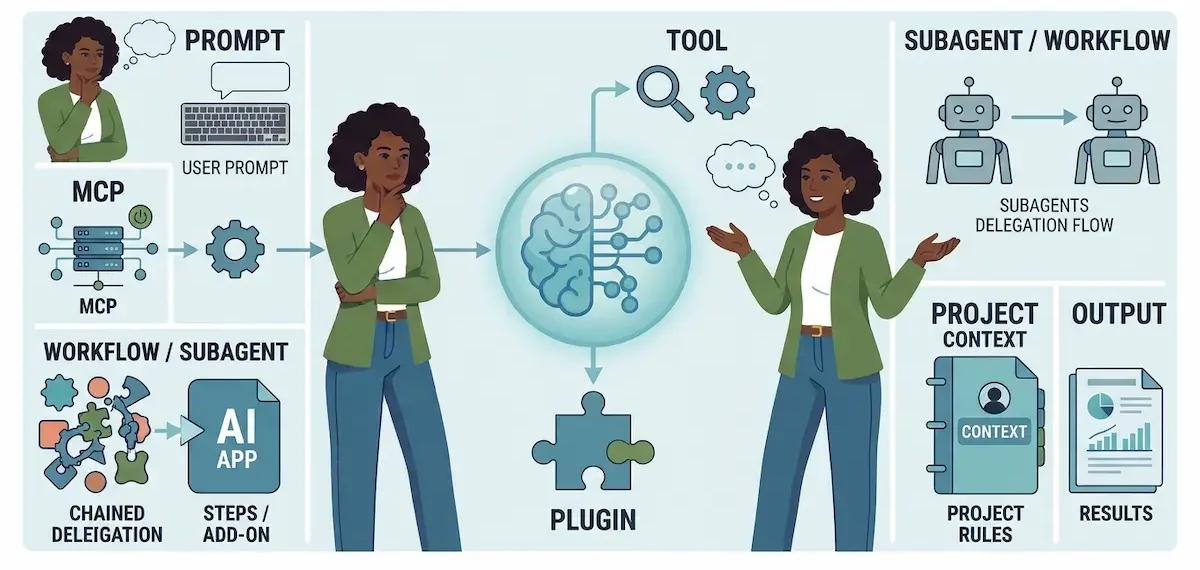
| Term | What it is | What it gives the AI | Example |
|---|---|---|---|
| Prompt | A request typed in the chat | One instruction for one moment | Write a summary of this report |
| Skill | A saved package of instructions and files | Know-how for a repeating task | Our weekly report format |
| Tool | A function the AI can call | An action, such as search or calculate | Web search, a calculator |
| MCP | A standard way to connect outside services | Access to live data and apps | A link to a calendar or a database |
| Plugin | An add-on for one AI app | Extra features, sometimes bundled with skills | An add-on installed in the app |
| Workflow or subagent | A fixed chain of steps or a second AI helper | Order of work or a delegated part of the job | An agent that hands research to a helper |
| Project or custom instructions | Standing context for a chat or a workspace | General background and rules | Always answer in a formal tone |
Skills vs prompts
A prompt is a single request, and it vanishes with the chat. An AI skill is stored and reused. Use a prompt when the task is new or one time. Turn it into an AI skill when you notice that you keep typing the same thing.
Skills vs tools and MCP
A tool lets the AI do something, such as search the web or open a file. MCP connects the AI to outside services. A skill does neither. It tells the AI how to do the job well. The best results come when they work together: MCP gives access to the data, and the skill says what to do with it. If you plan to build agents at work, our overview of AI agents for business shows where each piece fits.
Skills vs plugins and connectors
The word plugin has changed meaning more than once, and it means different things in different apps. In some tools a plugin is a bundle that can include AI skills. In others it is a link to an outside service. A connector is usually the same thing as an MCP link, seen from the side of the user. When a product page says plugin, read what it actually contains.
Skills vs projects and custom instructions
Projects and custom instructions give the AI standing background, such as your role or a preferred tone. They apply to every chat inside them. Skills are narrower. They apply only when a task matches, and they carry exact steps. We use custom instructions for general habits and skills for specific jobs. Claude skills and similar skills in other tools are kept apart from projects on purpose, so one never overwrites the other.
Skills vs workflows and subagents
A workflow is a fixed chain of steps that runs the same way each time, often across several apps. A subagent is a second AI helper that takes over a part of the job. A skill sits one level below both. It is the know-how that a workflow step or a subagent can pick up. We use a skill when the method matters, and a workflow when the order of apps matters.
Skills vs custom GPTs
A custom GPT is a whole assistant that you configure once and then open on purpose. An AI skill is lighter. It lives inside the assistant you already use and appears only when the task fits. We prefer agent skills when we want one assistant that handles many jobs, and a custom assistant when the job is big enough to deserve its own space.
What types of skills exist?
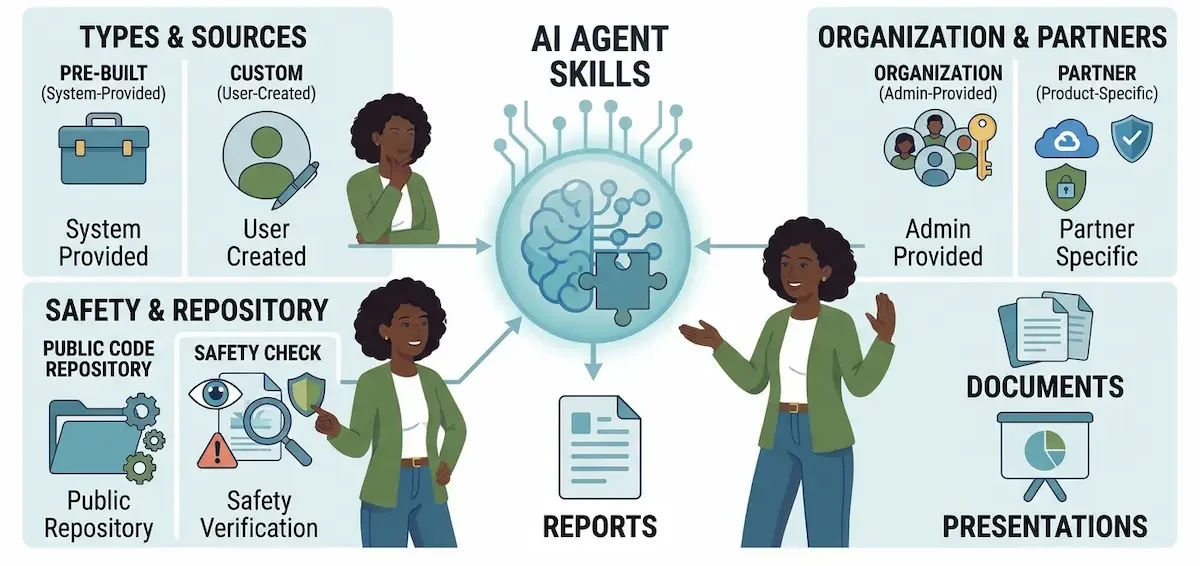
Different tools use different names, but the same groups appear almost everywhere. The Claude help page on skills lists four of them, and other tools follow a similar pattern.
Pre-built and custom skills
Pre-built agent skills come from the company that makes the tool. They usually handle common file work, such as spreadsheets, presentations, documents and PDFs. Custom AI skills, such as a custom Claude skill, are the ones you write yourself for your own routine.
Organization and partner skills
In a company account, an admin may provide AI skills to everyone, for example a standard report or a compliance check. Partners can also publish skills for their own products. These are useful because the team starts with the same rules.
Community skills from directories
Many people share AI skills on code sites and in public directories. Some are excellent, and some are poor or risky. Treat a downloaded skill like an app from an unknown source and read it before you use it. We return to this in the section on safety.
Where do skills work?
Claude skills came first, and agent skills spread because the format is simple and open. Claude and Claude Code support them, and ChatGPT, Codex and Cursor read the same kind of SKILL.md file. Kimi has its own skill store, and it can even turn a document into an AI skill. Many other agent tools have added the same idea.
Support depends on the plan and the tool. In some tools uploading a skill needs a paid plan, and in others agent skills can be kept as folders on your own computer even on a free plan. Check the plan page before you rely on them. Because the format is shared, an AI skill written for one tool often works in another with little change, which is why we keep ours in a plain folder and not inside one app. Claude skills are the best documented, so most guides use them as the example. A skill can also sit next to an MCP link, so the tool has both the method and the data.
What is the Agent Skills open standard?
The open standard is an agreed way to write an AI skill: a folder, a SKILL.md file with a name and description, and optional supporting files. Because many tools follow it, one skill can serve several tools. We think this shared format is the main reason agent skills spread so fast, since nobody has to rewrite their work for each app.
What can you use skills for?
Skills fit any task that repeats and has a clear way of being done well. These are the areas where we see AI skills used most:
- Documents and slides: reports, proposals, memos and presentations in a fixed layout.
- Marketing and SEO: briefs, outlines, meta tags and content checks. Our guide on how to use AI for SEO shows the tasks worth repeating.
- Code: reviews, commit messages, release steps and test checklists.
- Data analysis: cleaning a file, building a chart in the same style each time.
- Legal and admin work: contract checks, standard replies and forms.
- Internal procedures: steps your team follows, written once and shared.
- Research: a fixed way to collect sources and summarize them.
Examples for people who do not code
You do not need a technical background for a first skill. Here are three that anyone can write:
- A meeting notes skill: turns a transcript into decisions, owners and dates. See how this works in taking meeting notes with AI.
- A brand voice skill: lists the words you use, the words you avoid and a sample paragraph.
- A weekly report skill: asks for the numbers and returns a one page summary in your format.
Popular skills by type of user
- Writers and creators: brand voice, outline builders, headline checks and editing passes.
- Business and marketing teams: campaign briefs, report formats and customer reply templates.
- Personal productivity: meeting summaries, weekly plans and inbox sorting rules.
- Research and science: source collection, literature summaries and citation formats.
- Developers: code review, release steps and test checklists.
What are the benefits of skills?
- Consistency: the same task gives the same structure, even when different people ask.
- Less typing: you stop pasting the same rules into every chat.
- Light on memory: thanks to progressive disclosure, only the name and description are read until the AI skill is needed.
- Easy sharing: an AI skill is a folder, so a teammate can copy it.
- One place to update: change the file, and every later run uses the new rule.
- Portable: because the format is shared, the same agent skill can move between tools.
The effect adds up once a team has a dozen skills. Work that used to depend on who asked and how they phrased it now follows the same steps. If you want to turn this into a repeatable routine across apps, read how to create an AI automation workflow.
How do you use a skill?
- Find an agent skill. Look in the skill section of your tool, in a directory or in a folder shared by your team.
- Add it. Switch it on in the settings, upload the folder or place it in the AI skills folder of your tool.
- Ask in plain words. Describe the task the way you normally would. Do not name the skill unless the tool needs it.
- Check the output. Look at whether the format and tone follow the AI skill. If not, the description may be too vague.
- Adjust and repeat. Edit the file and test again with a real task.
How do you create your first skill?
You can write a useful skill in about half an hour. The steps are almost the same in every tool.
- Pick a task that repeats. Choose something you do at least every week and already know how to do well.
- Write the description first. One or two lines that say what the skill does and when it applies.
- List the steps. Write them in order, in short sentences, as you would explain to a new colleague.
- Add an example. A sample of a good result teaches more than three paragraphs of rules.
- Keep the file short. Move long reference material into separate files that load only when needed.
- Test with real work. Run it on a task you have already finished and compare the results.
A small example
Say you write a short summary after every client call. The description reads: Use this skill to turn call notes into a client summary. The instructions say to list the decisions first, then open questions, then next steps with owners and dates. The example shows one finished summary. That is the whole skill. The next time you paste call notes and ask for a summary, the tool finds it and follows the same layout.
Ways to create a skill without writing a file
You do not always have to write the file by hand. Some tools turn a document into a skill, for example an existing procedure or style guide. Others let you describe the task in a chat and then save the result as a skill. We still read the file afterward, because a generated description is often too broad.
How do you test a skill?
Run it on three real tasks. Use one easy task, one typical task and one awkward task with missing information. Check whether the skill triggers, whether the output follows the format and whether the tool asks for what is missing. If any run fails, change one thing in the file and test again. Changing several things at once makes it impossible to see what helped.
Mistakes that stop a skill from working
The most common one is a vague description such as helps with writing. The second is a file that tries to cover ten jobs. The third is long instructions that bury the key rule. One skill should do one job, and the description should name that job.
Best practices for writing skills
- Treat the description as the trigger. Say what the skill does and when it applies.
- Give each skill one job. An AI skill that covers ten tasks triggers badly.
- Keep SKILL.md short. Move long material into reference files that load only when needed.
- Use scripts for exact steps. Calculations and file conversions should not depend on wording.
- Add an example. One good sample teaches more than a page of rules.
- Name skills clearly. A teammate should understand the purpose from the name alone.
- Test with the people who will use it. They phrase requests differently from you.
Why does a skill not work?
When a skill misbehaves, the cause is usually one of these:
- It does not trigger. The description does not match how you phrase the request. Rewrite it with the words you actually use.
- It triggers too often. The description is too broad. Narrow it to one task.
- The wrong skill runs. Two descriptions overlap. Make each one specific.
- Parts of the instructions are ignored. The file is too long or the key rule is buried. Shorten it and put the rule near the top.
- Changes do not show up. The tool still holds the old version. Reload the skill or start a fresh chat.
- A supporting file is not read. The instructions do not say when to open it. Name the file and the moment to use it.
- The tool does not see all your AI skills. Some tools limit how many skills they list. Remove the ones you do not use.
How are skills shared and managed in a team?
A skill is a folder, so sharing it is easy. Managing it is the harder part. Teams that use many AI skills usually end up with three layers: a personal set that each person keeps, a shared set for work that several people do and a small approved set that the whole company uses. Someone should own each shared skill and review changes, in the same way you review a shared document.
We suggest a simple routine. Keep a list of the skills in use, name an owner for each, and retire the ones nobody uses. For wider advice on how AI fits into daily team work, see our guide to AI in the workplace. A skill that outlives the person who wrote it is only useful if someone still understands it.
Are skills safe?
Skills are instructions, and tools follow them with very little review at the moment of use. This is what makes them handy, and it is also the risk. A skill from an unknown source can tell the tool to read files, send data somewhere or run a script you never checked. Some university IT teams, such as Stanford, publish guidance on AI skills because of this.
Our rules are simple:
- Install skills only from sources you trust, and read the SKILL.md before you use it.
- Look inside any scripts, and be careful with ones that contact the internet.
- Do not give an AI skill access to sensitive files or accounts that it does not need.
- Prefer AI skills from your own team or from the company behind the tool.
- Remove agent skills you no longer use.
- Take extra care with AI skills that call MCP services, because they can reach data outside the chat.
If your work involves customer or company data, check how your tool stores and shares it first. Our guide on AI data privacy for business covers the questions to ask.
Common myths about skills
- An AI skill is an app. It is not. It is a set of instructions, and the tool still does the work.
- More skills is always better. Too many overlapping skills confuse the tool and crowd its memory.
- Skills replace prompts. You still ask for the task in a prompt. The skill only supplies the method.
- A downloaded skill will work right away. Most need small changes to match your files, tone and tools.
- Only developers can use them. A basic skill is plain text, and many useful ones contain no code.
When should you use a skill, and when should you skip it?
Good and bad candidates for a skill
- Good: weekly reports, client summaries, content checks, code reviews and any task with a stable format.
- Bad: one time questions, open brainstorming and tasks where the rules change from one day to the next.
Use a skill when a task repeats, when quality depends on following the same steps and when several people do the same job. Skip it when the task is new, when it happens once or when the rules change every time. Reach for MCP when you need live data, and for an AI skill when you need a method. A quick prompt is faster in those cases, and a skill would only add work to maintain.
A helpful test: if you have typed the same instructions three times, write the skill. Before you add a new tool just for this, read how to choose AI tools for business, because your current tool may already support skills.
Do skills cost anything?
Writing and keeping an AI skill is free, since it is only a folder of text files. What costs money is the plan of the tool that runs it. Some tools let free users keep AI skills as local folders, and others limit upload or sharing to paid plans. Skills also use some of the working memory of the tool, so a very large skill can use more of your allowance. Check the pricing page of your tool before you build a large collection.
Skills in AI tools vs AI skills you need as a person
The same words mean something else in job ads and courses. There, AI skills are the abilities a person needs to work well with AI. We keep it short, because it is a different topic. Three of them matter most in our work:
- Writing clear instructions: the same craft you use when you write an AI skill description.
- Choosing the right tool: knowing which tool fits which job.
- Checking the output: reading what the AI produced before you use it.
If you want to build these abilities, our list of AI tools to learn is a good place to start.
Conclusion
Skills in AI tools are saved instructions that a tool loads when a task fits. They turn a one time prompt into a repeatable routine, they keep results consistent and they can be shared as a simple folder. A good skill has a clear description, short steps and an example.
Start with one task that you repeat every week. Write a description, list the steps, add one example and test it on real work. After a few rounds you will see which of your jobs deserve an AI skill and which are better left as a quick prompt.
Frequently asked questions about skills in AI tools
What are skills in AI tools?
Skills in AI tools are saved packages of instructions, and sometimes files and scripts, that teach an AI assistant how to do a specific task your way. The tool loads a skill only when your request matches it. This gives you the same structure every time without retyping the rules.
What is an AI skill?
An AI skill is a folder with a main file that holds a name, a description and instructions. The tool reads the name and description first and loads the rest when the task fits. Think of it as a recipe card that the tool takes out when you ask for that dish.
What is a SKILL.md file?
SKILL.md is the main file of an AI skill. It starts with the name and description, followed by the instructions in plain text. Other files, such as examples or scripts, sit beside it and load only when the instructions point to them.
How do skills work?
The tool first reads only the name and description of each skill. When your request matches one, it loads the full instructions and any supporting files. This staged loading, called progressive disclosure, keeps the working memory free and still gives the tool detailed rules at the right moment.
Is a skill the same as a prompt?
No. A prompt is a request typed in one chat and lost afterward. A skill is stored, reused and loaded only when needed. It can also include files and scripts, which a prompt cannot hold on its own.
What is the difference between skills and MCP?
MCP connects the AI to outside services, such as a calendar or a database. An AI skill tells the AI how to do a task well. They solve different problems and work best together: MCP brings in the data, and the AI skill defines what to do with it.
What is the difference between a skill and a plugin?
An AI skill is a set of instructions. A plugin is an add-on for one app, and it may bundle AI skills, connections or other features. The word plugin is used differently across tools, so check what a given plugin contains.
Do skills work in ChatGPT, Claude and Codex?
Yes, all three support the same kind of SKILL.md format, though the way you add an AI skill and the plan you need can differ. Cursor and other agent tools read it too. Check the settings and plan page of your tool for the exact steps.
Do I need to code to create a skill?
No. A basic skill is a text file with a description and steps in plain language. Code is only needed if you add a script for a step that must be exact, and many useful skills have none.
How many skills can I install?
It depends on the tool. Each skill uses a small amount of working memory for its name and description, so very large collections can crowd the tool or hit a limit. We keep only the AI skills we use and remove the rest.
Are skills safe to download?
Only if they come from a trusted source and you have read them. Skills are instructions that the tool follows with little review, so an unknown skill can cause harm. Read the main file, check any scripts and avoid giving a skill access it does not need.
Why does my skill not trigger?
Most often the description is vague or uses different words from your request. Rewrite it so it says what the skill does and when to use it, using the phrases you actually type. Also check that the skill is switched on and that no other skill overlaps with it.
Are skills free?
Creating an AI skill costs nothing, because it is a folder of text. The plan of the tool that runs it may charge, and some tools limit uploads or sharing to paid plans. Look at the pricing page of your tool before you build many skills.
Are skills the same as the AI skills I need to learn?
No. Skills in AI tools are saved instructions inside a tool. The AI skills people talk about in jobs and courses are human abilities, such as writing clear instructions, choosing tools and checking results. The two topics are related, but they are not the same thing.
Do skills slow the AI down or use a lot of memory?
Only slightly. The tool reads just the name and description of each skill until one is needed, so a short list costs very little. A very long list or oversized files can crowd the working memory, which is why we remove AI skills that we no longer use.
Where are skills stored?
It depends on the tool. In some tools they live in an account area that you reach from the settings. In others they are plain folders on your computer or inside a project. Check the help page of your tool, and keep a copy of your own agent skills in a place you control.
Can a skill include scripts and large reference files?
Yes. A skill can hold small scripts for exact steps and reference documents for background. The tool opens those files only when the instructions call for them, so they do not slow down tasks where they are not needed.
Are skills the same as custom GPTs?
No. A custom GPT is a configured assistant that you open on purpose. An AI skill is a smaller package that sits inside the assistant you already use and loads when the task fits. Many people use both for different jobs.
Can skills work together?
Yes. A task can use more than one skill, one after another, for example a research skill followed by a report skill. Keep the descriptions distinct so the tool does not mix them up, and test the combination on a real task.
How do I turn a document into a skill?
Pick a document that describes a repeating procedure, such as a style guide. Write a short description of when to use it, copy the key steps into a SKILL.md file and add one example. Some tools can do the conversion for you, but read the result before you rely on it.