Learning how to use AI tools takes less time than most people expect. You pick one task, open a tool like ChatGPT or Gemini, write a clear request and check what comes back. The hard part is not the tool. It is knowing which job to give it, how to ask and when to trust the answer. We use AI tools every day for writing, research, planning and small automations, and the same mistakes keep showing up with new users. This guide walks you through the steps in order, from your first prompt to a routine that fits a team, with examples you can copy today.
How to use AI tools in short
To use AI tools well, follow five steps. First, choose one task you repeat often, such as replying to emails or summarizing documents. Second, pick a tool that fits that task. Third, write a prompt that names the goal, gives context and asks for a format. Fourth, read the answer critically and ask follow-up questions. Fifth, save the prompt that worked so you can reuse it. Most free plans are enough for this. Start small, use one tool for a week and add another only when you hit a clear limit.
What does using AI tools actually mean?
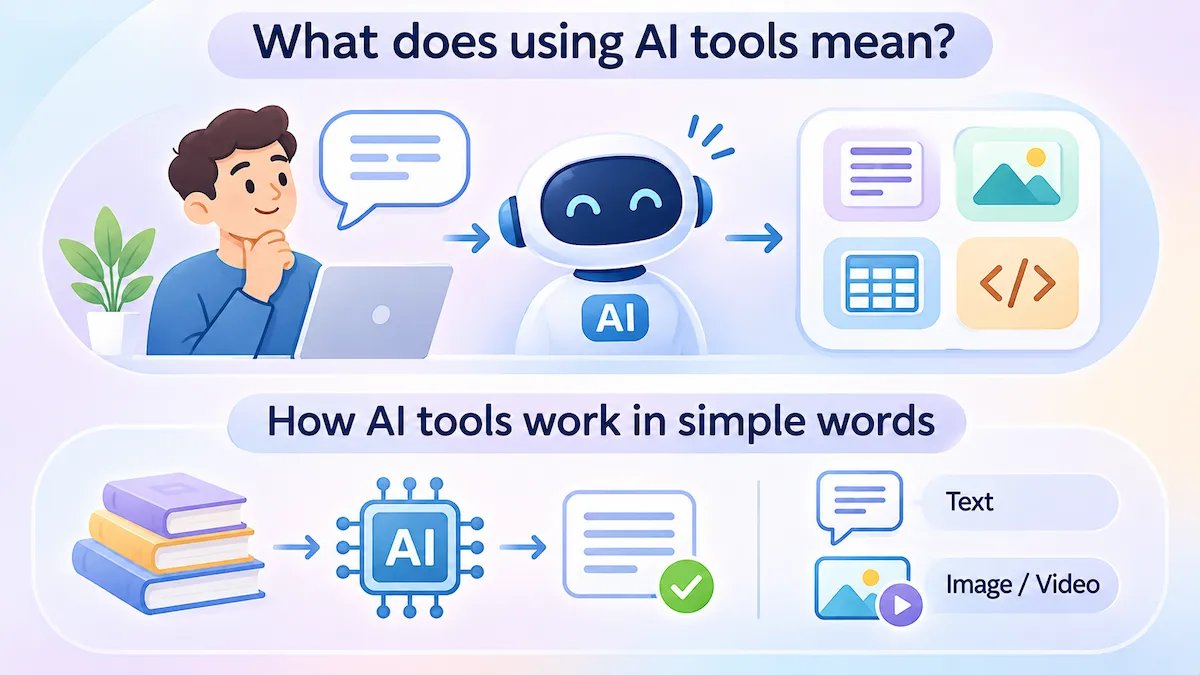
Using an AI tool means giving it an instruction in plain language and getting a result back: text, an image, a summary, a table or a piece of code. You do not need to code or know how the model works. You need to be clear about what you want. Think of it as working with a fast assistant that knows a lot but does not know your situation until you explain it. When the instruction is vague, the answer is vague. When you give details, the answer improves. If a term in this guide is new to you, our AI terms glossary explains the common ones in plain words.
How AI tools work in simple words
Most AI tools you will try are built on a large language model. It was trained on huge amounts of text, and it predicts the next words that fit your request. It does not search its memory for a fact the way a database does, and it does not understand your life. That explains two things you will notice quickly: the tool writes smooth text on almost any topic, and it can still get a detail wrong. Image and video tools work in a similar way, but they predict pictures instead of words.
Common myths about AI tools
- You need to code. You do not. Most tools work through a chat box.
- The tool always knows the answer. It does not. It can sound sure and still be wrong.
- One tool does everything. Each one has strengths, so some tasks fit a different tool better.
- It will do the work for you. It speeds you up, but you still decide, check and approve.
- Free plans are useless. For learning and light use, they are often enough.
What are AI tools used for?
People use AI tools for writing, research, learning, planning, summarizing, translating, designing images, editing video, analyzing numbers and writing code. At work, the most common uses are email replies, meeting notes, reports, brainstorming and first drafts. At home, people use them for study help, trip planning, recipes and explaining things they do not understand. In our experience, the best starting jobs are the boring ones you repeat every week, because the time you save is easy to see.
Types of AI tools and what each one does
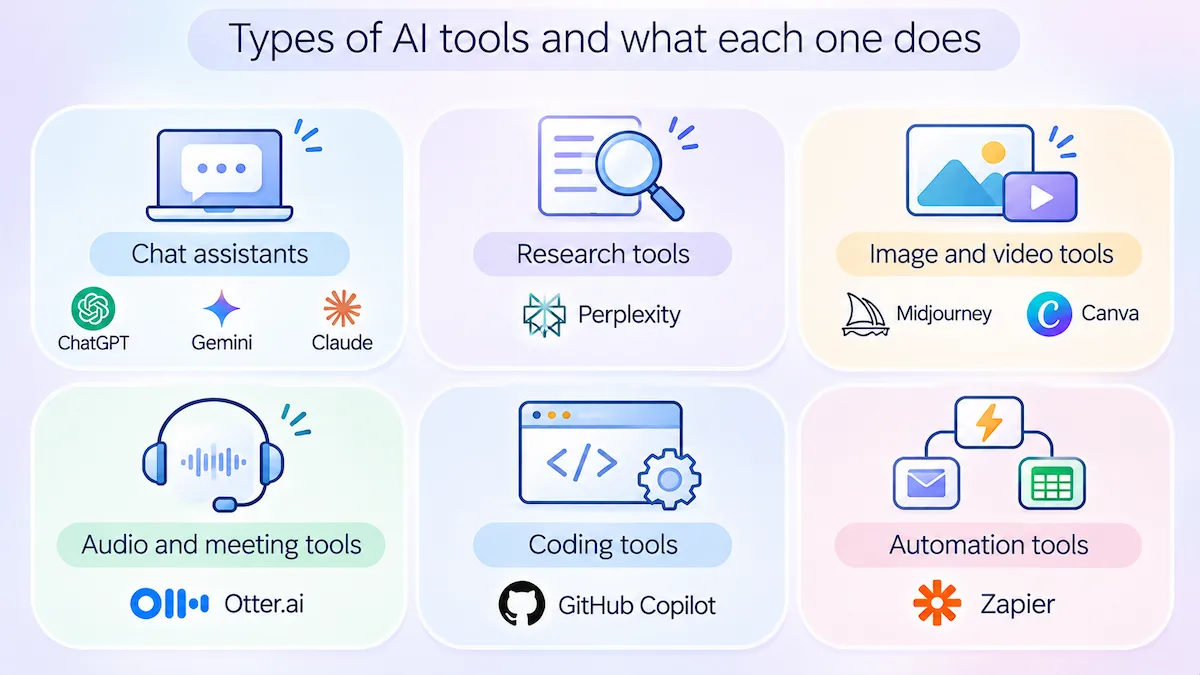
| Type | What it does | Examples | Good first task |
|---|---|---|---|
| Chat assistants | Answer questions, write and explain | ChatGPT, Gemini, Claude | Draft an email or outline a plan |
| Research tools | Search and answer with sources | Perplexity | Compare two products with links |
| Image and video tools | Create pictures and clips from text | Midjourney, Canva | Make a social media graphic |
| Audio and meeting tools | Transcribe, summarize, create voices | Otter.ai | Get notes from a call |
| Coding tools | Write, explain and fix code | GitHub Copilot | Explain a script you inherited |
| Automation tools | Connect apps and run steps for you | Zapier | Send form answers to a spreadsheet |
Why use AI tools: time, ideas and better decisions
People start using AI tools for three reasons. The first is time, because drafts, summaries and replies take minutes instead of an hour. The second is ideas, since a tool can give you ten angles when you are stuck on one. The third is decisions, because you can ask it to list pros and cons, compare options or point out what you missed. None of this replaces your judgment. It gives you a faster starting point.
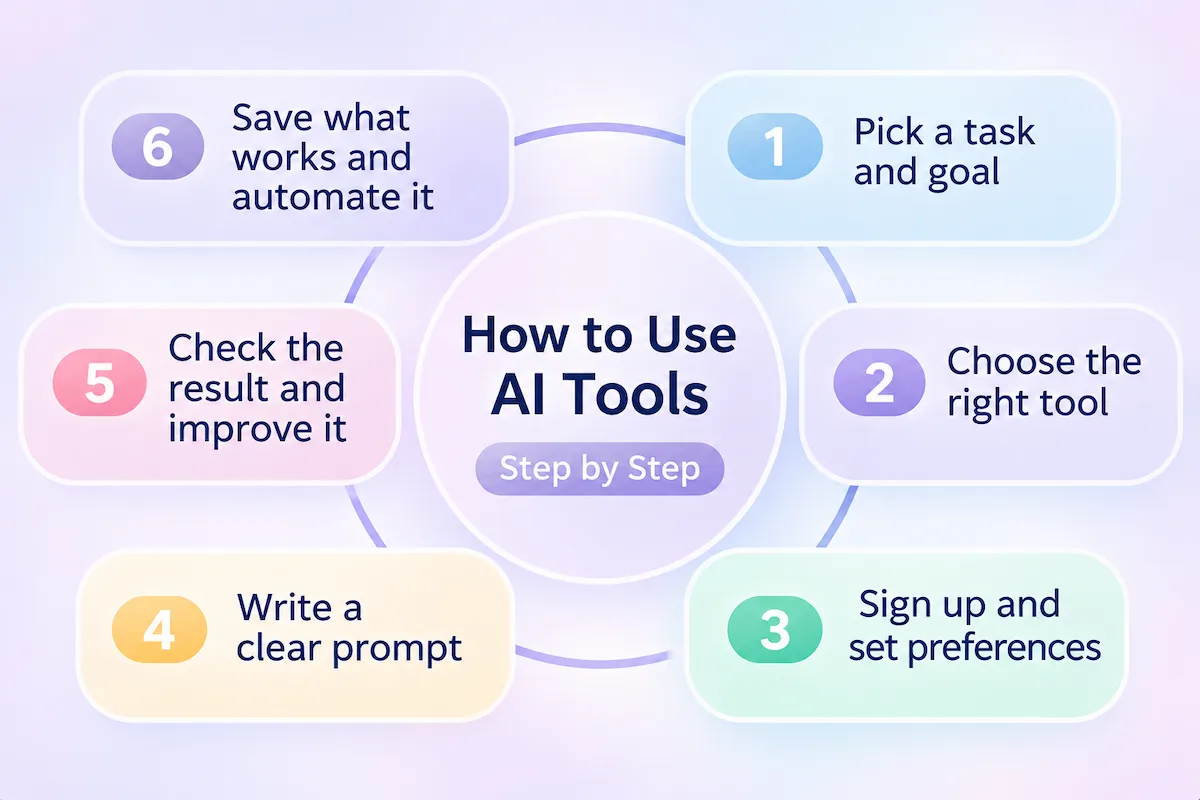
How to use AI tools step by step
Here is the simplest workflow we know. It works for a beginner trying a chat tool for the first time and for a team setting up a routine. Do the steps in order, and do not skip the checking step at the end.
Step 1: Pick one task and one goal
Do not start with “I want to use AI”. Start with one job, like “write a polite reply to a customer complaint” or “summarize this report in five bullets”. A clear goal tells you which tool to pick and how to judge the result. Write the goal in one sentence before you open any app.
Step 2: Choose the right AI tool for the job
Match the task to the type of tool. For writing, brainstorming and general questions, a chat assistant is the best place to start. For research with sources, use a search-style tool. For images or video, use a generator built for that. Check whether the tool has a free plan, what it limits and where your data goes. One general assistant covers most beginner needs, so resist the urge to sign up for five tools in the first week.
You will also meet two kinds of tools. A general tool, like ChatGPT or Gemini, handles many jobs in one place. A specialized tool is built for one job, such as support replies, meeting notes or image editing, and it usually connects to the data and apps that job needs. We start with a general tool and move to a specialized one only when the same job keeps coming back and the general tool needs too much setup each time.
Step 3: Sign up and set your preferences
Create an account, read the privacy settings and turn off anything that lets the company train on your chats if you handle private information. Choose a free plan to begin with. Set your language, and if the tool allows it, add a short note about who you are and how you like answers written. That one step saves time later because you stop repeating the same background in every chat.
Step 4: Write a clear prompt
A prompt is the instruction you type. Say what you want, who the answer is for, what the tool should know and how the result should look. Compare “write about our product” with “write a 100-word product description for busy parents, friendly tone, no hype, three short sentences”. The second one gets a usable draft on the first try. We cover the full recipe in the prompt section below.
Step 5: Check the result and improve it
Read the answer like an editor. Is it correct, complete and in the right tone? Ask follow-up questions such as “make it shorter”, “use simpler words” or “show two other versions”. Treat the first answer as a draft, not a final result. If a fact matters, check it against a source you trust.
Step 6: Save what works and automate it
When a prompt gives a good result, copy it into a note and give it a name. Next time, change only the details. After a few weeks you will have a small library of prompts for your repeated jobs. If one job repeats daily, look at ways to connect the tool to your other apps so you stop copying and pasting by hand.
Your first hour with AI tools
If you only have an hour, this is how we would spend it:
- Minutes 0 to 10: create a free account and read the privacy settings.
- Minutes 10 to 25: paste a real email you need to answer and ask for a draft. Edit it and ask for a shorter version.
- Minutes 25 to 40: summarize a long article and ask three follow-up questions about it.
- Minutes 40 to 55: ask the tool to explain something you want to learn, then ask it to quiz you.
- Last 5 minutes: save the best prompt in a note and write down what worked and what did not.
Which AI tool should you start with?
For most people the answer is one general assistant. The table shows the ones we meet most often. Pick one, use it for a week and judge it by how much time it saved.
| Tool | Best if you | Watch for |
|---|---|---|
| ChatGPT | Want a flexible all-round assistant for writing, ideas and analysis | Free plan limits and answers that sound sure even when wrong |
| Gemini | Already live in Gmail, Docs and other Google apps | Features differ between the free app and the work version |
| Claude | Work with long documents and careful writing | Usage caps on free plans |
| Perplexity | Need answers with sources for research | Check the linked sources, not only the summary |
| Microsoft Copilot | Work inside Word, Excel and Outlook | Some features need a paid Microsoft plan |
Do not ask which tool is the absolute best, because the answer changes every few months. Ask which one fits your daily apps and tasks. If you want a wider list to compare, see our page on the most popular AI tools.
How to write a prompt that works
Prompting is the skill that matters most when you learn how to use AI. The good news is that it is simple. You are writing a clear brief, the same way you would brief a new colleague. For business use, add your brand voice and a few examples of past work to the prompt.
The core elements of a good prompt
- Goal: say exactly what you want, like a summary, a plan or a rewrite.
- Context: explain the situation, the reader and any facts the tool needs.
- Format: ask for a list, a table, three options or a certain length.
- Tone: name the style, such as friendly, formal or plain.
- Examples: paste a sample of what good looks like.
- Limits: say what to avoid, like jargon or claims you cannot support.
A useful trick is to ask the tool to ask you questions first. Add “Before you answer, ask me what you need to know” and the result usually improves, because the tool stops guessing.
Prompt examples you can copy
Email reply: “Write a polite reply to this customer message [paste message]. Apologize for the delay, offer a refund or replacement, keep it under 120 words and use a calm, friendly tone.”
Summary: “Summarize the text below in five bullet points for a manager who has two minutes. Put the most important decision first. [paste text]”
Learning: “Explain [topic] to me as if I am a complete beginner. Use a simple example, then give me three questions to test myself.”
Planning: “I have [number] hours a week to learn [skill]. Make a four-week plan with one clear goal for each week and a short task for each day.”
Prompt tips for free users
Free plans have limits, so make each message count. Keep one chat for one topic so the tool remembers the context. Rename important chats so you can find them later. Reuse an old chat when you continue the same project, because the earlier messages stay as background. If you reach the limit, try another free option. Our list of free ChatGPT alternatives shows where to go next.
More prompt techniques that help
- Give it a role. “Act as an editor” or “answer like a patient teacher” changes the style of the answer.
- Show an example. Paste one sample of the result you like and ask for the same style.
- Ask for options. “Give me three versions with different tones” shows you what is possible.
- Ask for reasons. “Explain why you chose this” helps you spot weak points.
- Set limits. Say the maximum length, the words to avoid and the points that must appear.
- Say what not to do. Some tools respond well to “do not use jargon” or “no bullet points”.
Teach the tool your preferences
Most assistants let you save standing instructions, such as your job, your audience and your writing style. Set them once and every chat starts with that background. We also keep a short note with our own rules, like “plain words, no hype, short sentences”, and paste it when a tool has no saved settings.
Prompt mistakes and how to fix them
These are the mistakes we see most, with the fix for each:
- No context. The tool cannot guess your situation. Add who, what and why.
- One giant prompt. Split a big job into steps and run them one by one.
- No format. If you want a table or a short list, say so.
- Accepting the first answer. Ask for changes, other versions and reasons.
- Using only one tool. Try the same prompt in a second assistant when the answer feels weak.
- Skipping the fact check. Check names, numbers and dates before you use them.
- Worrying about typos. Small spelling mistakes rarely matter, but unclear wording does.
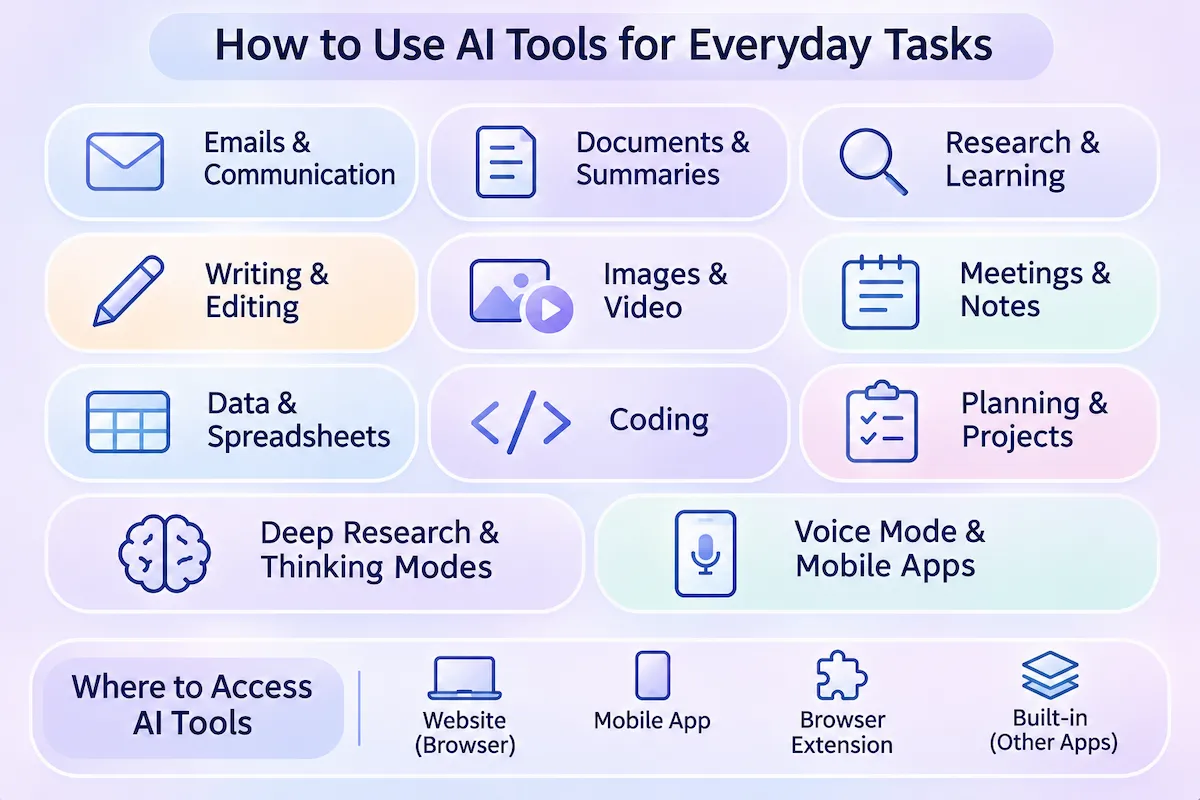
How to use AI tools for everyday tasks
Once you know the steps, you can apply them to almost any routine job. These are the ones we use most.
Emails and communication
Paste the message you received, say what you want to answer and ask for a draft. Then change the tone, shorten it and send. For long email threads, ask for a summary of who said what and what is still open.
Documents and summaries
Upload or paste a report and ask for a short summary, the key decisions and the open questions. For contracts or legal text, use the summary only as a guide and read the original before you act.
Research and learning
Ask the tool to explain a topic at your level, then ask for examples and a short quiz. A search-style tool helps when you need sources. Use the assistant as a tutor, but verify any claim you plan to repeat.
Writing and editing
Write your own draft first, then ask for clearer wording, a shorter version or a different tone. This keeps your voice in the text and uses the tool for polish, which is where it helps most.
Images and video
Describe the subject, style, colors and where the image will be used. Make small changes one at a time instead of rewriting the whole prompt.
Meetings and notes
A meeting tool can record, transcribe and list action items. Tell everyone it is running, and check the notes before you share them. We cover the setup in our guide on how to take meeting notes with AI.
Data and spreadsheets
You can paste a table and ask what stands out, or ask for a formula in plain words. Check the math yourself on a few rows, because tools can make confident mistakes with numbers.
Coding
Coding assistants explain errors, write small scripts and suggest fixes. Always run and test the code before you trust it, since it may work in a demo and fail in your project.
Planning and projects
Ask for a checklist, a schedule or a step-by-step plan, and give your deadline and limits. For a bigger project, ask the tool to split it into phases and then work on one phase per chat. It is good at turning a messy idea into a list you can act on.
Deep research and thinking modes
Some assistants have a mode that searches several sources or takes more time to reason before it answers. Use it for questions where depth matters, like a market comparison or a long explanation. Expect to wait a few minutes, and always open the sources it lists. For quick questions, the normal mode is faster and good enough.
Voice mode and mobile apps
Most chat assistants have a phone app with voice mode. It is the easiest way to start, because you talk and listen instead of typing. We like it for brainstorming on a walk and for practicing a language.
Where to access AI tools: apps, browsers and extensions
You can use most AI tools in four ways. A website in your browser is the simplest. A phone app gives you voice and camera features. A browser extension adds a helper to the page you are reading. And many apps you already use, like email and document editors, now include AI features built in. Start with the website or app, and try the others once you know what you want from the tool.
How to use AI tools for business
For a business, the steps are the same, but the stakes are higher. You have customer data, brand rules and a team that needs consistent results. Start with one department and one repeated task.
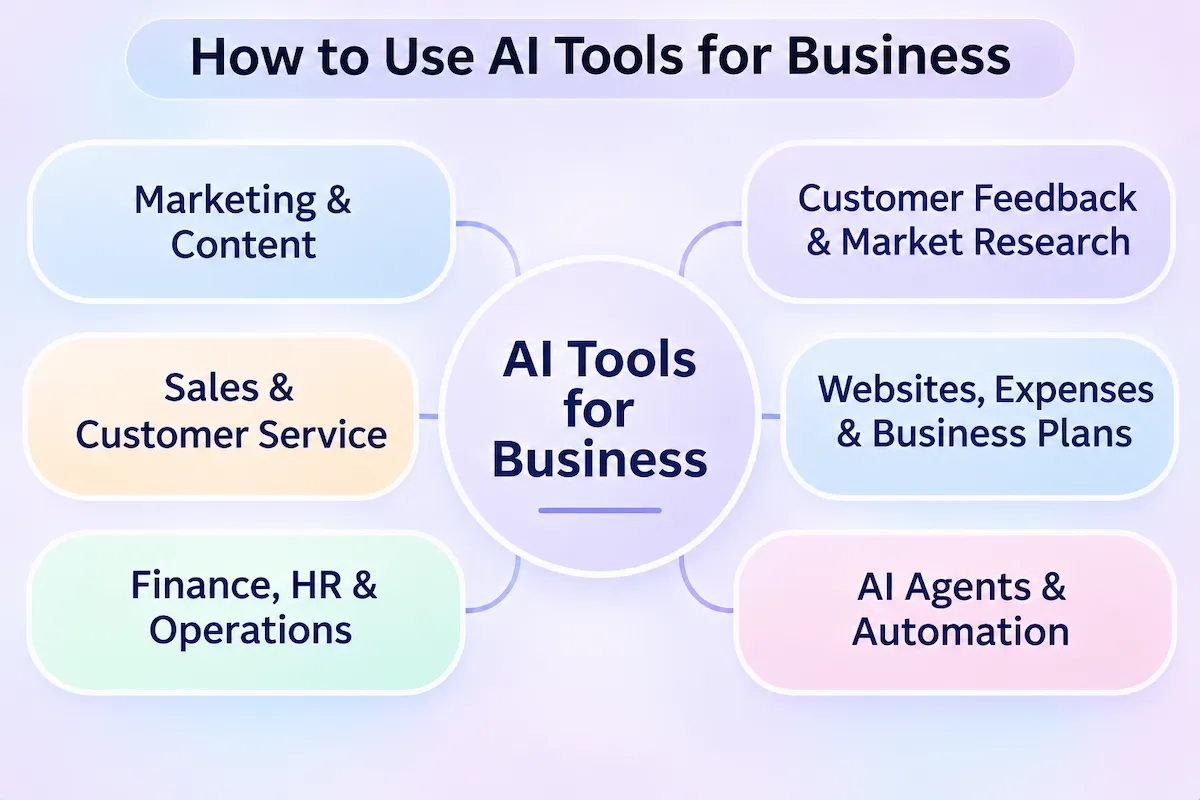
Marketing and content
Marketing teams use AI tools for subject lines, social posts, product descriptions and first drafts. The best results come when you give the tool your brand voice and examples of past work.
Sales and customer service
Support teams use chatbots for common questions and drafts for replies, while sales teams use AI to prepare for calls and write follow-ups. Keep a person in the loop for refunds, complaints and anything sensitive. Our guide on AI customer service explains where to draw that line.
Finance, HR and operations
Common uses are sorting expenses, drafting job posts, writing policies and summarizing reports. These areas hold private data, so check the vendor terms before anyone pastes anything in.
Customer feedback and market research
Paste reviews, survey answers or support messages and ask for the main themes, complaints and requests. This turns a pile of text into a short list you can act on. For market research, a search-style tool helps you compare competitors, as long as you check the sources.
Websites, expenses and business plans
Small business owners also use AI tools to draft website text, build simple pages, sort receipts and expenses, and write first versions of business plans, proposals and job posts. These drafts need a careful edit, because they carry your name and your numbers. For a wider look at this area, see our guide on AI for small business.
AI agents and automation
A chatbot answers questions. An AI agent takes steps for you, like updating a record or sending a message. Agents need access to your apps and clear approval rules. Start with simple automations that connect two tools and grow from there.
How much do AI tools cost?
| Plan type | What you usually get | Good for |
|---|---|---|
| Free | Limited messages, basic features | Learning and light use |
| Individual paid plan | Higher limits, newer models, extra features | Daily use by one person |
| Team or business plan | Shared workspace, admin controls, stronger data terms | Companies with several users |
| Add-on to software you own | AI inside an app you already pay for | Teams that live in one platform |
Prices change often, so check each vendor page before you pay. Our guide on how much AI tools cost gives a wider picture of typical ranges.
Can you use AI tools to start a business?
Yes, for the early work. You can brainstorm ideas, test names, outline a plan, draft a pitch and list the questions customers might ask. The tool cannot judge whether people will pay, so talk to real customers before you build anything. We treat AI as a fast helper for research and drafts, not as a replacement for market testing.
How to use AI at work
When a whole team starts using AI tools, a few simple rules save a lot of trouble.
Decide what AI should and should not touch
Make a short list. Drafts, summaries, brainstorming and research help are usually fine. Final legal text, private customer records, passwords and decisions about people should stay with a human. Write the list down and share it.
Create a simple AI policy
A good policy fits on one page. It names the approved tools, says what data may be entered, asks staff to check the output and states who is responsible for the final result. For a free and neutral starting point, the NIST AI Risk Management Framework lists the questions to ask.
Train the team and share prompts
Spend an hour showing the team how to write a prompt and check an answer. Then build a shared library of prompts for repeated tasks. When one person finds a good prompt, everyone benefits, and the results stay consistent across the team.
Measure whether AI is working
Pick three simple numbers and compare them after a month: time saved on one task, how many people use the tool each week and how often the output needs fixing. If time saved is small and few people open the tool, change the task or drop the tool. If one team uses it daily, give that team a plan that fits. For team-wide guidance, our page on AI in the workplace covers more.
How to check what AI gives you
AI tools write fluent text that can still be wrong. A tool may invent a name, mix up a date or sound sure about something it guessed. So we treat every answer as a draft. Use this checklist before you rely on an answer:
- Facts: check names, numbers, dates and quotes against a trusted source.
- Logic: ask the tool to explain its steps and look for gaps.
- Fit: does the answer match your audience, tone and goal?
- Freshness: models have a knowledge cutoff, so recent events may be missing.
- Risk: for legal, medical or money topics, ask an expert.
To measure whether a tool is worth keeping, count the time it saves on one repeated task each week.
Ethics, bias and honesty about AI use
AI tools learn from human text, so they can repeat bias and stereotypes. Read the output with that in mind, especially for hiring, advice about people and anything that affects someone else. Be open about using AI when it matters. Many schools, clients and employers expect you to say when a draft was written with help, and some require it. Copyright rules also differ by country, so check them before you publish generated images or text commercially.
Privacy and safety: is your data safe?
Anything you type into an AI tool leaves your device, so think before you paste. Read the privacy settings, check whether chats are used for training and choose business plans when you handle client data. Never enter passwords, bank details, medical records or confidential contracts. For European customers, the GDPR text sets the baseline for personal data. Our guide on AI data privacy for business lists what to ask a vendor.
Four skills that make the difference
The people who get the best results are not the ones with the most tools. They share four habits:
- Clear prompting: they explain the goal, context and format.
- Critical thinking: they question the answer instead of accepting it.
- Workflow thinking: they break a job into steps and decide which steps the tool handles.
- Tool knowledge: they know what each tool is good at and where it fails.
Common mistakes beginners make
- Trying too many tools at once. Pick one and learn it well.
- Expecting perfect results from a short prompt. Add detail and iterate.
- Trusting every answer. Check facts before you use them.
- Pasting private data. Decide what is off limits first.
- Using AI for everything. Some jobs are faster by hand.
- Giving up after one bad result. Rewrite the prompt and try again.
A 7-day plan to start using AI tools
- Day 1: choose one assistant and create a free account.
- Day 2: write three real emails or messages with its help.
- Day 3: summarize one long document or article.
- Day 4: ask it to explain a topic you want to learn.
- Day 5: plan something small, like a week of meals or a project.
- Day 6: save your three best prompts in a note.
- Day 7: review what saved time and what did not, then decide what to keep.
A 30-day roadmap for teams
Teams can stretch the same idea over a month. In week one, list the tasks that eat the most time. In week two, test three of them with one approved tool. In week three, write down the prompts that worked and share them. In week four, measure time saved, collect feedback and decide whether to roll the routine out to more people.
Keep learning: projects, courses and communities
The fastest way to improve is to build small projects. Plan a trip, write a study guide, clean up a spreadsheet, draft a newsletter or automate one weekly report. Free courses from large tech companies and universities help with the basics, and online communities show what other people try. Our list of AI tools to learn is a good place to pick your next one. Keep the pace small: one new thing a week is enough.
How to build a daily AI habit
Habits beat bursts of effort. Pick a time, such as the first ten minutes of your workday, and use the tool for one planned task. Keep your prompt notes nearby. After two weeks, you will know which jobs it handles well and which you still prefer to do yourself.
Are AI tools really that useful? Pros and cons
| Pros | Cons |
|---|---|
| Fast drafts, summaries and replies | Answers can be wrong or out of date |
| Help with ideas and planning | Generic output when your prompt is vague |
| Free plans for learning | Limits on messages and features |
| Works for many jobs and skill levels | Privacy risk if you paste sensitive data |
| Scales across a team with shared prompts | Extra checking time and training |
For us the balance is positive when the task repeats, when the stakes are low and when someone checks the result. It turns negative when people trust the output without reading it.
When not to use AI tools
Skip AI when the task needs private data you cannot share, when a mistake would be costly or when the work depends on personal judgment, like hiring decisions or sensitive conversations. Many people worry that AI will replace their job. In our view, the more realistic change is that people who use the tools well will do the same work faster, so learning them is worth the time. Keep a human in charge of the final result.
Where to find new AI tools
New tools appear weekly, and most are not worth your time. Browse a directory of tools when you have a specific job to solve, and read the pricing and data terms before you sign up.
Key takeaways
- Learning how to use AI tools starts with one task and one tool.
- A good prompt names the goal, context, format and tone.
- Treat every answer as a draft and check facts before you use them.
- Protect private data and decide what AI may and may not touch.
- Save good prompts, build a small routine and share it with your team.
FAQ: how to use AI tools
How do I start using AI tools?
Pick one repeated task, open a free assistant like ChatGPT or Gemini and write a clear prompt with your goal and context. Read the answer, ask for changes and save the prompt if it works.
Are AI tools free to use?
Many have a free plan with limits on messages or features. Paid plans add higher limits and extra tools. Start free, and upgrade only when you hit a limit that slows you down.
Can beginners use AI tools easily?
Yes. You write in plain language, and no coding is needed. Beginners struggle most with vague prompts and with trusting answers too quickly, both of which are easy to fix with practice.
How do I choose the right AI tool?
Start from the task, not the tool. Pick a chat assistant for writing and ideas, a search-style tool for research with sources and a generator for images or video. Check the free plan, the limits and the privacy terms.
What are AI tools used for?
People use them for writing, research, learning, summarizing, planning, design, data analysis and coding. At work, the most common uses are emails, meeting notes, reports and first drafts.
Is AI safe to use with my data?
It can be, if you choose carefully. Check whether the tool trains on your chats, use business plans for client data and never paste passwords, bank details or confidential contracts.
How do I know if AI is wrong?
Check names, numbers and dates against a trusted source, ask the tool to explain its reasoning and be careful with recent events. For legal, medical or money topics, ask an expert before you act.
Do I need technical skills to use AI tools?
No. Most tools work through a chat box. Basic skills like writing a clear request and checking the result matter more than any technical knowledge.
How much do AI tools cost for a small business?
Costs range from free plans to monthly subscriptions per user, plus add-ons inside software you already own. Check each vendor page, because prices and limits change often.
Will AI take my job?
Some tasks will change, but most jobs involve judgment, relationships and context that tools do not have. The practical move is to learn the tools, so you can do the same work faster and spend time on what needs a person.
What is the best AI tool for writing?
ChatGPT, Gemini and Claude are the common choices, and the best one depends on your style and the apps you use. Try the same prompt in two of them for a week and keep the one that needs fewer edits.
How do AI tools work?
Most AI tools use a model trained on large amounts of text, images or audio. When you send a prompt, the model predicts the most likely words or pixels that fit it. That is why the output sounds natural, and also why it can be wrong.
Which AI is the smartest?
There is no single winner. Models trade places often, and the best one depends on the task, such as writing, coding or research. Try the same prompt in two tools and keep the one that gives better results for your work.
Can I use AI to start a business?
You can use it for research, naming, planning and drafts. It cannot tell you whether customers will buy, so test your idea with real people before you spend money.
Do AI tools replace human employees?
They replace some tasks, not whole jobs. People still make decisions, handle relationships and take responsibility for the result. Teams that use the tools well usually shift people toward work that needs judgment.
Do I need to pay for AI tools to get good results?
Not at first. Free plans are enough to learn and for light use. Pay when you hit limits that slow you down, such as message caps, or when you need business features like shared workspaces and stronger data terms.