New AI tools show up every week, and most lists hand you 20 to 50 names with no order. You open ten tabs, try each of these AI tools for an hour and still do not know which ones deserve your time.
The AI tools you need to learn are fewer than you think. For most people at work, the answer is one general assistant, one research tool, one tool for your main job and, later, one way to automate repeated tasks. The rest can wait.
This guide gives you that short list of AI tools to learn in order, plus the skills that carry over between tools, a practice task for each job, rough learning times, free versus paid options, rules for business data and a 30-day plan.
The AI tools you need to learn, in order
Learn one general AI assistant first, add a research tool second, then one of the AI tools for the job you do most, and add automation last. That order tells you which AI tools to learn first. Start at level 1 and move down only when the previous level feels routine.
| Level | Type of tool | Examples | Why learn it |
|---|---|---|---|
| 1 | General assistant | ChatGPT, Claude, Gemini, Microsoft Copilot | Handles writing, summaries, brainstorming and questions in almost every job |
| 2 | Research tool | Perplexity, NotebookLM | Finds information with sources and answers from your own documents |
| 3 | Tool for your main job | Canva, Grammarly, Descript, Otter.ai, Cursor and similar | Saves the most time on work you repeat every week |
| 4 | Automation | Zapier, Make, n8n | Connects apps so repeated steps run on their own |
How we picked these AI tools
Every one of these AI tools passed the same six checks. Use them again when you judge a new AI tool yourself.
- Useful in more than one job, so the time you spend learning pays off in several places
- Free or low-cost entry, so you can test it before you commit
- Skills that transfer, because prompting and checking output work the same way in most tools
- Clear rules for business data, including what the paid plans do differently from the free ones
- Stable provider, since a tool that disappears next year wastes your learning time
- Reasonable learning curve, meaning a useful result in the first session
Model and version names change every few months, so this guide names AI tools and not versions. Learn the skill, and the buttons will matter less.
What counts as an AI tool
An AI tool is any software that uses AI to write, find, predict or act for you. Most of the AI tools you will learn first are generative AI tools, which create text, images, audio, video or code from your instructions. Analytical AI tools work differently: they look for patterns in data to forecast sales, flag fraud or sort customers. AI assistants are chat-based tools you talk to, and AI agents are tools that take actions across apps for you. This guide focuses on generative tools and assistants, with automation as the last step.
Why learn AI tools now
The reason to learn AI tools is practical: time, quality and expectations. Repeated tasks such as replies, summaries, reports and first drafts take less time when you start from an AI draft and edit it. In many workplaces, managers and clients now expect basic AI skills, and people who use these tools with care get more done in the same hours. The skills also transfer, because prompting and checking work in almost every AI tool.
| Task | Without an AI assistant | With an AI assistant |
|---|---|---|
| Weekly report | Collect notes, then write the full text from scratch | Paste notes, get a draft, edit and check the numbers |
| Customer reply | Write each answer by hand | Draft from your approved wording, review and send |
| Meeting follow-up | Rewrite scribbled notes into an email | Turn a transcript into decisions, owners and deadlines |
None of this removes the need for judgment. It moves your effort from typing to checking and deciding.
What to learn first: skills that work in every AI tool
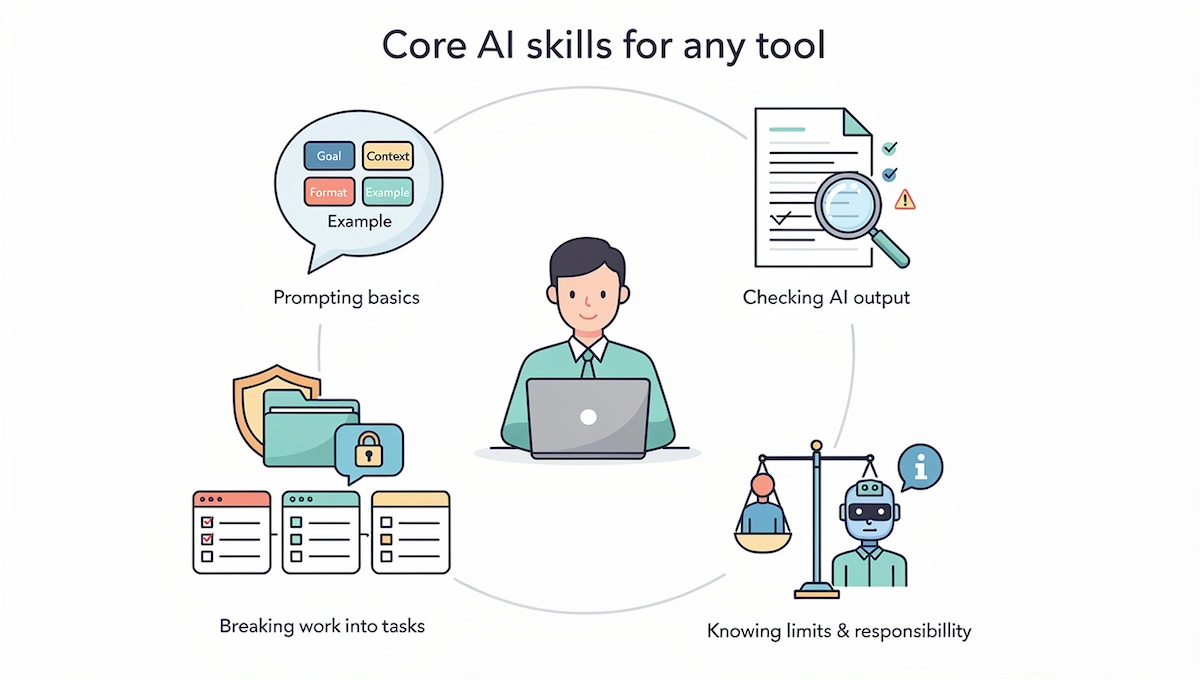
These five habits are worth more than any single one of the AI tools. They apply to every AI tool you will meet, and they are the part people skip.
Prompting basics
A good prompt gives the tool four things: your goal, the background it needs, the format you want and an example if you have one. “Write a polite reply to this complaint in under 100 words, in our friendly tone, like the sample below” works better than “reply to this.” Short, specific prompts beat long, vague ones. The guide on prompt engineering for business goes deeper.
Checking AI output
Every assistant can state something wrong with full confidence. Check names, numbers, dates and quotes against the source before you send or publish anything. Ask the tool to show where a claim came from, and read that source yourself. A wrong date or invented quote is easy to miss when the rest of the answer sounds smooth, so slow down on anything you plan to repeat to a client.
Protecting business data
Learn what you may paste into an AI tool before you learn what to ask it. Customer details, contracts, passwords and unreleased numbers do not belong in a personal account. The guide on AI data privacy for business explains the rules, and a section below covers the basics.
Breaking work into tasks
AI works best on one clear task at a time. Instead of “run my marketing,” ask for a list of ten subject lines, then pick one, then ask for a draft. Pick tasks that are repetitive, frequent and easy to check.
Knowing the limits
Keep a person in charge of anything with legal, financial or safety consequences. Tasks that need judgment, taste or empathy stay with you, and AI is a helper for the draft.
Using AI responsibly: bias, copyright and disclosure
AI can repeat bias from its training data, so be careful with anything that ranks, scores or screens people. Check the terms of each tool for commercial use before you publish what it creates, and never present AI text as a quote from a real person. Follow your company’s policy on telling clients or colleagues when AI helped, and when in doubt, say so.
AI tools to learn first: general assistants
A general assistant is the one AI tool to learn first, because it helps with writing, summaries, brainstorming, simple analysis and everyday questions. Pick one, and use it for 30 days before you try other AI tools.
| Assistant | Best for | Where it lives | Free tier | Watch out |
|---|---|---|---|---|
| ChatGPT | All-round writing, analysis and files | App and browser | Yes | Personal plans may train on chats unless you opt out |
| Claude | Long documents and careful writing | App and browser | Yes | Check the training setting on personal plans |
| Google Gemini | Gmail, Docs, Sheets and Drive | Google Workspace and Android | Yes | Features depend on your Workspace plan |
| Microsoft Copilot | Word, Excel, Outlook, PowerPoint and Teams | Microsoft 365 apps and Windows | Consumer version yes, work version needs a license | File permissions decide what it can show |
ChatGPT
ChatGPT is one of the most widely used assistants, which makes it a safe first choice. Learn four things: how to write a clear prompt, how to upload a file and ask questions about it, how to set standing instructions so it answers in your tone, and how to use its data analysis on a spreadsheet.
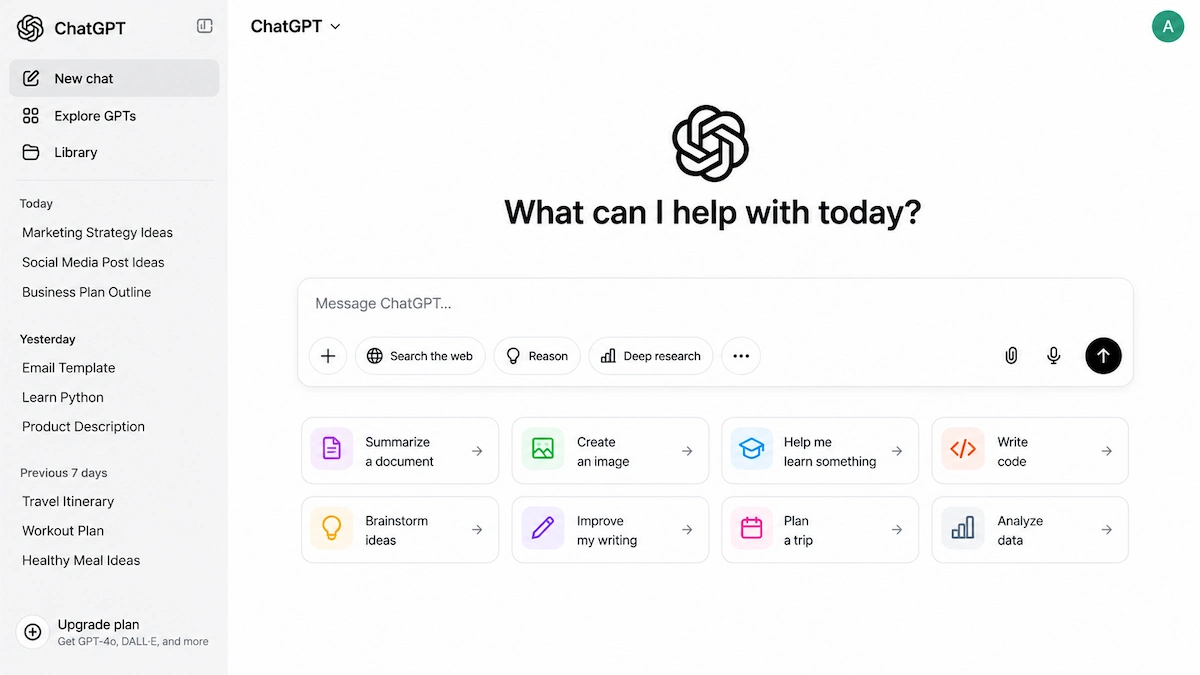
Practice task: paste a sample customer email with the names removed and ask for a reply in your company tone, then ask for a shorter version. Limit: it can state wrong facts with confidence, so check numbers and names before you send.
Claude
Claude handles long documents well, which makes it useful for contracts, reports and long email threads. Learn how to attach files, how to keep instructions and files together in one project, and how to ask for a rewrite in a specific tone.
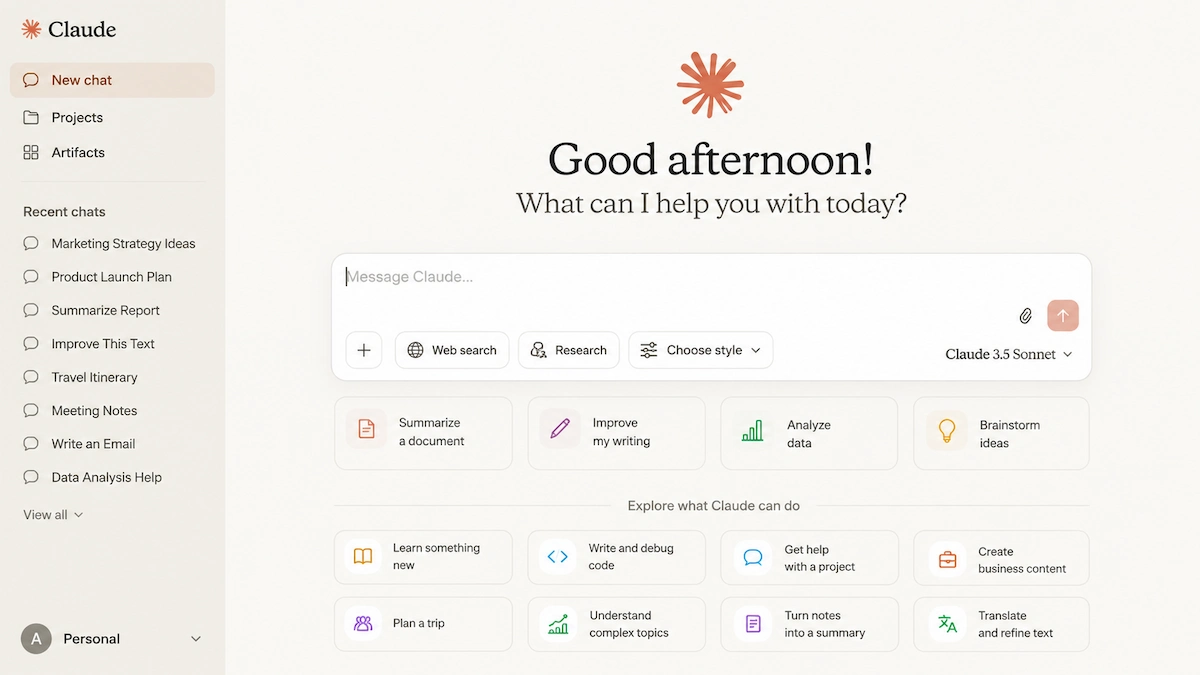
Practice task: upload a report you wrote and ask for a one-page summary for a manager, then ask what a skeptical reader would question. Limit: like every assistant, it can miss details in very long files, so compare the summary with the source.
Google Gemini
Gemini is built into Gmail, Docs, Sheets and Drive, which suits anyone who works in Google Workspace. Learn how to summarize a long email thread, draft a reply and ask questions about a document in Drive.

Practice task: summarize last week’s thread on a project and ask for a list of open decisions. Limit: features and limits depend on your Workspace plan, so check what your admin has turned on.
Microsoft Copilot
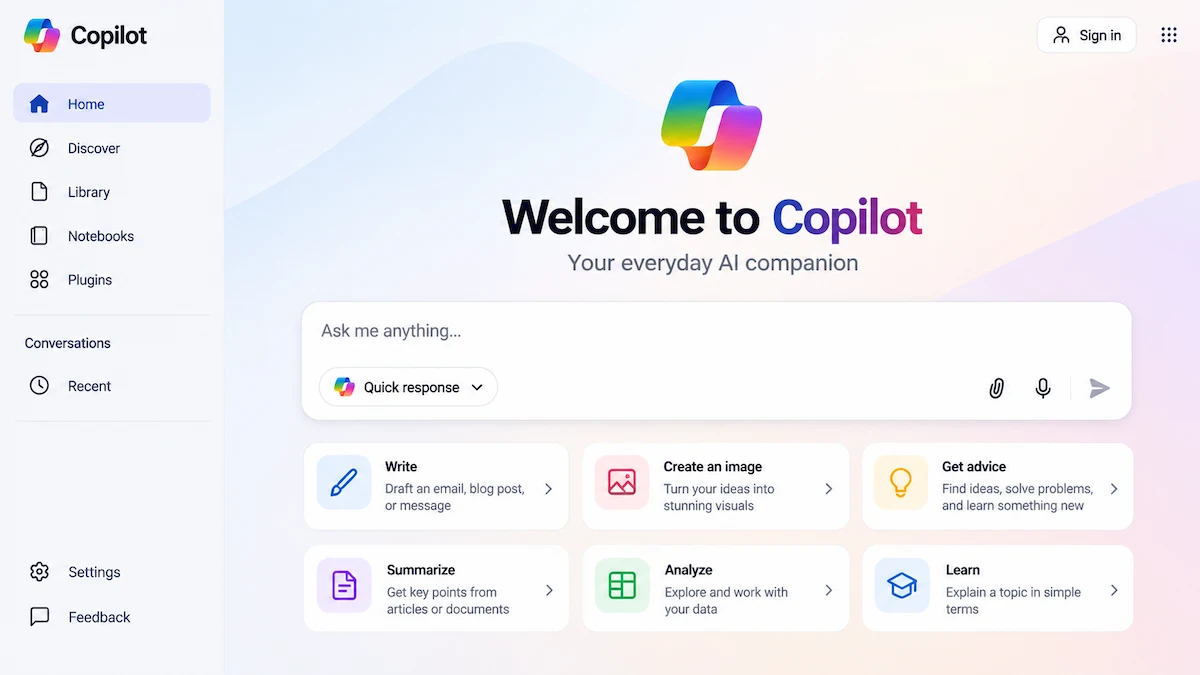
Microsoft Copilot sits inside Word, Excel, Outlook, PowerPoint and Teams for people with a Microsoft 365 license. Learn how to draft in Word from a short brief, summarize a meeting in Teams and ask Excel questions about a table. Because it works with files you already have, it only shows what a user can already open, and Microsoft states in its Microsoft 365 Copilot privacy documentation that prompts and responses are not used to train its foundation models.
Practice task: ask it to turn a page of rough notes into a clean one-page brief. Limit: messy file permissions become a problem, because anything a user can open can appear in their answers.
Which one to pick
Pick the assistant that sits where you already work. Google Workspace users start with Gemini, Microsoft 365 users start with Copilot, and everyone else starts with ChatGPT or Claude. Then run the same three prompts in two tools and keep the one whose answers you edit least. Do not pay for three AI tools that do the same job at once. The guide on how to choose AI tools for business gives a wider checklist for the comparison.
AI tools to learn for research
Research AI tools solve a different problem than assistants. They help you find sources and work with documents, so you spend less time searching and more time reading what matters.
Perplexity
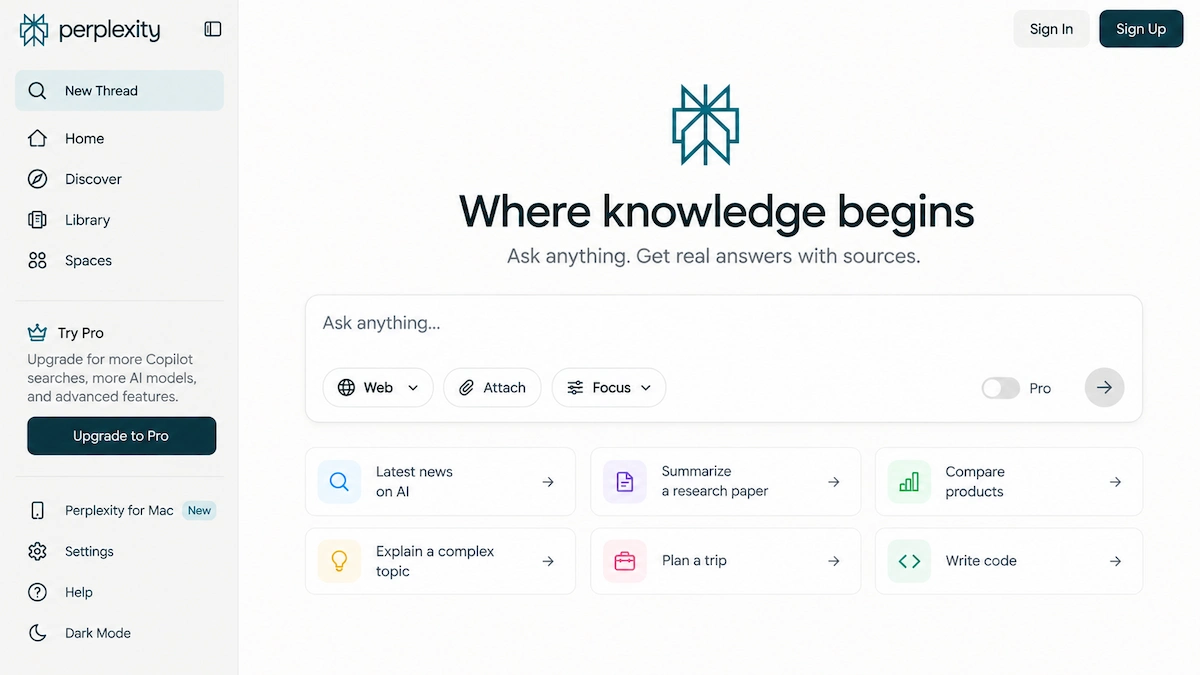
Perplexity answers questions and shows the sources next to each answer, which makes checking faster. Learn how to ask a narrow question, open the cited pages and follow up with a second question to compare viewpoints.
Practice task: research three competitors and list what each one charges, then open each source to confirm. Limit: a cited source is not a correct source, so read it.
NotebookLM
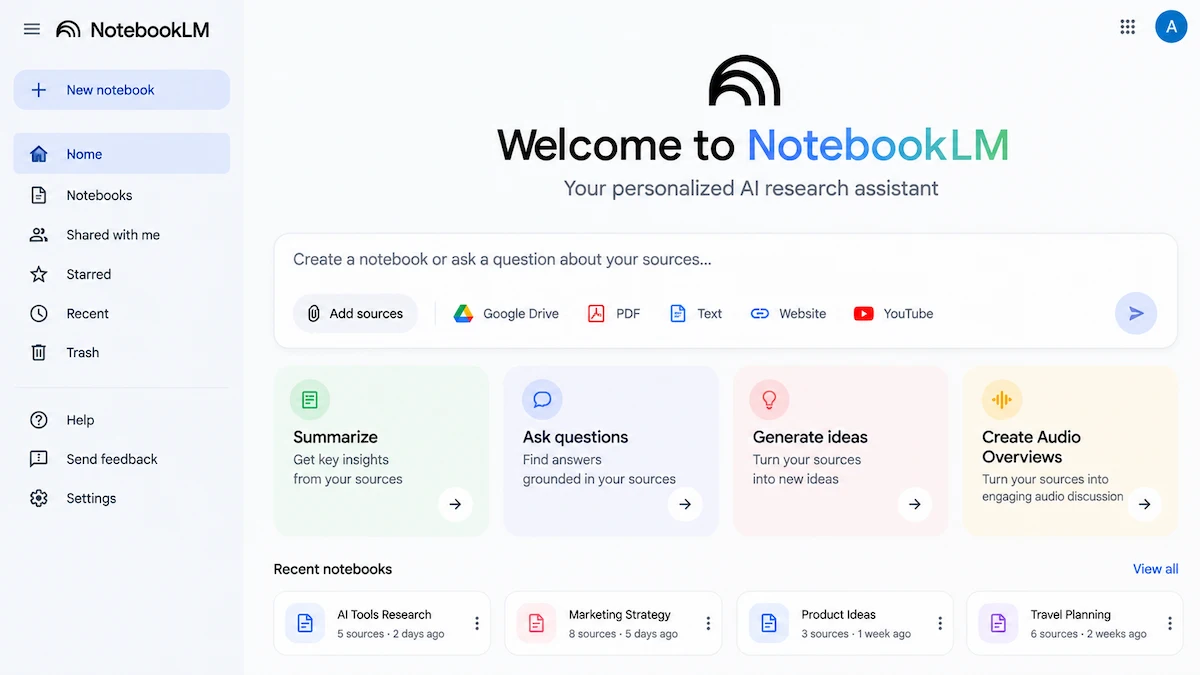
NotebookLM lets you upload your own documents, such as reports, PDFs and notes, and ask questions that it answers from those files. Learn how to add sources, ask for a summary and ask where in the documents an answer comes from.
Practice task: upload three meeting notes from one project and ask what decisions are still open. Limit: it only knows what you give it, so an answer is only as good as the files.
How to use AI research tools safely
Treat every answer as a lead, not a result. Open the source, confirm the number and note the date, because old pages show up as often as new ones. Save the links with your notes so a colleague can check them later.
A simple research workflow
Ask the research tool for sources, open the best two or three, summarize them in your assistant and write your conclusion yourself. That order keeps the facts in the source and the judgment with you.
AI tools you need to learn by job
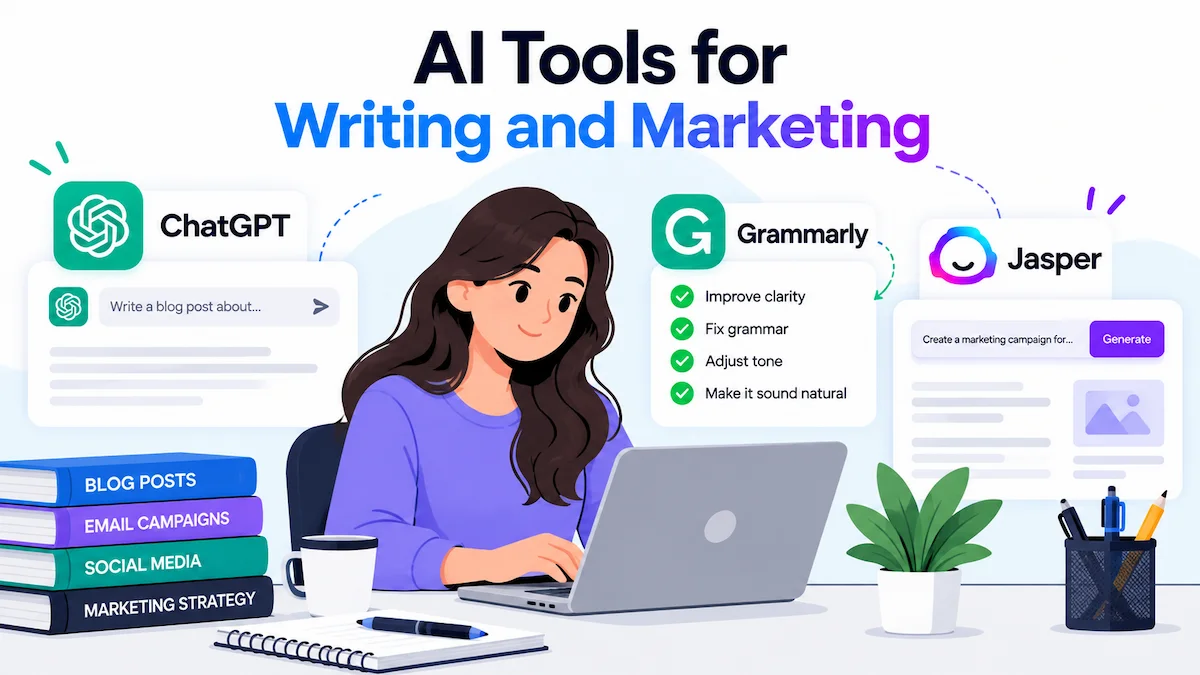
After the assistant and a research tool, pick one of the AI tools for the work you do every week. Each job below lists the AI tools to look at, what to learn, one practice task and one honest limit.Start with your assistant for drafts, headlines and email variants, add Grammarly for tone and clarity, and look at a platform like Jasper only if you produce content at scale. The list of best AI tools for marketing compares the options. Learn how to give the tool your audience, offer and tone before it writes, and how to edit a draft instead of publishing the first version.
Practice task: write three subject lines for a real campaign and pick one to test. Limit: raw drafts sound generic, so add your own examples and numbers.
Design and visual content
Canva is the easiest place to start for social posts, presentations and simple graphics, while Midjourney and Adobe Firefly suit original images. Learn how to start from a template, describe the image you want in one sentence and keep your brand colors and fonts.

Practice task: make one social post from a blog headline in under 15 minutes. Limit: text inside generated images is often wrong, so add words in the editor. The guide on creating social media graphics with AI walks through the steps.
Video, voice and podcasts
Avatar tools such as Synthesia and HeyGen turn a script into a presenter video. Runway generates and edits clips, Descript lets you edit video by editing the transcript, and ElevenLabs creates voiceovers. Learn how to write a short script, pick a voice, add captions and keep the video under a minute so people watch to the end.
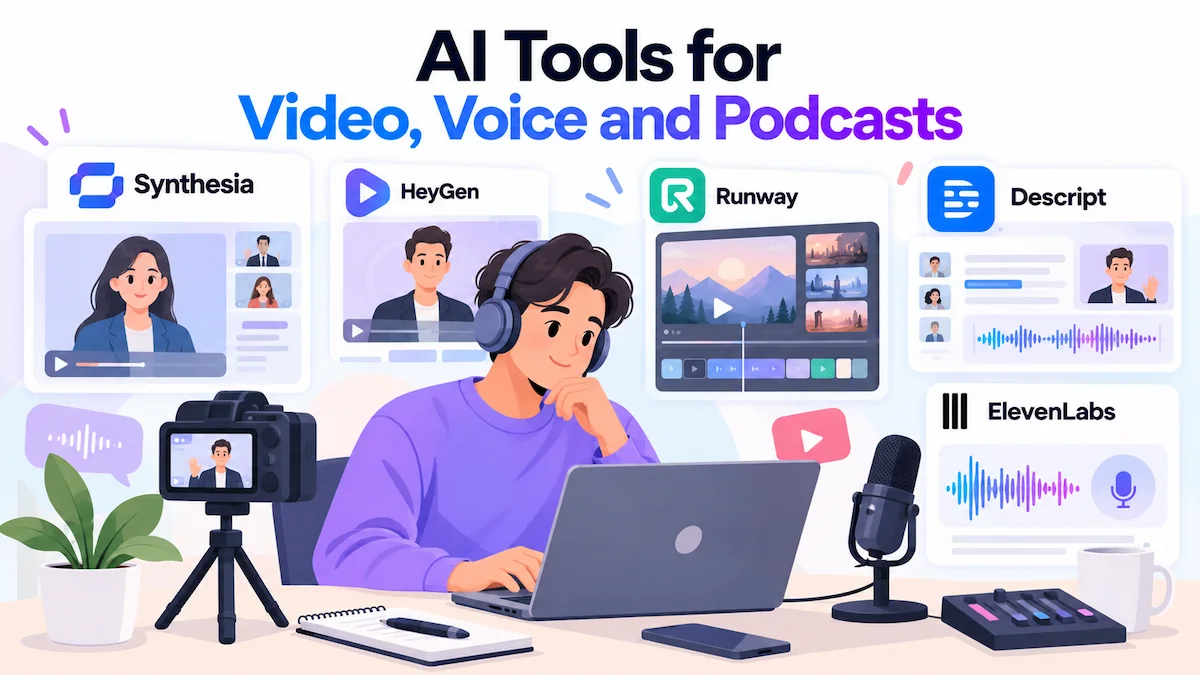
Practice task: turn a 60-second product explainer script into a short video with an avatar. Limit: check how names and product terms are pronounced, and get consent before you clone anyone’s voice or face. The guide to making AI avatar videos covers the full process.
Presentations and websites
Gamma, Canva and Copilot in PowerPoint can build a first deck from an outline, and website builders such as Framer can draft a page from a description. Learn how to give the tool a clear outline, your audience and the one message of each slide or page.
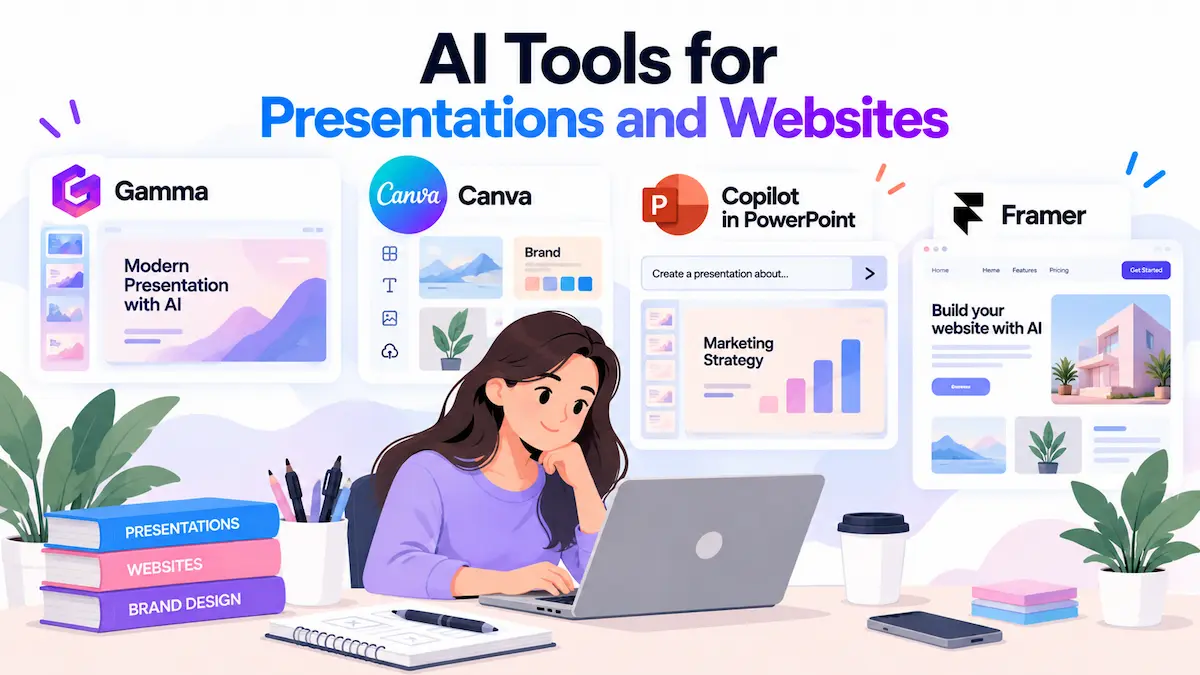
Practice task: turn a one-page brief into a five-slide deck. Limit: generated layouts and text often need cleanup, so check every number, link and mobile view before you share.
Meetings and admin
Otter.ai and Fireflies record meetings, write transcripts and list action items, while Reclaim and Motion plan your calendar around your tasks. Learn how to share notes right after a meeting and how to turn action items into tasks with owners.
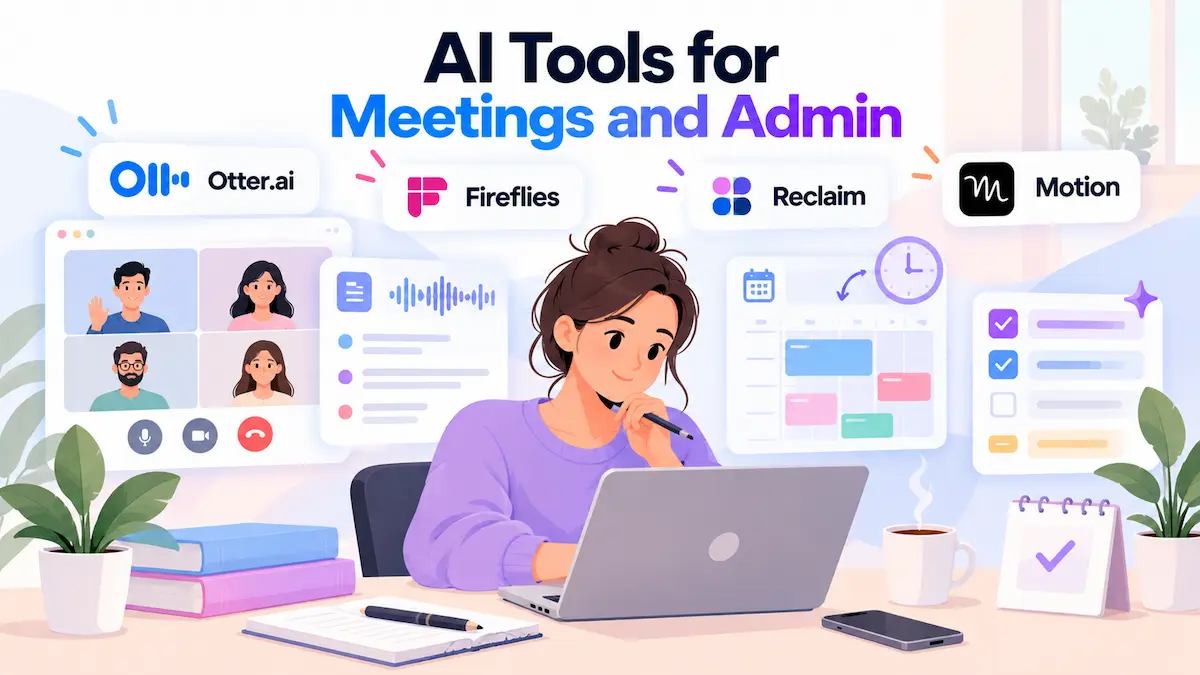
Practice task: record one internal meeting and compare the summary with your own notes. Limit: tell everyone you are recording, and check the local rules on consent before you start.
Customer support and sales
Assistants can draft replies, summarize tickets and prepare call notes. Learn how to give the tool your policies and approved wording, and keep a person in the loop for refunds and complaints.

Practice task: take five old tickets with the personal details removed and compare the drafts with what your team sent. Limit: never let a tool invent a policy, a price or a promise.
HR and hiring
Assistants can draft job ads, interview questions and onboarding checklists, and some tools screen applications. Learn how to write a job ad from a role brief and how to build a structured interview guide.
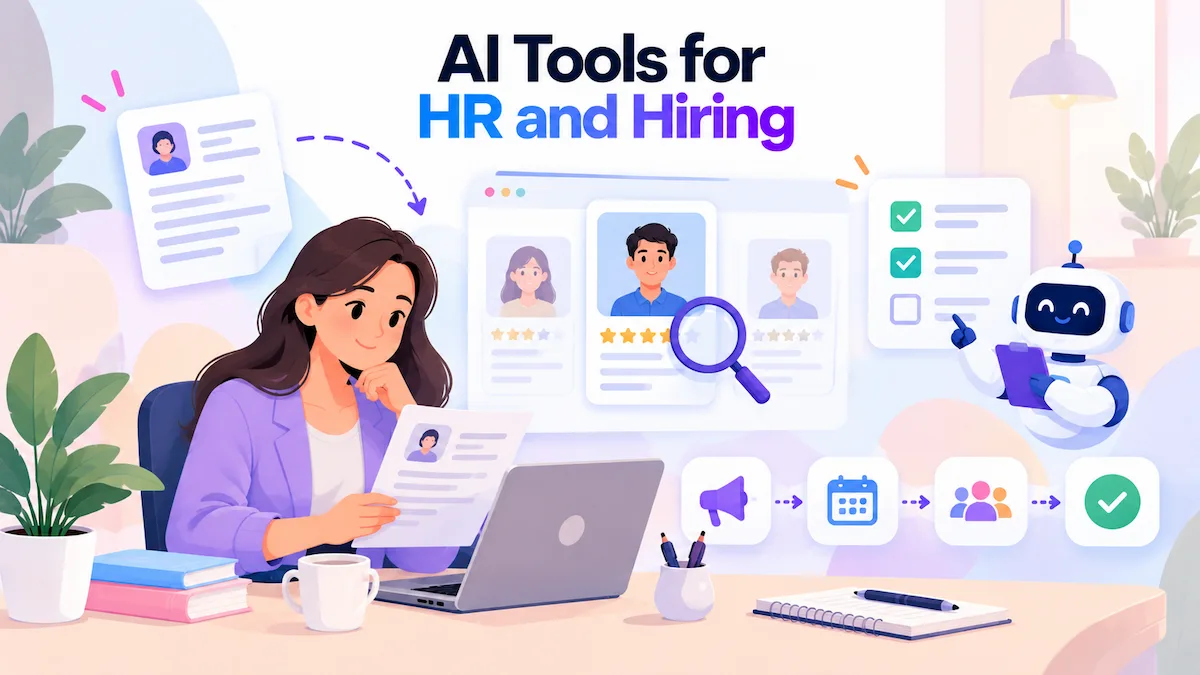
Practice task: draft a job ad and ask the tool to remove biased wording. Limit: screening tools can repeat bias, and some places, such as New York City, require bias audits and notices for automated hiring tools, so check local rules and keep a person in charge of decisions.
Job search and interviews
If you are looking for a new role, an assistant can tailor a resume to a job description, suggest stronger wording and run mock interviews. Learn how to paste the job ad, ask for the skills it asks for and compare them with your real experience.
Practice task: run a ten-question mock interview and ask for feedback on each answer. Limit: never add experience you do not have, and check every claim before you send the resume.
Automation and AI agents
Zapier, Make and n8n connect apps so that a step in one triggers a step in another, and AI agents add decisions in the middle. Learn to automate one small repeated task first, such as saving email attachments to a folder and logging them in a sheet. Add an approval step before anything goes to a customer.
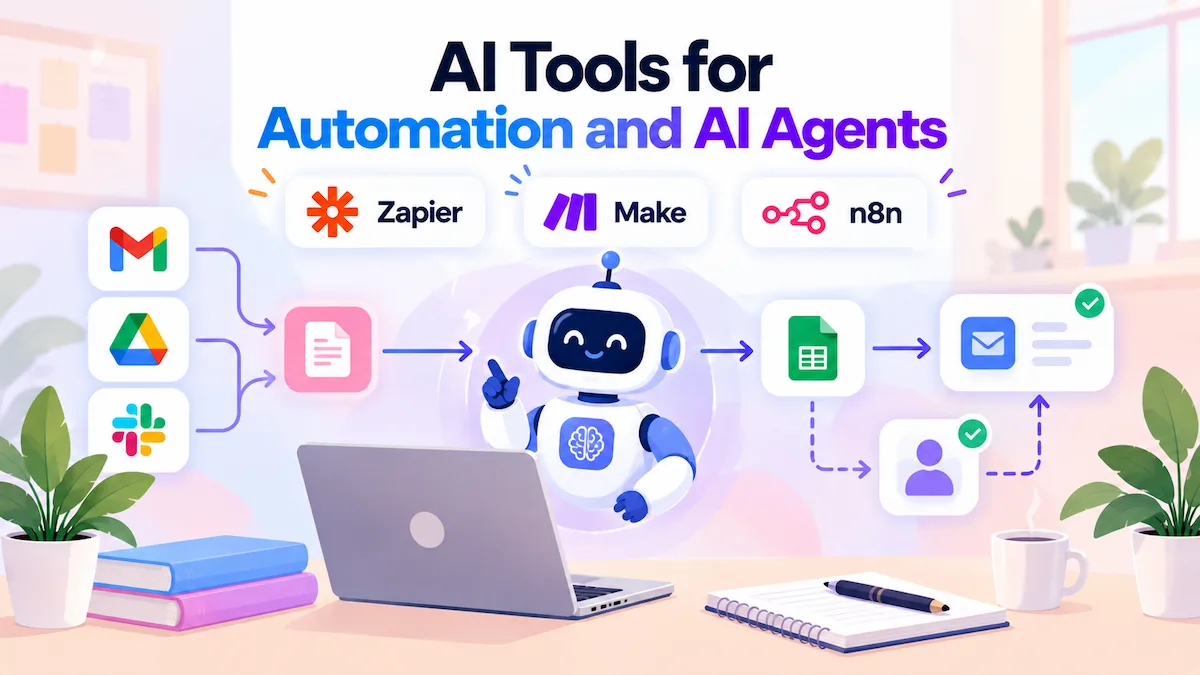
Practice task: build one automation with two steps and test it with sample data. Limit: mistakes repeat at speed. For where agents fit, see the guide on AI agents for business.
Coding and app building
Cursor and GitHub Copilot suggest and edit code inside your editor, and Replit, Lovable and Bolt build simple apps from plain instructions. Non-developers can use them for prototypes and small internal tools. Learn how to describe a feature, run it, read the error and ask for a fix.

Practice task: build a simple tip calculator. Limit: generated code needs review for security, and anything that handles customer data should be checked by a developer.
Data and spreadsheets
Copilot in Excel, Gemini in Sheets and the data analysis in ChatGPT can clean data, write formulas and make charts from plain questions. Learn how to describe your columns, ask for a formula and check the result on a few rows by hand.

Practice task: give a sample sales table and ask for revenue by month and a chart. Limit: a formula can look right and still be wrong, so test it on numbers you know. The list of best AI tools for Excel compares your options.
Prompt starters for the AI tools you need to learn
Use these starters in your assistant, and replace the brackets with your own details. Use sample material, not confidential files.
- Reply: “Here is a customer email: [text]. Write a polite reply in a friendly tone, under 100 words, that answers the question and offers one next step.”
- Summary: “Summarize this document for a busy manager in five bullet points, then list three questions a skeptical reader would ask.”
- Rewrite: “Rewrite this paragraph for [audience] in a [tone] voice. Keep it under [number] words and do not change the facts.”
- Compare: “Compare these two options for [goal] in a table with price, time to set up and risks.”
- Meeting follow-up: “Turn these notes into a follow-up email with decisions, owners and deadlines.”
- Research: “Find three reliable sources on [topic] and give me the main claim of each, with links.”
- Data: “This table has columns [names]. Write a formula that returns revenue by month, and explain how to check it.”
- Critique: “Read my draft and list the weakest three points, then suggest one fix for each.”
Keep the prompts that work in a shared note. After a month, you will have a small library that saves more time than any new tool.
Free vs paid AI tools: what you actually pay for
Most of these AI tools have a free tier, and that is enough to learn. A paid plan makes sense when you hit limits or need controls for business data.
| Need | Free option | When a paid plan helps |
|---|---|---|
| Daily assistant | Free tiers of ChatGPT, Claude, Gemini | You hit message limits, need larger files or need business data controls |
| Research | Free tiers of Perplexity and NotebookLM | You run many searches or upload many sources |
| Design | Free Canva plan | You need brand kits, team sharing or more AI credits |
| Video and voice | Limited free credits | You need longer exports, higher resolution or no watermark |
| Meetings | Limited free minutes | You record often or need team features |
| Automation | Free plans with a small task limit | You run multi-step automations or more tasks |
Prices and limits change often, and the guide on how much AI tools cost shows typical ranges. One more point matters more than price. On personal plans, many providers may use your chats to improve their models unless you opt out, while business plans usually do not by default. Check the plan before you paste anything from work.
How long it takes to learn each AI tool
Learning time for AI tools varies, so these are rough estimates from practice, not research. Your time depends on how often you use the tool and how clear your tasks are.
| Type of tool | First useful result | Comfortable | Part of your routine |
|---|---|---|---|
| General assistant | Same day | 1 to 2 weeks | About a month |
| Research tool | Same day | A few days | 2 to 3 weeks |
| Design tool | Within a day | 1 to 2 weeks | 3 to 4 weeks |
| Video and voice tool | 1 to 2 hours | 2 to 3 weeks | 1 to 2 months |
| Automation tool | 1 to 3 hours for a simple flow | 3 to 4 weeks | 2 to 3 months |
| Coding tool | Same day for a small script | 1 to 2 months | Several months |
“Learned” does not mean “knows every feature.” It means you can get a good result without searching for help. Aim for that, and stop there.
Where to learn AI tools for free
You do not need a paid course to start. The best free AI tools to learn from are the vendors’ own material:
- Help centers and tutorials. Every major tool has guides, example prompts and short videos for beginners.
- Vendor training. Microsoft publishes Copilot training on Microsoft Learn, and Google runs a Learning Center for Workspace users.
- Course platforms. Coursera and LinkedIn Learning have short AI courses, and many can be audited or tried for free.
- Your own work. Practice tasks on real but non-sensitive material teach more than a course that uses sample files.
- A colleague. Swap prompts weekly with one person, and compare results.
Courses help with structure, but the skill comes from using the tool on tasks you care about. Pick one source, finish it and then practice.
A 30-day plan to learn AI tools
This 30-day plan for learning AI tools takes about 20 to 30 minutes a day. Use sample data or your own non-sensitive material for every task.
- Week 1, the assistant: do one real task a day with your chosen assistant, such as a reply, a summary, a list of ideas, a rewrite and a short plan. Save the prompts that worked. Done when you can write a clear prompt without looking up how.
- Week 2, the research tool: answer three work questions with Perplexity or NotebookLM and open every source. Done when you catch at least one weak source or wrong claim.
- Week 3, your job tool: pick one tool from the job list above and finish one task you would normally do by hand. Done when you have a finished result you would actually use.
- Week 4, one automation and a review: automate one repeated step, then list what each tool saved and what it cost. Done when you can say which tool to keep, which to drop and why.
If you want a wider rollout for a team after the first month, start with the same steps, one small group at a time, and measure what each tool saves before you widen it.
How to keep your data safe while you learn
Learning new AI tools is the moment when people paste the most, because everything is new. A few rules prevent most problems:
- Never paste passwords, access keys, customer personal data, contracts under NDA or unreleased financial figures into a personal account
- Use a business plan for work material, because most providers do not train on business data by default
- On a personal ChatGPT plan, you can switch off training under Settings, Data Controls, “Improve the model for everyone,” as OpenAI’s help center explains
- Remove names and numbers from practice material, or replace them with fake ones
- Tell people before you record a meeting, and check the local rules on consent
- Check where a tool stores data, how long it keeps it and who can read it
How to build your AI tool stack
After 30 days, you will know which AI tools you use. Turn them into a small, deliberate AI tool stack: one assistant, one research tool, one tool for your main job and one automation. If you want a method for a team or company, the guide on building an AI tool stack for business explains how to keep it small and controlled.
Avoid AI tools that overlap. If your assistant already writes drafts, you may not need a second writing tool. Review the stack every three months, drop what you do not use, and test a new AI tool only when it replaces something or solves a task you cannot do today.
Sample starter stacks
These combinations are starting points, not rules. Swap any tool for one you already pay for.
| Role | Assistant | Research | Job tool | Automation |
|---|---|---|---|---|
| Marketer | ChatGPT or Claude | Perplexity | Canva and Grammarly | Zapier |
| Microsoft 365 office worker | Microsoft Copilot | NotebookLM | Otter.ai or Fireflies | Zapier |
| Google Workspace team lead | Gemini | NotebookLM | Fireflies | Make |
| Solo founder | ChatGPT or Claude | Perplexity | Canva | Zapier or n8n |
What not to waste time on
Not every one of the AI tools to learn deserves your time. These habits waste the most of it:
- Chasing every new launch. Most announcements change little for your daily work.
- Learning ten AI tools shallowly. Two or three used well beat ten you opened once.
- Paying for overlapping plans. Several assistants at once usually means paying twice for the same thing.
- Learning interfaces instead of skills. Buttons change, but prompting and checking carry over.
- Using tools with no clear data policy. Skip any AI tool that does not say what it does with your files.
How to test a new AI tool in 15 minutes
New AI tools will keep arriving, so you need a fast way to judge them. This test takes about 15 minutes and saves hours of trial and error:
- Pick one task you already do, such as a weekly report or a customer reply, so you know what good looks like.
- Run it in the new tool and in your current assistant, with the same prompt and the same sample material.
- Compare time and quality. Count the minutes and the edits you had to make.
- Read the data policy. Find out what the tool stores, for how long and whether it trains on your content.
- Check price and limits. Look at the free tier, the paid plan and what happens when you hit the cap.
- Decide: add it, replace something in your stack or ignore it.
Most AI tools fail at step 2 or step 4. That is fine, because a quick no costs you less than a slow no after three weeks of setup.
How to know a tool is worth keeping
Keep an AI tool if it saves time without lowering quality. Track four things for two weeks: time per task before and after, errors you had to fix, the cost per month and how often you actually use it. If you cannot show a clear saving, drop it or move to a free tier.
A simple check: hours saved per month x your hourly cost, minus the monthly price and your review time. If the result is positive and you use the tool at least weekly, it earns its place.
How to show your AI skills
Employers and clients care about results, not a list of tool names. Keep a simple record of tasks you finished with AI, with a before and after: the task, the tool, the time it took before and after, and what you checked. Three or four examples say more than a certificate. On a resume or profile, write the outcome first, such as “cut weekly report time from three hours to one,” then name the tools you used.
AI tools for teams: how to roll out learning
Teams learn AI tools faster when they share what works. Train people by role, not all together, because a marketer and an accountant need different tools. Keep a shared document of prompts that worked, write one page of rules for business data and name one person who answers questions and approves new AI tools. Start with a small group, collect results and then widen it.
Common mistakes when learning AI tools
- Starting with the most advanced tool. Learn the assistant first, because it teaches the skills everything else uses.
- Trying to learn everything at once. One AI tool for 30 days beats five AI tools for a week.
- Trusting the first answer. Check names, numbers and sources every time.
- Using real customer data for practice. Replace it with samples.
- Copying prompts without adapting them. Your tone, audience and examples make the result yours.
- Skipping a baseline. Without the time a task took before, you cannot tell what the tool saved.
- Learning alone. Share prompts and results with a colleague, and you both improve faster.
- Waiting for the perfect AI tool. A good AI tool you use beats a perfect one you never open.
AI tools you need to learn: checklist
Use this checklist to check your progress after 30 days:
- I chose one general assistant and used it for 30 days
- I can write a clear prompt with goal, background and format
- I check names, numbers and sources before I send anything
- I use one research tool and open its sources
- I picked one tool for my main job and finished a real task with it
- I automated one repeated step, with an approval where needed
- I know which AI tools are on a free tier and why
- I never paste sensitive data into a personal account
- I measured time saved and cost for each of the AI tools
- I dropped at least one of the AI tools I do not use
Conclusion
The AI tools you need to learn come down to a short order: one assistant, one research tool, one tool for your main job and, later, one automation. Learn the skills that carry between these AI tools, practice on a real task, protect your business data and measure what each tool saves. Pick the first of the AI tools to learn today, set a 30-day timer and run the first practice task before the end of the week.
Frequently asked questions
Which AI tool should I learn first?
A general AI assistant. Choose the one that sits where you already work: Gemini for Google Workspace, Copilot for Microsoft 365, or ChatGPT or Claude if you use neither. It teaches prompting and checking, which carry over to every other AI tool.
Do I need to know how to code to learn AI tools?
No. Assistants, research tools, design tools, meeting tools and no-code automation platforms all work without code. Coding helps for tools like Cursor or for building apps, but it is not needed for most of the tools in this guide.
Are free AI tools good enough?
For learning, yes. Free tiers let you try prompts, files and basic features. Move to a paid plan when you hit limits, need larger files or need business data controls. Do not paste confidential material into a personal free account.
How long does it take to learn an AI tool?
A first useful result usually takes a few hours or less. Feeling comfortable takes one to four weeks, depending on the type of tool. Making it a routine takes about a month for an assistant and longer for video, automation or coding tools.
How many AI tools should I learn?
Three or four is enough for most people: one assistant, one research tool, one tool for your main job and, later, one automation. More AI tools mean more cost and more rules to remember, so add one only when it solves a task you cannot do today.
Will the AI tools I learn now be outdated?
Some AI tools will change or disappear, but the skills last. Prompting, checking output, breaking work into tasks and protecting data carry over to new tools. That is why this guide teaches those skills first.
What AI tools do I need to learn for my job?
The AI tools to learn for your job depend on your role. Start with an assistant, then add one tool by role: Canva or Grammarly for marketing, Otter.ai or Fireflies for meetings, Cursor or GitHub Copilot for coding, a spreadsheet assistant for data work and Zapier for repeated admin tasks.
Are AI tools safe to use with business data?
It depends on the plan and the provider. Business plans usually do not train on your data by default, while personal plans may unless you opt out. Read the data policy, avoid sensitive material in personal accounts and check where data is stored.
Do I need an AI certificate?
Not to use AI tools well. A certificate can help in some hiring situations, but employers mostly care about what you can do with the tools. A portfolio of real tasks you finished, with before and after results, says more.
Which AI tools should small business owners learn?
Start with one assistant, then add Canva for graphics, a meeting recorder and one automation for admin work. Stay on free or low-cost plans until a tool saves real time. Review the stack after three months and cancel anything you do not use every week.
Can AI tools replace learning the skill myself?
Not fully. AI speeds up drafting and routine work, but you still need enough knowledge to judge the result. A person who knows the subject can spot a wrong answer, and a person who does not cannot.
How do I keep up with new AI tools without chasing every launch?
Set a review every three months. Read about what is new, test one AI tool that fits a task you struggle with and drop anything that overlaps with your stack. Ignore launches that do not change how you work.
What are AI tools?
AI tools are software that uses artificial intelligence to write, create, find, predict or act for you. Examples are chat assistants such as ChatGPT, research tools such as Perplexity, design tools such as Canva and automation tools that connect apps.
Will AI tools replace my job?
AI tools will change many tasks, and some roles will shrink, but most jobs are a mix of tasks. People who use AI tools well often take over the routine parts and spend more time on judgment, clients and decisions. Learning the tools is the safer response.
Can I use more than one AI tool together?
Yes, and many people do. A common pattern is to research in one tool, draft in another and design in a third. Keep the number small, since each tool adds cost and data rules, and pass only non-sensitive material between them.
What is the difference between generative and analytical AI tools?
Generative AI tools create new content, such as text, images, audio, video or code. Analytical AI tools look for patterns in existing data to forecast, classify or flag things. Most tools in this guide are generative, while forecasting and fraud tools are analytical.