To take meeting notes with AI, pick a method that fits the meeting, tell everyone you are recording, let the tool write the transcript, summary and action items, and check the result before you share it. The check is the one part the tool cannot do for you. This guide shows how to take meeting notes with AI on Zoom, Google Meet and Microsoft Teams, with a chat assistant such as ChatGPT or Claude, and in a room with no video call at all.

Most people start because they want to stop typing and start listening. A Metrigy study of 1,100 companies found that nearly 40 percent have already rolled out AI meeting assistants and another 42 percent plan to do it within a year. AI note takers are good at capturing what was said. They are weak at judging what mattered, so a summary can give an action item to whoever spoke last or treat a joke as a promise.
The sections below show how to use AI to take meeting notes, from the methods and the steps to the built in options on each platform, a prompt you can copy, templates, a review routine, consent rules and cost. Prices and limits were checked in October 2026, and vendors change them often, so confirm the number on the pricing page before you pay.
What it means to take meeting notes with AI
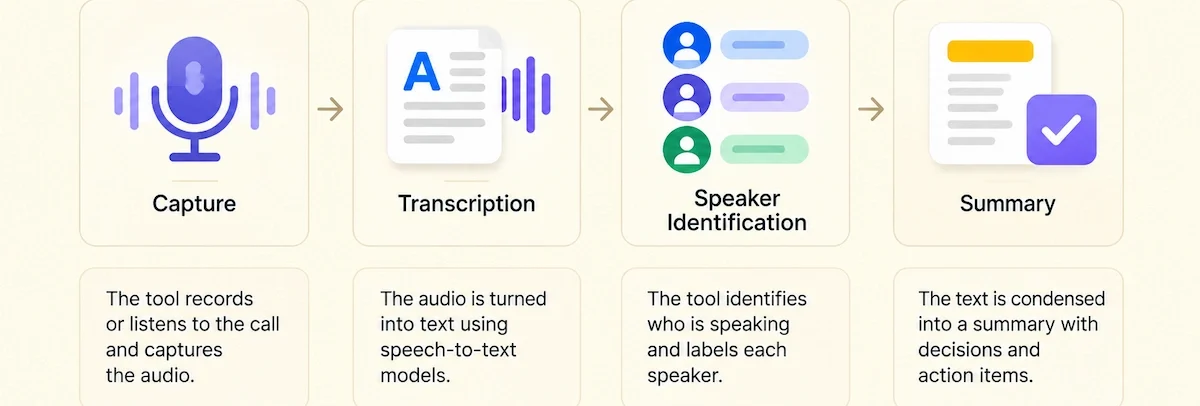
AI note taking is software that records or listens to a call, turns speech into text, and condenses the text into a summary with decisions and action items. Four stages run in order, and each one can add its own errors: capture, transcription, speaker identification and summary. Capture misses anything said away from the microphone. Transcription gets weaker with accents, crosstalk, jargon and poor audio. Speaker labels drift on calls with many people. The summary is the least reliable stage, because it judges importance without knowing your context.
| AI handles | You still own |
|---|---|
| Transcribing what was said | Telling participants you are recording |
| A first draft of the summary | Checking names, numbers and decisions against the transcript |
| Pulling out action items | Confirming each owner and date |
| Finding a past meeting later | Deciding when a meeting should not be recorded at all |
That split is the whole logic of this guide. The tool takes the typing, and you keep the responsibility for what goes out under your name.
Benefits of taking meeting notes with AI
The main gain is attention. When nobody has to type, people listen, ask better questions and stay in the conversation. Time is the second gain. Most of the cost of meeting notes sits after the call: writing the recap, finding who agreed to what, chasing people for tasks and searching old calls. AI cuts most of that.
- Less typing and more listening during the call.
- A full record of what was said, with timestamps you can open.
- Faster follow up, because the summary and the task list exist minutes after the call.
- Search across meetings, so you can find when a topic came up and who raised it.
- Fewer disputes, since there is a record to check instead of memory.
- Quick catch up on a missed call in five minutes instead of watching the recording.
These gains show up fastest in recurring meetings with several people, where decisions and tasks pile up. They are smallest in short one on one chats where nothing needs to be recorded.
Five ways to take meeting notes with AI
The right way depends on where your meetings happen and how sensitive they are. Five options cover almost every case.
| Way | How it works | Best for | Main drawback |
|---|---|---|---|
| A bot joins the call | A virtual participant records and transcribes | Team meetings where a visible record is fine | People speak less freely, and some companies block bots |
| A bot-free app | Records the audio on your computer | Client calls and in person meetings | You start it yourself, and there is no visible signal |
| Built into the platform | Zoom, Google Meet or Teams writes the notes | Teams that use one platform | Works only inside that platform and may need a paid plan |
| Inside your document tool | A notes page in Notion or a similar tool listens and summarizes | Teams that already work in that tool | Fewer meeting features than a dedicated AI note taker |
| Upload or paste | You give a recording or transcript to a chat assistant | Meetings that already happened, or no extra tools allowed | More manual work |
A bot joins the call
A bot appears in the participant list like any other attendee. It records the audio, transcribes it and sends a summary when the call ends. Otter, Fireflies, tl;dv, MeetGeek and Fellow work this way.
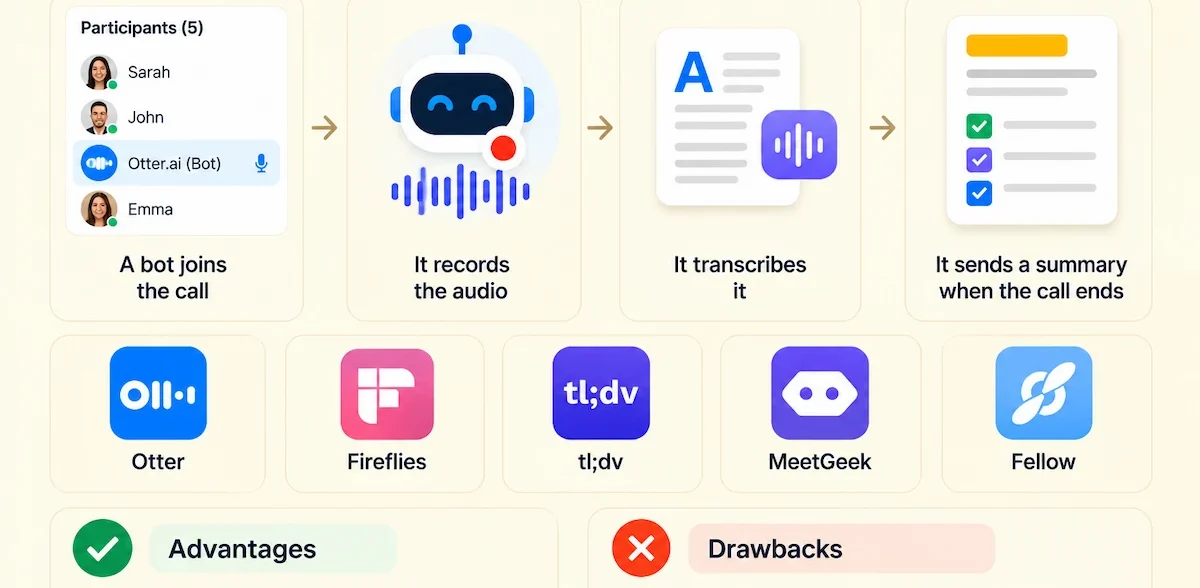
The advantage is transparency, because everyone can see that the meeting is being recorded. The drawback is that some people go quiet around a bot, and many IT departments block outside bots from joining company calls. A bot in the attendee list is also not the same as consent, so you still have to tell people.
A bot-free app records system audio
Bot-free apps capture the sound coming through your computer, so nothing extra appears on the call. Granola, Krisp, Jamie and Supernormal work like this, and the same method covers any platform and any meeting held in a room.
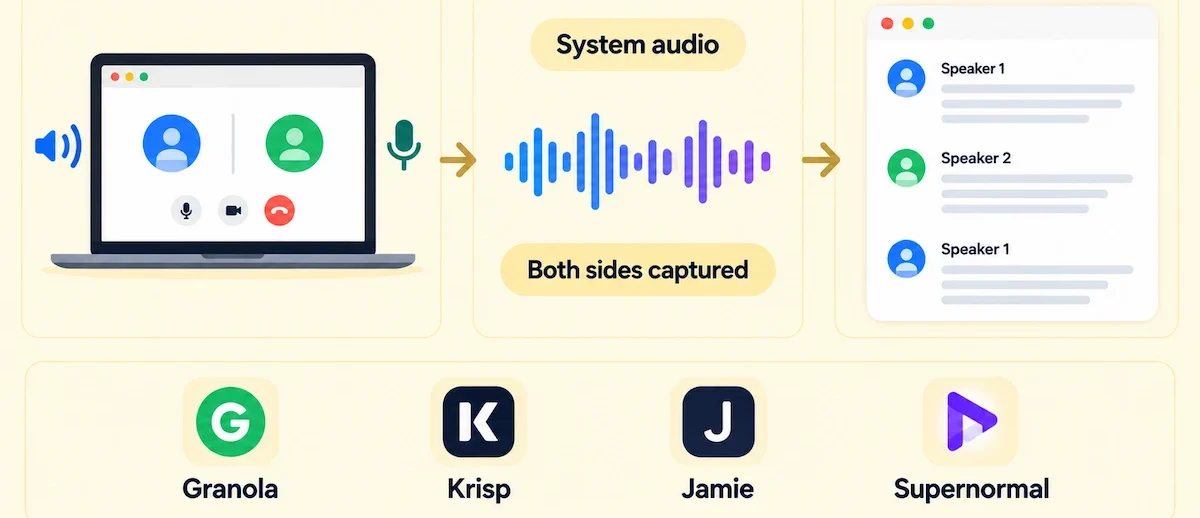
There are two kinds of bot-free capture, and the difference matters. System audio capture records everything that passes through your speakers and microphone, so you get every participant. Microphone-only capture records just your voice, which is useless for notes on what the other side said. Confirm which one the app uses before you rely on it.
Notes built into Zoom, Google Meet or Teams
Each major platform now has its own note taker. Nothing extra joins the call, and the permissions follow the settings your admin already controls.
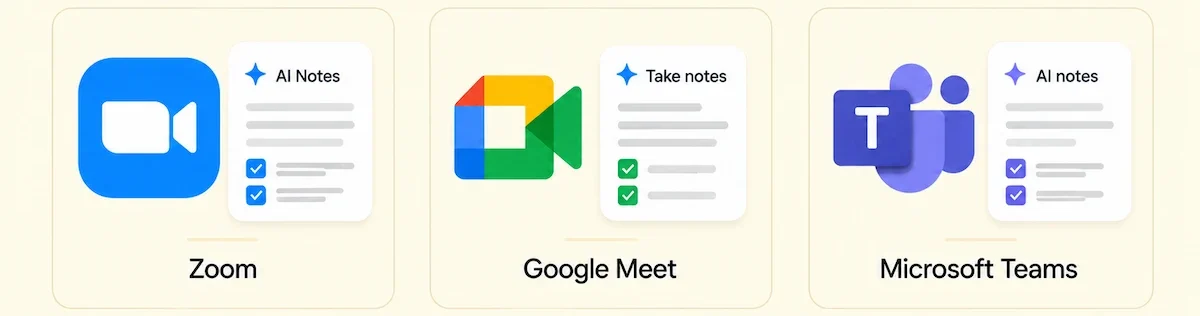
The trade-off is that each one works only on its own platform, and several need a paid plan. The next sections cover all three.
Notes inside your document tool
Notion AI Meeting Notes works this way, and other document tools are adding the same feature. You start a notes page, the tool listens to the meeting and writes the summary into the page where your project already lives.
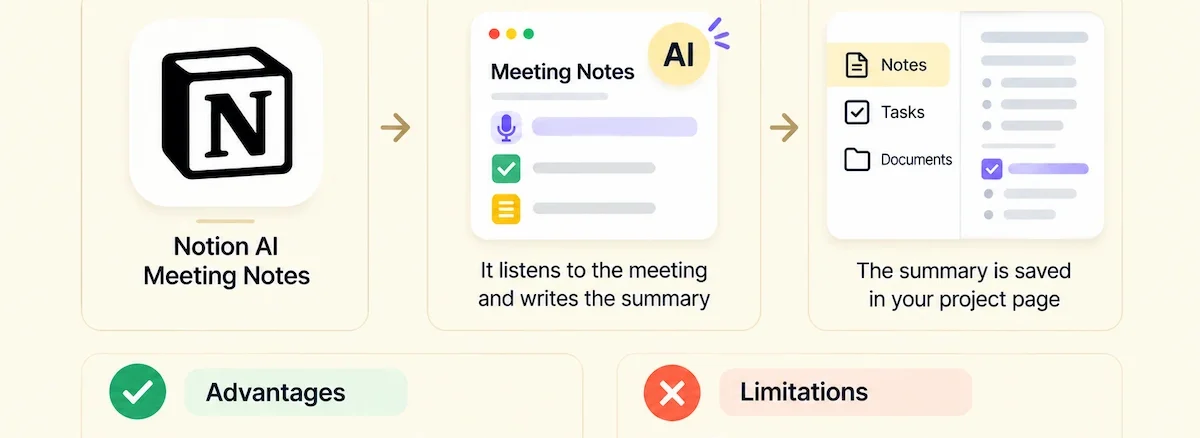
The gain is that notes, tasks and documents sit together. The limit is that these features usually have fewer meeting options, such as speaker labels and search across meetings, than a dedicated AI note taker.
Upload a recording or paste a transcript into a chat assistant
When a meeting has already happened, when it was a phone call, or when your company does not allow note taker apps, you can give a recording or a transcript to ChatGPT, Claude or Gemini and ask for the summary yourself. It takes more manual work but costs nothing extra.

The checklist in how to choose AI tools for business helps once you know which of the five methods fits your meetings.
A simple test for any setup
Run every setup through three questions. Record: does it capture each meeting you care about, with clear audio?

Route: do the decisions and tasks reach the people and the tool where the work happens? Retrieve: can you find what was said six months ago in under a minute? A setup that fails one of the three is a transcript archive, not a notes system.
How to take meeting notes with AI step by step
Nine steps cover the full process, and the order matters. Most bad notes come from skipping steps 3, 4 and 7.

| Step | Time needed | What you have at the end |
|---|---|---|
| 1. Pick the method for the meeting | 2 minutes | One method per meeting type |
| 2. Connect your calendar and check permissions | 5 minutes | A tool that joins or starts on its own |
| 3. Tell people you are recording | 10 seconds | A spoken notice |
| 4. Send an agenda and say decisions out loud | 2 minutes | Structure the tool can follow |
| 5. Add your own rough notes | During the call | Anchors for the summary |
| 6. Get the transcript, summary and action items | Few minutes | A first draft |
| 7. Review the notes | 3 to 10 minutes | A corrected version |
| 8. Share and send action items to your task tool | 2 minutes | Tasks with owners and dates |
| 9. Store the notes where you can search them | 1 minute | A record you can find later |
Step 1: Pick the method for the meeting
Match the method to the meeting, not the other way round. A client call or a sensitive internal talk fits a bot-free app or a built in feature, because nothing visible joins. A recurring team meeting can use a bot. A meeting in a room needs a bot-free app or a phone recording. A call that is already over needs an upload. Pick one method per meeting type and keep it, so people know what to expect.
Step 2: Connect your calendar and check permissions
Connect the AI note taker to your Google or Microsoft calendar so it knows when a meeting starts. Then decide which meetings it joins. A sensible rule is all external calls and team meetings, no personal appointments, nothing under 15 minutes, and anything with a chosen keyword in the title. Confirm that your organization allows recording and automated notes, because some admins turn these features off by default.
Step 3: Tell people you are recording
Say it out loud at the start, even when the AI note taker announces itself. A line that works: I am recording this with the note taker for note taking purposes, and the notes will be shared with everyone here. If someone objects, stop the recording and take manual notes for that meeting. Consent is a legal question in some places and a trust question everywhere, and the section on rules below covers it.
Step 4: Send an agenda and say decisions out loud
Three bullet points in the invitation give the summary something to organize around. In large calls, ask people to say their name before they speak, which improves speaker labels. The habit that improves output most is saying decisions out loud: so the decision is the second option, owner Dana, done by Friday. The tools extract what is stated, not what is understood, and a room full of nodding produces no decision in the transcript.
Step 5: Add your own rough notes
You do not have to write full notes, but a few short bullets help. Type pricing concerns or Q3 date unclear when it comes up. Some tools, Granola among them, use your bullets as anchors, find the matching parts of the transcript and add context under each line, with your text in black and the additions in gray. Your bullets also keep you listening, because writing three words takes no attention. If you write nothing, you get a generic summary.
Step 6: Get the transcript, summary and action items
A few minutes after the call your AI meeting notes should include a full transcript with speaker labels, a summary, a list of decisions and action items with names. Many tools link each line of the summary to the exact moment in the recording, so you can verify a claim in seconds. Ask the tool chat a direct question while the meeting is fresh, for example what the three main concerns were, and open the cited passage before you trust the answer.
Step 7: Review the notes in five minutes
Read the AI meeting notes within an hour, while you still remember the meeting. This human review is the step that decides whether the notes can be trusted. Check six things every time: decisions, action items with owners, dates, amounts of money, names of people outside your team, and any quoted line. Fix wrong names first, because a wrong name on an action item does more damage than a clumsy summary. Then fix missing or wrong tasks and delete anything that should not sit in a shared record.
One documented example shows why this step is not optional. A product team ran a 45 minute planning call with seven people, and the raw summary listed nine action items. Four minutes of editing changed three things: two items were duplicates, one was assigned to the person who had objected to it instead of the person who volunteered, and a decision to postpone a feature was missing because the room had agreed by nodding. The corrected note had six items. Without the edit, someone would have started work nobody asked for.
Step 8: Share and send action items to your task tool
Share the edited version, never the raw output. Copy the corrected action items into the tool your team already uses, with an owner and a due date on each line. Most note takers connect to Slack, Notion, Asana, HubSpot and Zapier, but check the mapping, because an AI note taker can create a task nobody agreed to. A note is a record, and a task is a commitment. The guide on how to use AI in business covers more routines like this one.
Step 9: Store the notes where you can search them
Keep the raw transcript, the reviewed recap and the documents discussed in the meeting together, in one folder per project. Six months later the question will be what was decided and who agreed, and the answer often sits across several meetings. Decide now how long you keep transcripts, so you do not end up with three hundred of them and no rule.
Setup by meeting type
The nine steps stay the same, but the method and the review focus change with the meeting.
| Meeting type | Method | Where the notes go | What to check first |
|---|---|---|---|
| Sales call | Bot or bot-free | The CRM record and a deal channel | Pain points, objections, budget, next step |
| One on one | Bot-free or built in | A private folder shared with the other person | Feedback given, goals, concerns, follow ups |
| Team standup | Often not worth recording | A short post in the team chat | Blockers only |
| Client project call | Bot-free or built in | The shared project page | Promises made and dates given |
| Interview | Bot-free, with consent | A hiring tool or private folder | Exact quotes and examples |
| Leadership or board meeting | Built in or bot-free, with a retention rule | A restricted folder | Decisions, votes and who disagreed |
What AI meeting notes look like: a before and after example
Here is a short planning call. The person on the call typed four rough lines, and the tool did the rest.
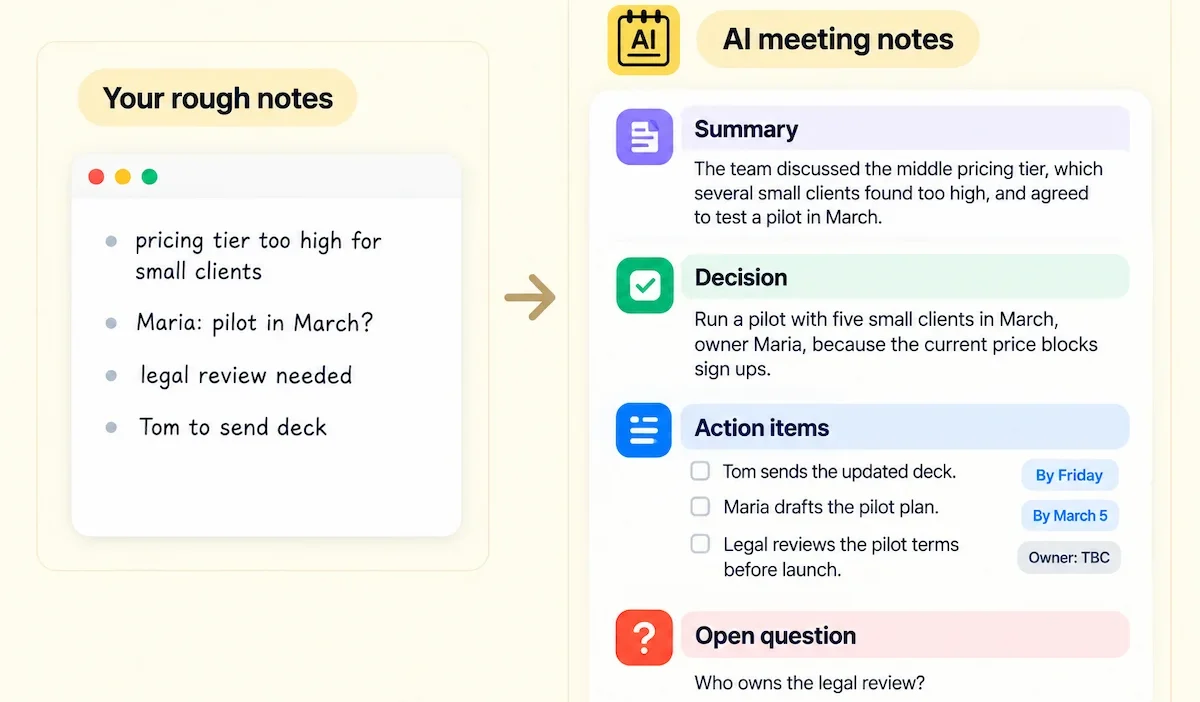
Your rough notes:
- pricing tier too high for small clients
- Maria: pilot in March?
- legal review needed
- Tom to send deck
The structured notes:
- Summary: The team discussed the middle pricing tier, which several small clients found too high, and agreed to test a pilot in March.
- Decision: Run a pilot with five small clients in March, owner Maria, because the current price blocks sign ups.
- Action items: Tom sends the updated deck by Friday. Maria drafts the pilot plan by March 5. Legal reviews the pilot terms before launch, owner to be confirmed.
- Open question: Who owns the legal review?
Look at what changed. The summary kept the four lines as anchors, added the reason behind the decision, and flagged the missing owner instead of inventing one. That last part is what to look for in any tool. A tool that invents an owner is a tool you will have to check line by line.
Why your own rough notes help
A transcript of a 45 minute call can run to 6,000 words, and nobody reads that. Your four lines tell the tool what you thought mattered, so the summary follows your priorities and not its own guess. This is also why two people on the same call can get different, equally correct notes. The method works with any tool that lets you type during the call. When it does not, paste your bullets into the chat assistant together with the transcript.
How to take meeting notes with AI on Zoom, Google Meet and Teams
Each platform has its own note taker, but the rules differ by plan. If everyone on your calls uses the same platform and your plan includes the feature, start there. The guide on AI in the workplace shows how this fits with the other tools your team may already use.
Zoom: My Notes and AI Companion
In a Zoom meeting, click the My Notes icon in the meeting window to start. You can type your own thoughts and turn on transcription so the AI captures what is said in real time. A visible indicator shows in the meeting when transcription is active
Afterward the summary and action items sit on one page that you reach from the calendar event. My Notes also works when you join a call on Microsoft Teams or Google Meet, or when you meet in person. Availability depends on your Zoom plan, so check it before you build a routine around it.
Google Meet: Take notes for me
Google Meet has a built in feature called Take notes for me, powered by Gemini. The host, or in some cases a co-host or internal participant, turns it on from the Activities icon during the call, or in Google Calendar before the meeting.
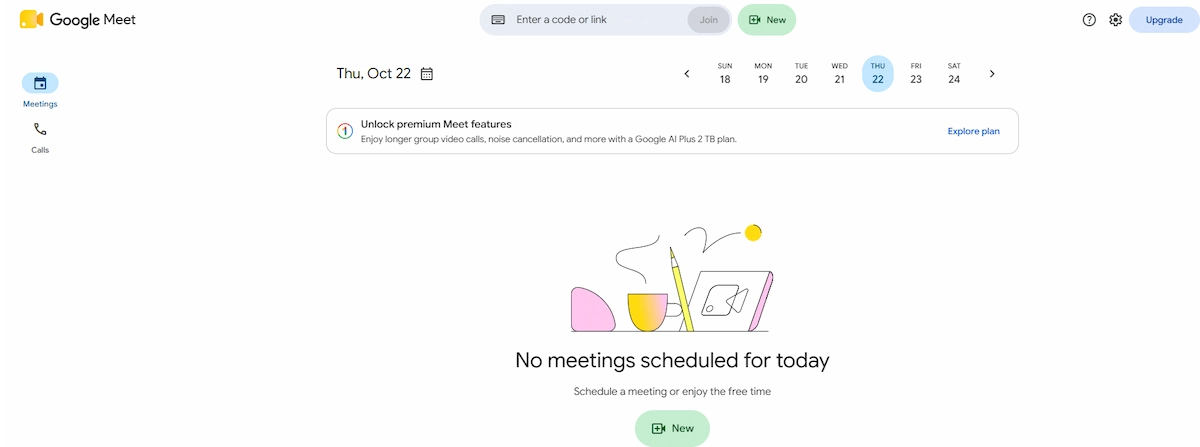
Gemini writes a summary with suggested next steps into a Google Doc, which is saved in the organizer Drive and attached to the calendar event. It needs a Workspace Business Standard plan ($14 per user per month on annual billing) or higher, or Google AI Pro or Ultra on a personal account. Business Starter accounts do not see it. It covers only a limited set of languages and works only inside Meet, with no search across meetings. Admins can switch it on for their users, and the steps are in the Google Workspace admin documentation.
Microsoft Teams: recap, Copilot and Loop
Teams offers three layers. Loop notes are shared manual notes inside the meeting. Transcription gives a searchable record of what was said. The Copilot recap adds a structured summary with action items after the call.
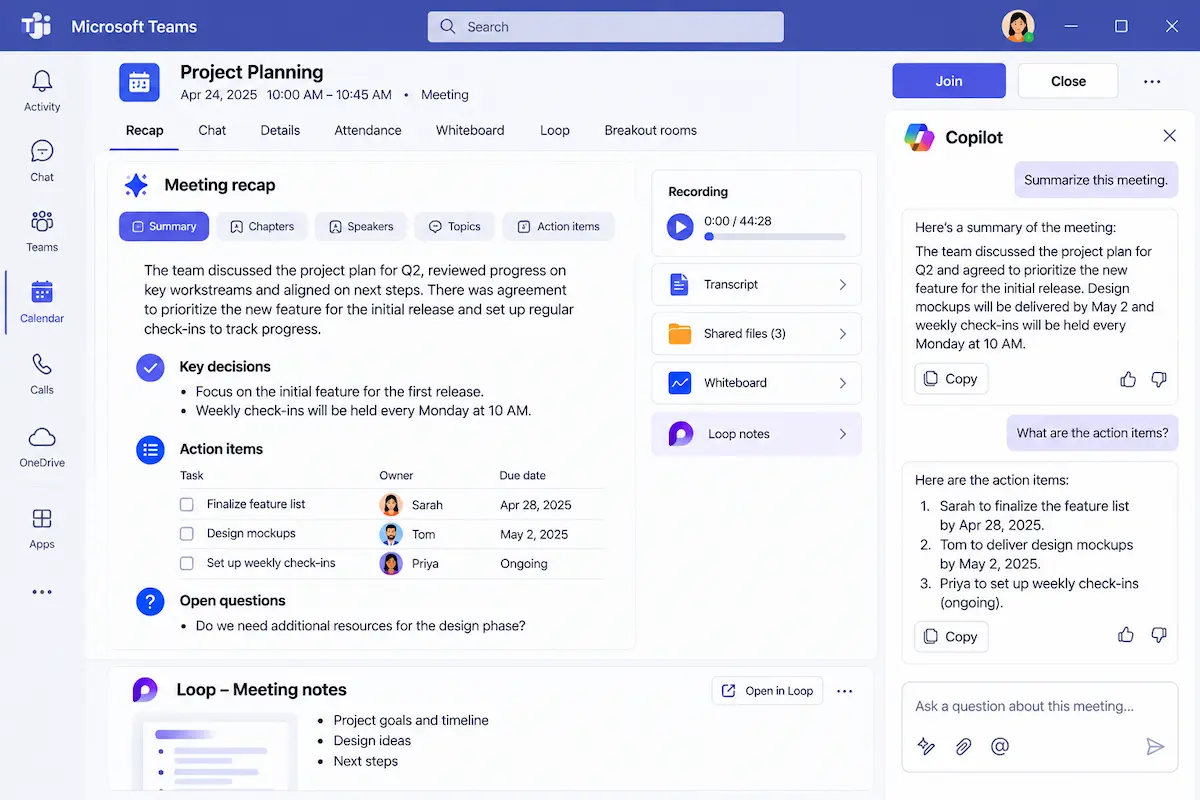
The recap needs a Microsoft 365 Copilot license, which costs $30 per user per month on top of the base plan, or Teams Premium. To start, open the three dot menu in the meeting and choose Record and transcribe. After the call, open the meeting chat and click View recap to see the summary, action items and transcript. The feature works only inside Teams, so Zoom and Google Meet calls need another tool.
| Platform | Feature | What it needs | Where the notes end up | Main limit |
|---|---|---|---|---|
| Zoom | My Notes and AI Companion | A plan that includes it | One page linked to the calendar event | Depends on your plan |
| Google Meet | Take notes for me | Business Standard or higher, or Google AI Pro or Ultra | A Google Doc in the Drive of the organizer | Few languages, Meet only |
| Microsoft Teams | Recap with Copilot | Copilot license or Teams Premium | The meeting chat | Teams only |
If your team mixes platforms, a bot-based or bot-free tool that works everywhere is simpler than learning three separate features.
How to take meeting notes with ChatGPT or Claude
A chat assistant can do the summary stage if you give it a transcript. This is the method for meetings that already happened, for companies that do not allow note taker apps, and for anyone who wants control over the output.
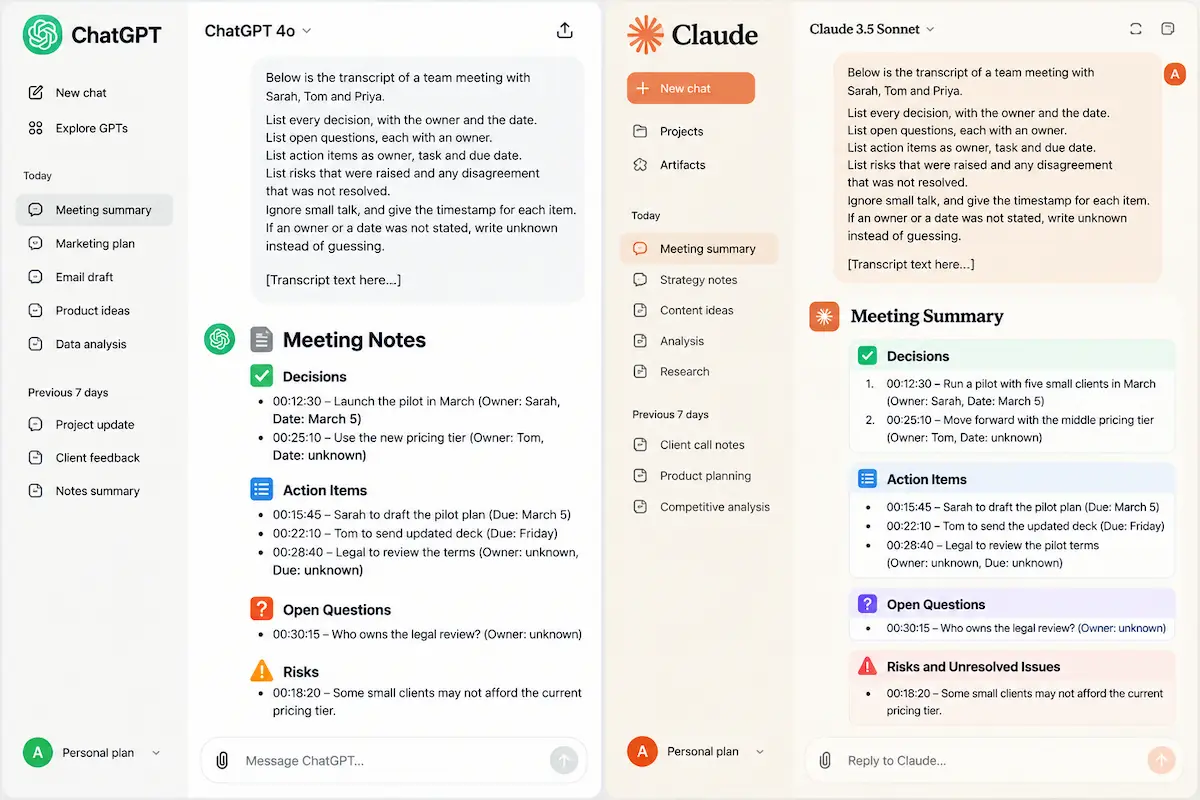
The skill here is the prompt, and the guide on prompt engineering for business covers the basics in more detail.
Get a transcript first
ChatGPT, Claude and Gemini work from text, and not every plan accepts audio files. Zoom, Teams and Google Meet can produce a transcript if transcription is turned on, and a phone call or a recording can go through a transcription service. Paste the text into the chat. If the transcript is long, split it into parts of a few thousand words and ask for notes on each part, then ask the assistant to merge them. Keep the speaker names in the text, because the output is only as good as the labels.
A prompt you can copy
Replace the words in brackets with your own details, then paste the prompt into ChatGPT or Claude together with the transcript.
- Below is the transcript of a [type of meeting] with [names].
- List every decision, with the owner and the date.
- List open questions, each with an owner.
- List action items as owner, task and due date.
- List risks that were raised and any disagreement that was not resolved.
- Ignore small talk, and give the timestamp for each item.
- If an owner or a date was not stated, write unknown instead of guessing.
The last line is the important one. Without it, assistants tend to fill a missing owner with a plausible name. Once you have the notes, run a second pass: ask the assistant what is missing from the notes and which statements look uncertain. That question often finds the tentative comment that was turned into a decision.
What not to paste into a free chat plan
Keep these out of a free ChatGPT or Claude plan: customer personal data, salary talk, legal discussions, passwords and anything under a confidentiality agreement. Free plans may use inputs to improve future models unless you opt out. For company material, use a business plan with admin controls and a written promise that inputs are not used for training.
How to take meeting notes with AI in person and on the phone
A meeting in a room has no call to join, so the capture has to start on a device. You have three options: a bot-free app on your laptop, a phone app placed on the table, or a separate recorder whose file you upload afterward.
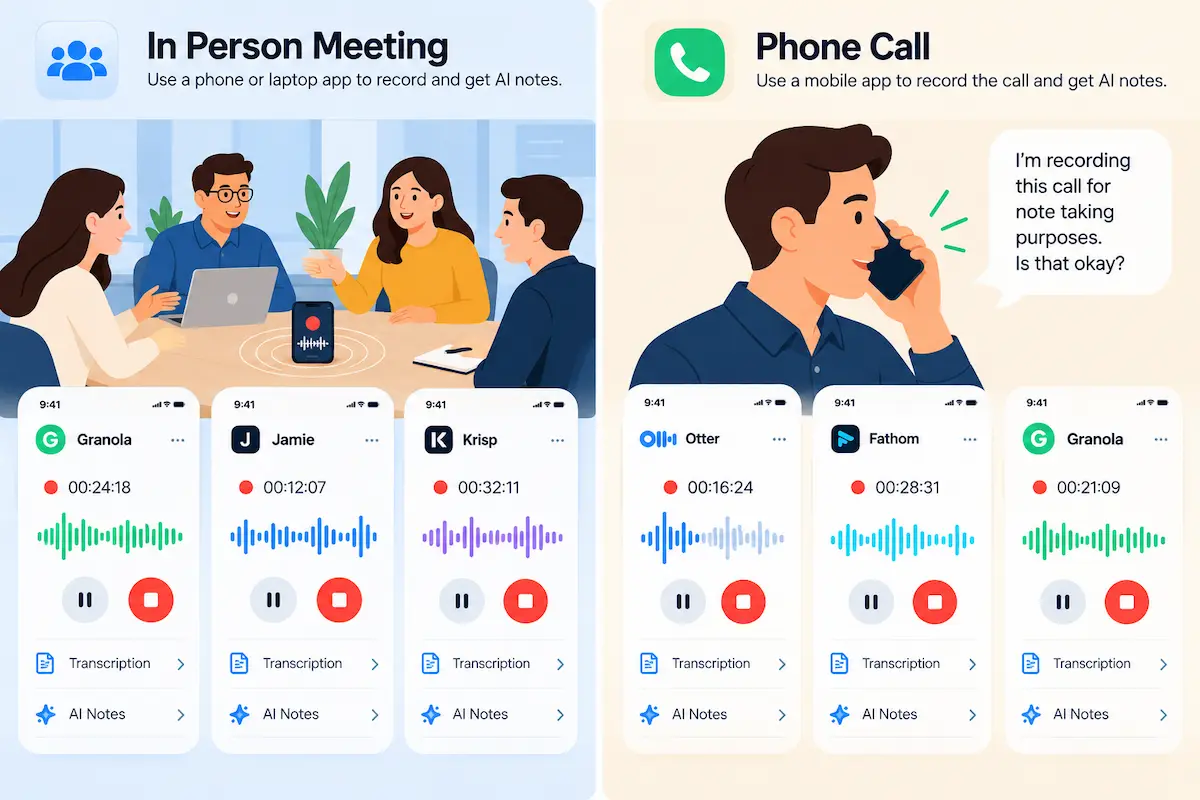
Jamie and Krisp record in person meetings through system audio, Granola has an iPhone app built for meetings in a room, and Otter is the one of the big three that handles being away from the desk well. Fathom is built for video calls only.
- Put the device in the middle of the table, not at the edge.
- Let one person speak at a time, because crosstalk is the main cause of bad transcripts.
- Ask people to say their name once at the start.
- Tell everyone in the room that you are recording. The same consent rules apply as on a call.
- Test the setup for two minutes before the meeting starts.
Phone calls work the same way, with the added rule that the person on the other end must know. In some places that means getting a clear yes before you start.
A phone app helps in both cases. Most note takers have a mobile app for in person and phone call capture, so check that it keeps recording with the screen locked and that it uploads when you are back on wifi.
Which AI note taker should you use
Choose by the job, not by the brand. The table lists the common options and what each one is best at. Free plans and prices come from vendor pages and recent reviews, and they change, so confirm them before you pay.
| Tool | Best for | Free plan | Paid from |
|---|---|---|---|
| Granola | Turning your rough notes into structured notes, no bot | Limited history | $14 per user per month |
| Otter | Live transcript and captions | 300 minutes per month, 30 minutes per meeting | $8.49 per month, billed annually |
| Fireflies | Teams that need CRM sync and search | Unlimited transcription, 800 minutes of storage | $10 per seat, billed annually |
| Fathom | The most generous free plan | Unlimited recording, 5 advanced summaries per month | From $15 per user |
| tl;dv | Sales and customer calls | Unlimited recording, 10 lifetime summaries | $18 per user, billed annually |
| Fellow | Structured meetings with agendas | Limited, up to about 5 users | From $7 per user |
| Krisp | Noisy rooms, bot-free | 7 day trial | $8 per month, billed annually |
| Jamie | Privacy first teams in Europe | 10 meetings per month, 30 minutes each | From 21 euros per month |
Free AI note taker or paid plan?
A free AI note taker is enough for one or two meetings a week. Before you commit, check five limits: minutes per month, the number of AI summaries, how long recordings are kept, which languages are supported and whether you can export your data. The word unlimited usually refers to recording, while the AI features are capped. tl;dv deletes free recordings after three months, Otter supports a small set of languages, and Fathom limits free advanced summaries to five a month.
Bot or bot-free?
Choose bot-free for client calls, healthcare, legal and HR topics, and for any company that blocks outside bots. Choose a bot when you want a visible signal that the meeting is recorded and shared notes for a team. If you are building the rest of your setup around this choice, the guide on the AI tool stack for business shows how to add tools one at a time.
How to test a note taker before you commit
Run the tool for one week on three real meetings: a recurring team call, a call with people from outside, and a call full of jargon. Then check five things.
- Are the names right, including people outside your company?
- Are acronyms and product names written correctly?
- How many action items did it create, and how many were correct?
- How long did the review take?
- Can you find a past topic by search in under a minute?
Then ask four questions about the product. Where do the notes live? What does it connect to? How do you check a summary against the source? Who can see the recordings? Also check the language list before you buy, because support for meetings that are not in English varies a lot, and the Google Meet feature covers only a few languages.
Meeting notes templates and prompts
What good meeting notes include
Even with AI, good notes record the same few things: decisions with context, action items with an owner and a date, open questions, and enough background for someone who missed the call. A decision should say what was decided, who weighed in and what was rejected. We agreed to delay the launch is weaker than we agreed to delay the launch to September because engineering capacity is short.
A meeting notes template to copy
- Meeting: name and date
- Attendees: who was there
- Purpose: one sentence
- Decisions: each with the reason
- Action items: owner, task, due date
- Open questions: each with an owner
- Context for people who were not there: two or three lines
Use the meeting notes template to check an AI summary, or give it to the assistant as the output format.
Prompts by meeting type
- One on one: Summarize this one on one in five bullets. List feedback given, goals mentioned, concerns raised and every follow up with a date.
- Sales call: Summarize this sales call. List the pain points the customer named, objections, budget and timeline if mentioned, the agreed next step and what to update in the CRM.
- Standup: List what each person finished, what they plan next and anything that blocks them. Skip small talk.
- Client call: List what the client asked for, what we promised, the dates we gave and anything we declined to commit to.
- Interview: Summarize the answers to each question, note examples the candidate gave, keep exact quotes for strong answers and list concerns. A longer list of tools for this case is on the page about AI tools for interviews.
- Brainstorm: Group the ideas by theme, mark the three that got the most support and list the next steps.
AI meeting minutes
Minutes are the formal record of a meeting, often kept for governance or legal reasons, and they usually need approval at the next meeting. AI can draft them from the transcript, but the person responsible for the record must read, correct and sign off. Ask for a fixed format: attendees, apologies, items discussed, motions and votes, decisions and actions. Do not circulate a draft as minutes until it is approved.
How accurate are AI meeting notes
Vendors claim up to 99 percent accuracy for clear English, and independent comparisons are less generous. One published comparison reported word error rates of about 6 to 8 percent on clean audio, which means roughly 6 to 8 words wrong in every 100. That sounds small until the wrong words are a name, a number or a date. Accuracy falls with background noise, accents, several people talking at once and technical vocabulary.
Transcripts are more accurate than summaries. A transcript turns sound into text, while a summary has to decide what matters. The second step is where tools disagree with each other, and with you.
What AI meeting notes miss
- Tone. Sarcasm, hesitation and a joke that was never meant as a promise look the same as a commitment in text.
- Context from outside the call. A line such as we will handle it the usual way means nothing to a tool that was not there last quarter.
- Disagreement. Summaries tend to smooth a split room into one neutral sentence.
- Decisions made by silence. Nobody said yes, so nothing appears.
- What people held back. Some people speak less while a note taker runs.
None of this is a reason to skip the tools. It is the reason the review step exists.
How to review AI meeting notes before you share them
Review in the first hour, when you still remember the call. Three to ten minutes is enough. The table lists the problems that appear most often and how to fix them.
| Problem | Why it happens | Fix |
|---|---|---|
| Wrong speaker on a line or a task | Speaker labels drift with crosstalk or more than six people | Check names against the transcript first |
| A tentative comment becomes a decision | The model treats could as will | Compare the wording with the transcript |
| A decision is missing | The room agreed by nodding | Add it by hand and say decisions out loud next time |
| A wrong number or date | Speech recognition mishears figures | Check against the slide or source document |
| Duplicate tasks | The same item was phrased twice | Merge them |
| A joke recorded as a promise | The model does not hear tone | Delete it |
Run the same six field check every time: decisions, tasks with owners, dates, amounts, outside names and quoted lines. After two weeks you will know where your tool is weak. One may mishear acronyms, another may create too many tasks, and a third may assign statements to the wrong person. Once you know the habit, you can check those fields first and spend less time on the rest.
Edit for the reader who was not there
The most useful note is written for someone who missed the call. Put the decision first, then the reason, then who does what by when. Cut the discussion that led nowhere. If a reader needs the full context, link to the timestamp in the transcript instead of copying it.
How to automate meeting notes from recording to tasks
Once the review is a habit, you can remove the copying. A short chain does the repetitive part, and you keep the check at one point. Zapier, Make and n8n can all build it, and many note takers have a built in version.
- The note taker finishes processing and sends the transcript or recap to the automation tool.
- An AI step turns the text into a fixed list of decisions, open questions and action items, using the prompt from the section above.
- The automation sends the draft to you in chat or email for approval, not to the team.
- After you approve, it creates tasks in Asana, Jira or your tracker, each with an owner and a date.
- It posts the recap in the team channel in Slack or Notion and logs a note in the CRM for customer calls.
Keep step 3. Chains that skip it send the first draft to everyone, with every wrong owner and every duplicate task, and fixing that costs more than the typing saved. Set a rule that a task is created only when both an owner and a date were stated, and send the rest to a review list. Watch the first week for duplicates, wrong channels and tasks nobody asked for.
Is it legal and safe to take meeting notes with AI
This section is general information, not legal advice. Check the rules where you and your participants are, and follow your company policy.
Recording consent
Federal law in the United States allows recording a call when one party consents, but several states require every party to agree. When participants are in different places, follow the strictest rule. In the EU you need a lawful basis and clear notice under GDPR. The FCC explains the basics on its page about recording telephone conversations. A bot in the attendee list does not count as consent in any of these systems. The safe default is to announce the recording every time and pause it for anyone who declines.
How people react to a note taker
Some people speak less when a note taker runs, and a bot that joins without warning can feel like surveillance. Tell people why you are recording, who will see the notes and how long they stay. Offer a way to go off the record for a moment. In a company, agree the rule once and put it in the meeting invitation, so you do not have to argue it call by call.
Where recordings and transcripts live
Bot-based tools usually upload audio to the cloud of the vendor. Some bot-free tools transcribe on your computer and delete the audio right after, and Copilot keeps recordings inside your own Microsoft 365 tenant. Before you adopt any tool, check three things: where the data is stored, whether you can delete it, and whether your meetings are used to train the models of the vendor. Look for a SOC 2 Type 2 report, HIPAA support if you handle health data, and clear GDPR terms with a stated data location. If a vendor will not say plainly whether it trains on your data, treat that as a warning. The guide on AI data privacy for business lists what to check before you pay.
Meetings you should not record
Performance reviews, salary talks, legal matters, HR cases and anything under a confidentiality agreement usually stay off. Write that down as a rule, so nobody decides case by case under pressure.
A retention rule for transcripts
Transcripts pile up fast. Decide how long you keep them, for example 90 days for raw transcripts and longer for reviewed recaps, who can open them, and where they are stored. Delete anything sensitive from the shared record as part of the review step.
How to make AI meeting notes useful after the call
A summary that nobody opens again is a nicer way of wasting time. Five habits turn the record into something the team uses.
- Convert actions into tasks the same day. Copy the corrected items into your tracker with an owner and a date.
- Keep a decision log. One line per decision with a date and an owner, separate from the transcripts. This is what people check six weeks later.
- Search across meetings. Ask when a topic was last discussed and who raised it. Test this on a term you use all the time before you adopt a tool, because jargon is where transcription fails.
- Open the next meeting with the last action list. It is the cheapest accountability tool there is and takes 30 seconds.
- Send a short follow up email. A draft built from the recap closes the loop.
How much does it cost to take meeting notes with AI
You can start at $0 and add a paid plan only when a limit blocks you. The guide on how much AI tools cost lists current prices across categories.
| Option | Cost per month | Notes |
|---|---|---|
| Free plan of a note taker | $0 | Caps on minutes, summaries or storage |
| One paid note taker for one person | $8 to $20 | Annual billing is cheaper |
| Google Workspace Business Standard | $14 per user | Includes Take notes for me and other features |
| Microsoft 365 Copilot | $30 per user | On top of the base Microsoft 365 plan |
| A team of 10 on a paid note taker | $100 to $180 | At $10 to $18 per seat |
Compare that with the time you spend now. Twenty minutes of writing up each meeting, ten meetings a week, is more than three hours. At $50 an hour that is over $150 a week. A $10 plan that cuts the write up to five minutes pays for itself in the first week. To put numbers on it for your own team, the method in AI ROI for business works for this case too.
Common mistakes when you take meeting notes with AI
- No notice. Recording without telling people breaks trust, whatever the law allows.
- Sharing the raw output. Skipping human review means the first version becomes the official version of events, so edit before you send.
- Recording everything. Standups and sensitive talks often create clutter or risk without adding value.
- Bad audio. A weak microphone or a noisy room ruins the transcript, and the summary inherits the errors.
- No owner on tasks. A task without a name and a date is a wish.
- Sensitive data in a free plan. Set the data rules before the first test.
- Using five AI note takers at once. One tool per meeting type is enough.
A small team can start with one recurring meeting, one tool and the five minute review, then add more later. The guide on AI for small business shows where else the same approach pays off.
The bottom line on taking meeting notes with AI
Pick one recurring meeting and one method. Tell people you are recording, say decisions out loud, and let the tool write the transcript, summary and action items. Spend five minutes checking decisions, owners, dates, amounts and names, then send the tasks to your tracker. Compare the result with what you would have written by hand after two weeks, and expand only if the saving is clear.
Frequently asked questions
How do I take meeting notes with AI?
Pick a method, connect your calendar, tell people you are recording and let the tool write the transcript, summary and action items. Then spend about five minutes checking names, decisions, dates and amounts before you share anything.
Can AI take meeting notes?
Yes. AI note takers transcribe the meeting and draft a summary with action items. They capture what was said well and judge what mattered poorly, so a person still has to review the result.
What is the easiest way to take meeting notes with AI?
The easiest way is the feature already built into your platform, such as My Notes in Zoom, Take notes for me in Google Meet or the Copilot recap in Teams, if your plan includes it. A free note taker app is the next easiest option.
How do I take meeting notes with AI without a bot?
Use a bot-free app that records system audio on your computer, such as Granola, Krisp or Jamie, or a built in feature of your platform. Confirm that the app records all participants and not only your microphone.
Are AI meeting notes accurate?
They are accurate for clear speakers on good audio and less accurate with accents, crosstalk, jargon and poor microphones. Summaries are less reliable than transcripts because they involve judgment about importance, so always check names, numbers and decisions.
Do I need permission to record a meeting with AI?
In many places, yes. Some US states and many countries require every participant to agree, and GDPR requires clear notice in the EU. A bot in the attendee list is not consent, so announce the recording and pause it for anyone who declines.
What is the best AI note taker for meetings?
No single tool is best for everyone. Granola suits people who want to write rough notes, Otter suits live captions, Fireflies suits teams that need CRM sync, and Fathom has the most generous free plan. Choose by meeting type and test it on a real call.
Is there a free AI note taker?
Yes. Fathom, Fireflies, Otter, tl;dv and Granola all have free plans. Most cap the AI features, the number of minutes or how long recordings are kept, so check the limits before you rely on one.
How do I take meeting notes with ChatGPT?
Get a transcript from your platform or a transcription service, paste it into the chat and use a prompt that asks for decisions, open questions and action items with owners and dates. Tell the assistant to write unknown when an owner or date was not stated.
Does Zoom have an AI note taker?
Yes. Zoom offers My Notes and AI Companion, which can transcribe the meeting, summarize it and extract action items. Availability depends on your plan, and a visible indicator shows when transcription is active.
Does Google Meet have an AI note taker, and why can I not turn it on?
Google Meet has Take notes for me, powered by Gemini. It needs Workspace Business Standard or higher, or Google AI Pro or Ultra on a personal account, so Business Starter users do not see it. The host or an admin may also have to enable it.
How do I take meeting notes with AI in Microsoft Teams?
Open the three dot menu in the meeting, choose Record and transcribe, and after the call open the meeting chat and click View recap. The Copilot recap needs a Copilot license or Teams Premium.
What is the difference between meeting notes and meeting minutes?
Meeting minutes are a formal record of what was decided, often kept for governance or legal reasons. Meeting notes are a working record for the team. For most team meetings, good notes are enough.
Can I take meeting notes with AI in person?
Yes. Use a bot-free app on your laptop or a phone app placed on the table, and tell everyone in the room that you are recording. Put the device in the middle and let one person speak at a time.
What happens to my meeting transcripts?
It depends on the vendor. Some store audio in their cloud, some delete audio right after transcription, and some may use content to train models unless you opt out. Check storage, deletion and training terms before you adopt a tool.
Can I edit AI-generated meeting notes?
Yes, and you should. Every tool produces an editable summary. Correcting names and action items before you share is the step that makes the notes trustworthy.
Who can see my AI meeting notes?
That depends on the tool and your settings. Most tools let you share by link, with a team folder or with named people, and some default to private. Check who has access before the first meeting, and restrict anything sensitive.
Do I still need to take manual notes?
Not full notes. A few rough bullets still help, because they tell the tool what mattered and keep you listening. You also need to review and correct the output before sharing it.
Can I use more than one AI note taker at once?
You can, but it is rarely worth it. Two bots in one call confuse people and create two versions of the record. Pick one tool per meeting type, and compare tools in separate meetings.
What happens if I switch to another note taker?
Your history usually stays with the old tool. Export transcripts and recaps before you cancel, and check the export formats first, because some plans limit exports.
What is the difference between transcription and summarization?
Transcription turns speech into text, word for word. Summarization condenses that text into key points, decisions and action items. Transcripts are more accurate, and summaries are more useful but need a human check.