An AI automation workflow is a chain of steps where a trigger starts the process, an AI model handles the part that needs reading or writing, and an action sends the result to the app where you need it. You do not need to code to build one, and a first version can be ready in under an hour.
This guide shows you how to create your first AI automation workflow from scratch. You will pick the right process, map it, choose a tool, build the trigger, add the AI step, test it with real examples and switch it on. Each step uses plain language and leaves the tool choice open, so the same method works in Zapier, Make, n8n or any other builder. If you have only used AI workflow automation through a chat window so far, this is the point where the work starts to run without you.
What is an AI automation workflow?
AI workflow automation is the practice of building connected steps that run on their own. An AI automation workflow is one finished example, a set of connected steps that runs on its own and uses an AI model to handle work that normally needs a person to read, decide or write. A rule-based tool can move a form entry into a spreadsheet. An AI workflow can read the message in that form, decide what it is about, write a draft reply and send both to the right person.
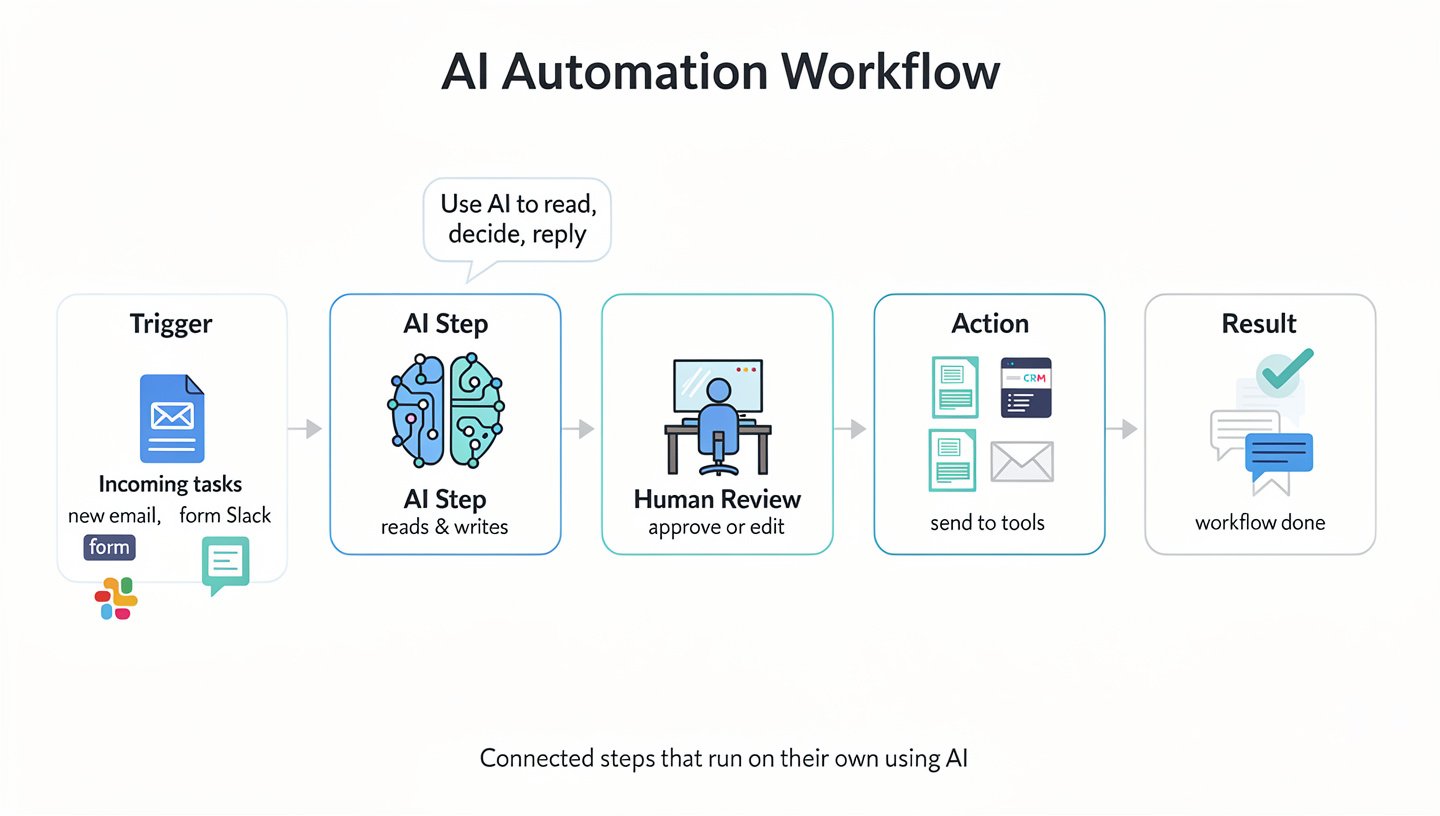
Every AI workflow has the same basic parts. A trigger starts it, such as a new email, a form submission or a message in Slack. An AI step reads the input and produces an output based on a prompt that you write. An action then sends the result somewhere, for example into a Google Sheets row, a CRM record or a Gmail draft. Many teams add a human review step in the middle so that a person approves the output before it goes out. Vendors also call these automated workflows with AI, and the terms mean the same thing in most tools.
Behind the AI step sits a language model, the same kind of technology that powers ChatGPT, Claude and Gemini. If you want a wider view of what this technology does for a company, read our guide to generative AI for business. Here the focus stays on one thing, which is how to connect that model to your daily tasks so they run without manual work.
AI workflow vs traditional automation
Traditional automation follows fixed rules. If the subject line contains the word invoice, move the email to a folder. This works well when inputs are predictable and breaks when they are not. An AI workflow handles messy input, such as a customer email written in one long paragraph with no clear keyword, because the model reads the meaning instead of matching exact words.

That does not make rule-based tools obsolete. The best automated workflows mix both. Rules handle the simple parts, such as saving a file to a folder, and the AI step handles the part where text must be understood or written. Rule-based steps are cheaper, faster and more predictable, so use them wherever a rule is enough.
Robotic process automation, or RPA, sits in the same family. It repeats the clicks and keystrokes of a person on screen, and it also needs structured input. Adding an AI step to such a flow lets it handle documents and messages that RPA alone cannot read.
AI workflow vs AI agent
An AI agent chooses its own steps. You give it a goal and some tools, and it decides what to do next. An AI workflow follows a path that you designed in advance, and the AI only works inside the steps you gave it. For a first build, a workflow is the safer choice, because you can see every step and fix the one that fails.
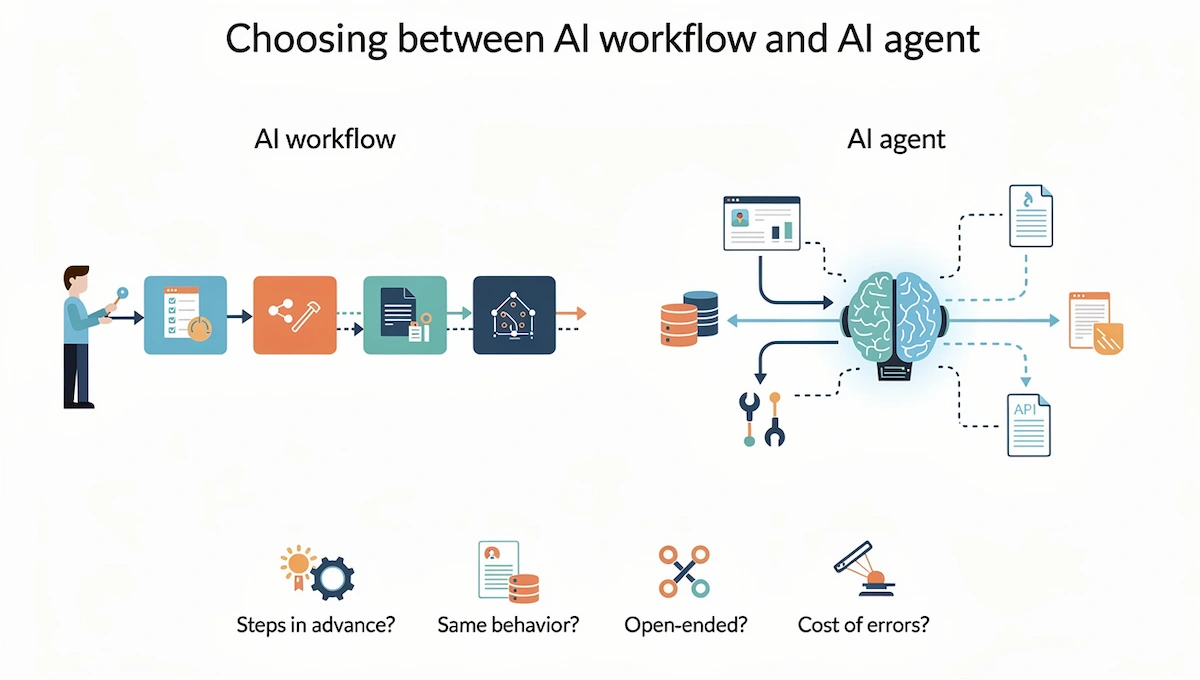
Four questions help you decide. Can you list the steps in advance? Should the same input always lead to the same behavior? Does the task need open-ended exploration? Would a wrong action without supervision be expensive? If you can list the steps and a mistake would cost you something, build a workflow. Many teams later place an agent inside a workflow for one open-ended step, and you can read more about that approach in our guide to AI agents for business.
Benefits of AI automation workflows
Teams build AI workflows for a few clear reasons, and each one can be measured after a month of use.
- Time saved on repeated work. Tasks such as sorting, summarizing and drafting take minutes by hand and seconds in a workflow.
- Faster responses. A reply draft is ready when the email arrives, so customers wait less.
- More consistent results. The same prompt and rules apply to every item, so quality does not depend on who is on shift.
- Fewer manual errors. Copying data between apps by hand causes typos and missed rows, and a workflow removes that step.
- Work that scales. Ten items or a thousand items per day use the same steps, and only the cost changes.
- Better use of people. Team members spend their time on decisions and conversations instead of copy and paste.
These benefits are real only if the workflow is built and checked well. A poor AI workflow creates new work, since people must fix the output. That is why the testing and review steps later in this guide matter as much as the build.
How an AI automation workflow works
Most workflows follow the same five-part pattern, no matter which tool you use. Once you can name these parts, you can read any template and see how it works.
| Part | What it does | Example |
|---|---|---|
| Trigger | Starts the workflow when something happens | A new email arrives in Gmail |
| Input data | Carries the information to the next step | Sender, subject and body of the email |
| AI step | Reads the input and produces text, a label or a decision | Sorts the email into billing, support or sales and writes a draft reply |
| Action | Sends the result to another app | Saves the label in Google Sheets and posts a message in Slack |
| Human review | Lets a person approve or change the output | A team member checks the draft before it is sent |
Data moves from the first step to the last. Each step receives the output of the previous step and passes its own output forward. Tools call these pieces of data fields, variables or tokens, and you insert them into your prompt with a click. For example, you tell the AI step to read the email body field, and the next step receives the label field.
The workflow runs every time the trigger fires, and you do not click anything. That is the main promise of AI workflow automation, work that keeps moving while you do something else. A successful run uses a small number of tasks, operations or credits, depending on the tool. A failed run shows up in a log where you can see which step stopped and why. That log becomes your main debugging tool, and the section on testing explains how to use it.
Types of AI workflows
Most workflows fall into one of five types. Knowing the type helps you choose the right prompt and the right output format.
| Type | What it does | Example |
|---|---|---|
| Content workflows | Draft, rewrite or summarize text | Blog post to social drafts |
| Classification and routing | Label items and send them to the right place | Tickets sorted by topic and urgency |
| Data extraction | Pull fields from emails, PDFs or forms | Invoice fields into Google Sheets |
| Customer communication | Prepare replies and follow-ups | First answer to a new lead |
| Decision support | Score or flag items for a person to decide | Deals with no recent activity |
Most real builds combine two types, for example extraction followed by routing. Start with one type and learn it well before you mix them in a larger AI workflow.
What you need before you start
You can build a first workflow with very little. Collect these items before you open any tool, and the build will go much faster. Automated workflows fail most often at setup, not at the AI step, so a short checklist saves hours.
- One process that you repeat often and can describe in a few sentences.
- An automation tool account, either a free plan or a trial.
- A connection to an AI model. Most tools include a built-in AI step. Some ask for an API key from OpenAI, Anthropic or Google, which you create in your account on the provider site.
- Access to your apps, such as Gmail, Slack or Google Sheets, with a login that you can authorize.
- Five to ten real examples of the input, for example past emails or form entries, for testing.
- A person who owns the result and checks the output in the first weeks.
Keep sensitive data out of your first test. Use examples with names and numbers removed until you know where the data goes.
How to choose your first workflow
The first workflow decides if your team trusts automation or avoids it, so choose something small, frequent and low risk. Automated workflows run without you, so the first one should be safe to get wrong. Look for a task that someone repeats at least a few times per week and that follows a similar pattern each time. A good candidate for one of your first AI workflows meets these conditions:
- Repeated often, so the time saved adds up quickly.
- Clear input and output, so you can say what goes in and what should come out.
- Low cost of a mistake, so a wrong result can be fixed in a minute.
- Text based, since language models work best on writing, summaries and sorting.
- Easy to check, so a person can look at the result in seconds.
The table shows examples that fit these rules well.
| Workflow | Trigger | AI step | Action |
|---|---|---|---|
| Email sorting and draft replies | New email | Label and draft | Add label, save draft in Gmail |
| Meeting notes to tasks | New transcript | Extract action items | Create tasks in your project tool |
| Lead form follow-up | New form entry | Score and write a first reply | Add to CRM, send draft to sales |
| Support ticket tagging | New ticket | Detect topic and urgency | Tag ticket, alert Slack channel |
| Invoice data capture | New PDF in a folder | Read the fields | Write a row in Google Sheets |
| Social post ideas from a blog | New blog post | Write three post drafts | Save drafts in a document |
Good AI workflow automation starts with a safe task, so avoid these as a first project. Skip anything that sends messages to customers without review, anything that touches payments, legal or medical decisions, and any process that you cannot describe in steps yet. Start with drafts, labels and summaries, and move toward actions with real consequences only after the workflow has run well for a few weeks.
How to create your first AI automation workflow step by step
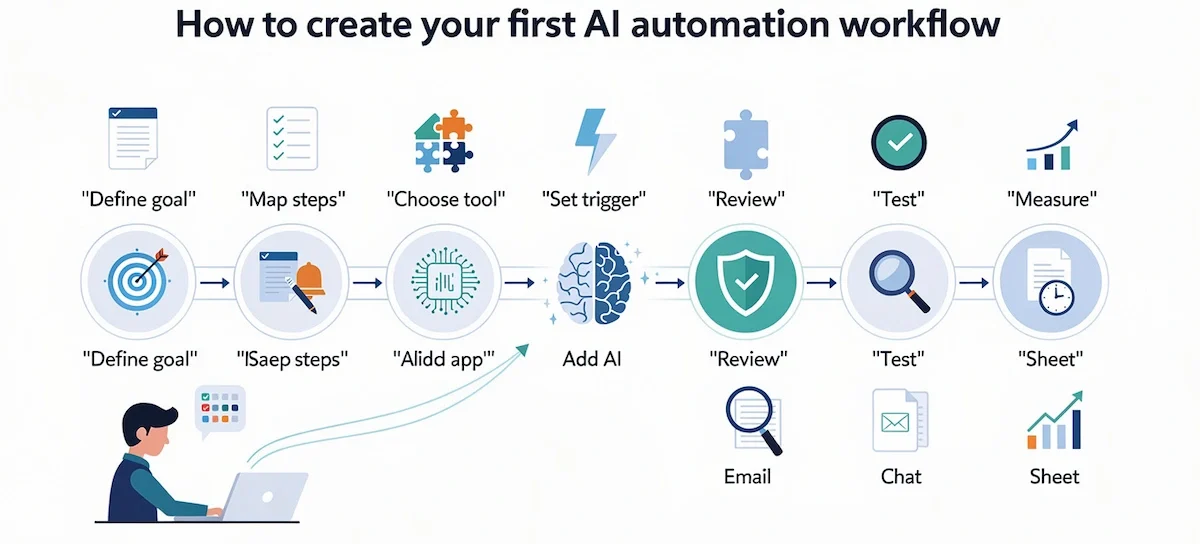
The eight steps below work in any builder. Follow them in order and keep the first version as small as you can. Every new step is a new place to fail, so add more only after the workflow runs reliably. This is the same path that most teams use to build an AI automation workflow that lasts longer than a week.
Step 1: Pick one process and write the goal
Write one sentence that describes what the workflow should do, who benefits and how you will know it worked. For example: every new support email gets a topic label and a draft reply within two minutes, and a person approves each draft. A clear goal tells you what to build and what to leave out of your first AI workflow.
Add a number to the goal. It can be time saved per week, the count of items handled or the share of drafts approved without edits. Without a number, you will not know after a month if the workflow is worth keeping.
Step 2: Map the current steps by hand
Run the process yourself once and write down every step. Note what starts it, what you read, what you decide, what you write and where the result goes. A list on paper or a few lines in a note is enough.
Then mark each step as a rule or an AI step. A step is a rule if you can say it as if and then, such as if the sender is on the VIP list, notify the account manager. A step is an AI step if it needs reading, summarizing, sorting by meaning or writing. Usually one or two steps in a process need AI, and the rest are simple actions, which keeps an AI workflow cheap and easy to debug. This map becomes the blueprint for your build.
Step 3: Choose the tool
Pick a no-code builder that you can learn quickly and that connects to your apps. Zapier is a simple option for beginners, Make gives more control over branching, and n8n suits people who want to self-host or add code to some steps. The tool section below compares them in detail. A tool that fits your first AI workflow must have a connector. Check that the tool has a connector for your trigger app and your output app before you commit, since that is the most common reason a first project stalls.
Step 4: Set up the trigger
Create a new workflow and choose the app and the event that starts it, for example a new email in Gmail or a new row in Google Sheets. Connect your account when the tool asks, and grant only the permissions that the workflow needs. Then load a sample so the tool can see real fields. Most builders pull in a recent email or row, and you will use its fields in the next step.
Add a filter right after the trigger if only some items should enter the workflow. For example, run it only for emails sent to a support address, so personal mail never reaches the AI step.
Step 5: Add the AI step
Add a step from the built-in AI option, or from OpenAI, Anthropic or Google if you use your own API key. Choose the model, then write the prompt. Insert the input fields from the trigger, such as the email body, and tell the model what to return. Ask for a fixed format, for example a label from a list of four plus a draft reply, so the next step can read it. The prompt section below gives a template.
Keep the temperature low if the tool lets you set it, because a stable AI workflow gives the same answer to the same input. Sorting and extracting tasks need consistent results more than creative ones.
Step 6: Send the output and add a review step
Add the action that places the result where people work. Save the label in Google Sheets, post the summary in a Slack channel, or store the reply as a Gmail draft instead of sending it. Drafts and messages to an internal channel keep a person in control of the AI workflow.
If the tool offers an approval step, use it. The workflow pauses, a person looks at the output and approves or edits it, and only then does the last action run. Remove this step only after the output has been right many times in a row.
Step 7: Test with real examples
Run the workflow on your five to ten saved examples, one at a time, and read each output. Check the label, the tone, any invented facts and the format. Then change the prompt, not the whole design, and run the same examples again. Each pass shows how your AI workflow behaves on real input. Repeat until nearly all of them come out right. Also try odd input, such as an empty message, an email in another language or a very long text, since these break workflows in real use.
Step 8: Turn it on, run in parallel and measure
Switch the workflow on. For the first one or two weeks, keep doing the process by hand as well, or compare your own results with the output of the workflow. This is called a parallel run. After that, move to review only, where you check each result but no longer create it. Track the time saved, the share of outputs approved without changes and the number of failed runs. Those three numbers show if your new AI workflow deserves more trust.
Example: an email sorting and reply draft workflow
Here is the full build of a common first workflow so you can see the steps working together. The goal is to label each new support email and prepare a draft reply, with a person approving every draftIt is a simple AI workflow with one AI step and five other steps.
| Step | Tool action | Setting |
|---|---|---|
| 1 | Trigger: new email in Gmail | Only emails sent to the support address |
| 2 | Filter | Skip emails from your own domain |
| 3 | AI step | Read subject and body, return a label and a draft |
| 4 | Action | Add the label in Gmail and save the draft |
| 5 | Action | Post a message in a Slack channel with a link to the draft |
| 6 | Human review | A team member edits and sends the draft |
The prompt for the AI step could look like this:
You are a support assistant for a small software company. Read the email below. Choose one label from this list: billing, technical issue, sales question, other. Then write a reply of up to 120 words in a friendly and direct tone. Do not promise refunds or dates. If the email lacks the information you need, ask one clear question. Return the label on the first line and the reply below it. Email subject: [subject field]. Email body: [body field].
This version covers sorting, drafting and review in six steps. After a week, read the drafts that people changed and add a rule to the prompt for each pattern you see, for example a standard sentence about response times. Then add a second branch for billing emails that checks your records. This is how a small build grows into a set of automated workflows that cover most of the inbox.
How to write the prompt for the AI step
The prompt is the part that you control most, and a weak prompt is behind most weak results. Our guide on prompt engineering for business goes deeper, and the points below cover what matters inside a workflow.
- Role and task. Say who the model is and what it must do in one or two sentences.
- Input. Tell the model exactly what it will receive, and insert the fields in clear places.
- Rules. List what to do and what to avoid, such as no promises, no prices and no legal advice.
- Format. State how the output must look, for example one label on the first line and the reply below.
- Examples. Add one or two examples of good output when the format is strict.
Write the prompt for the next step, not for a reader. If a later step expects one of four labels, list those four labels and tell the model to use no other words. Test the prompt with your worst examples, since a prompt that handles clean input but fails on messy input will fail in daily use. Every AI workflow depends on this one text more than on any setting in the tool.
Which tool to use for your first AI automation workflow
Many tools can run an AI workflow, and the right one depends on your apps, your skills and your budget. Our guide on how to choose AI tools for business covers the broader selection process. For a first build, these five options cover most needs.

| Tool | Best for | Skill level | Notes |
|---|---|---|---|
| Zapier | Fast start and a large app list | Beginner | Free plan includes 100 tasks per month and two-step Zaps |
| Make | Visual builder with branching and loops | Beginner to intermediate | Free plan available, check the current credits |
| n8n | Full control, self-hosting and code steps | Intermediate | Cloud plans and a free self-hosted community edition |
| Microsoft Power Automate | Teams that already use Microsoft 365 | Beginner to intermediate | Works with Outlook, Teams and SharePoint |
| Gumloop | Workflows built around AI steps | Beginner | Drag and drop canvas |
Free plan limits change often, so check the numbers before you plan around them. Zapier lists its free plan limits on its pricing page, and the other tools do the same.
If you already use several AI tools, think about how a new builder fits next to them. Our guide to an AI tool stack for business helps you avoid paying for two tools that do the same job.
Costs come from two places, the automation tool and the AI model. Most builders count each run as a task, an operation or a credit, and the model charges for the amount of text it reads and writes. Small workflows often fit inside a free plan or a low plan, but the bill grows with volume, so check your usage page every month.
Most builders also let you share automated workflows as templates, and a template is the fastest way to see a working build. Open one that matches your idea, read each step to see how the pieces connect, and then change the prompt and the apps to fit your case. Do not copy a template blindly. Check every setting, since a template built for another team may send data to the wrong place.
The same step in Zapier, Make and n8n
The idea is identical in all three tools, and only the names differ. Once you learn these names, a tutorial for one tool becomes easy to follow in another.
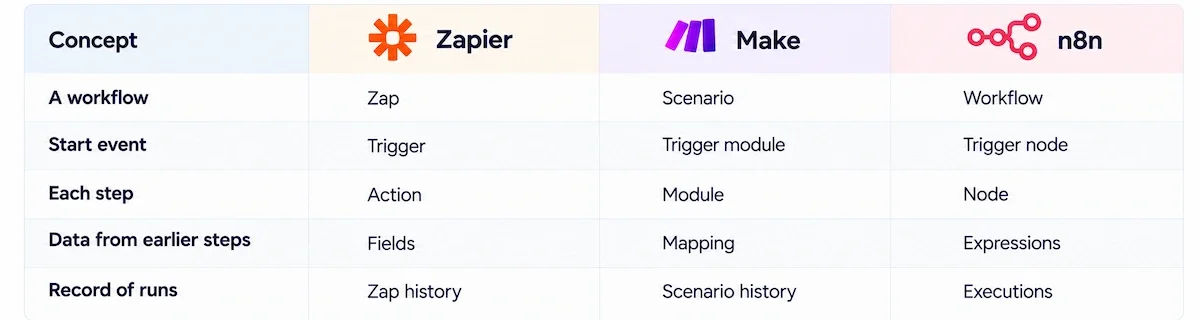
| Concept | Zapier | Make | n8n |
|---|---|---|---|
| A workflow | Zap | Scenario | Workflow |
| Start event | Trigger | Trigger module | Trigger node |
| Each step | Action | Module | Node |
| Data from earlier steps | Fields | Mapping | Expressions |
| Record of runs | Zap history | Scenario history | Executions |
Cloud or self-hosted
Cloud tools run on the vendor servers, so you sign up and start building.
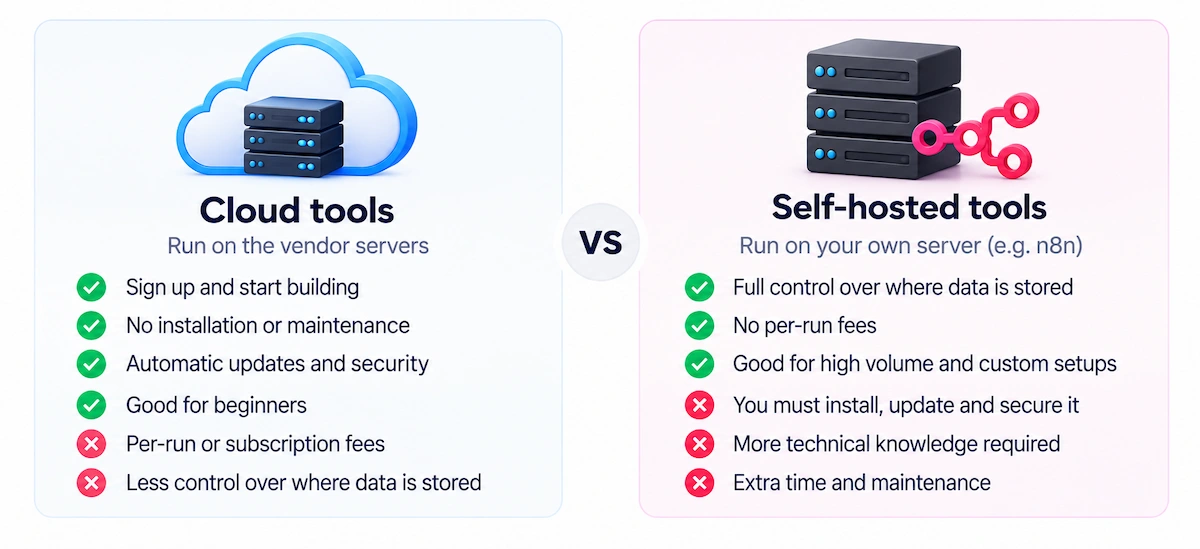
Self-hosted tools such as n8n run on your own server. This gives you control over where data is stored and removes per-run fees, but you must install, update and secure the system yourself. For a first workflow, start in the cloud. Move to self-hosting later if privacy rules or volume make the extra work worth it.
What to look for in an AI workflow tool
Features differ more than prices do, so compare these points before you pick a builder:
- App connectors for the tools you already use.
- A built-in AI step or an easy way to add your own API key.
- Filters and branching, so that only the right items reach the AI step.
- Approval options, such as a step that pauses until a person agrees.
- Run history and error alerts, so you can find failures fast.
- Retry and rate limit settings for temporary problems.
- Clear pricing, with the number of tasks, operations or credits that one run uses.
- Templates that you can copy and change.
- Data controls, such as where data is stored and who can see the logs.
Build the example in n8n
The email example from above takes five nodes in n8n. Add a Gmail Trigger node to start the workflow, an IF node to filter the sender, an AI node that uses OpenAI or the AI Agent node with your prompt, a Gmail node to add the label and save the draft, and a Slack node to post the message.
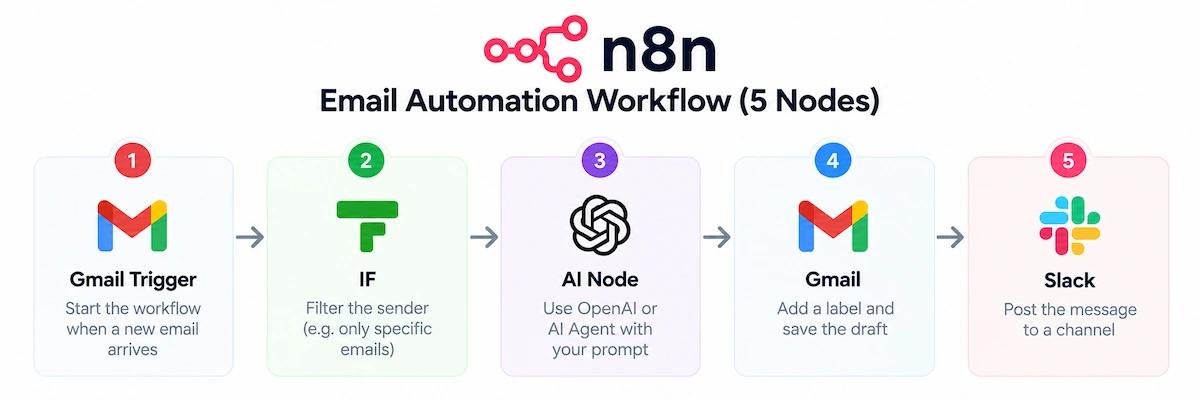
Add your credentials to each node that needs them, then click Execute workflow to test with a real email. When the output looks right, switch on the Active toggle so the workflow runs on its own. Check the Executions list after each run, since it shows the data that entered and left every node.
How to test and fix an AI automation workflow
Test in two layers. First, run each step alone to see that it receives and returns the data you expect. Then run the whole workflow with your saved examples. Every builder keeps a run history, so open it after each test and read the input and the output of every step.
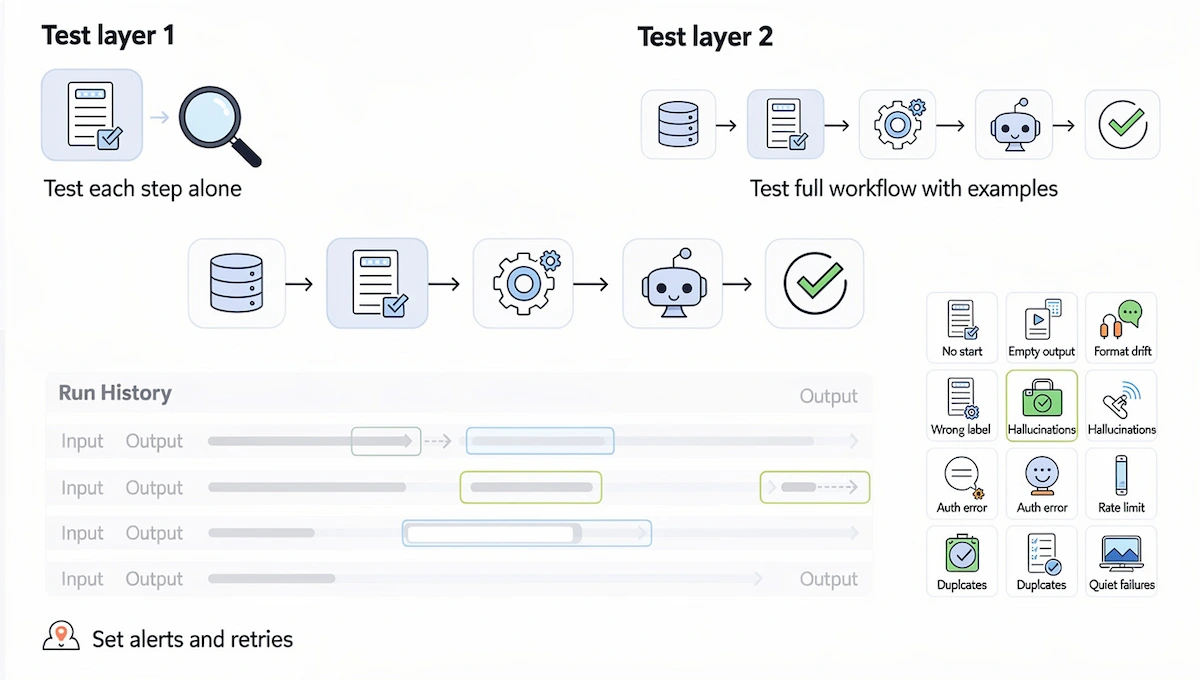
Most AI workflows that fail do so at the edges, where the input looks different from your examples.
| Problem | Likely cause | Fix |
|---|---|---|
| Workflow does not start | It is switched off, or the trigger app is disconnected | Turn it on and reconnect the account |
| AI step returns empty text | The input field is empty or mapped to the wrong field | Check the field in the run history and map it again |
| Output format keeps changing | The prompt does not fix the format | Add the exact format and one example |
| Wrong label | Labels overlap or are unclear | Define each label in one sentence |
| Invented facts | The model lacks the information | Add the facts to the prompt and tell the model to say when it does not know |
| Authentication error | The API key or login has expired | Create a new key or reconnect the app |
| Rate limit error | Too many requests in a short time | Add a delay or a retry step, or lower the volume |
| Duplicate runs | The trigger fires more than once for one item | Add a filter or a check for items that were already processed |
Retry settings help with temporary failures, such as a service that is down for a minute. A failed step should also send you a message, so errors do not stay hidden. Read the log every week during the first month, and look for runs that finished without an error but produced a poor result. Those quiet failures cost more than loud ones, because nobody notices them.
Human review, safety and data privacy
Language models make mistakes, and an AI workflow can repeat a mistake many times before anyone sees it. Keep a person in the loop for any output that reaches a customer, changes a record or spends money, in all of your automated workflows. Approval steps, drafts instead of sent messages and limited permissions all lower the risk. This is the main reason why AI workflow automation works best as a partnership between a tool and a person, at least in the first months.
Security groups also warn about giving automated systems more access than they need. The OWASP Top 10 for LLM applications lists excessive agency as a risk, which means that a system can take actions beyond what the task needs. In practice, give each connection the smallest permission that works, and use read access where you do not need write access.
Data privacy needs its own check. Before you send customer data to an AI model, read the provider terms about storage and training, remove names and numbers when you can, and keep secrets such as passwords out of prompts. Our guide to AI data privacy for business explains what to ask a provider. A few more habits help:
- Store API keys in the credentials manager of the tool, never inside a prompt or a shared document.
- Use a separate account for the workflow, so you can limit what it sees and switch it off in one click.
- Record who approved what, so you can trace a bad output back to its source.
- Remove the workflow access when a person leaves the team or a project ends.
Challenges and limits of AI workflows
AI workflows are useful, but they have limits that you should plan for from the start.
- Wrong or invented output. Models can state false facts with confidence. Review and clear prompts reduce this and do not remove it.
- Messy data. If the input is incomplete or the source data is wrong, the output will be wrong too.
- Integration gaps. Not every app has a connector, and some connectors cover only part of the features.
- Rising cost. Tasks and model usage grow with volume, so watch your usage.
- Maintenance. Apps change, keys expire and prompts need updates.
- Team trust. Some people fear that automation will replace them, and others trust it too much. Show the numbers and keep a person in charge.
Knowing these limits early lets you design around them. A small first scope, a review step and a monthly check handle most of them.
How to measure results and improve
Measure three things: time saved, quality and cost. Time saved is the minutes per item before, minus the minutes of review after, multiplied by volume. Quality is the share of outputs approved without edits. Cost is the tool plan plus the model usage. Our guide on AI ROI for business shows how to turn these numbers into a business case.
Review the numbers after two weeks and again after a month. If the approval rate is lower than you expected, improve the prompt first. If failures are high, look at the log. If the time saved is small, the process may be too small to automate, and you should pick a bigger one. Add features to the AI workflow one at a time, and write down every change, so you can see which change helped. A short note is enough, for example the date, the change and the effect on the approval rate.
Give the workflow a regular check even after it works well. Apps change their fields, API keys expire and the volume of work grows. A short monthly review prevents most surprises, and it keeps your AI automation workflows useful long after the first excitement is gone.
A 30 day plan for your first AI workflow
A month is a realistic time frame for one person who works a few hours per week on the project.
| Week | Focus | Result |
|---|---|---|
| Week 1 | Pick the process, write the goal, map the steps and choose the tool | A one page plan and a tool account |
| Week 2 | Build the trigger, the AI step and the action, then test with saved examples | A working draft-only workflow |
| Week 3 | Switch it on, run in parallel and read every output | A list of prompt fixes |
| Week 4 | Fix the prompt, move to review only and measure time saved and approval rate | A decision to keep, change or stop |
A simple workflow can go live faster than this, but a month gives you enough real data to judge it.
AI workflow ideas by team
Once the first AI workflow works, copy the pattern to other work. The same trigger, AI step and action structure fits most teams, and each idea below can start as a draft-only build with a human review step.
- Marketing: turn a blog post into social drafts, tag new leads by interest and summarize campaign reports every week.
- Sales: write a first reply to a new lead, update CRM notes from call transcripts and flag deals with no recent activity.
- Customer support: sort tickets, draft replies and summarize long threads for a handover.
- HR: answer common questions from a policy document, summarize interview notes and draft job posts.
- Finance: read invoices, match them to purchase orders and flag unusual amounts.
- Operations: create tasks from meeting notes, summarize daily reports and watch shared inboxes.
Marketing teams can go further with AI marketing automation, which covers campaigns, email and lead nurturing in more depth.
To pick the first idea in any team, ask who repeats a task every day and who complains about it. Ask what the input looks like, where the result must go and who would check it. Choose the task where the answers are short and clear. A small project with a clear owner teaches more than a large project that nobody checks. Start with a draft-only version, collect a week of results, and let the people who do the work tell you what the output is missing. Their feedback will improve your prompt faster than any template.
Teams that handle many tickets will find more examples in our guide to AI customer service.
AI workflow examples by industry
- Retail and e-commerce: write product descriptions from a sheet of specifications, sort return requests and summarize reviews.
- Real estate: reply to new inquiries, summarize viewing notes and draft listing text.
- Professional services: turn call notes into follow-up emails, sort incoming requests and prepare meeting summaries.
- Healthcare administration: sort appointment requests and summarize non-clinical notes, with strict privacy rules and no medical decisions.
- Education: sort student questions, draft feedback comments for a teacher to edit and summarize long reading material.
- Software companies: tag bug reports, summarize release notes and route support requests by severity.
Common mistakes when you build an AI workflow
- Starting too big. An AI workflow with ten steps and three AI calls is hard to test. Begin with one AI step and add more later.
- Skipping the map. If you cannot describe the process by hand, you cannot automate it. Write the steps first.
- Writing a vague prompt. A prompt such as reply to this email gives random results. State the role, the rules and the format.
- Testing only clean examples. Real input has typos, empty fields and long threads. Test those cases before you switch the workflow on.
- Sending output without review. One wrong message to a customer can cost more than a month of saved time. Use drafts at the start.
- Ignoring cost. A workflow that runs on every email can use up a plan quickly. Filter early so the AI step only runs when it must.
- Forgetting maintenance. Apps change and keys expire. Put a monthly check in your calendar.
Most of these mistakes come from moving too fast. A slow first month, with a person checking every result, saves far more time than it costs.
Conclusion
An AI automation workflow does not need a large budget or a developer. It needs one clear process, a trigger, a good prompt, an action and a person who checks the output. Pick a small task, map it, build it in a no-code tool, test it with real examples and run it next to your manual work for a week or two.
When the numbers look good, keep the workflow, add one improvement and choose the next process. Over a few months, a handful of small AI workflows can take hours of repeated work off your week, and you will know exactly how each one works because you built it step by step.
FAQs about AI automation workflows
What is an AI automation workflow?
It is a set of connected steps that runs on its own and uses an AI model for the part that needs reading, sorting or writing. A trigger starts it, the AI step processes the input, and an action sends the result to another app. Most also include a human review step.
How do I create an AI automation workflow?
Pick one repeated process, map its steps by hand, choose a no-code tool, set up the trigger, add an AI step with a clear prompt, send the output to an app and add a review step. Test with five to ten real examples, then switch it on and run it in parallel with your manual work.
Do I need to know how to code?
No. Tools such as Zapier, Make and Gumloop let you build a workflow with menus and drag and drop. Coding helps with n8n when you want custom logic, but a first workflow does not need it.
What is the best tool for AI workflow automation?
It depends on your apps and skills. Zapier is the easiest start, Make gives more control over branching, n8n suits people who want self-hosting, and Microsoft Power Automate fits teams that work in Microsoft 365. Check that the tool connects to the apps you use before you choose.
Can I build an AI workflow for free?
Yes, for small volumes. Zapier offers a free plan with 100 tasks per month and two-step Zaps, and other builders have free plans or trials. n8n has a free self-hosted community edition. Model usage may cost extra if you bring your own API key.
How long does it take to build your first AI workflow?
A simple workflow takes 30 to 60 minutes to build. Testing and prompt changes take longer, often a few days of light work, and a parallel run adds one or two weeks before you trust it fully.
What is the difference between AI workflow automation and traditional automation?
Traditional automation follows fixed rules and needs structured input. AI workflow automation adds a model that reads messy text, understands meaning and writes output, so it can handle emails, notes and documents that rules cannot.
What is the difference between an AI workflow and an AI agent?
A workflow follows steps that you design in advance. An agent decides its own steps to reach a goal. Workflows are easier to test and control, so they are the better start. You can add an agent later for one open-ended step.
Can ChatGPT automate tasks on its own?
A chat window answers when you ask. To run a task without you, connect the model to a trigger and an action through an automation tool or its API. Then the model works inside a workflow and starts by itself.
What should I not automate with AI?
Avoid tasks where a mistake is costly or hard to undo, such as payments, legal or medical decisions and messages to customers without review. Also avoid processes that you cannot describe in clear steps yet.
What happens when the AI makes a mistake?
With a review step, a person catches it before it goes out. Without one, the mistake travels to the next step or app. Use drafts, approvals and error alerts, then read the log and fix the prompt.
Is my data safe in an AI workflow?
It depends on the tool and the model provider. Read their terms about storage and training, remove sensitive details when you can, use limited permissions and keep API keys in the credentials manager of the tool.
How much does an AI workflow cost to run?
Costs come from the automation plan, which counts tasks, operations or credits, and from model usage. A small workflow often fits a free or low plan, and our guide on how much AI tools cost lists typical prices. Costs grow with volume, so filter items early and check your usage every month.
How do I know if a workflow is worth keeping?
Compare time saved with review time and cost. If outputs are approved without edits most of the time, failures are rare and the net time saved is clear, keep it. If not, improve the prompt or drop the workflow. Good automated workflows earn their place with numbers, not with good intentions.