Veo AI is the name most people use for Google Veo, a video generator built by Google DeepMind that turns a text prompt or a still image into a short clip with sound included. The first version appeared in May 2024, Veo 3 added native audio in May 2025, and the current release is Veo 3.1. Veo 3 itself has been retired from the Gemini API, so many older guides describe a model you can no longer pick.

This guide explains what Veo AI is, how the versions differ, which features matter, what each plan costs in 2026 and where the tool falls short. Prices and limits changed several times over the past year, so the numbers below come from recent Google pages and recent reviews, with the check date written next to them.
The short version: Veo makes some of the most convincing clips on the market, mostly because dialogue, sound effects and room tone arrive together with the picture. The catch is the credit system and the eight-second clip length.
Veo AI quick verdict
| Question | Answer |
|---|---|
| What it is | A Google DeepMind video model that creates clips with native audio from text or images |
| Current version | Veo 3.1, in Lite, Fast and Quality tiers |
| Best for | Short ads, social clips, product shots, dialogue scenes and B-roll |
| Not built for | Long continuous scenes, readable on-screen text, high volume on a small budget |
| Clip length | 4, 6 or 8 seconds, extendable |
| Starting price | Free daily credits, paid plans from $4.99 per month in the US |
| Main catch | One Quality clip costs 100 credits |
What is Veo AI?
Veo AI is a family of video generation models from Google DeepMind. You describe a scene in words, add a reference image if you want one, and the model returns a clip of 4, 6 or 8 seconds with matching audio. It is a proprietary model hosted by Google, so you reach it through Google products and nothing is downloaded to your computer.

Veo is a model and not an app. Most people use it inside Google Flow, a filmmaking tool with a timeline, a project view and a credit counter. Developers reach the same model through the Gemini API and Vertex AI. This is also why a search for Veo AI returns so many sites that look like separate products. Some of them are resellers that sell their own credits and have no link to Google.
If you are new to this category, our guide to AI video creation covers the basics before you pick a tool.
Veo AI timeline from Veo 1 to Veo 3.1
Google has moved fast with this model line. The table shows the main steps.
| Version | Date | Main change |
|---|---|---|
| Veo | May 2024 | Announced at Google I/O, 1080p clips |
| Veo 2 | December 2024 | 4K output and better physics |
| Veo 3 | May 2025 | Native audio, dialogue and sound effects |
| Veo 3.1 | October 2025 | Reference images, first and last frame, vertical video, extension |
| Veo 3.1 Lite | March 2026 | Cheaper tier for drafts and high volume |
| Gemini Omni Flash | May 2026 | New video model that sits next to Veo |
Google did not release a Veo 4 at I/O 2026. It presented Gemini Omni instead, and the official Veo page still lists Veo 3.1 as the current version.
Veo AI is not the Veo sports camera
A second company uses the same name. Veo Technologies, based in Denmark, sells an AI camera that records football and other team sports without a camera operator. It has no connection to Google, and this article is only about the Google video model.
Veo 3 vs Veo 3.1: which version is current?
Veo 3.1 is the version you use today. Google listed Veo 3, Veo 3 Fast and Veo 2 as shut down on the Gemini API on 30 June 2026, and Veo 3.1 is the replacement.
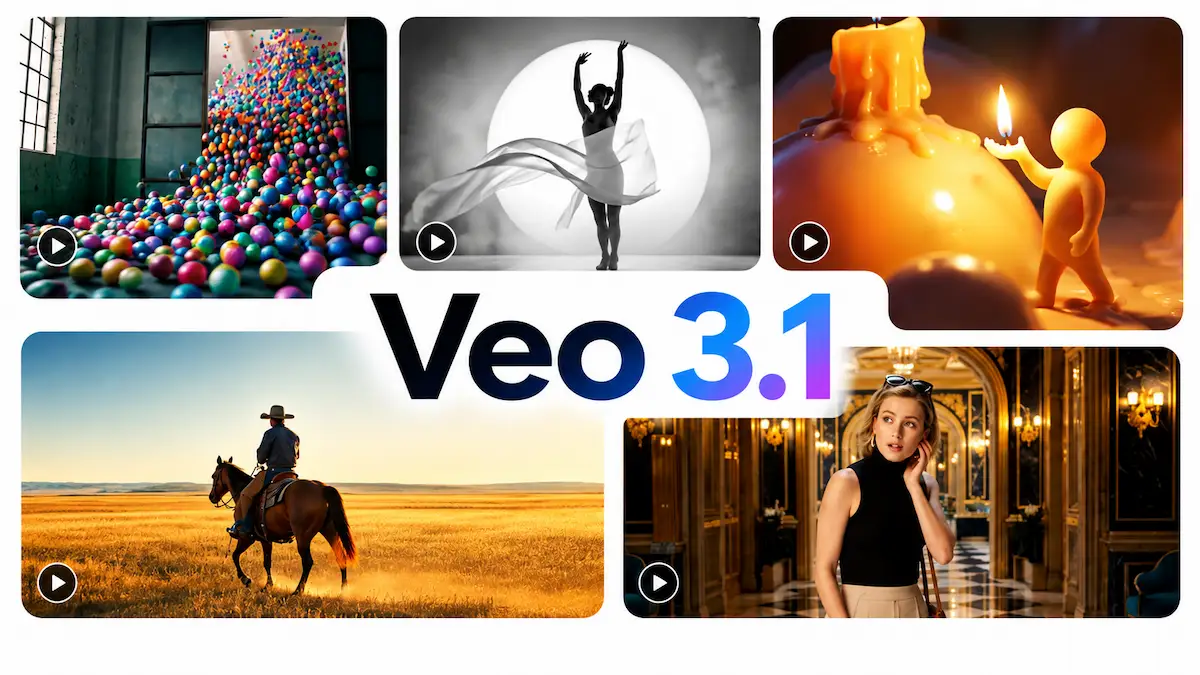
Flow now offers three Veo 3.1 tiers: Lite, Fast and Quality, and the API calls the top tier Standard.
| Feature | Veo 2 | Veo 3 | Veo 3.1 |
|---|---|---|---|
| Audio | None | Yes | Yes, richer sound |
| Reference images | No | No | Up to three |
| Clip length | 5 to 8 seconds | 8 seconds | 4, 6 or 8 seconds |
| Resolution | 720p | 720p and 1080p | 720p, 1080p and 4K |
| Vertical video | No | Limited | Yes, 9:16 |
| Status | Retired | Retired on the API | Current |
Many reviews still say Veo 3 in the title, and people still search for it, so you will see both names. Whenever a guide quotes a price of $250 a month or $0.75 per second, it was written for the older setup.
Veo 3.1 Lite vs Fast vs Quality: which tier should you pick?
All three tiers belong to the same model line, and all three create audio together with the picture. The difference is detail, speed and price. Lite is the cheapest, Fast sits in the middle and Quality gives the sharpest result.
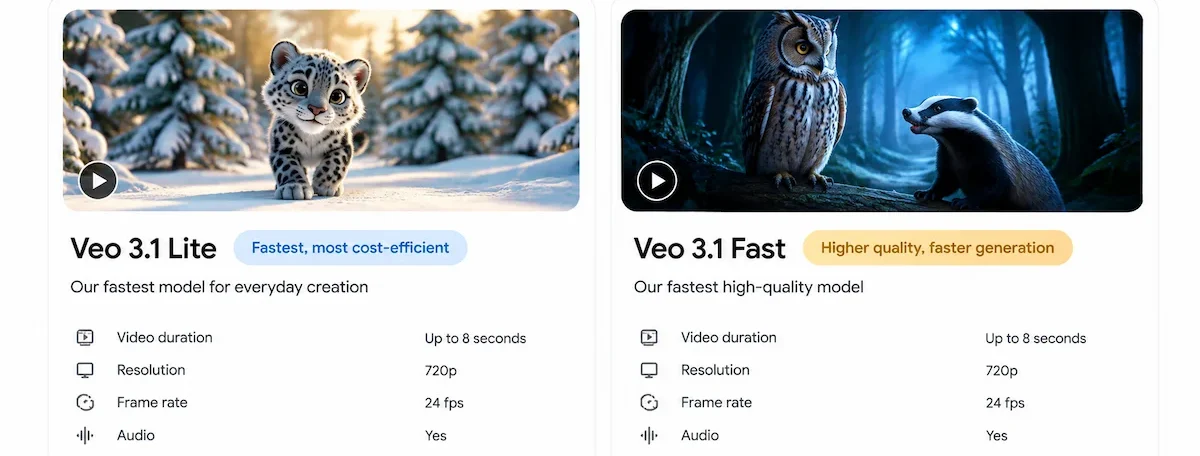
| Tier | Best for | Flow credits per clip (Plus and Pro) | API price at 720p per second | Extend on API |
|---|---|---|---|---|
| Lite | Tests and quick social clips | 10 | $0.05 | No |
| Fast | Everyday work and drafts | 20 | $0.10 | Yes |
| Quality (Standard on the API) | Final hero shots | 100 | $0.40 | Yes |
Reviewers say the gap shows up mostly in fine detail, hands and lighting, not in the general look of the scene. One tester at AI Alleyway got clean hands, realistic metal and natural window light from a Lite clip that cost only 10 credits.
A simple rule works for most projects: draft on Lite, refine on Fast and finish only the winning prompts on Quality. Ultra plans pay half price for Lite and Fast, which makes drafting even cheaper.
How does Google Veo work?
Veo uses a diffusion model, which starts from noise and refines it step by step into a clear video. It works on a compressed version of the clip, known as a latent, so the model can handle a whole scene at once instead of drawing one frame at a time. That is why a moving object follows a believable path and a face stays recognizable across the clip.
The big change in Veo 3 was audio. Sound and picture are generated in the same pass, so a lip movement and a spoken line line up without a separate dubbing step. If terms like latent or diffusion are new to you, the AI terms glossary explains them in plain words.
Every clip also carries an invisible watermark called SynthID, which lets Google tools tell that the footage was generated. More on that below.
Google Veo 3 features
The Google Veo 3 features that matter in daily use are listed below, all of them available in Veo 3.1.
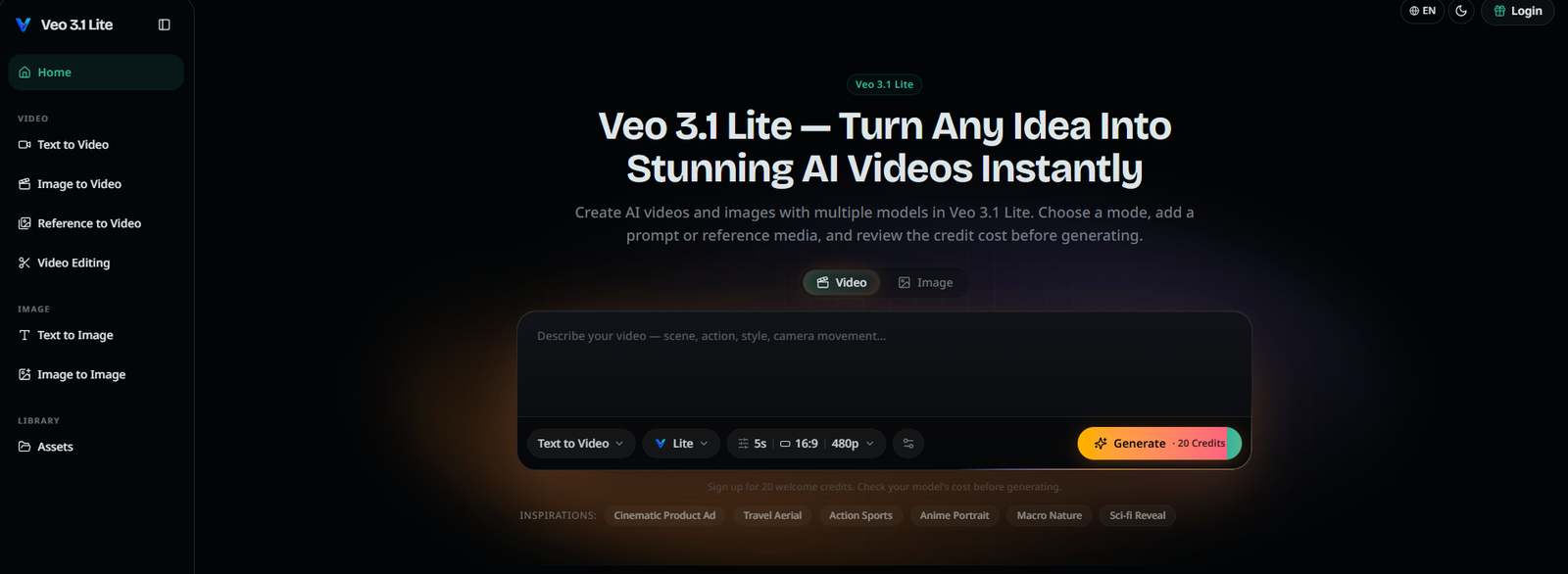
Text-to-video
You write a description and the model returns a clip.
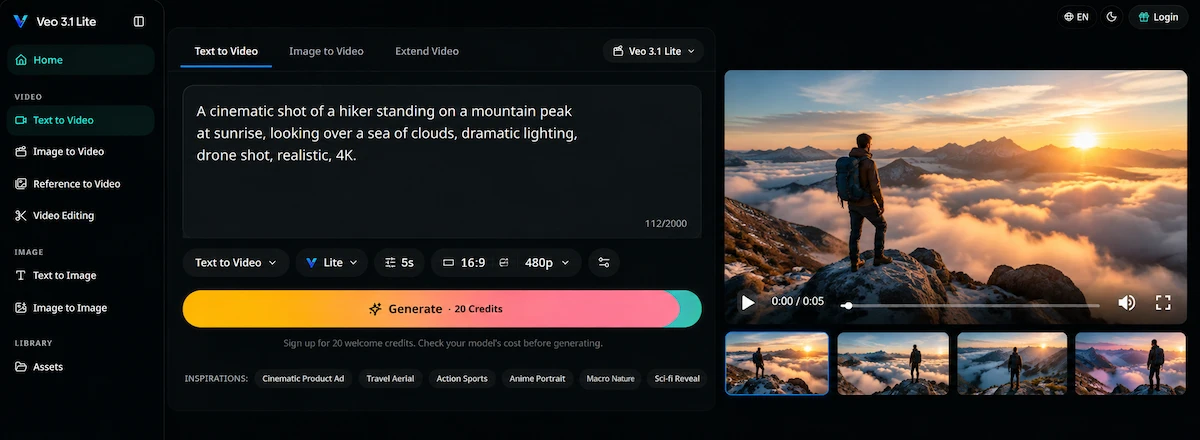
The best results come from a prompt that names the subject, the action, the camera and the mood. Veo understands film terms such as dolly shot, aerial view or shallow focus, and it follows them better than most older models.
Image-to-video and first and last frame
With image-to-video you upload a still and the model animates it while keeping the composition, light and style. The first and last frame option goes one step further.

You give two images, one for the opening and one for the ending, and Veo builds the motion between them. It is useful when you already know how a scene should start and finish.
Ingredients to Video
Ingredients to Video accepts up to three reference images, such as a person, a character or a product.
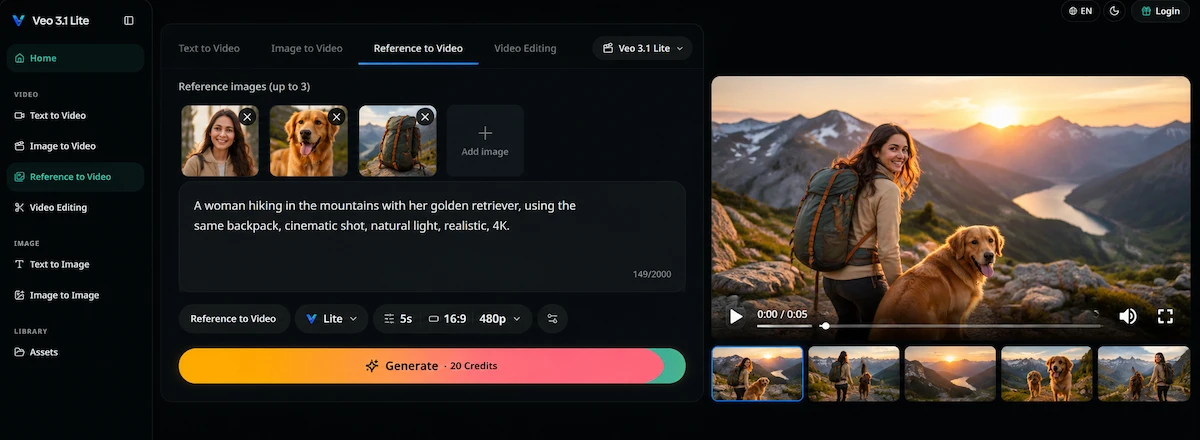
The model uses them as a guide so the same face, outfit or packaging appears in different shots. Character drift can still happen with big changes in angle or light, so keep reference photos clear and well lit.
Native audio and lip sync
This is the feature that made Veo 3 famous. The model creates dialogue, sound effects and ambient noise together with the video. You write spoken lines in quotation marks, describe sounds in plain words, and the clip returns with lip sync already matched. Testers keep naming it the strongest part of the tool, especially for talking-head and interview scenes.
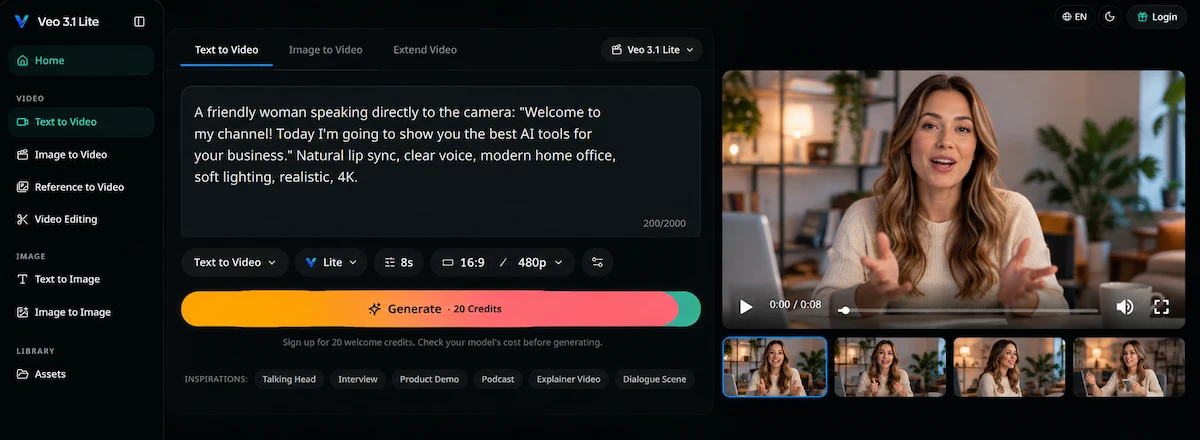
Audio is not fully controllable. Some testers asked for room tone and got background music, and others got captions they never requested. Plan to generate a few versions of any important shot. If you need a fixed voice for a brand, tools for AI avatar videos give you more control over the speaker.
Scene extension and clip length
A single clip lasts 4, 6 or 8 seconds. Scene extension adds about 7 seconds at a time by using the last second of the previous clip as context. On the API, Standard and Fast can extend a video up to 20 times, which gives a total of about 148 seconds at 720p. Lite cannot extend.
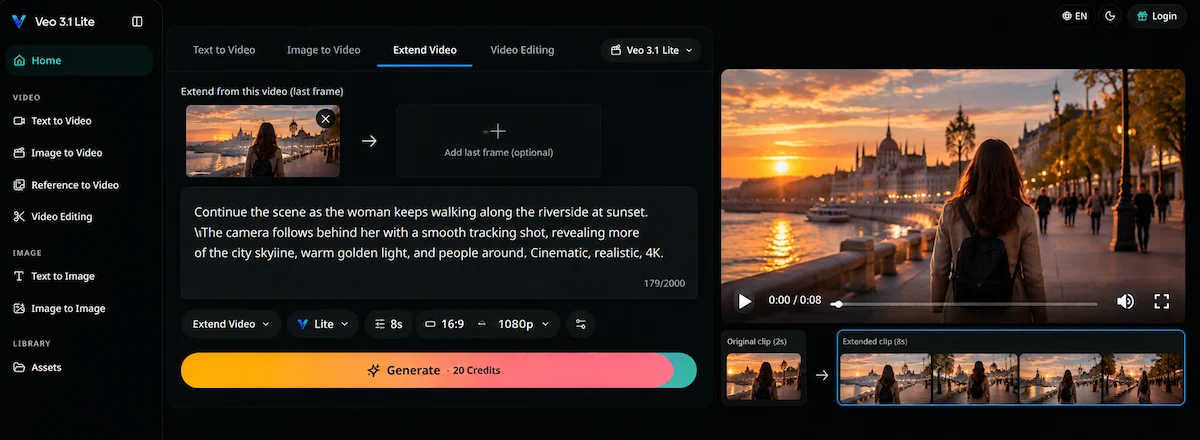
Longer extensions need planning. Write the next prompt as a natural continuation of the action, and finish all extensions within two days, because Google removes generated videos from its servers after that. If you only need short vertical clips from existing footage, a workflow to turn long videos into shorts may cost less than generating from scratch.
Resolution, vertical video and 4K upscaling
Veo 3.1 outputs 720p, 1080p and 4K, in 16:9 landscape or 9:16 vertical. The vertical format is built for Shorts, Reels and TikTok. On the API, 1080p and 4K clips must be 8 seconds long, while shorter clips are limited to 720p.

In Flow, 1080p upscaling is free for subscribers and 4K upscaling costs 50 credits on Ultra plans.
SynthID watermark
Every Veo video carries SynthID, an invisible watermark placed in each frame. It survives compression and light editing, and Google offers a way to check whether a clip came from its models.

In India, South Korea and Vietnam, a visible watermark is also added automatically. In other regions, the visible mark is optional.
Veo technical specifications at a glance
| Spec | Veo 3.1 |
|---|---|
| Clip length | 4, 6 or 8 seconds |
| Resolution | 720p, 1080p, 4K |
| Aspect ratio | 16:9 and 9:16 |
| Frame rate | 24 fps |
| Output | MP4 with audio |
| Reference images | Up to three |
| Extension | 7 seconds per step, up to 20 steps (not on Lite) |
| Watermark | SynthID in every frame |
| Storage on Google servers | 2 days on the API |
Where you can use Veo
Google offers Veo through several doors, and the right one depends on what you want to build. Casual creators start in Flow. Developers start in the API.

- Google Flow: the main creative tool, with Veo 3.1 Lite, Fast and Quality in the model picker.
- Gemini app: now makes videos with Gemini Omni, so Veo 3.1 is chosen in Flow instead.
- Google AI Studio and Gemini API: pay per second of video, with no free tier for Veo.
- Vertex AI: the business option, with regional control and support agreements.
- Google Vids and YouTube Shorts: video creation inside Workspace and on mobile.
The official Gemini API video documentation lists current model names, limits and example requests.
How to use Veo in Google Flow step by step

- Open Google Flow in Chrome or Edge and sign in with your Google account.
- Start a new project and choose a video model: Veo 3.1 Lite for tests, Fast for daily work, Quality for final shots.
- Pick 16:9 or 9:16 and a clip length of 4, 6 or 8 seconds.
- Write the prompt, or add a starting image or up to three reference images.
- Check the credit cost shown before generating, then press generate.
- Review the clip, extend it or edit it on the timeline, and download the final file.
Veo features inside Flow: Frames, Ingredients, Extend and editing tools
Flow is built around projects instead of single clips. A side panel holds your media, characters and scenes, so you can save a character once and reuse it across shots. Generated clips drop onto a timeline where you can arrange, trim and join them.
- Frames: start a clip from a still image, or set both the first and the last frame.
- Ingredients: add reference images so a person, character or product stays consistent.
- Extend: continue an 8-second clip, with the extension running on Lite.
- Describe your edits: change a shot with a written instruction instead of generating it again.
- Characters and Scenes: keep the same cast and location across a sequence.
- Credit preview: Flow shows the cost before you generate, and a confirm setting is on by default.
Reviewers also found that still images made with the Google image model cost zero credits. A good habit is to build the look with free stills first, then animate only the frames you like.
What can you make with Veo? Use cases
Veo works best on short clips where sound and atmosphere matter. These are the uses that come up most often in reviews and in Google material.
- Ads and product videos: product shots with ambience, built from a photo of the real item.
- Social clips: vertical 9:16 videos for Shorts, Reels and TikTok.
- Film previews: test camera moves, light and composition before a real shoot.
- Talking-head and interview scenes: a character speaking to camera, with lip sync.
- Education: short explainers and visual examples for lessons.
- Concept testing: several versions of one idea before money goes into production.
- B-roll: filler footage for videos that already have a main story.
Teams that plan whole campaigns around video can combine Veo with the tools in our list of the best AI tools for marketing.
The weak spots are scenes with several people interacting, exact brand colors and any readable text inside the frame. For those jobs, plan to fix the result in a regular video editor.
How to make a short video ad with Veo step by step
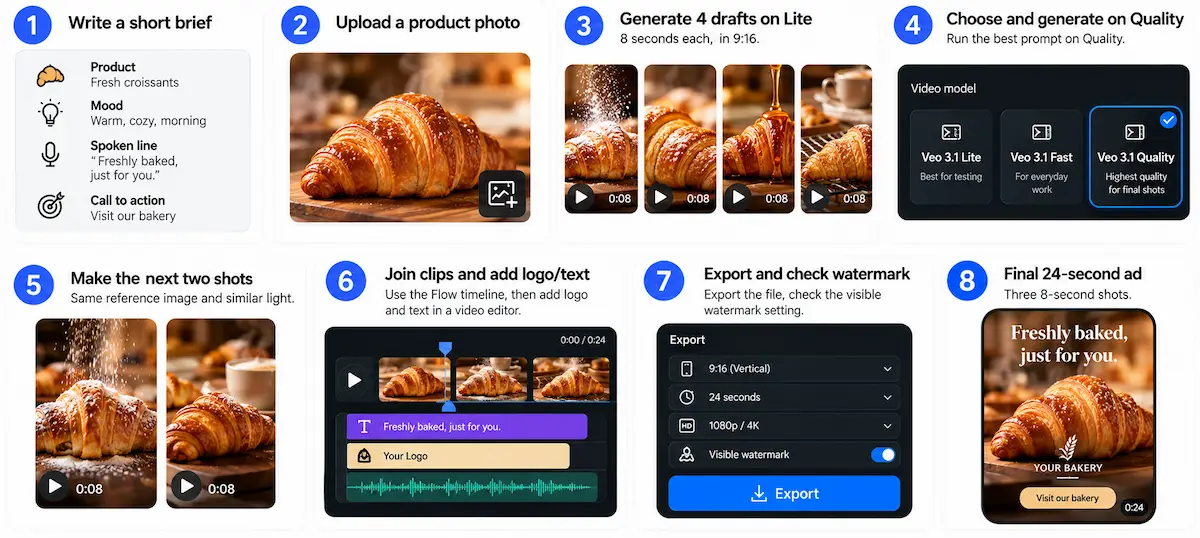
Take a small bakery that wants a 24-second vertical ad. The plan is three 8-second shots, each made from the same product photo. The steps below keep the cost under control.
- Write a short brief: product, mood, one spoken line and the final call to action.
- Upload a clear, well lit photo of the product as a reference image.
- Generate four drafts on Lite, 8 seconds each, in 9:16.
- Choose the strongest direction and run that prompt on Quality.
- Make the next two shots with the same reference images and similar light, so the product looks identical.
- Join the clips on the Flow timeline, then add the logo and any text in a video editor, because text made by the model is unreliable.
- Export the file, check the visible watermark setting and publish.
The credit bill for this plan is about 340: 40 for the Lite drafts and 300 for three Quality clips. That is roughly a third of a Pro month, before any re-rolls. If you want a cheaper version, make the middle shot on Fast.
Write the script before you open Flow. Our guide to writing ad copy with AI helps with the hook and the call to action.
Veo prompt tips that work
A good Veo prompt reads like a short shot description. Google suggests this order: camera, subject, action, context, style and audio. Start with the detail that matters most, because the model gives more weight to what comes first.
Here is an example: “Slow dolly shot through a misty pine forest at dawn. A hiker in a red jacket walks toward the camera and says, ‘We are almost there.’ Soft light, shallow focus. Sound of boots on wet gravel and distant birds.”
Dialogue goes in quotation marks, sound effects are described in plain words, and ambient noise gets its own sentence. Keep prompts short, since very long ones often produce worse clips. If you write prompts for a team, the guide on prompt engineering for business shows how to build a reusable template.
Test one change at a time. Switching the camera, the light and the action in the same round makes it impossible to tell what improved the result.
Veo 3 pricing: plans, credits and API cost
The Veo 3 pricing picture has two layers. You buy a Google AI plan that gives monthly credits, and each generation spends credits.

Developers skip the plans and pay per second through the API. The figures below are US prices checked in October 2026, and Google can change them at any time.
Google AI plans and Flow credits
| Plan | US price per month | Flow credits per month |
|---|---|---|
| Free account | $0 | 50 per day |
| Google AI Plus | $4.99 | 200 |
| Google AI Pro | $19.99 | 1,000 |
| Google AI Ultra (5x) | $99.99 | 10,000 |
| Google AI Ultra (20x) | $199.99 | 25,000 |
Every account also receives 50 credits a day on top of the monthly amount, and unused credits do not roll over. Older articles quote $7.99 for Plus and $249.99 for Ultra. Those figures belong to the previous plan structure.
How many credits one Veo clip costs
| Model | Plus and Pro | Ultra |
|---|---|---|
| Veo 3.1 Lite | 10 credits | 5 credits |
| Veo 3.1 Fast | 20 credits | 10 credits |
| Veo 3.1 Quality | 100 credits | 100 credits |
Clip length does not change the price, so an 8-second clip gives the most video per credit. On the Pro plan, 1,000 credits buy about 100 Lite clips, 50 Fast clips or 10 Quality clips. A single minute of finished video needs roughly eight clips, which means about 800 credits if every shot uses Quality. Failed generations are not charged.
Veo API pricing per second
| Tier | 720p | 1080p | 4K |
|---|---|---|---|
| Veo 3.1 Lite | $0.05 | $0.08 | Not supported |
| Veo 3.1 Fast | $0.10 | $0.12 | $0.30 |
| Veo 3.1 Standard | $0.40 | $0.40 | $0.60 |
These prices are per second of video with sound. An 8-second clip at 1080p costs about $0.64 on Lite, $0.96 on Fast and $3.20 on Standard. You pay only for videos that are produced. Google Cloud also sells video without audio at lower rates. A common workflow is to draft on Lite or Fast and run only the winning prompt on the top tier, and our guide on how much AI tools cost helps you budget for that kind of spend.
Google Cloud lists lower prices for video without audio, for example $0.03 per unit for Lite at 720p. The pricing page does not define the unit, so confirm it on your billing page before you budget.
Is Veo AI free?
Partly. Any Google account gets 50 Flow credits a day, which is enough for five Lite clips or two Fast clips, and a Quality clip never fits inside that limit. Students can get Google AI Pro free for a year if they meet the offer terms, and qualifying Workspace plans include Flow with daily credits. The Gemini API has no free tier for Veo. Treat the free route as a trial, not a production workflow.
How to save credits with Veo
- Draft on Lite or Fast: move to Quality only for the final shot.
- Use 8-second clips: a 4-second clip costs the same credits.
- Change one thing per attempt: this shows what actually improved the result.
- Keep the confirm setting on: Flow then asks before it spends credits.
- Watch the quantity toggle: asking for two to four outputs multiplies the cost.
- Use free daily credits: they refresh every day and do not roll over.
- Use free stills: lock the look with images before animating.
Veo 3 review: pros and cons
This honest review is built from published hands-on tests, including those from Cybernews, Manus and AI Alleyway, together with Google documentation. Their findings line up on most points, and the main ones are collected below.
What Veo does well
- Audio in one pass: dialogue, effects and ambience come with the picture, which removes a whole editing step.
- Lip sync: speech and mouth movement match well, and talking-head scenes look the most natural.
- Realism: hands, light, materials and camera moves hold together better than in older models, even on the cheap Lite tier.
- Prompt adherence: film terms such as dolly, aerial or macro lens are understood.
- Access: a free daily allowance, plus entry plans from $4.99, makes it easy to test.
Where Veo falls short
- Credit math: a Quality clip costs 100 credits, so the Pro plan gives only ten of them per month.
- Eight-second limit: longer scenes need extension or stitching, and each step adds cost.
- Text in video: signs and subtitles often come out garbled, and in some tests subtitles did not appear at all.
- Precision shots: testers reported extra people, wrong object counts and odd reflections when a prompt asked for exact details.
- Confusing lineup: Veo 3.1 tiers sit beside Gemini Omni Flash, and the newest model is not called Veo.
- Busy periods: Flow sometimes shows a high demand notice, and renders slow down.
Is Veo worth it?
Whether Veo is worth it depends on the job. For short dialogue clips, product cutaways, ads and B-roll with sound, it is among the strongest options. For multi-scene stories with the same character, long scenes or very tight budgets, it is a weaker fit. A sensible start is the free credits, then Pro if you generate regularly. Choose Ultra only if your work depends on the Quality tier.
Veo AI problems and how to fix them
Every video model fails sometimes, and Veo is no exception. The table lists the issues reviewers report most often and the fix that usually helps.
| Problem | Likely cause | Fix |
|---|---|---|
| Character changes between shots | New angle or light | Use the same reference images and keep camera and light similar |
| Sound does not match the action | Vague timing in the prompt | Describe the order of events in short sentences |
| Blurry or soft clip | Lite tier or a busy scene | Use Quality, simplify the scene, ask for 1080p |
| Garbled text | Known weakness of video models | Add text later in an editor |
| Extension looks disconnected | Prompt starts a new action | Continue the same action from the last second |
| Extra people or objects | Loose prompt | State the exact number and position of subjects |
| Unwanted captions or music | Model decides on its own | Generate another version or remove them in an editor |
| Slow render | High demand | Retry later, away from peak hours |
Veo safety, content rules and copyright
Google adds safety filters to Veo, and prompts that break its usage policies are blocked. Blocked or failed generations are not charged. Rules differ slightly between Flow, the Gemini API and Vertex AI, so read the policy of the surface you use.
SynthID and labeling
Every output made with Veo carries an invisible SynthID watermark, on free and paid accounts alike. A visible watermark can be switched on or off in Flow, but Google applies it automatically for users in India, South Korea and Vietnam unless they are on the Ultra 20x plan. Google says SynthID cannot be removed through its tools.
Real people, misuse and training data
Reports say Flow does not allow videos of prominent people or edits to uploaded videos of identifiable minors. Misuse still happened. In July 2025, Media Matters reported racist videos made with Veo 3 spreading on TikTok, and Ars Technica noted that vague prompts can slip past the filters. Google has not named the source of its training videos, and commentators have guessed that YouTube was part of it.
Copyright and commercial use
Reports say Google terms allow commercial use of videos from paid plans and the API. Content made by a model has limited copyright protection under current US law, which matters for logos, mascots and other brand assets. Check the current terms for your plan before you publish client work.
Veo availability by country and age
Flow is open to adults only. Google requires verified age of 18 or older, a supported region and a Google AI plan, although its help pages do not agree on whether the 50 daily credits work without a subscription, so open Flow and check on your own account. The supported list covers roughly 140 to 150 countries and territories, and Google says a VPN does not unlock Flow in an unsupported region.
Reports add that editing uploaded videos is not available in the EEA, Switzerland and the UK. The Gemini API and Vertex AI have their own region lists. Look up your country on the official Flow help page before you pay for a plan.
Third-party apps that include Veo 3.1
Many video platforms resell Veo inside their own plans, for example invideo, Artlist and the Runway Standard plan. Prices follow their credits, not Google rates, and some sites with Veo in the name are separate companies with no link to Google.
Before you pay a reseller, check four things: which Veo tier it uses, which resolution you get, whether the output carries a watermark and what the license says about commercial use. Then compare the price of one 8-second clip with the Flow and API numbers above.
Veo vs Sora, Kling, Runway and Gemini Omni
Sora is no longer a choice, because OpenAI closed the app in April 2026 and scheduled the API shutdown for September 2026. That leaves Veo, Kling, Runway and Seedance as the main rivals, plus the Gemini Omni model from Google.
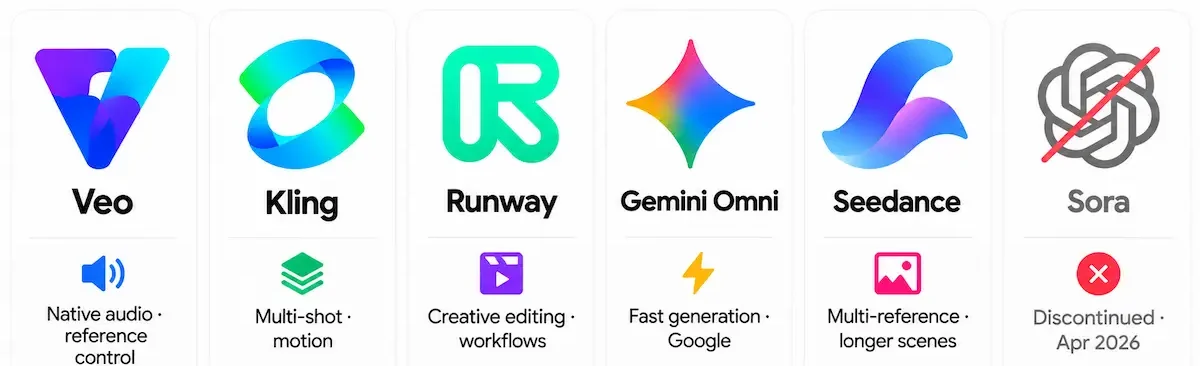
| Tool | Strong side | Weak side |
|---|---|---|
| Veo 3.1 | Audio, lip sync, prompt adherence | 8-second clips, credit cost |
| Gemini Omni Flash | Editing real footage, voices, any-input prompts | Newer, fewer reviews |
| Kling | Native 4K, lower cost per clip | Billing complaints from some users |
| Runway | Editing tools, Adobe integration | Behind on raw output quality |
| Seedance | Benchmark scores, price | Legal uncertainty, no first-party site |
Inside Flow, the simple rule is to use Veo 3.1 for dependable text-to-video and image-to-video shots, and Omni Flash for editing existing footage and keeping characters consistent. Before you commit to one tool for a team, read how to choose AI tools for business, because the cheapest clip is not always the cheapest finished video.
Google also describes the model on its DeepMind Veo page, where the current version and sample clips are listed.
Who should use Veo and who should skip it
Veo fits these users:
- Marketers who need short ads and social clips with sound.
- Filmmakers who want quick previews of scenes and camera moves.
- Small teams that already work in Google Workspace.
- Developers who want video generation inside their own product.
Veo is a poor fit for these cases:
- Long continuous scenes without cuts.
- Projects that need readable on-screen text.
- Daily high-volume output on a small budget.
- Work that depends on exact brand colors and fine product details.
If you run a small company and want to know where video fits next to your other tools, the page on AI for small business gives a practical order to follow.
What is next for Veo and Gemini Omni
Google video documentation now points developers to Gemini Omni Flash as the default video model on the API. Veo 3.1 stays the suggested choice for scene extension, last-frame control and existing pipelines. Google has not announced Veo 4, so the Veo name may continue in a premium tier or fade behind Omni.
The practical lesson is to avoid locking a workflow to one model. Veo 3 was retired about a year after launch, and Google published the shutdown date in advance. Keep an eye on the deprecation page and test new models when they appear.
Final verdict on Veo AI
Veo AI is the most complete option for short clips with natural sound, and Veo 3.1 is the version to use. The quality is high even on the cheap tier, and the free credits let you check that for yourself. The weak points are the credit cost of the Quality tier, the eight-second limit and the confusing model names.
Start with the daily free credits, draft on Lite or Fast, and save Quality for the shots that go into the final video. Pick your plan from the credit table, not from the headline price.
Veo AI FAQ
What is Veo AI?
Veo AI is the common name for Google Veo, a video generation model from Google DeepMind. It creates 4, 6 or 8 second clips with audio from a text prompt or an image. The current version is Veo 3.1.
Is Veo AI free?
Every Google account gets 50 Flow credits per day, enough for a few Lite or Fast clips. Paid plans start at $4.99 per month in the US. The Gemini API has no free tier for Veo.
Is Veo 3 still available?
No. Google shut down Veo 3 and Veo 3 Fast on the Gemini API on 30 June 2026. Veo 3.1 replaced them, and Flow offers the three Veo 3.1 tiers.
How long can a Veo video be?
One generation gives 4, 6 or 8 seconds. Scene extension adds about 7 seconds per step, up to 20 steps on the API for Standard and Fast, which brings the total close to 148 seconds.
Does Veo generate audio?
Yes. Veo 3 and Veo 3.1 create dialogue, sound effects and ambient noise in the same pass as the video. You describe the sound in the prompt, and spoken lines go in quotation marks.
Can I use Veo videos commercially?
Reports say Google terms allow commercial use on paid plans and the API, but rules differ by plan and country. Read the current terms before you publish branded work. Also note that AI-generated content has limited copyright protection in the United States.
Is there a Veo 4?
No. Google has not announced Veo 4. At I/O 2026 it introduced Gemini Omni, a separate model family, and Veo 3.1 remains the current Veo.
Is Gemini Omni the same as Veo?
No. Gemini Omni is a newer model that creates and edits video from text, images, audio and existing clips. The Gemini app now uses Omni for video, while Flow and the developer tools still offer Veo 3.1.
What is the difference between Veo 3.1 Lite, Fast and Quality?
They are three tiers of the same model. Lite is the cheapest at 10 credits per clip, Fast costs 20 and Quality costs 100 for non-Ultra plans. Quality gives the best detail, and Lite cannot extend clips on the API.
Can I run Veo on my own computer?
No. Veo is a hosted model, so you use it through Google Flow, the Gemini API or Vertex AI. Nothing can be downloaded and run locally.
How can I tell if a video was made with Veo?
Every Veo video carries an invisible SynthID watermark. Google says it can be checked through its own tools, including the Gemini app. A visible mark may also appear in the corner.
Is Veo available in my country?
Flow works in roughly 140 to 150 countries and territories for verified users aged 18 or older. Check the supported list on the Google Flow help page for your location, since the list changes.
Can I edit a Veo video after it is generated?
Yes. In Flow you can place clips on a timeline, trim and join them, extend a clip and revise a shot with a written instruction. Some editing options on uploaded videos are not offered in the EEA, Switzerland and the UK.
Is Veo better than Sora?
Sora is no longer an option, because OpenAI closed the app in April 2026 and scheduled the API shutdown for September 2026. The real comparison today is Veo against Kling, Runway and Seedance.
Does Veo work in the Gemini app?
The Gemini app now makes videos with Gemini Omni. To pick Veo 3.1 on a consumer plan, use Google Flow. Developers can use the Gemini API or Vertex AI.
How much does a one-minute Veo video cost?
A minute needs about eight 8-second clips. In Flow that is roughly 80 credits on Lite, 160 on Fast and 800 on Quality. On the API at 1080p with sound it is about $4.80 on Lite, $7.20 on Fast and $24 on Standard, before re-rolls.