AI video creation lets you build a finished video from a text prompt, a photo, a script or a blog post, without a camera, a studio or a timeline full of footage. A clip that once needed a crew and a week of editing can now start as one sentence and be ready in a few minutes. That speed is the reason marketers, teachers, store owners and solo creators now treat an AI video generator as a regular part of their workflow, next to an image editor or a scheduling app.
This guide explains what AI video creation is, how the technology works, which types of AI video exist and how to make your first video in six steps. It also compares nine AI video tools by price, features and best use case, and it covers the limits you should know before you pay for a plan. Prices and features come from public pricing pages and recent reviews, and they change often, so check the current plan on each site before you buy.
AI Video Creation at a Glance
- What it is: Software that generates, edits or assembles video from text, images, scripts or existing footage.
- Main formats: Text to video, image to video, AI avatars, script to video and AI assisted editing.
- Best for beginners: Canva, VEED and invideo AI, because each one combines generation with a simple editor.
- Best for cinematic clips: Google Veo and Runway.
- Best for talking head and training videos: Synthesia and HeyGen.
- Typical cost: A free plan for testing, then roughly $10 to $30 per month for most paid plans.
- Main limit: Clips are short, and the first draft almost always needs editing.
What Is AI Video Creation?
AI video creation is the process of using artificial intelligence to generate, edit or assemble video content. Instead of filming real scenes, you describe what you want, upload an image or paste a script, and the software produces footage, voice, captions and motion on its own. Some tools build the picture from nothing, while others take your own material and speed up the editing.

The category covers text to video generation, image to video animation, talking head avatars, automatic captions and AI assisted editing. An AI video generator usually handles the first part, creating new scenes from a prompt. An AI video editor handles the second part, cutting, resizing and cleaning footage you already have. Both rely on generative models, the same family of tools covered in the guide to generative AI for business, and many platforms now offer both in one browser tab.
Demand is growing fast. The global AI video generator market was valued at about $788.5 million in 2025 and is projected to reach $3.4 billion by 2033, according to Grand View Research. Marketing teams, trainers and small shops lead the adoption, because video sells and teaches better than plain text but costs a lot to produce the old way.
How Does AI Video Creation Work?
Most AI video creation tools follow the same basic flow. You set a goal, give the tool a prompt or a reference file, and the model generates scenes or motion. Then you edit the result, add sound and export the file.
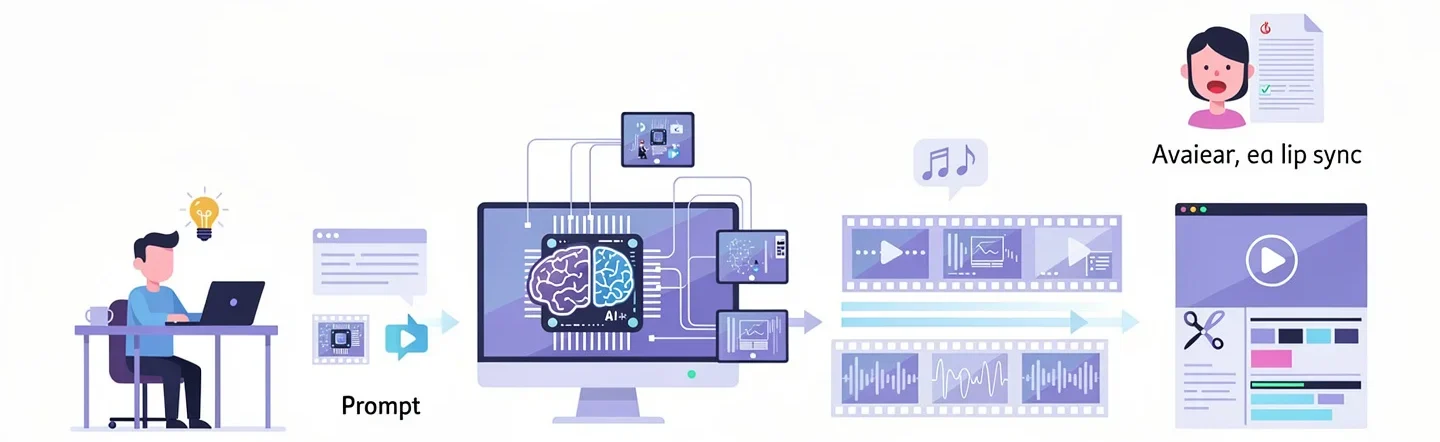
Behind the screen, machine learning models trained on huge amounts of footage learn patterns in lighting, movement and composition. When you type a prompt, the model builds new frames that match the description. Newer models such as Google Veo 3.1, Runway Gen-4.5 and Kling also create speech, sound effects and background music together with the picture, so you no longer have to add audio in a separate step.
Avatar tools work differently. They take a script, convert it to speech with a text to speech engine and animate a digital presenter with lip sync. Script to video tools such as Pictory pull stock clips, add a voiceover and place captions on top. Editing tools like VEED and Descript use AI to transcribe speech, remove filler words and cut footage by editing the text.
If a term in this section is new, the AI terms glossary explains the most common ones in plain language.
Types of AI Video
AI video creation covers several formats, and each one fits a different goal. Pick the type first, then the tool.
Text to Video and Image to Video
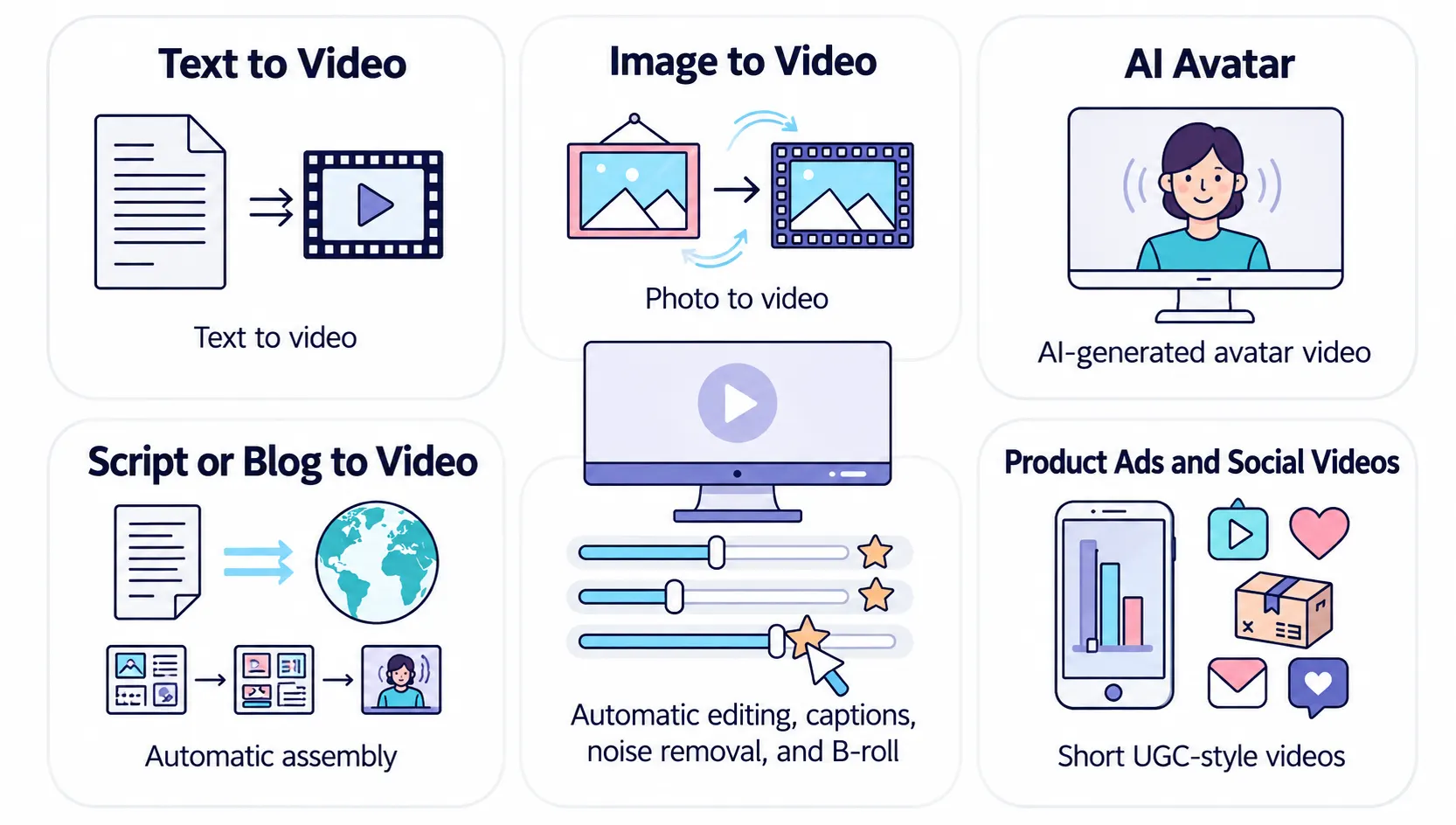
Text to video turns a written prompt into a short clip. You describe the subject, the action, the setting and the mood, and the model returns a scene. Image to video starts from a photo or a drawing and adds motion, which gives you more control over the look. Runway, Google Veo, Kling and Luma Dream Machine are the best known AI video generators for this format.
AI Avatar and Talking Head Videos
An AI avatar reads your script on camera with natural lip sync and gestures. This format suits training, onboarding, product explainers and sales messages. Synthesia and HeyGen are the best known, and both can translate one video into dozens of languages with AI dubbing.
Script to Video and Blog to Video
These tools take an existing text and build a video around it. You paste a script, a blog post or a URL, and the tool adds stock footage, a voiceover, captions and music. Pictory and invideo AI work this way, and the format is popular for turning articles into short clips.
AI Video Editing and Enhancement
AI video creation also includes editing, and these tools use AI for auto captions, noise removal, background replacement, b-roll suggestions and cutting long videos into short clips. VEED, Descript and OpusClip are common picks when you already have footage and want it finished faster.
Product, Ad and Social Videos
Some platforms are built for ads and short social posts. They turn a product link or a photo into a UGC style video with an avatar, a script and captions. E-commerce teams use this format to make many variations for TikTok, Reels and Shorts, and a simple AI video maker like Creatify or invideo AI saves a lot of time here.
How to Create an AI Video Step by Step
You can create AI videos in six steps, and the process is almost the same in every tool. Spend most of your time on the first three steps, because a clear plan gives better clips than a long list of retries.
Step 1: Define the Goal and the Format
Decide what the video must do and where it will run. A product demo for a website, a vertical clip for TikTok and a training lesson each need a different length, pace and aspect ratio. Use 9:16 for Reels, TikTok and Shorts, 16:9 for YouTube and websites, and 1:1 for feed posts. Write the goal in one sentence before you open any tool.
Step 2: Pick an AI Video Generator
Choose a tool that matches the format from the previous section. A beginner can start on a free plan in Canva, VEED or invideo AI, since all three include an editor. Any AI video generator can look great in a demo, so read the free plan limits first, including watermark, clip length, export quality and monthly credits.
Step 3: Write a Short Script and a Clear Prompt
Write a short script before you write any prompt. In AI video creation, the script often matters more than the prompt, because it sets the pace, the scene order and the length. Use short sentences, keep one idea per scene and keep social clips under 60 seconds. Some tools write a script from a topic or a URL, and a chat assistant can draft one in a minute. HubSpot reports that time is better spent editing the first result than polishing the prompt, since even a very precise prompt returns a draft that needs changes.
A good prompt reads like a short movie pitch. Name the subject, the action, the setting, the mood, the lighting and the camera style, and add the sound if the tool supports audio. The guide to prompt engineering for business shows how to structure instructions so the output needs fewer retries. Here is a simple formula with an example:
- Subject: a woman in a red coat
- Action: walks slowly
- Setting: through a misty forest
- Mood: calm and moody
- Lighting: soft light at dawn
- Camera: slow zoom in
- Sound: wind and distant birds
If the first result looks off, change one detail and generate again. Changing everything at once makes it hard to see what worked.
Step 4: Start From an Image When You Need Control
Upload a photo, a product shot or a sketch as the first frame and describe how it should move. This keeps colors, shapes and branding closer to your source, and it works well for product videos and logos. Most image to video tools also let you pick the aspect ratio before you generate.
Step 5: Edit, Add Voice, Music and Captions
Put the clips in an editor, trim the weak parts and place the scenes in order. Add an AI voiceover or a text to speech track, then music at a low volume and auto captions, since most people watch with the sound off. CapCut, Canva and VEED handle all of this in the browser, and for deeper AI video creation work you can send clips to Premiere Pro.
Treat sound as a separate pass after the clips are in order:
- Voiceover: Record your own voice in the editor, or paste the script into an AI voice tool and pick a voice. Listen for pacing, and spell hard words the way they sound if the tool mispronounces them.
- Music: Use royalty free tracks or an AI music generator, and keep the volume low under speech.
- Sound effects: Add small sounds such as footsteps, wind or room noise, so a scene does not feel flat.
- Free editors for joining clips: CapCut works on desktop and phone, iMovie comes with Mac, DaVinci Resolve is free but harder to learn, and Premiere Pro is paid.
Step 6: Export and Publish
Export in MP4 at 1080p and 24 or 30 frames per second for most platforms. Keep the file size reasonable for mobile viewers and name each version clearly so you can find it later. Test the video on a phone before you post it.
Common Mistakes and Tips for Better AI Videos
Most weak AI videos share the same few problems, and each one has a simple fix.
- Long clips: Generate 5 to 10 seconds at a time and join the best shots. Short clips render faster and give you more tries per credit.
- Vague prompts: Name one subject and one action per scene, because crowded prompts produce messy motion.
- Slow pacing: Auto built videos often keep a slide on screen too long, so cut each scene to the shortest length that still makes sense.
- Too many effects: Heavy transitions and filters pull attention from the message, and a few clean cuts look more professional.
- Off topic stock footage: Script to video tools sometimes pick unrelated clips, so replace them by hand.
- No review: Watch the full video with sound before you publish, and check names, numbers and claims in the script.
- Messy files: Save every version with a clear name that includes the date or the prompt number.
Keep a short prompt log in a document with the prompt, the tool, the model and the result. After a week you will see which wording gives the best clips, and AI video creation gets faster.
Best AI Video Creation Tools in 2026
The nine AI video creation tools below cover the main formats, from branded social clips to cinematic scenes and talking head training. Canva comes first because it is the easiest starting point for non designers, and the rest follow by use case. Each review shows what the tool does best, a quick spec table and the main pros and cons. To combine several of them into one workflow, see how to build an AI tool stack for business.
1. Canva: Best for Branded Social Clips
Canva is the simplest way to add an AI video generator to a design workflow you may already use. The text to video tool runs on Google Veo 3 and creates clips of up to eight seconds with built-in dialogue, sound effects and music. The clip opens in the regular editor, where you can add your brand kit, captions and animations, and resize the video for each platform.
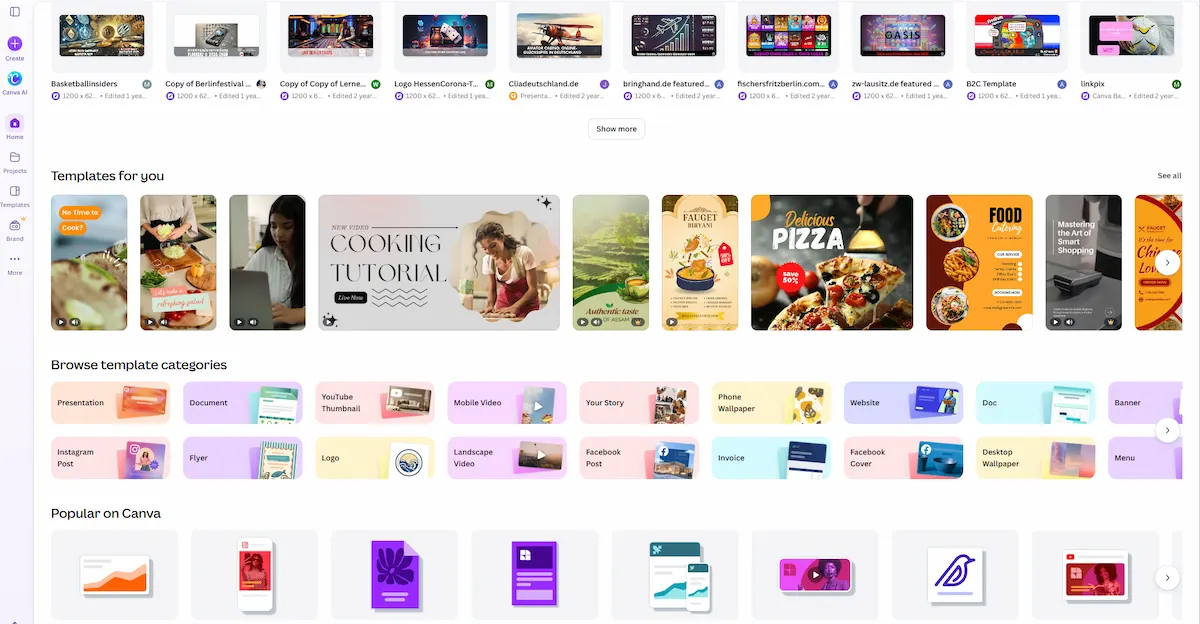
It works well for short promos, social posts and B-roll, and it is a poor fit for long productions.
| Detail | Info |
|---|---|
| Best for | Non designers and small marketing teams |
| Main features | Veo powered text to video, brand kit, templates, auto captions, resize |
| Free plan | Yes, with limited AI generations |
| Paid plans from | About $10 to $15 per month depending on billing |
| Main limit | Eight second clips and monthly AI quotas |
Pros:
- Easy editor with templates and a brand kit
- Clips come with synchronized audio
- Good for repurposing one video across platforms
Cons:
- Short clips only
- AI usage limits on paid plans
- Lighter editing than dedicated video software
2. VEED: Best for Editing and Captions
VEED started as a browser based editor and now also works as an AI video generator with several models in one place, including Google Veo 3.1, Kling, Luma and Runway. After you generate a clip you can move straight to the timeline to trim it, add subtitles, remove background noise or fix eye contact.
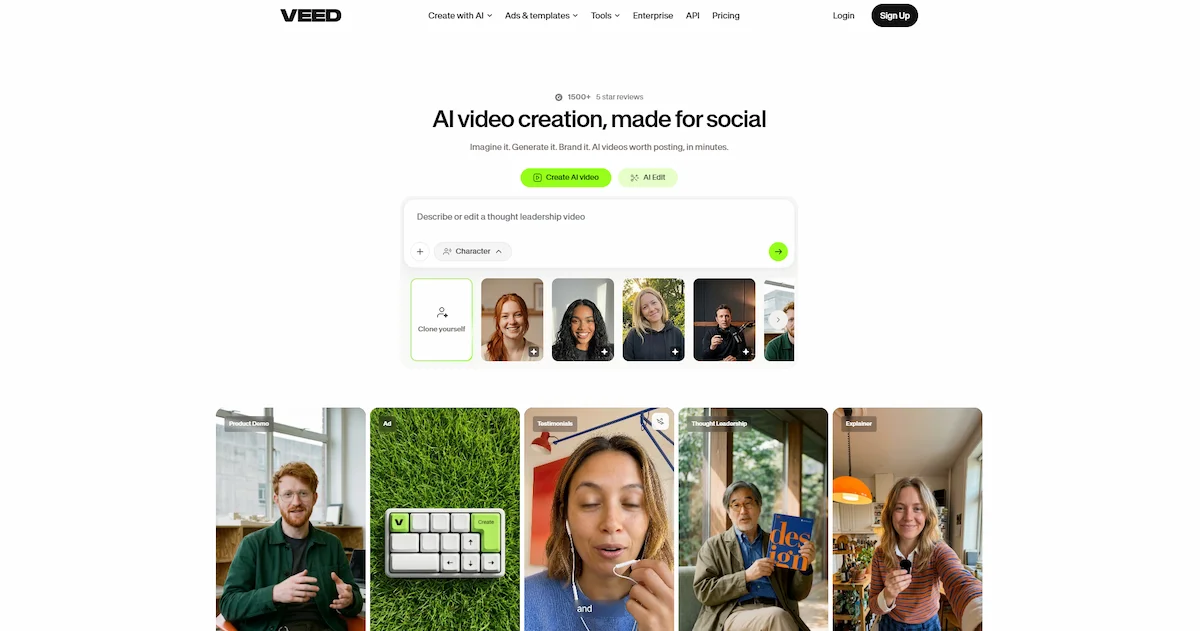
The AI Clips feature cuts a long video into short social clips, and VEED lists its own Fabric 1.0 model for talking head videos.
| Detail | Info |
|---|---|
| Best for | Social media teams and creators who edit often |
| Main features | Multi model generation, auto subtitles, AI Clips, noise removal |
| Free plan | Yes, with watermark and lower export quality |
| Paid plans from | About $9 to $18 per month depending on billing |
| Main limit | Long videos can lag, and many AI features need a paid plan |
Pros:
- Accurate auto subtitles
- Clean editor that runs in the browser
- Several AI models in one account
Cons:
- Slows down on longer projects
- Credit use varies by model and is hard to predict
3. invideo AI: Best for Prompt to Video Clips
invideo AI builds a full video from one prompt. It writes the script, picks stock footage, adds a voiceover, music and captions, and assembles everything into a first draft. You then edit by typing instructions such as add subtitles or change the music.
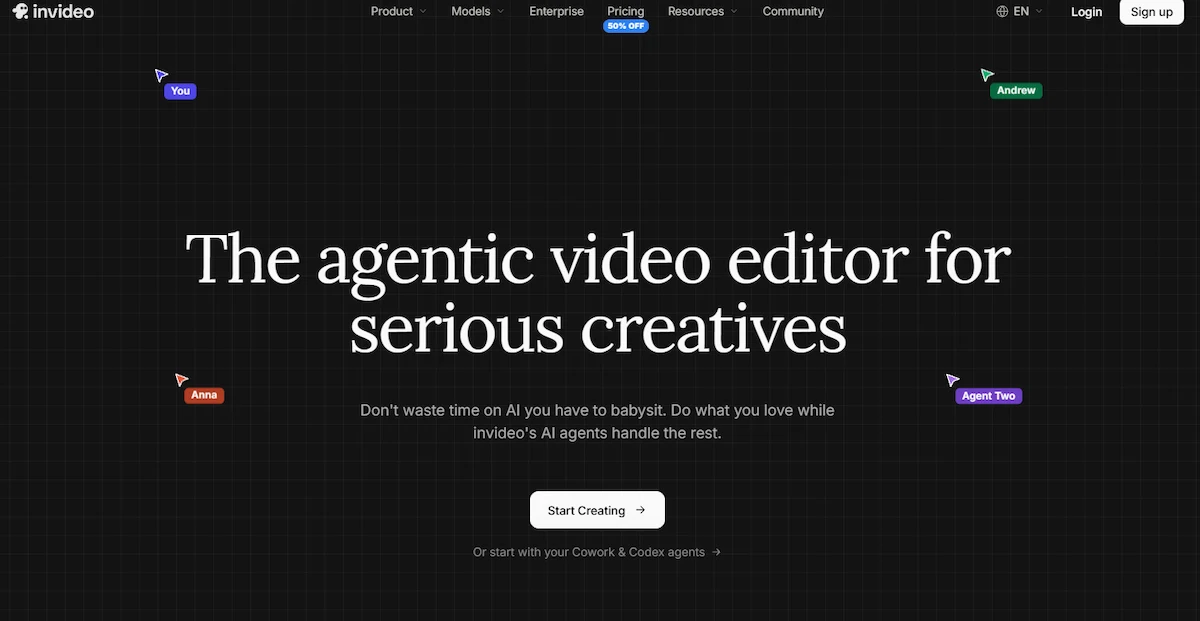
This makes it a quick AI video maker for faceless channels and social content that needs a lot of B-roll.
| Detail | Info |
|---|---|
| Best for | Faceless channels and social media marketing |
| Main features | Script generation, stock library, AI voiceover, prompt based editing |
| Free plan | Yes, with watermarked exports |
| Paid plans from | About $10 per month billed annually, with higher tiers up to $28 and more |
| Main limit | Credit use is hard to predict, and the output can look templated |
Pros:
- Fast path from idea to first draft
- Prompt based editing is accurate
- Large stock library included
Cons:
- Interface can feel confusing
- Lower plans limit access to stock media
4. Synthesia: Best for Training Videos
Synthesia is built for presenter led video. You choose an AI avatar, paste a script and get a finished video without a camera or a studio. The platform lists more than 240 avatars and voices in over 140 languages, and it supports bulk video creation from a CSV file for personalized outreach.
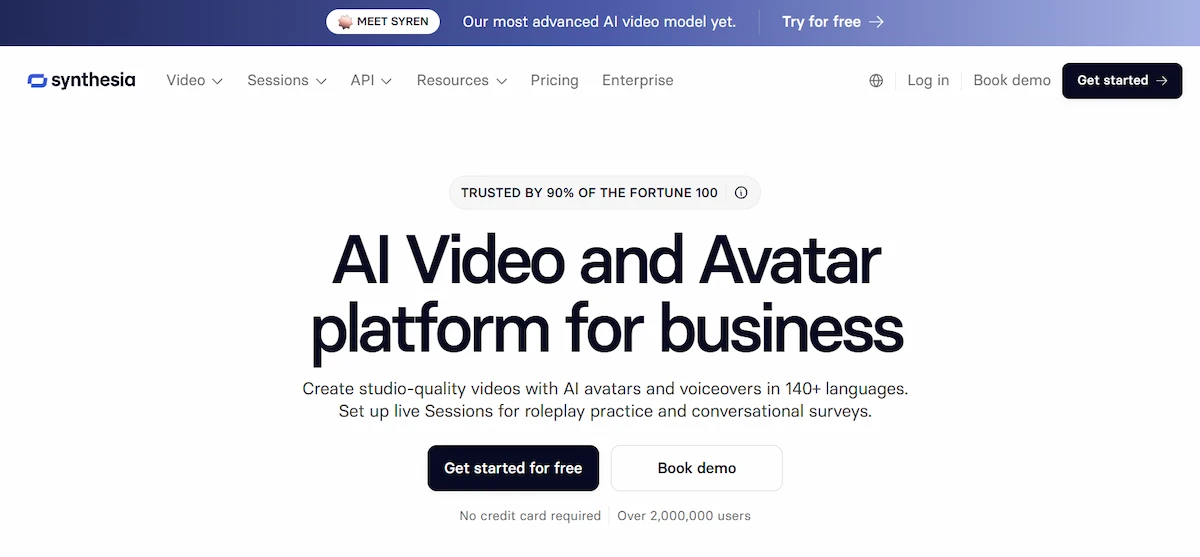
Training, onboarding, compliance and internal updates are the main use cases, and on a large screen the avatars can still look slightly artificial.
| Detail | Info |
|---|---|
| Best for | Corporate training and internal communication |
| Main features | 240+ avatars, 140+ languages, templates, AI dubbing |
| Free plan | Yes, with limited video minutes |
| Paid plans from | About $14 to $29 per month depending on billing |
| Main limit | Avatars feel less natural in emotional or brand story videos |
Pros:
- Updating a video means editing text, not refilming
- Strong multilingual support
- Good for repeatable formats
Cons:
- Voices can sound flat in long scripts
- Brand kits and full collaboration sit on higher plans
- Cost rises fast for small teams
5. HeyGen: Best for Avatar and Marketing Videos
HeyGen covers avatar videos for sales, marketing and training. You can build an avatar of yourself with a cloned voice, turn a URL or a slide deck into a video and translate the result into more than 175 languages and dialects.
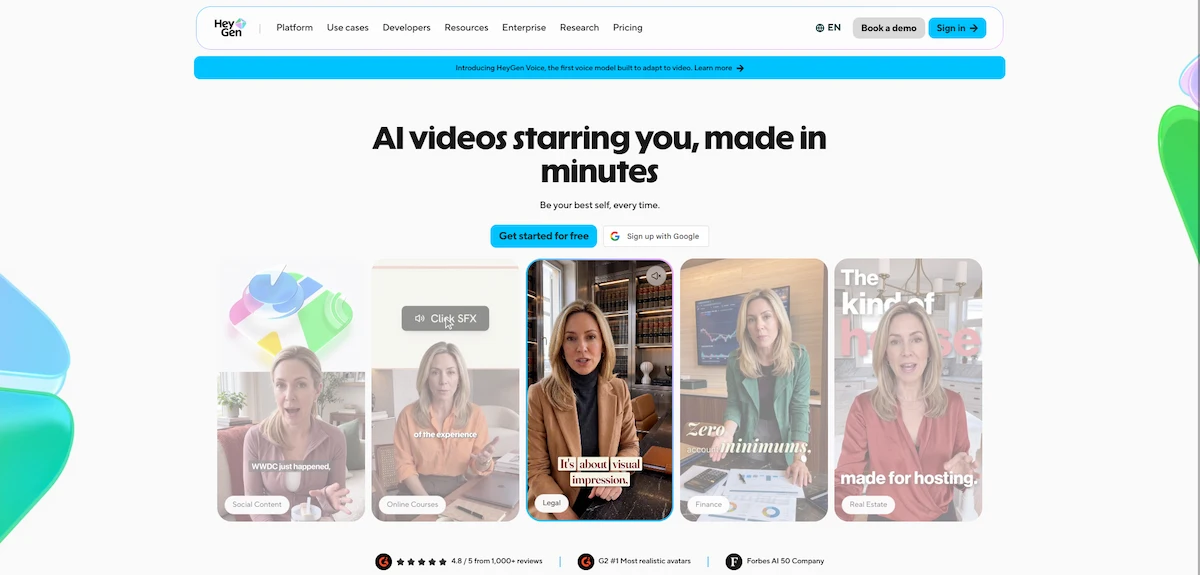
A beta Video Agent helps plan the script and the scenes through chat, and teams like the shared workspace, where several people can comment and edit in the same project.
| Detail | Info |
|---|---|
| Best for | Personalized sales outreach and marketing videos |
| Main features | Avatar and voice cloning, URL and slide to video, video translation, lip sync |
| Free plan | Yes, with a small monthly video limit |
| Paid plans from | About $24 to $29 per month for the Creator plan |
| Main limit | Premium credits run out quickly on long videos |
Pros:
- Realistic lip sync
- Fast translation into many languages
- Easy team collaboration
Cons:
- Credit system is hard to forecast
- Idle gestures can look repetitive in long videos
6. Google Veo: Best for Cinematic Clips With Audio
Google Veo 3.1 is the model most reviewers pick as the best AI video generator for reliable, realistic results. It follows prompts closely and creates dialogue, sound effects and ambient audio in the same pass. You can use it through Google Flow, Google Vids or the Gemini API, and Flow lets you start from text, from frames or from several reference images.
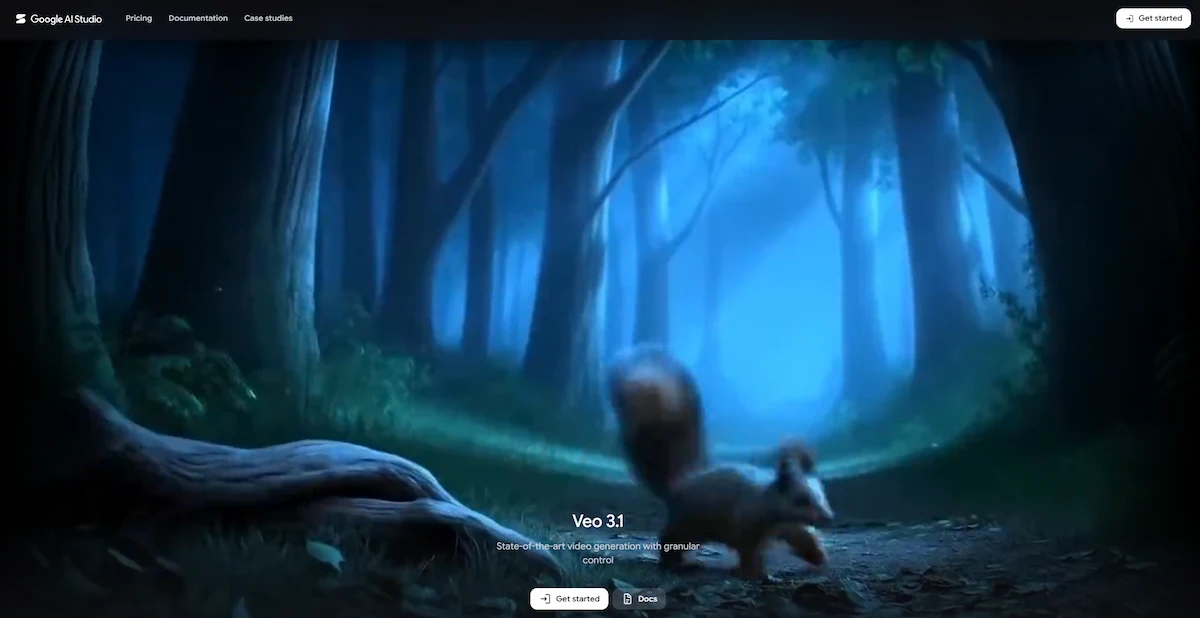
Standard clips run from four to eight seconds, so longer scenes need extensions or several shots. It can struggle in scenes with many moving characters.
| Detail | Info |
|---|---|
| Best for | Cinematic and realistic clips |
| Main features | Native audio, ingredients to video, first and last frame, object insertion and removal |
| Free plan | Yes, daily free credits in Flow |
| Paid plans from | About $4.99 per month for Google AI Plus and $19.99 for AI Pro |
| Main limit | Short clips, and watermark removal needs a paid plan |
Pros:
- Strong prompt adherence
- Built in audio and lip sync
- Available in several Google products
Cons:
- Clips last only four to eight seconds
- Credits add up on heavy use
7. Runway: Best for Creative Control
Runway is an AI video generator aimed at filmmakers and agencies. Gen-4.5 turns text and images into clips with camera moves such as pan, tilt and dolly. The Aleph model edits existing footage with a text prompt, for example by changing the weather or the angle, and Act Two transfers an actor performance onto a character.
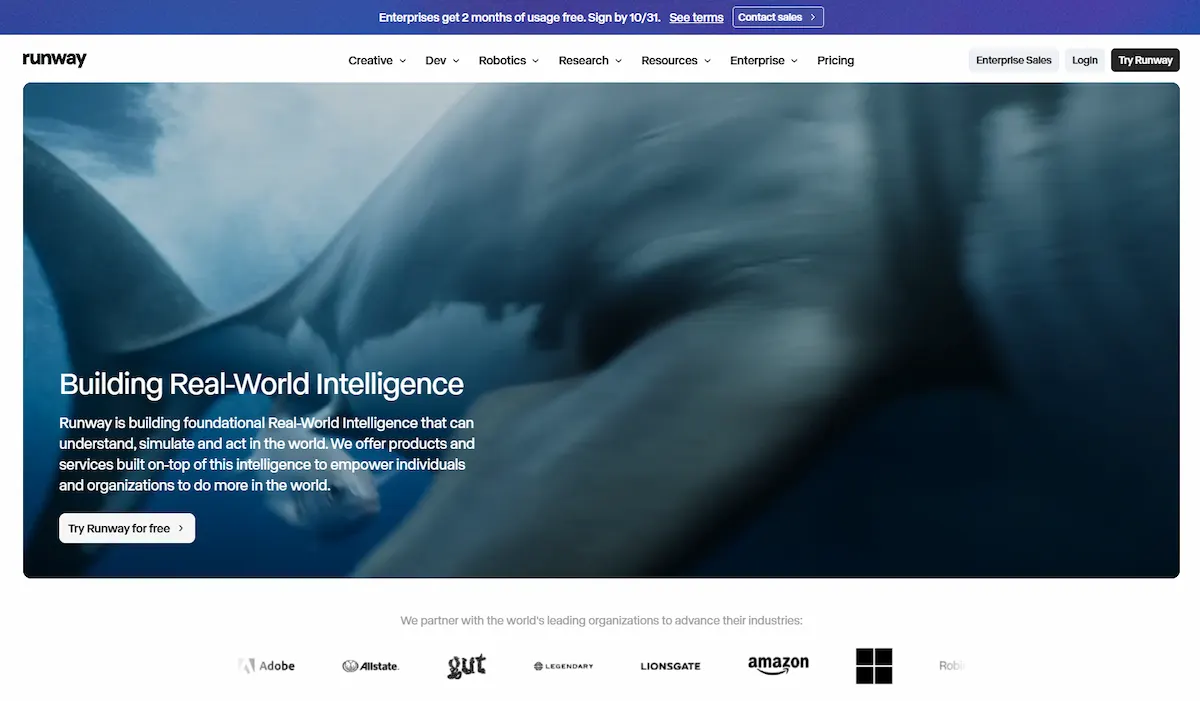
The toolset is deep, which also means a longer learning curve than the browser editors above.
| Detail | Info |
|---|---|
| Best for | Filmmakers, agencies and advanced creators |
| Main features | Text and image to video, video to video, Aleph editing, Act Two |
| Free plan | Yes, 125 one time credits |
| Paid plans from | About $12 per user per month billed annually |
| Main limit | Steep learning curve and credits that do not roll over |
Pros:
- Detailed camera and motion controls
- Edits footage you already have
- Good learning material in Runway Academy
Cons:
- Harder for beginners
- Costs rise with premium models
8. Adobe Firefly: Best for Commercially Safe Output
Adobe Firefly is aimed at teams that care about licensing. Adobe says its video model is trained on licensed Adobe Stock, openly licensed and public domain content, and enterprise plans can include IP indemnification. Firefly runs text to video and image to video at up to 1080p, includes partner models such as Runway, Luma and Kling, and connects to Premiere Pro, where Generative Extend can lengthen a clip by a few frames.
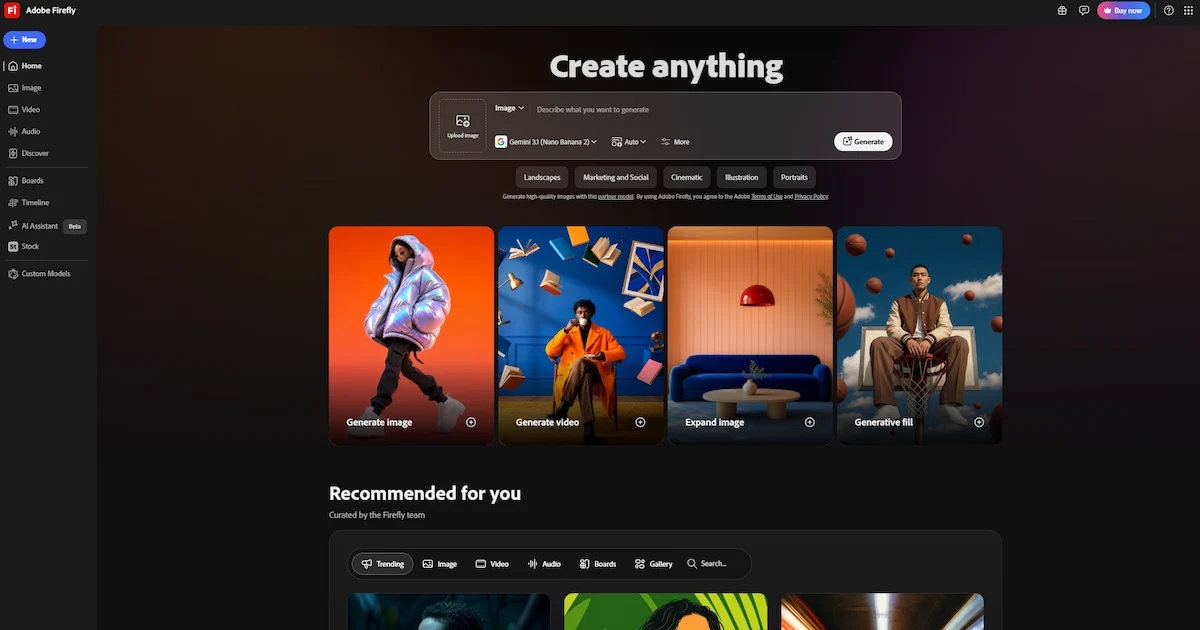
You can try it on the Adobe Firefly AI video generator page.
| Detail | Info |
|---|---|
| Best for | Brands, agencies and Adobe users |
| Main features | Text and image to video, partner models, Premiere Pro integration, Content Credentials |
| Free plan | Yes, with limited generations |
| Paid plans from | About $9.99 per month for Firefly Standard |
| Main limit | Results can be inconsistent, and output tops out at 1080p |
Pros:
- Clear focus on licensing and commercial use
- Works with Premiere Pro
- Several partner models in one place
Cons:
- Quality trails Veo and Runway in recent tests
- Credit based pricing is hard to forecast
9. Pictory: Best for Turning Articles Into Video
Pictory starts from content you already have. Paste a script, a blog post or a URL, or upload slides or images, and the tool adds stock footage, a voiceover, captions and music in a branded template. It can also pull highlight clips from a longer video.
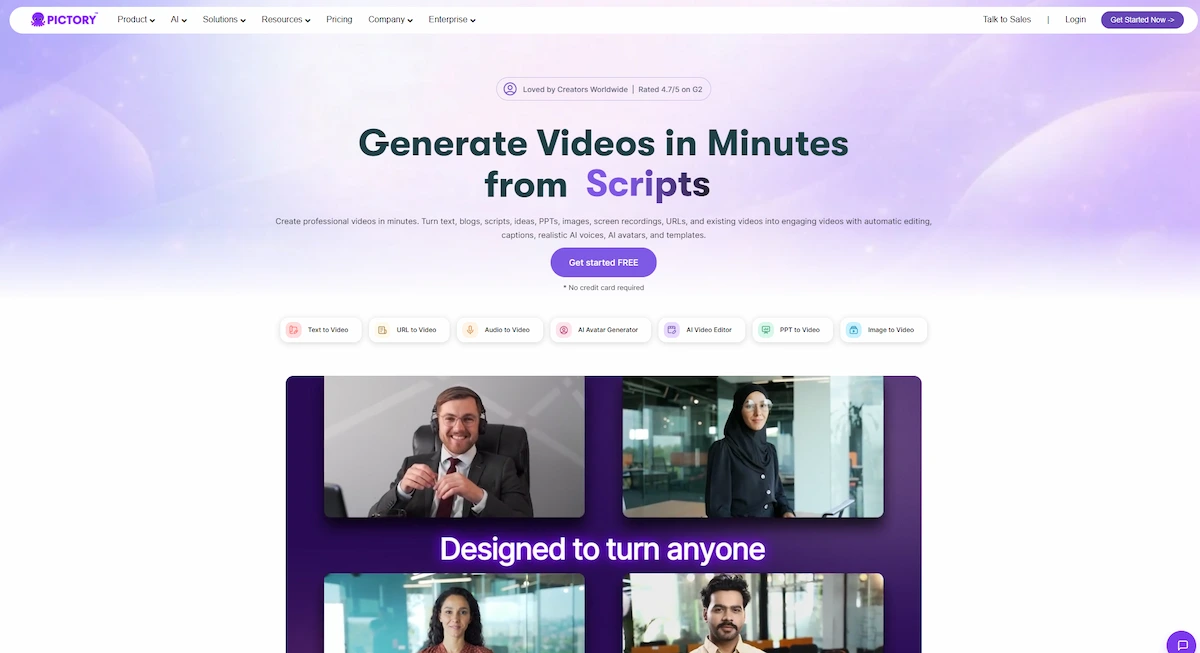
The visuals feel more templated than fully generative tools, and the first draft usually needs a round of editing, but the time saved on blog to video work is large.
| Detail | Info |
|---|---|
| Best for | Bloggers and marketers who repurpose content |
| Main features | Blog to video, URL to video, PPT to video, AI voiceovers, brand kit |
| Free plan | Free trial available |
| Paid plans from | About $19 to $25 per month billed annually |
| Main limit | Templated look and heavy editing on the first draft |
Pros:
- Fast way to repurpose written content
- Familiar timeline editor
- Branding tools built in
Cons:
- Less creative than fully generative models
- Text on slides often needs edits
Other AI Video Tools Worth Testing
Several other AI video creation tools deserve a look if the nine above do not fit. Kling offers 1080p output with lip sync and a free tier. Luma Dream Machine is quick for concept tests and has camera controls, though recent reviews noted no native audio. Leonardo animates still images inside an image workspace. CapCut and Picsart bundle several video models with simple editors, and Picsart lists 85 models in one place. Descript edits video by editing the transcript, and OpusClip turns long videos into short clips.
Best Free AI Video Generators
Many people start with a free AI video generator, and the free tier of the main tools is enough for a first test. The limits differ a lot, so compare them before you pick one.
- Canva: A free plan with a small number of AI video generations and clips of up to eight seconds.
- VEED: Free editing and export with a watermark and lower export quality, plus limited AI feature trials.
- invideo AI: A free plan with limited model access and watermarked exports, and the allowance resets weekly.
- Google Flow: Daily free credits for Veo, while paid Google AI plans raise the limit and remove the watermark.
- Runway: A one time pack of 125 credits with watermarked outputs.
- Leonardo: 150 daily tokens on the free plan, with public creations only.
- Pixlr: Video generation on a free account, and the exports carry no watermark.
- Synthesia and HeyGen: Free plans with a few minutes or a few videos of avatar content per month.
Free plans work for testing prompts, learning an editor and making a few short clips for personal use. For ads, client work or daily posting, plan for a paid tier, since watermarks, credit limits and personal use only licenses become a problem quickly. A free plan is also the cheapest way to check how much AI video creation your workflow really needs.
How to Choose the Right AI Video Generator
Choosing the right AI video generator starts with the job, not with the demo. A tool that makes striking cinematic clips may be a bad fit for a weekly training series. Compare the options on the points below, and for the same logic across other software, read how to choose AI tools for business.
- Video quality: Check resolution, motion and how stable faces and hands look.
- Audio and lip sync: Native audio saves a step, and good lip sync matters for avatars.
- Speed: Look at render time for a standard clip, not only the best case.
- Ease of use: A clear editor and templates matter more than a long feature list.
- Pricing and credits: Check clip cost, watermark, export limits and whether credits roll over.
- Templates and brand kit: Needed when several people on the team publish video.
- Languages and captions: Useful for dubbing, translation and silent viewing.
- Commercial use and licensing: Confirm the plan allows commercial use before you publish ads.
Test two or three AI video generators with the same prompt on free plans. Compare the first drafts side by side and keep the one that needs the least editing.
Quick Picks by Need
Use this list when you already know what kind of AI video creation you want to do.
- Beginner with a small budget: Canva or VEED, since both include an editor and a free plan.
- Social videos from a prompt: invideo AI or VEED.
- Training and onboarding: Synthesia, with HeyGen as the more flexible option.
- Sales outreach and personalized video: HeyGen, or Synthesia with bulk creation from a CSV file.
- Product demos and ads: Creatify, AKOOL or AI Studios for product link to ad videos, and Canva for quick formats.
- Cinematic or realistic clips: Google Veo, Runway or Kling.
- Image to video: Leonardo, Luma Dream Machine or Runway.
- Turning articles into video: Pictory or invideo AI.
- Cutting long videos into short clips: OpusClip or the AI Clips feature in VEED.
- Licensing and commercial safety: Adobe Firefly.
- Multilingual video: Synthesia or HeyGen.
Synthesia vs HeyGen: Which One Fits Your Team?
Both are avatar based AI video generators with wide language support, but they lean in different directions. Synthesia is built for structured training and corporate content, with more than 240 avatars, over 140 languages and bulk video creation from a CSV file. HeyGen leans toward creative flexibility, with avatar and voice cloning, URL and slide to video, more than 175 languages, a shared workspace and a beta Video Agent. Choose Synthesia when consistency and scale matter most, and HeyGen when you want more creative control or personalized outreach. Test both on free plans with the same script before you decide.
Benefits of AI Video Creation
The main benefit of AI video creation is speed. A first draft that once took days now takes minutes, which lets you test several ideas before you commit to one. Cost drops as well, since you can skip filming, actors and locations for many types of video, and most tools are priced between free and about $50 per month.
You also get more variations. One script can become a vertical clip, a square post and a wide version for YouTube, and one video can be translated into many languages with AI dubbing. Repurposing gets easier too, because a blog post, a webinar or a slide deck can become short clips for social media. If you already publish written content, the guide on AI content creation shows how video fits next to articles and images.
For small teams, the biggest gain is consistency. Brand kits, templates and saved avatars keep every video close to the same look without a design specialist on each project.
Limitations of AI Video Creation
Every AI video generator has clear limits, and knowing them saves money. Treat the output as a fast first draft, not a finished film.
- Short clips: Most generators return clips of 4 to 10 seconds, so longer videos need several shots stitched together.
- Realism: Hands, faces and fast motion can still look wrong, and characters may change between shots.
- Avatars: Digital presenters can feel stiff on a large screen and in emotional content.
- Brand control: Colors, fonts and tone can drift unless you use brand kits and review every export.
- Credits: Retries use credits quickly, and unused credits often expire at the end of the month.
- Editing time: Even the best tools produce a draft that needs trimming, captions and sound fixes.
Data handling is another point. Check whether a tool trains on your uploads, where files are stored and how deletion requests work, especially for client work or internal training. The guide to AI data privacy for business lists the questions to ask a vendor. Always review scripts and visuals for factual mistakes and consent issues before you publish, particularly with voice cloning and face swap features.
AI Video vs Traditional Video Production
AI video does not replace filming in every case, and the best results often come from a mix of both. A filmed video needs a script, a shoot, equipment, editing and review, which takes days or weeks. An AI draft can be ready in minutes, and changing a line means editing text instead of reshooting. In practice, AI video creation and filming work best together.
AI video is the better choice when:
- You need many variations or many languages from one script.
- The video is an explainer, an ad, a training lesson or B-roll.
- You want to test ideas before you pay for a shoot.
- Time or budget is tight.
Traditional filming is the better choice when:
- The video shows real people, real products in use or a real event.
- Trust carries the message, as in founder stories and customer testimonials.
- You need exact brand visuals.
- The story is complex or emotional.
Many teams use AI for volume, tests and B-roll, and keep live filming for hero content. Adobe makes the same point, that AI video works best next to human direction and not as a full replacement.
Legal and Ethical Questions in AI Video Creation
Legal and ethical questions grow with the number of videos you publish, so set a few rules early.
- Licensing: Read the commercial use terms of your plan. Free plans can limit use to personal projects, and some tools restrict stock assets or specific features.
- Training data: Adobe says Firefly is trained on licensed and public domain content and offers IP indemnification on some business plans. Other providers have faced copyright claims over training material, so check each tool before you use it for client work.
- Consent for faces and voices: Use avatar cloning and voice cloning only with clear permission from the person, and never copy a real person without it.
- Disclosure: Many social platforms ask you to label realistic AI content, and some tools support Content Credentials that show how a file was made.
- Accuracy: Check scripts and visuals for factual errors, cultural problems and misleading images before posting.
- Deepfake risk: Do not use face swap to imitate real people in ads or news style content.
Keep a record of the tool, the plan and the license terms for each published video. If a client or a platform asks questions later, you will have the answer ready.
AI Video Creation for Marketing, Training and E-Commerce
AI video creation fits three groups best: marketing teams that need volume, trainers who update lessons often and store owners with large catalogs. The sections below show how each group can use it and which tools tend to fit.
Marketing and Social Media
Marketing teams use AI video for product launches, short social posts, email videos and paid ads. Canva, VEED and invideo AI help produce many variations quickly, and a good AI video generator makes A/B testing of hooks and calls to action cheap. Keep the first three seconds strong and add captions, because most viewers scroll with the sound off. To connect video with scheduling and campaign tools, read about AI marketing automation.
Training and Internal Communication
Training teams use Synthesia, HeyGen and Colossyan to turn scripts and slides into lessons with a presenter. Updating a lesson means editing the text instead of reshooting, and one video can be translated for every office. For this use case, an AI video generator matters less than clear scripts and consistent formats.
E-Commerce and Product Videos
Store owners can turn product photos or a product link into short demo clips and UGC style ads. This helps a Shopify store with a large catalog, where filming every item is not realistic. Image to video keeps the product accurate, and tools such as Creatify and Canva handle the formatting for each platform.
Faceless Channels and YouTube
Faceless channels use script to video tools, stock footage and AI voiceovers to publish tutorials, news recaps and story videos without showing a face. Pair a prompt based tool like invideo AI with an editor, keep clips short and check that the voice and footage license allows monetization.
Measuring and Improving Results
Treat each video as a test. Create two or three versions with different hooks, scripts, visuals or calls to action, publish them under the same conditions and compare the numbers.
- Social videos: Watch time, completion rate, shares and engagement.
- Ads and landing pages: Click through rate, conversion rate and cost per acquisition.
- Retention graphs: The drop off points usually show a slow intro or a weak scene.
Change one element at a time, record what worked and reuse the winning structure in the next round of AI video creation.
How Much Does AI Video Creation Cost?
Pricing for AI video creation ranges from free to several hundred dollars per month, but most individuals and small teams spend between $10 and $30. The guide on how much AI tools cost gives a wider view of the budget for a full stack. For video, credits matter more than the headline price. According to HubSpot, a traditionally produced marketing video can cost $1,000 to $5,000, while most AI tools run from $0 to $50 per month.
- Free plans: Good for testing, but expect watermarks, lower resolution and a small monthly quota.
- Entry plans ($10 to $30): Canva, VEED, invideo AI, Synthesia, HeyGen Creator and Pictory sit in this range, with watermark removal and more credits.
- Pro and team plans ($50 and above): Add higher resolution, more credits, collaboration and brand controls.
- Usage based pricing: Some AI video generators bill API access per second of generated video, as Google Veo does through the Gemini API.
Annual billing usually saves 20 to 25 percent compared with monthly billing, so use monthly plans for testing and switch to annual only after you settle on one tool.
AI Video Trends in 2026
AI video creation changes fast, and a few trends show up in almost every recent review.
- Many models in one tool: VEED offers Veo, Kling, Luma and Runway, and Picsart lists 85 models, so you pick the model for the job instead of staying with one style.
- Native audio: Veo 3.1, Kling 2.6 and the Canva video tool return dialogue and sound effects together with the picture.
- Consistent characters and shot control: Kling 3.0 lets you set shot length, camera angle and movement per shot, and tools like DomoAI keep the same character across scenes.
- Video agents: The HeyGen Video Agent and the VEED assistant plan, script and edit through a chat window.
- Interactive avatars: HeyGen LiveAvatar creates real time avatars you can embed on a site, although reviewers say it is not ready for high stakes conversations.
Check release notes before you buy a yearly plan, because the leading model changes every few months.
Conclusion
AI video creation is now simple enough for anyone who can write a short prompt, and the right tool depends on the format. Start with Canva or VEED if you want an editor with generation, pick Synthesia or HeyGen for avatars and training, and choose Google Veo or Runway when the clip itself must look cinematic. Test on free plans first, keep prompts specific and plan time for editing. For a wider plan on bringing these tools into daily work, read how to use AI in business.
Frequently Asked Questions
What Is an AI Video Generator?
An AI video generator is software that turns a text prompt, an image, a script or a link into a video. Some tools generate new scenes, others assemble stock footage and others animate avatars. Most include an editor for captions, music and resizing.
What Is the Easiest Way to Create AI Videos as a Beginner?
Use a browser based tool with a built in editor, such as Canva, VEED or invideo AI. Type a short text prompt or paste a script, generate a clip, then add captions and music in the same editor. You do not need video editing skills for the first draft, and free plans let you test the workflow before paying.
Do I Need Video Editing Skills for AI Video Creation?
No. Most tools are built for beginners and only need a prompt or a script. Basic knowledge of pacing and storytelling helps, because even a good AI draft needs trimming, captions and sound, and a free editor like CapCut covers those steps.
What Is the Best Free AI Video Generator?
There is no single best option, since free plans differ in limits. Google Flow gives daily free credits, Canva and VEED include limited free AI features, Runway offers a one time credit pack and Kling has a free tier. Check watermark, clip length and commercial use before you rely on any free AI video generator.
Can AI-Generated Videos Be Used for Commercial Purposes?
Often yes, mostly on paid plans. Free plans can limit use to personal projects, so read the license terms, the model training policy and any rules on stock assets, voice cloning and avatars. Adobe Firefly adds IP indemnification on some business plans.
How Do I Write a Good Prompt for an AI Video?
Combine subject, action, setting, mood, lighting and camera style in one or two sentences, and add the sound you want if the tool supports audio. Start short, check the result and change one detail at a time. A start image gives you more control than text alone.
Can AI Video Replace Traditional Filming?
Not entirely. AI video creation works well for explainers, ads, B-roll, training and concept tests, while live events, complex stories and authentic testimonials still benefit from real footage. Many teams use a mix, with AI for volume and tests and real filming for key brand moments.
How Do I Optimize AI Videos for Instagram, YouTube and LinkedIn?
Use 9:16 vertical video of 15 to 60 seconds for Reels, TikTok and Shorts, 16:9 for YouTube and LinkedIn, and 1:1 for feed posts. Always add captions, put the main point in the first three seconds and test different hooks.
Which AI Video Generator Is Best for Talking Head Videos?
Synthesia and HeyGen are the most used options for talking head videos. Synthesia suits structured training and corporate content, while HeyGen offers avatar cloning, translation and a shared workspace. VEED also lists its Fabric 1.0 model for talking head clips.
Can an AI Video Generator Create a Video From an Uploaded Image or an Existing Video?
Yes. Image to video tools animate a photo or a sketch from a prompt, and video to video tools such as Runway Aleph edit footage you upload by changing the lighting, the weather or the angle. Editors like VEED also work from existing footage and add captions, clips and cleanup.
How Can Teams Keep Brand Consistency With AI Video?
Use brand kits with fixed logos, colors and fonts, approved templates, saved avatars and written prompt rules. Add a review step before publishing, and keep a library of approved prompts and finished videos for reuse.
How Long Does It Take to Make an AI Video?
A short clip generates in a few minutes. Reviewers report finishing a simple social video with voice and captions in under ten minutes, while a first avatar video can take up to an hour as you learn the tool. Plan more time for long videos and approvals.
Is AI Video Creation Worth It for a Small Business?
Yes for explainers, ads, social posts and training, since a monthly plan costs far less than a filmed video and drafts arrive fast. It suits founder stories and testimonials less, because real people build more trust there. Start with one free plan and one use case, then expand if the results justify it.