Leo AI is not one product. The name belongs to several unrelated tools.
The two best known are Brave Leo, the assistant built into the Brave browser, and Leo AI, a design assistant for mechanical engineers.
So when people ask what is Leo AI, the honest answer depends on who is asking. A student or a casual user usually means Brave Leo. An engineer who works in CAD usually means the engineering tool.
We wrote this guide to separate the Leo AI tools, show what each one does, what it costs in October 2026 and who should skip it.

Prices and plans change often, so every number below comes with a date.
Leo AI tools at a glance
Start with this table. It shows which Leo you are probably looking for.
| Tool | Made for | Where it runs | Price |
|---|---|---|---|
| Brave Leo | Everyday users, students, researchers | Inside the Brave browser | Free, Premium $14.99 per month |
| Leo AI for engineers | Mechanical design teams | Desktop and web app connected to CAD | Quoted per user, no public price |
| Leo AI for students (iamleo.ai) | Students who revise for exams | Web and app | Free tries, then paid plans |
| Leo (leoai.in) | Students and young professionals | Windows desktop app | Pilot, no price announced |
What is Leo AI?
Leo AI is a name, not a company. Several teams picked it for their assistants, and none of them are connected.
That makes searches confusing. A review of one Leo often gets read by someone who wanted a different one.
The short rule we use: if the tool lives in a browser sidebar, it is Brave Leo. If it opens CAD models and part libraries, it is Leo AI for engineers.
Why there are several Leo AI tools
Leo is short, easy to say and easy to remember. The engineering company says it named its product after Leonardo da Vinci, as a sign of engineering skill.
Brave launched its Leo assistant on desktop on 2 November 2023, and other products with the same name came from different teams in the years after.
No trademark rule stops several software products from sharing a short name, so expect more of them. Always check the maker before you sign up.
What is Brave Leo?
Brave Leo is a chat assistant built into the Brave browser. You open it from the sidebar, from a full-page view or from the address bar.
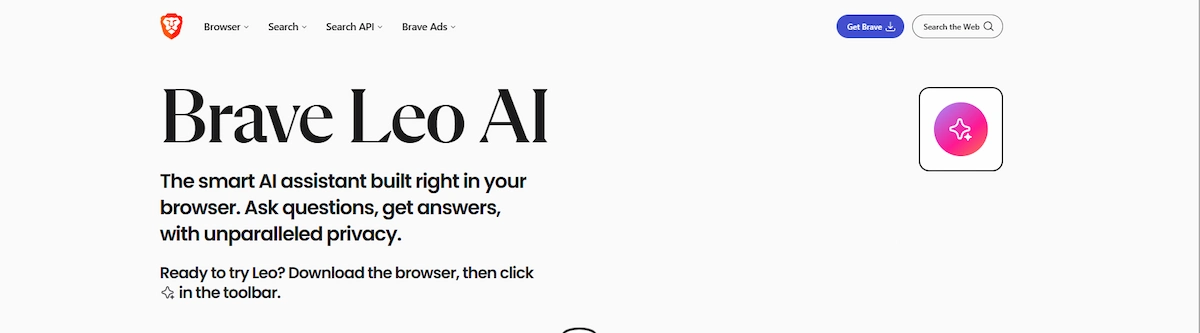
It works on Windows, macOS, Linux, Android and iOS. The free version needs no account, so you can start in a few seconds.
The main idea is simple. Leo reads the page you have open and answers questions about it.
That removes the copy and paste step you need with a separate chatbot.
Brave Leo timeline from 2023 to 2026
Leo has changed a lot since launch. The table shows the main steps.
| Date | Change |
|---|---|
| 2 November 2023 | Launch on desktop with Brave version 1.60, mobile versions promised for later |
| January 2024 | Mixtral 8x7B becomes the default model, next to Claude Instant and Llama 2 |
| 2024 | Mobile versions arrive on Android and iOS |
| 27 June 2025 | Claude models are hosted directly by Brave |
| Late 2025 | Secure hardware environments for private processing are added |
| December 2025 | Skills and an early agentic browsing mode are announced |
| 2026 | A wider model list, bring your own model and image understanding |
Brave Leo features
The daily features are short to list and easy to try.
- Page summaries: Leo summarizes web pages, PDFs, Google Docs, Google Sheets and YouTube videos.
- Questions about a page: you ask about what is on screen and get an answer based on that content.
- Writing and translation: drafts, rewrites and translations of text.
- Code help: short code questions and fixes.
- Multi-tab context: Leo can work with several open tabs, which helps when you compare sources.
- Skills: shortcuts for prompts you use often, added in December 2025.
- Bring your own model: you can connect Leo to a local model through Ollama or to another compatible endpoint.
Brave has also announced an agentic browsing mode, where Leo completes steps in a separate browser profile. It has been in early testing, so do not count on it for daily work yet.
If terms such as endpoint or agent are new to you, our AI terms glossary explains them in plain words.
Brave Leo models
Brave Leo does not run on one model. You pick from a list, or you let an automatic mode choose.
The list changes often. In 2026 the free version has included Llama, Qwen and Gemma models and a small Claude model.
Premium adds larger models, such as Claude Sonnet and Opus and DeepSeek.
Brave states that it hosts these models on its own servers. Since 27 June 2025 the Claude models are also hosted directly by Brave.
Because the list moves, check the model menu inside the app for the current options.
How to connect your own model to Brave Leo
Bring your own model is the most unusual option in Leo, and it is easier than it sounds.
- Open brave://settings/leo-ai in the Brave address bar.
- Scroll to the bring your own model section and choose the option to add a new model.
- Enter a label, the model name your provider expects, the server address and an API key if the service needs one.
- Set the context size if Brave asks for it.
- Save the model, then pick it as the default or choose it from the model menu in the chat.
For a local model with Ollama, you run Ollama on your computer first and then point Leo at the local address of that server. No key is needed, and your prompts stay on your own machine.
With a remote service, your prompts go to that provider and follow its terms. Brave privacy promises are strongest when the model is hosted by Brave or runs locally, so read the terms of any outside provider before you connect it.
Is Brave Leo private?
Privacy is the reason most people pick Brave Leo, so it deserves a careful answer.
Brave says that Leo does not record chats and does not use them to train models. It also says that no account is needed for the free version.
Requests pass through a proxy, so they cannot be linked to your IP address. Premium subscribers get unlinkable tokens, so payment details cannot be tied to what they ask.
In late 2025 Brave added secure hardware environments, built with NEAR.AI and Intel TDX, that are meant to let users verify how a request is processed.
These are statements from Brave, and we have not audited them. Brave also warns that Leo can give wrong answers.
For private or regulated information, read our guide on AI data privacy for business before you paste anything into any assistant.
Brave Leo pricing
| Plan | Price | What you get |
|---|---|---|
| Free | $0 | Open models, no account, rate limits |
| Leo Premium monthly | $14.99 | More models, higher limits, early access to new features |
| Leo Premium yearly | $149.99 (about $12.50 per month) | Same features as monthly |
Premium has a 7-day free trial. One subscription covers several devices.
Brave help pages do not agree on the number: an older page says up to 5 devices, a newer one says up to 10 on Android, Linux, macOS and Windows. Check the current page before you pay, especially if you use an iPhone.
Is Brave Leo free?
Yes. The free version has no time limit and needs no account or card.
The catch is rate limits. They appear faster than most people expect when you work with Leo for a long time, and you cannot buy a small top-up without taking Premium.
If your goal is a free assistant for everyday questions, compare it with the choices in our list of free ChatGPT alternatives.
Is Brave Leo Premium worth it?
For most people, not at first. The free version covers summaries, translation, writing help and code questions.
We would pay for Premium in three cases:
- You hit the free limits several times a week.
- You need larger models for long documents or hard reasoning.
- You use Brave on several devices and want one plan for all of them.
If you already pay for another assistant and rarely leave your chat app, Premium adds little. Start with the 7-day trial, count how often you reach the free limits and decide after that week.
Brave Leo pros and cons
What works well:
- No account for the free version.
- Reads the page you have open, so you skip copy and paste.
- Strong privacy design compared with most assistants.
- Choice of models, plus your own local model.
- Premium costs less than most stand-alone chatbot plans.
What holds it back:
- It works only inside Brave.
- No public API.
- No memory between separate conversations.
- Free rate limits hit quickly during long work.
- No team or business plans.
- Answers can be wrong, so facts need a check.
Who should use Brave Leo and who should skip it
Use it if:
- You already browse with Brave.
- You want a private assistant without creating an account.
- You read long pages and want quick summaries.
- You like to choose your own model.
Skip it if:
- You switch between several browsers.
- You need an assistant for a whole team.
- You rely on long memory across weeks of work.
- You work for hours at a time on the free plan and do not want to pay.
Brave Leo on Android and iOS
Brave Leo also works in the Brave mobile browser. You open it from the browser menu, and the core features match the desktop version.
On iPhone you can speak your question instead of typing it. That helps when you read a long page on a small screen and want a short summary.
The mobile version follows the same rules for privacy and free use. Premium on a phone is bought through the app store, so check how that purchase connects to your other devices before you pay.
How to use Brave Leo step by step
- Install the Brave browser and open any web page.
- Click the Leo icon in the sidebar, or type a question in the address bar and choose the Ask Leo option.
- Type your question, or ask Leo to summarize the page.
- Open the model menu in the chat if you want a different model.
- Adjust settings at brave://settings/leo-ai, where you can also add a custom model.
Brave explains each option on its official page about how to use Leo.
A good first test is a long article you need to read for work. Ask for five key points, then ask what the author left out.
For ideas on where such an assistant fits in a working day, see our guide on how to use AI for productivity.
How to hide or turn off Brave Leo
Not everyone wants an assistant in the browser, and Brave lets you hide it in a few places.
- Sidebar and toolbar: go to Settings, then Appearance, then Customize toolbar, or right-click the Leo icon and choose Hide. You can also remove the icon from the sidebar.
- Ask Leo in the address bar: turn it off in Settings, then Appearance, using the Leo AI Assistant option.
- Android: open Settings, then Leo, and switch off the autocomplete suggestions in the address bar and the option in the quick search engines bar.
- iPhone: open the main menu, then All Settings, then Leo, and switch off the option in the quick search engines bar.
On mobile, Leo cannot be removed from the main menu. On desktop, a full removal needs a Group Policy setting, which is meant for administrators.
Some users report that Leo returns to the sidebar after it is hidden if no other panel is chosen as default. If that happens, open another panel such as the reading list first and then remove Leo.
Brave Leo vs ChatGPT in the browser
Many people ask if Brave Leo can replace a stand-alone chatbot. In our view it depends on the job.
Brave Leo is stronger when the task starts on a web page. It reads the page you are on, so you can summarize an article, translate a paragraph or ask what a table means without moving text around.
A stand-alone assistant such as ChatGPT is stronger for long projects. It keeps a longer memory, handles file uploads better, works in any browser and has its own apps.
Our rule: use Leo for quick work on pages you are already reading, and keep a general assistant for writing, research and projects that run for days.
If you only want one tool, pick the one that lives where you spend most of your time.
What is Leo AI for mechanical engineers?
Leo AI for engineers is a very different product. It is a design assistant for teams that build physical products, and the company calls it an AI engineer.
It connects to your CAD and product data systems, reads 3D geometry and answers technical questions with sources.
The company is based in Cambridge, Massachusetts. It was founded by Maor Farid and Moti Moravia, and it says that more than 50,000 engineers use it.
That number comes from the company, and we could not check it.
What Leo AI for engineers can do
- Answer engineering questions: answers come with references to standards and technical sources.
- Run calculations: from unit conversions to multi-step mechanical formulas.
- Find and reuse parts: search by description or by geometry, in catalogs and in your own part library.
- Review designs: checks for errors, manufacturability, tolerances and GD&T.
- Generate and edit CAD: text-to-CAD for parts and assemblies, strongest inside an existing assembly.
- Answer from your PLM: past decisions, drawings and specs from your own data.
The aim is to take over what the founders call the boring 80 percent of engineering work: sourcing parts, checking standards and running numbers.
Teams that think about agents in business will find our guide on AI agents for business useful for setting limits on what such a tool may do alone.
The Large Mechanical Model
The company says its assistant runs on a Large Mechanical Model, trained on 3D CAD data as well as text and images.
The claim is that a general chatbot predicts text and cannot read geometry, while this model understands parts and assemblies.
Leo AI still uses leading language models for the chat layer, so you get their strengths for writing and summaries too.
The company also reports 96 percent accuracy on engineering questions against 46 percent for general tools. This is its own result, so ask for a trial on your own parts before you trust it.
Which CAD, PDM and PLM systems does Leo AI support?
This is the first question most engineering teams ask. According to the company, Leo AI works with these systems.
| Type | Systems |
|---|---|
| CAD | SolidWorks, Creo, Siemens NX, Autodesk Inventor, Fusion 360, Onshape, CATIA V5 |
| PDM and PLM | PTC Windchill, Siemens Teamcenter, SolidWorks PDM, Autodesk Vault, Arena PLM |
| Other sources | ERP data, local folders and network drives |
The company adds that new systems are added on request. Because the list changes, ask for your exact CAD and PLM versions during the demo.
Editable CAD or only a mesh?
Leo AI says it produces editable CAD, not a static mesh. It can generate parts and assemblies from text, images and drawings, and then rebuilds them in your CAD as a solid body with a full feature tree.
The company names SolidWorks, Creo, Inventor and Onshape for this step.
The difference matters. A mesh is only a picture of a shape, while an editable model with a feature tree can be changed and sent to manufacturing. Ask to see a generated part opened in your own CAD during the trial.
CAD, PLM and data security
Leo AI is described as CAD agnostic. It runs as a desktop and web app and connects to your CAD tool through an add-in.
It syncs the folders and projects you choose, usually overnight, and your IT team has to allow it and run the first install with admin rights.
The company states that it meets SOC 2 and GDPR standards and that it does not move or copy your files when it connects to your product data.
For a design team this matters more than any feature, because the value of the tool depends on access to your own parts and drawings.
Ask for the security report and the data processing terms before you connect anything.
Leo AI for engineers: use cases
These are the jobs where we think a tool like this earns its price.
- Reuse before redraw: describe a part in plain words and find the closest one that already exists in your library.
- Standards check: ask which standard applies to a fastener or a tolerance and get an answer with a source.
- Assembly review: look for interferences and mate problems before a design goes to review.
- Quick calculations: run formulas without writing them out each time.
- Design history: find why an earlier design was rejected, from your own change records.
- Training new engineers: let newcomers ask questions that senior colleagues usually answer.
Each of these saves time only if your data is organized well. A messy part library gives messy answers.
Leo AI pricing for engineers
Pricing is where sources disagree, so we keep this part short.
According to the official FAQ, Leo for teams is an annual enterprise subscription priced per user. The price is quoted after a short call, and there is no general free trial. You test it with a demo on one of your own parts.
Software directories show other numbers, such as $15 or $39 per month and $1,800 per year. Those look like older or lower plans, and we could not confirm them.
Plan your budget from the official quote, and compare it with other tools in our guide on how much AI tools cost.
Leo AI vs ChatGPT, CoLab and MecAgent
| Tool | Main job | Reads 3D CAD |
|---|---|---|
| Leo AI | Answers, parts, calculations, design review and CAD generation | Yes |
| ChatGPT, Claude, Copilot | General text, ideas and drafts | No |
| CoLab | Design review layer | Review focus |
| MecAgent | Text-to-CAD copilot inside CAD | Yes |
Leo AI also covers the review work, and the company says that is where it differs from tools that only check drawings.
The SolidWorks and Creo assistants stay inside one CAD product, while Leo AI aims to work across several systems.
Leo AI for engineers: pros and cons
Strengths:
- Reads 3D geometry, which general chatbots cannot do.
- Works across several CAD and PLM systems.
- Answers come with sources.
- Targets repetitive work such as part search and standard checks.
Weak points:
- No public price and no general free trial.
- Needs IT help for the first install and data sync.
- Results depend on the quality of your own data.
- Accuracy and time-saving figures come from the maker.
- Generated CAD is best inside an existing assembly, not for complex new products from scratch.
How to start with Leo AI for engineers step by step
- Book a demo and bring one real part or assembly.
- Ask your IT team to allow the app and run the first install with admin rights.
- Install the add-in for your CAD tool.
- Choose the folders and projects you want Leo to sync. The first sync usually runs overnight.
- Start with questions and part searches before you try CAD generation.
- Check every result against your own standards, then decide on a pilot.
Questions to ask before you buy Leo AI for engineers
A demo on your own parts shows more than any web page. Prepare these questions for the call.
- Which versions of our CAD and PLM systems does it connect to?
- Where is our data stored, and who can access it?
- Can we see the SOC 2 report and the data processing terms?
- How does it handle parts that are not in public catalogs?
- What happens to our data and our index when we cancel?
- How many users are needed for a pilot, and how long does it run?
- Which tasks does it do alone, and which need an engineer to approve?
Write down the answers and compare them across tools. A vendor that answers clearly is easier to trust with your drawings.
Who should use Leo AI for engineers
It fits mechanical and design engineers at hardware and manufacturing firms, especially teams with a large part library and many past designs.
It does not fit a solo maker who wants a free text-to-CAD toy. For the wider question of how such tools change daily work, see our guide on AI in the workplace.
Other Leo AI tools
Two more Leo products show up often in searches.
iamleo.ai is a voice assistant for students. You upload notes, PDFs or slides, and it asks you questions out loud, listens to your answers and corrects you.
It offers three free tries without a card, then paid plans. The site says that 900,000 accounts have been created.
leoai.in is a Windows assistant for study and everyday work. It runs as a desktop app, works with the folders you sync and builds things like presentations from your requests. It is in a pilot stage.
Students who want to compare study helpers can start with our list of the best AI tools for students.
Some directories also list other products called Leo, with little information about their makers. We would not pay for any of them until the company, the privacy terms and the price are clear.
Leo AI vs Brave Leo: which one do you need?
| Your situation | Pick |
|---|---|
| You browse with Brave and want quick summaries | Brave Leo |
| You want a private free assistant | Brave Leo |
| You design physical products in CAD | Leo AI for engineers |
| You manage a large part library and PLM | Leo AI for engineers |
| You need help revising for exams | iamleo.ai |
| You use Windows and want a desktop helper for study | leoai.in, after the pilot |
Before you buy any assistant for a team, work through our checklist on how to choose AI tools for business.
Leo AI alternatives
The right alternative depends on which Leo you mean.
For Brave Leo:
- ChatGPT, which works in any browser and keeps a longer memory.
- Microsoft Copilot in Edge, which fits people who work in Microsoft 365.
- Gemini in Chrome, for people who live in Google services.
- Perplexity, which focuses on sourced answers.
- DuckDuckGo AI Chat and Proton Lumo, for users who also care about privacy.
For Leo AI for engineers:
- CoLab, for design review.
- MecAgent and Zoo, for text-to-CAD.
- AdamCAD, a browser tool for fast prototypes.
- The built-in assistants in SolidWorks, Creo and Fusion.
For a broader comparison with general assistants, see our list of AI tools better than ChatGPT.
Brave Leo vs Gemini in Chrome, Copilot in Edge and DuckDuckGo AI Chat
| Assistant | Lives in | Best fit |
|---|---|---|
| Brave Leo | Brave browser | Privacy-minded users who want page summaries and a choice of models |
| Gemini in Chrome | Chrome | People who work in Google services |
| Copilot in Edge | Edge | People who work in Microsoft 365 |
| DuckDuckGo AI Chat | Web page and DuckDuckGo browser | Quick private questions without a long history |
The best choice is usually the assistant that sits inside the browser and account you already use every day. Check the privacy terms of each, because they differ.
Is Leo AI safe?
The answer differs for each tool.
Brave Leo is built around privacy, and its claims are strong on paper. They are claims, and we have not tested them ourselves. Treat any assistant as a place where you should not paste passwords, medical records or client secrets.
Leo AI for engineers connects to your own product data, so safety is a contract question. Ask about security reports, where the data is stored and how access is removed when you cancel.
Both tools can give wrong answers. A number from a chat should be checked against a standard, a datasheet or the original page before it goes into a decision.
How to test a Leo AI tool before you commit
A short test costs little and saves a wrong purchase. Here is the plan we would follow.
- Pick three real tasks you do every week, such as summarizing a report, checking a calculation or finding a part.
- Run each task with the tool and with your current method.
- Check every fact the tool gives you against a trusted source.
- Write down the time saved and the mistakes found.
- Repeat the test a week later with a new page, because first results are often the best ones.
- Decide on a paid plan only if the time saved is clear.
Common mistakes with Leo AI tools
- Mixing up the products: reading a Brave Leo review before you buy an engineering tool, or the other way round.
- Trusting a number without a check: every assistant can give a wrong value with full confidence.
- Pasting private data: keep passwords, client details and medical information out of chats.
- Paying early: the free version of Brave Leo covers most daily use.
- Believing vendor claims: accuracy and time-saving figures from a maker need a test on your own work.
Final verdict on Leo AI
Our advice is short.
If you use Brave, switch Leo on and try the free version for a week. It costs nothing, and the page-aware answers save time on reading.
Pay for Premium only if you hit the limits and want larger models. If you design physical products, ask Leo AI for engineers for a demo on your own parts and compare the result with your current process.
We based this guide on the official pages of each product, checked in October 2026, and we did not run long tests of every feature. Prices and limits change, so confirm them on the maker site before you pay.
Leo AI FAQ
What is Leo AI?
Leo AI is a name shared by several unrelated tools. The best known are Brave Leo, the assistant inside the Brave browser, and Leo AI, a design assistant for mechanical engineers.
Is Brave Leo free?
Yes. The free version needs no account and has rate limits. Leo Premium costs $14.99 per month or $149.99 per year and includes a 7-day free trial.
Is Leo AI for engineers free?
No. The official FAQ describes an annual per-user enterprise subscription quoted after a call, with no general free trial. You test it through a demo on your own parts.
Is Brave Leo the same as Leo AI?
No. They are separate products from different companies. Brave Leo is a browser assistant for everyday users, and Leo AI is a CAD and PLM assistant for engineering teams.
Which Leo AI should I use?
Use Brave Leo if you browse with Brave and want summaries and answers about pages. Use Leo AI for engineers if you design physical products in CAD. Students may prefer a study tool such as iamleo.ai.