The AI Assistant and the other generative AI features in Adobe Acrobat are switched on by default, and many people open a PDF and find a new button, a query bar and a chat panel they never asked for. You can turn off AI Assistant in a few clicks, but the exact steps depend on your system, your version and sometimes on whether a company manages your computer.
In this guide we show how to turn off AI tools in Adobe Acrobat on Windows, Mac and Android, how to get rid of the extra buttons, how to lock the feature off with the registry and what to do when it keeps coming back. We also explain what the setting does and does not cover, so you know what you are really switching off.
Quick Answer: How to Turn Off Generative AI in Acrobat
This is the short version of the steps we use on a desktop computer. Full details for each system follow below.
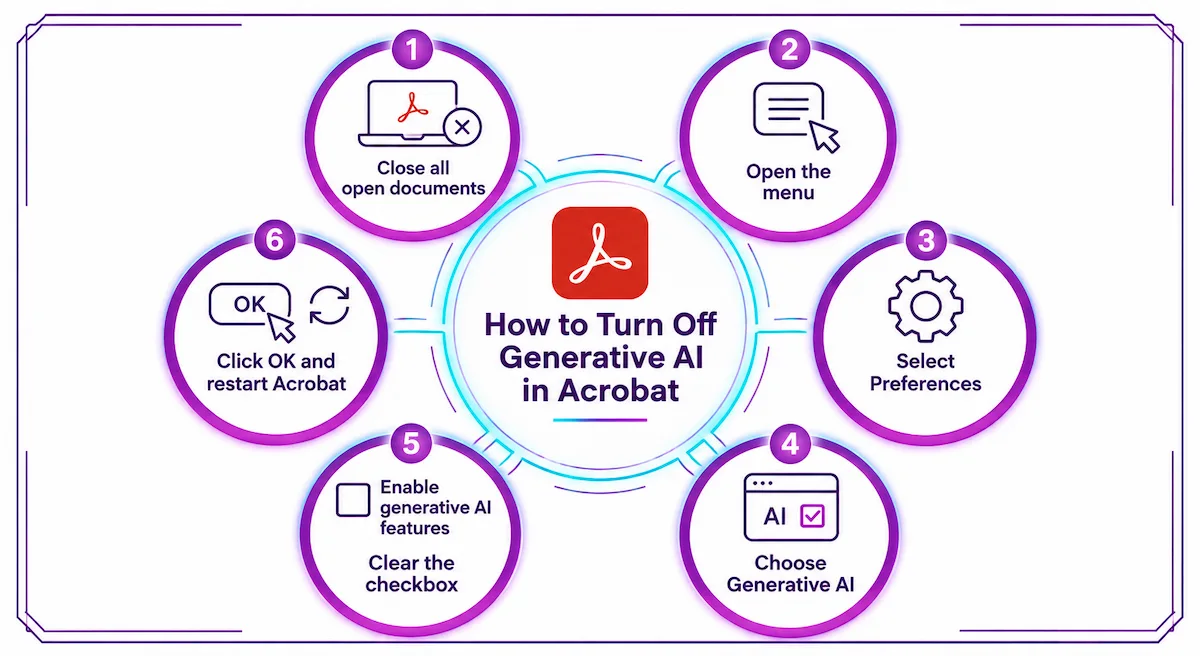
- Close all open documents in Acrobat.
- Open the menu in the top left corner: Menu on Windows or Acrobat on Mac.
- Select Preferences, then choose Generative AI in the left panel.
- Clear the checkbox Enable generative AI features.
- Click OK and restart Acrobat.
After the restart, the Ask AI Assistant button disappears from the toolbar, and the Generative AI options are no longer active.
Why Turn Off AI Tools in Acrobat?
People have different reasons, and we think all of them are fair. Some simply do not want a chat panel and a query bar on every PDF they open, because the extra buttons take space on a small screen and change a tool they already knew. Others work with private files such as contracts, invoices or medical papers, and they prefer that no document is ever sent to an outside service. In a company, the rule often comes from IT or legal, and the person who opens the PDF has no choice about it.
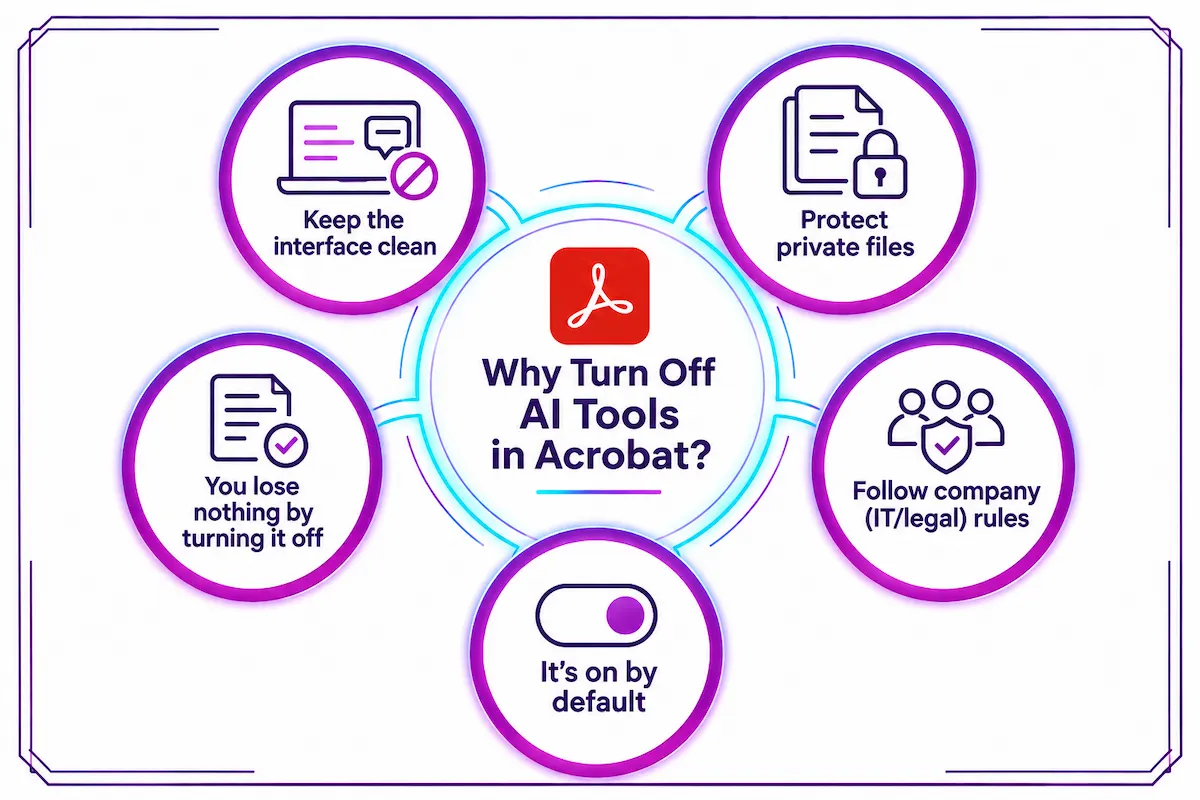
The AI Assistant is switched on by default, so it appears even if nobody asked for it. That is the main reason this question is searched so often. The good news is that a plain reader who never touches the assistant loses nothing by turning it off, and the steps are easy to undo later.
How to Check Which Acrobat Version You Have
The Generative AI category only exists in recent versions, so it pays to know what you are running before you start. Open the Help menu and choose About Acrobat, or on a Mac open the Acrobat menu and choose About Adobe Acrobat. The exact name of the item changes a little between versions. If your build is old, choose Check for updates from the Help menu, install the update and restart before you follow the steps below.
What Counts as AI Tools in Adobe Acrobat?

Before you change anything, it helps to know what we are talking about. Acrobat groups several features under one label, and the single checkbox in Preferences controls most of them.
AI Assistant
The AI Assistant is a chat panel that answers questions about a PDF, writes summaries and pulls out key points. It runs on a generative AI model, which is why Adobe lists it under generative features, and it only works on a document when you ask it something.
Generative summary and podcasts
Acrobat can also build a short summary of a file and, in newer versions, turn a document into an audio style overview. Both belong to the same group of features and go away when you clear the main checkbox.
AI query bar and video cards
The query bar is a small box on the document where you type a question. Video cards replace your starred files on the home screen with smart previews. These two have their own switches in the same Preferences panel, so you can keep or hide them without touching the rest.
What the setting does not cover
The Preferences switch works inside the Acrobat desktop app. It does not change the Acrobat extension in Chrome or Edge, it does not apply to other Adobe apps and it does not remove AI text that another program already put into a file, for example alt text added when a PDF was exported from a design app. We cover the browser extension in its own section below.
How to Turn Off AI Assistant in Acrobat on Windows

On Windows the setting sits in the main menu. We suggest doing it in this order so the change is saved properly.
- Close every PDF you have open in Acrobat. The setting may not apply while documents are open.
- Click the Menu icon in the upper left corner.
- Choose Preferences.
- Select Generative AI in the list of categories.
- Clear Enable generative AI features. On some versions the label reads “Enable generative AI features in Acrobat”.
- Click OK.
- Close Acrobat completely and open it again.
If you do not see a Generative AI category at all, your version is probably older than the one that added the control. Update Acrobat from the Help menu or from Creative Cloud and look again.
How to Turn Off AI Assistant in Acrobat on Mac
The steps on a Mac are the same, but the menu has a different name.
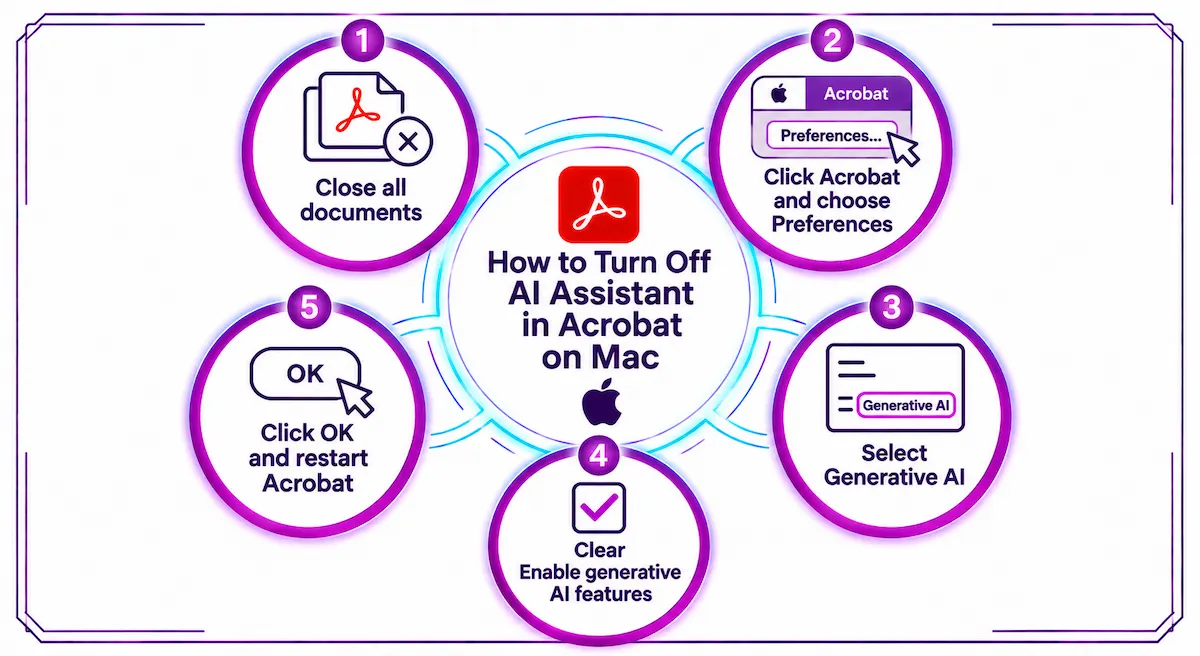
- Close all open documents.
- Click Acrobat in the menu bar at the top of the screen, then choose Preferences. On some versions the Preferences item sits under View, so check there if you do not find it.
- Select Generative AI in the left panel.
- Clear Enable generative AI features.
- Click OK and restart Acrobat.
Option names change a little between versions, so the wording on your screen may differ from ours. The Generative AI panel is the part to look for.
How to Turn Off AI Features in Acrobat on Android
On an Android phone or tablet the control is in the app profile. Open Acrobat, tap the profile icon in the top right corner and choose Preferences. Turn off the toggle Enable generative AI features in Acrobat. This hides the AI Assistant, the generative summary and the podcast option and brings back the plain PDF view.
For iPhone and iPad we could not confirm an official set of steps. Open the Acrobat app settings and the Adobe Help Center for your app version and look for the same Generative AI toggle.
Other Settings in the Generative AI Panel
You do not have to switch everything off. The same Preferences panel lets you keep AI available and remove only the parts that get in your way.
Hide the AI query bar
Clear Show the AI query bar on the document if the small question box on top of your PDF bothers you. The AI Assistant stays available from the toolbar.
Hide AI video cards
Clear Show AI video cards to get your normal starred documents back on the home screen. This option needs a restart of Acrobat.
Clear AI Assistant chat history
Open a document where you used the assistant, click the three dots in the panel, choose Clear chat history and confirm with Clear history. We suggest doing this on shared computers even if you plan to keep the feature.
How to Turn Off AI in Acrobat Reader
Acrobat Reader uses the same panel. Open Reader, go to Preferences, select Generative AI and clear the checkbox, then restart the app. The change applies to the user account you are signed in with, so on a shared computer every person has to do it, or an admin has to lock it with the registry method below.
How to Remove the AI Assistant Button From the Toolbar
The Ask AI Assistant button is part of the main toolbar, and the Preferences switch is the way to remove it. Once you clear Enable generative AI features and restart, the button is gone. If it is still there after a restart, check that you cleared the right checkbox and that you closed all documents first. If it stays, use the classic interface or the registry lock described next.
Switch Back to the Classic Acrobat Interface
Acrobat has a newer interface and an older one, and the older one does not show the AI Assistant. Open Menu on Windows or View on Mac, choose Disable new Acrobat and click Restart in the dialog. To go back, open the same menu, choose Enable new Acrobat and restart again.
We see this as a temporary fix and not a permanent one. It hides the feature by changing the layout and does not turn the AI features off, and a later update may bring the new interface back.
How to Lock AI Off With the Registry on Windows
The registry is the strongest way to turn off the AI Assistant on a Windows computer, and it is the method we recommend when the Preferences switch does not hold. You need administrator rights, and you should back up the registry or create a restore point first, because a wrong edit can cause problems.
Machine-wide lock with bEnableGentech
Open the Registry Editor by typing regedit in the Start menu. Go to HKEY_LOCAL_MACHINE\SOFTWARE\Policies\Adobe\Adobe Acrobat\DC\FeatureLockDown. If the key does not exist, create it. Inside it, create a new DWORD (32-bit) value named bEnableGentech and set it to 0, then restart the computer. This removes the Generative AI category from Preferences and the Ask AI Assistant button, and users cannot switch it back on. Setting the value to 1 enables the features again.
Default off for one user with bConsentProvided
If you only want AI to be off by default and still allow a person to turn it on, use the user key instead. Go to HKEY_CURRENT_USER\Software\Adobe\Adobe Acrobat\DC\Gentech, create a DWORD named bConsentProvided and set it to 0. The person can switch it on later in Preferences. We consider this the softer option, and we suggest testing it on one computer before you use it widely.
PowerShell version
You can do the machine-wide change from an administrator PowerShell window with this command: $p = "HKLM:\SOFTWARE\Policies\Adobe\Adobe Acrobat\DC\FeatureLockDown"; if (-not (Test-Path $p)) { New-Item -Path $p -Force | Out-Null }; New-ItemProperty -Path $p -Name "bEnableGentech" -PropertyType DWord -Value 0 -Force. Restart the computer afterwards.
Group Policy and Intune
On a company network, create a Group Policy that sets the same bEnableGentech value under the FeatureLockDown key, then run gpupdate /force on the computers to apply it. With Intune, deploy a remediation with a detection script that checks the value and a remediation script that creates it when it is missing. The official background for these controls is in the Adobe announcement about AI controls in Acrobat.
How to Turn Off AI Tools in Acrobat for a Company
Turning AI off for a whole team is harder than doing it on one computer. Adobe has said the Admin Console does not have a built-in switch for turning off generative AI for all users, so most companies fall back on the registry method, a Group Policy or an Intune remediation on Windows. For Mac computers managed by MDM we have no confirmed method, and the registry steps do not apply there.
If your company has a reseller or an Adobe account manager, ask them directly, because the options can change with new versions. Teams that are building rules for AI use more broadly will find a useful frame in the guide on AI in the workplace.
Turn Off Generative AI in the Acrobat Chrome and Edge Extension
The Acrobat extension for Chrome and Edge has its own switch, and the Preferences setting in the desktop app does not control it. On Windows, administrators can set a string value named DisableGenAI to true under the extension policy key. For Edge the key is HKLM\Software\Policies\Microsoft\Edge\3rdparty\extensions\elhekieabhbkpmcefcoobjddigjcaadp\policy, and for Chrome it is HKLM\Software\Policies\Google\Chrome\3rdparty\extensions\efaidnbmnnnibpcajpcglclefindmkaj\policy. Open the policy page of your browser afterwards and check that the value appears.
On a Mac the same policy goes in through a configuration profile, which an admin has to prepare for the extension in your browser.
Common Mistakes When You Turn Off AI Assistant
Most failed attempts come down to a few small mistakes, and we see the same ones repeated in almost every case.
- Documents were still open. Close every PDF before you change the setting, then restart the app.
- No restart. The toolbar button and the panels only change after you close Acrobat completely and open it again.
- Wrong checkbox. Clear Enable generative AI features, not the query bar or the video cards, because those two only hide a part of the feature.
- Old version. Without the Generative AI category in Preferences, the AI Assistant cannot be switched off from there, so update Acrobat first.
- Company policy. On a work computer, an admin setting can hide the option or put it back, and only the admin can change it.
- Browser extension. The desktop switch does not touch the Acrobat extension in Chrome or Edge, so the AI Assistant can still show up in the browser.
If you went through all six and the AI Assistant is still on your screen, the registry lock on Windows is the next step, and Adobe support is the last one.
How to Check That AI Is Really Off
After the restart, look at four things before you trust that the change worked. The Ask AI Assistant button should be gone from the toolbar. The AI query bar should not appear on the document. Your home screen should show normal starred files and not AI video cards. And if you used the registry lock, the Generative AI category should be missing from Preferences, because the lock removes it.
If one of these is still there, go back to the panel, check that the checkbox is cleared and restart again. It is worth repeating this check after every major Acrobat update, since a new version can change the default state.
What You Lose When You Turn Off AI Assistant
Turning off the AI Assistant removes the chat about a PDF, the generative summary and the podcast style overview. The rest of Acrobat stays the same. You can still open, edit, sign, comment, fill forms, search, export and merge files, and nothing in a PDF you already have is changed.
If you still want a quick way through a long document, the normal tools do a decent job. Use the search box for a name or a number, the bookmarks panel for sections and the comments list for review notes. For many people that is enough, and it keeps the document on their own computer.
How to Turn Acrobat AI Back On
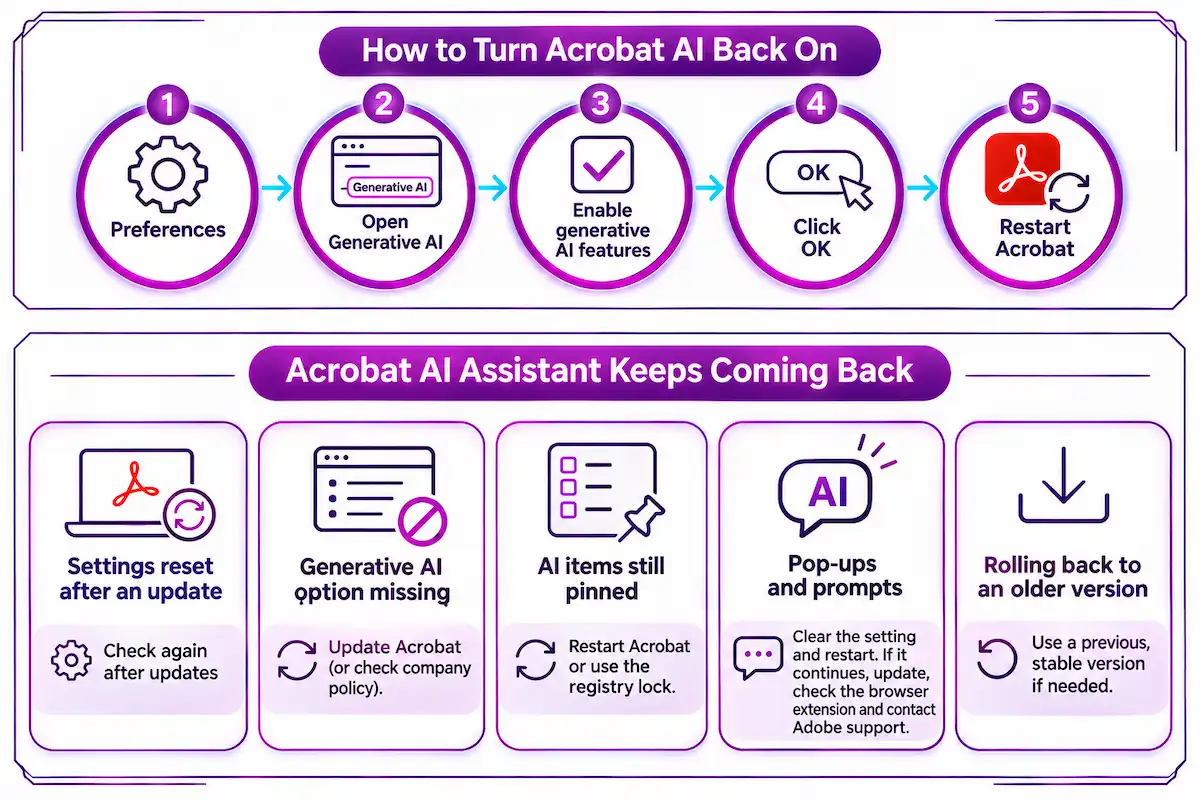
To bring the features back, follow the same path as before: Preferences, Generative AI, then select Enable generative AI features, click OK and restart Acrobat. If you used the registry lock, set bEnableGentech to 1 or delete the value. People who turn it back on to speed up reading and summarizing can find more ideas in this guide on how to use AI for productivity.
Acrobat AI Assistant Keeps Coming Back
The most common complaint about this feature is that the setting does not seem to stay off. We cannot say why it happens on every computer, but these are the causes worth checking.
Settings reset after an update
A new version of Acrobat can bring back the interface or the default state. After every larger update, open Preferences again and check that Enable generative AI features is still cleared.
Generative AI option missing from Preferences
If the category is not in the list, your version is probably too old to have the control. Update Acrobat and look again. If it is a company computer, the category may also be hidden on purpose by a policy.
AI items still pinned in the sidebar
Some AI shortcuts can stay in the sidebar or the tools list after you switch the main feature off. Restart Acrobat, and if they remain, the registry lock removes the Generative AI category together with the toolbar button.
Pop-ups and prompts when you open a PDF
Some people see AI prompts or small promotional messages each time they open a file. These belong to the same group of features, so clearing Enable generative AI features and restarting is the first thing to try. If a message still appears after that, update Acrobat, check the browser extension if you open PDFs in Chrome or Edge and contact Adobe support with your version number.
Rolling back to an older version
You may read advice to install an older version of Acrobat and block updates. We do not recommend it, because you also lose security fixes, and the registry lock does the same job with far less risk.
Which method to use
| Method | Best for | Lasts after updates | Can the user turn it back on |
|---|---|---|---|
| Preferences checkbox | One person on their own computer | Not always | Yes |
| Disable new Acrobat | A quick temporary fix | Not reliably | Yes |
| Registry bEnableGentech | Locking it off on a Windows computer | Usually | No |
| Registry bConsentProvided | Off by default for one user | Usually | Yes |
| Browser extension policy | Chrome and Edge on managed computers | Yes | No |
Does Adobe Read Your PDFs When AI Is On?
This is the question behind many requests to turn the feature off, so we want to answer it carefully. Adobe says the AI Assistant does not analyze a document unless you open the file and choose an AI action, and that opening, editing, signing and searching a PDF happen on your computer. It also says content shared with the assistant is not used to train its large language models without your consent.
When you do use the AI Assistant or a generative summary, the document is sent to Adobe servers. According to Adobe, uploaded files, questions and answers are kept for about 12 hours and then deleted, while content flagged as harmful or illegal can be kept for 30 days. These are Adobe statements and we cannot check them from the outside, so confidential documents are better handled with the feature switched off. For a broader view of this topic, see our guide on AI data privacy for business.
Should You Turn Off AI in Acrobat?
It depends on how you work. We suggest turning it off in these cases:
- You handle contracts, medical files or client data that should not leave your computer
- Your company has a rule against sending documents to outside AI services
- You never use the assistant and the buttons only take up space
- You share a computer with other people
We would leave it on if you read long reports, need fast summaries and work only with documents that are safe to upload. Whichever way you go, it is worth comparing tools and rules before you decide, and the guide on how to choose AI tools for business can help with that.
How to Contact Adobe About AI Settings
If none of the steps work on your version, contact Adobe support through the Help Center by chat or by support ticket and mention your Acrobat version and system. The steps and menu names Adobe publishes for each version are on the official Adobe Help page for turning off generative AI features. Requests about your data go through the form linked in the Adobe privacy policy.
How to Turn Off AI Tools in Adobe Acrobat FAQ
How do I turn off AI tools in Adobe Acrobat?
Close your documents, open Preferences from the menu, select Generative AI, clear Enable generative AI features, click OK and restart Acrobat. The steps are the same on Windows and Mac, apart from the menu name.
Can I remove the AI Assistant button?
Yes. Clearing Enable generative AI features and restarting removes the Ask AI Assistant button from the toolbar. If it stays, use the classic interface or the registry lock on Windows.
Why does Acrobat AI turn itself back on?
An update or a version without the control can bring the feature back. Check Preferences after each update, and on Windows use the bEnableGentech registry value to lock it off.
Does turning off AI affect other Acrobat features?
No. Editing, signing, commenting, searching and exporting PDFs work as before. Only the AI Assistant, generative summaries, podcasts and the related bars and cards are switched off.
Can an admin turn off AI for everyone?
Yes, on Windows. An admin can set bEnableGentech to 0 through Group Policy or Intune. For Mac computers managed by MDM there is no confirmed method.