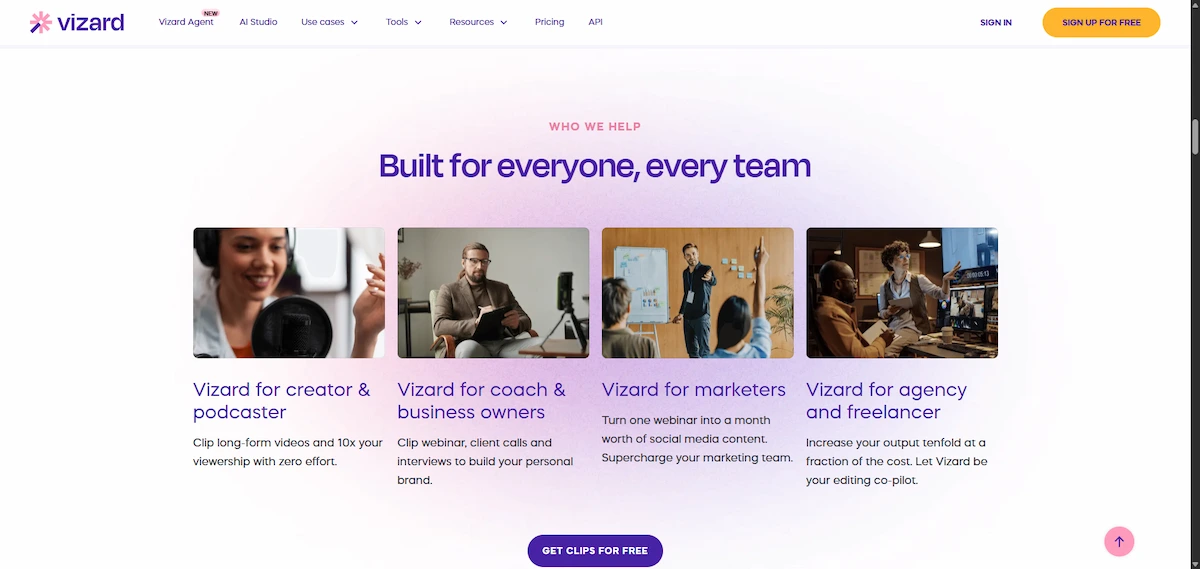
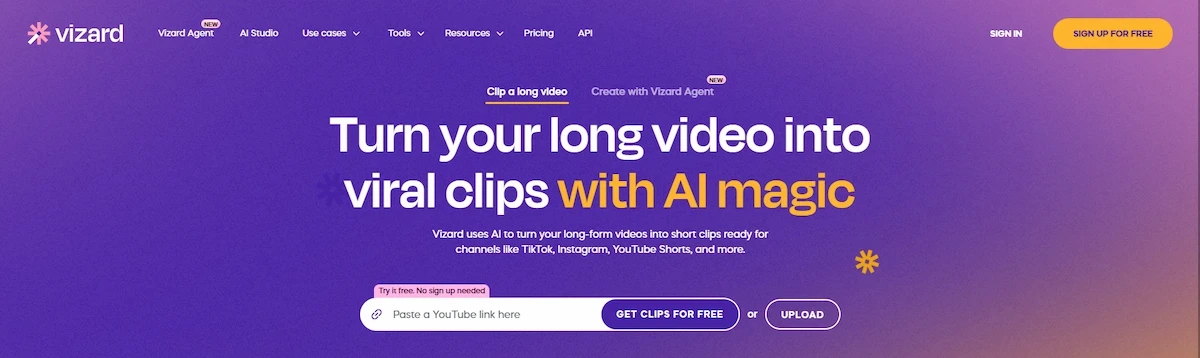
What is Vizard AI? It is a browser-based video repurposing tool that takes one long recording, such as a podcast, a webinar or an interview, and turns it into short-form captioned clips for TikTok, Instagram Reels and YouTube Shorts. You upload a file or paste a link, the AI finds the strongest moments, reframes the speaker for vertical video and adds subtitles, and you edit, schedule and publish from the same place.
Vizard has a free plan with 60 credits per month, and paid plans start at $29 per month, or about $14.50 to $16.90 per month on annual billing. The detail that decides the real cost is how credits work, because Vizard charges one credit for every minute of video you upload, not for every clip you export. This Vizard AI review covers features, pricing, credits, the free plan, pros, cons, the refund policy and alternatives, based on official pages, independent reviews and user feedback. Prices and limits change often, so check the current plan before you pay.
Vizard AI at a Glance
| Detail | Info |
|---|---|
| Category | AI video repurposing and clipping tool |
| Best for | Podcasters, webinar hosts, coaches, agencies and creators with a steady supply of long-form video |
| Free plan | Yes, 60 credits per month, 720p export, watermark and 3-day storage |
| Paid plans from | $29 per month (Creator) and $39 per month (Business), lower on annual billing |
| Credit rule | 1 credit equals 1 minute of uploaded video |
| Main limit | It needs existing footage, and credits are used by upload length |
| Platforms | Web app, iOS app and Android app |
What is Vizard AI in one line? A strong value pick for people who already film long-form video, and a poor fit for anyone who needs a video made from scratch.
What Is Vizard AI?
Vizard AI is an AI video clipping and editing tool built by Vizard Corp, a company led by founder and chief executive Gary Zhang. It first went public on Product Hunt on August 8, 2023, and it competes with OpusClip, Klap, Submagic and Quso in the video repurposing category. The company says more than 10 million creators and businesses use it, a figure that nobody has audited, and the tool holds a rating of about 4.7 out of 5 from roughly 367 reviews on G2.
The idea behind it is simple. Instead of scrubbing through a long recording to find the best moments, you let the AI do the first pass and then fix what it missed. It belongs to a wider group of tools covered in the guide to AI video creation, although Vizard mainly works on footage you already have.
The name is shared by other products. This Vizard, the video clipping tool at vizard.ai, is not the Python-based virtual-reality platform from WorldViz or an India-based WhatsApp marketing startup that appears in some company databases.
Who Is Vizard AI For?
Vizard is built for people who record long-form video and need a steady stream of short-form clips from it. The main groups are podcasters, YouTubers, coaches, course creators, webinar hosts, consultants, marketing teams and agencies.
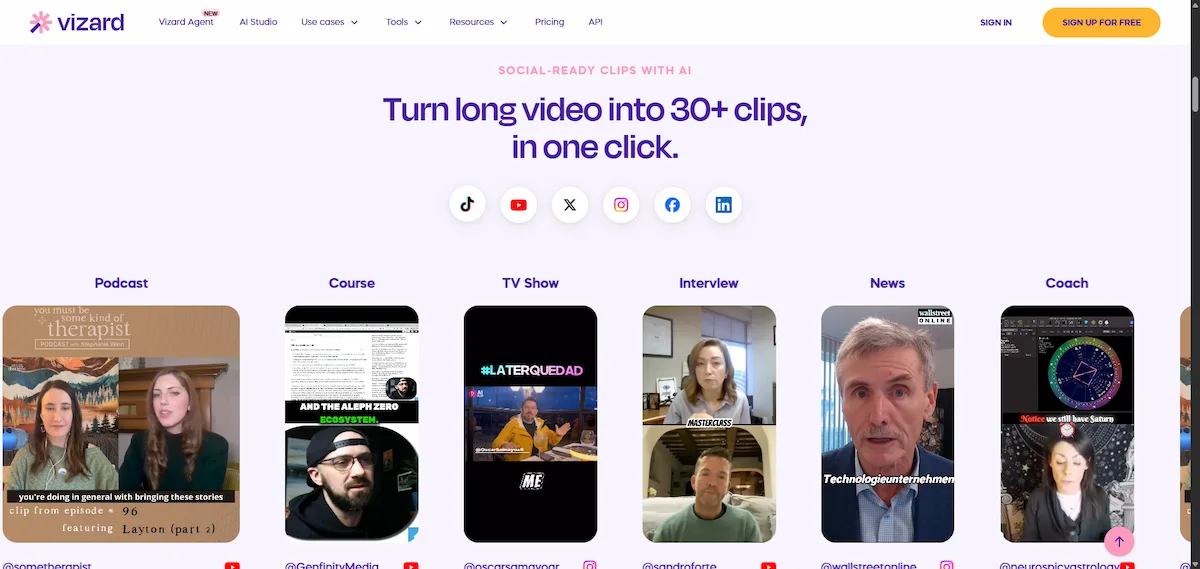
A weekly podcast with a video recording is the ideal case, and the guide on how to make a podcast with AI shows where clipping fits in the workflow. If you wonder what is Vizard AI used for in practice, typical jobs include:
- Podcast episodes into Reels, Shorts and TikToks.
- Webinars into LinkedIn clips and lead magnets.
- Interviews into quote clips with captions.
- Zoom recordings into highlight clips for teams and clients.
- Training and course videos into short lessons.
What Vizard AI Is Not
Vizard is not a text-to-video generator. It cuts clips from footage you provide, so if you have a product and no video, there is nothing to clip. It is also a linear clipper, which means it cannot stitch separate parts of a video into one highlight reel inside the editor. The company has added an AI Studio and an AdMaker for generating visuals and UGC-style ads, but clipping is still the core of the product.
Company and History
Vizard is a young product, and most of its history is recent. According to the AI Wiki entry and company announcements, these are the main milestones:
- August 8, 2023: public debut on Product Hunt, with a second launch on December 8, 2023.
- October 2024: Spark 1.0, the video understanding model behind prompt-based clipping.
- December 2024: the company announced $1 million in annual recurring revenue.
- 2025: an iOS app released on July 31, plus a Zoom Marketplace app and a growing API.
- 2026: an AI video agent, an AI Studio with third-party models and an AdMaker for UGC-style ads.
The company is backed by investors that include Eminence Ventures, according to public listings, and it describes itself as serving more than 10 million creators and businesses.
Vizard AI in Numbers
What is Vizard AI in numbers? These are the figures that come up most often:
- 4.7 out of 5: rating on G2, from roughly 367 reviews.
- 4.9: rating on Software Advice, from about 482 ratings.
- 10 million or more: creators and businesses, according to the company.
- 60 credits: monthly allowance on the free plan.
- 600 credits: the starting allowance on Creator and Business, or about 10 hours of source video.
- 6 and 20: connected social accounts on Creator and Business.
- 10 GB and 10 hours: upload limits on paid plans, compared with 1 GB and 60 minutes on free.
- 3 to 6 minutes: typical processing time for a 45-minute video.
How Does Vizard AI Work?
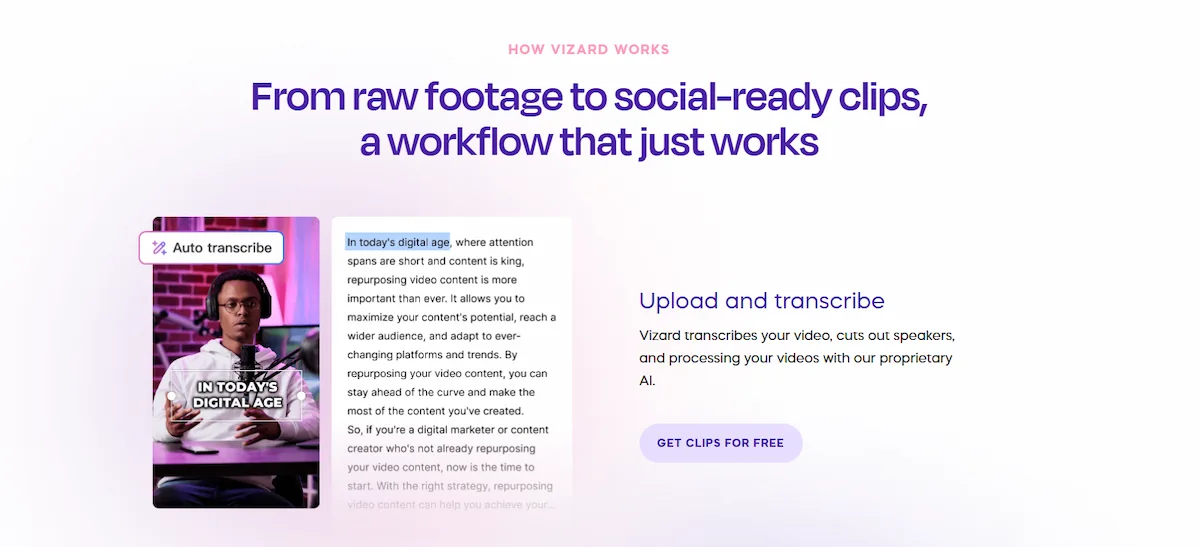
The workflow follows the same six steps for almost every video:
- Upload or paste a link: add a file, paste a YouTube link, or import from Zoom cloud recordings, Google Drive or Vimeo.
- Transcription: Vizard transcribes the audio and analyzes speech, pacing and visuals.
- Clip selection: the AI picks the strongest moments and gives each clip a virality score.
- Reframe and captions: clips are cropped to vertical with the speaker centered, and subtitles are added.
- Edit: trim by editing the transcript, change captions, add b-roll, emojis and brand templates.
- Publish or export: schedule posts to your social accounts or export the files.
Processing is fast. A 45-minute video is usually clipped in three to six minutes, and in one benchmark of nine clipping tools a 90-minute podcast reached a usable first clip in about 10 minutes, compared with roughly 25 minutes for OpusClip. For a wider workflow on turning long recordings into short posts, see the guide on how to turn long videos into shorts with AI.
Upload Limits and Supported Sources
Vizard accepts a file upload or a link. You can paste a YouTube URL, import from Zoom cloud recordings, Google Drive or Vimeo, or record in the browser. The free plan accepts uploads up to 60 minutes and 1 GB and exports clips up to 10 minutes at 720p. Paid plans accept files up to about 10 GB and 10 hours and export in 4K without a time limit, according to independent reviews, so check the current limits on the pricing page.
Vizard AI Features
Vizard has grown from a simple clipper into a wider video tool. These are the main features.
AI Clipping and Virality Score
The core feature analyzes a long recording, picks self-contained moments that are likely to work as short-form videos and cuts them into clips. Each clip gets a virality score from 0 to 100, which helps you decide what to review first. Talking-head and interview content works best, while dense tutorials and fast b-roll are harder for the model.
Spark 1.0: Clip by Prompt
Spark 1.0, introduced in October 2024, is the video understanding model behind prompt-based clipping. Instead of relying only on automatic highlight detection, you describe the scene, topic, emotion or sound you want, and Spark finds matching moments. The company says prompts can be refined a limited number of times without using extra credits.
Edit by Transcript
Vizard puts the transcript at the center of editing. Delete a sentence and the matching footage disappears, which is a faster way to trim talking-head video than scrubbing a timeline. You can still use a timeline when you need more control.
Auto Reframe and Speaker Detection
Auto reframe crops widescreen footage to vertical, square or other ratios and uses speaker detection to keep the active speaker centered. Reviewers say it works best on talking-head video and can struggle with screen recordings, gameplay and b-roll. One click changes the ratio for TikTok, Reels, feed posts or YouTube.
Captions, Subtitles and Translation
Vizard burns in dynamic captions and says its English transcription is accurate above 97%, with other reviews citing about 98%. Subtitles can be translated, and the company markets support for 100 or more languages, but tested transcription support sits closer to 25 languages, with accuracy near 95% outside English. Review any caption in a language you do not speak before you publish. The guide on how to add AI subtitles to videos covers the basics of the process.
AI B-Roll, Emojis and Keyword Highlights
Vizard can add contextual emojis, highlight keywords and suggest b-roll. Stock footage comes from libraries such as Pexels and Storyblocks, and the company has added generated visuals through video models. Reviewers call the b-roll hit or miss, so check each insert before you export.
Brand Kit and Templates
Templates let you set fonts, colors, logos and caption styles once and apply them to every clip. Some sources place the brand kit with custom fonts on the Business plan and others on Creator, so check the plan page before you rely on it.
Scheduling and Social Publishing
Vizard publishes and schedules natively to YouTube, TikTok, Instagram, Facebook, LinkedIn and X, with a content calendar and AI suggestions for titles, descriptions and hashtags. Free connects one social account, Creator six and Business 20. Most clippers do not include scheduling, which is a clear advantage here.
Team Workspace and Client Access
Business adds a shared workspace, project sharing, client access and previews, a brand kit and priority processing. Extra team seats are listed at about $10 per month each, so check the pricing page for the exact seat cost.
API, Integrations and Mobile App
There is a REST API with rate limits, and sources disagree on which plans include it: some say every plan, others say Creator and above. Vizard also offers a Zoom Marketplace app, imports from Zoom, Google Drive, Vimeo and YouTube links, a browser screen recorder, an iOS app released in 2025 and an Android app. Users describe the mobile app as clunky, so use the web app for serious work.
AI Video Agent, AI Studio and AdMaker
Around the clipper, Vizard now has an AI video agent that follows prompts typed in a chat box, an AI Studio that gives access to third-party image and video models, and an AdMaker for UGC-style ads. These extras widen the product, but they also make the menu crowded for someone who only wants clips.
What Types of Video Work Best With Vizard AI?
What is Vizard AI best at? Spoken-word video with clear audio and one or two people on camera. The model finds self-contained ideas by reading the transcript and the pacing, so content that is built around talk works better than content that is built around visuals.
Works well:
- Podcasts recorded on video
- Interviews and talking-head videos
- Webinars, lectures and workshops
- Zoom recordings and coaching calls
- Panel discussions with clear audio
Works less well:
- Software tutorials and screen recordings
- Gameplay and fast b-roll
- Music videos and videos without speech
- Noisy recordings with overlapping voices
Clean audio, a stable camera and a clear speaker give the model the best chance of picking strong clips, so fix the source before you upload.
Vizard AI Use Cases by Role
- Podcasters: turn each episode into 3 to 5 clips for Reels, Shorts and TikTok, with captions and an episode title.
- Coaches and consultants: turn calls and talks into short tips for LinkedIn and Instagram.
- Course creators and educators: cut long lessons into short lessons and promo clips.
- Webinar hosts: pull the best answers and slides into clips for the follow-up campaign.
- Agencies: run a shared workspace, brand kit and client previews across several accounts.
- Marketing teams: turn product demos, interviews and events into a steady stream of social posts.
Vizard AI Pricing in 2026
Vizard uses a freemium, credit-based model. The table below shows the plans as listed in October 2026 on monthly billing, with annual prices from recent reviews. Prices, credit tiers and limits change, so check the official Vizard pricing page before you pay. For the wider budget of a full stack, see the guide on how much AI tools cost.
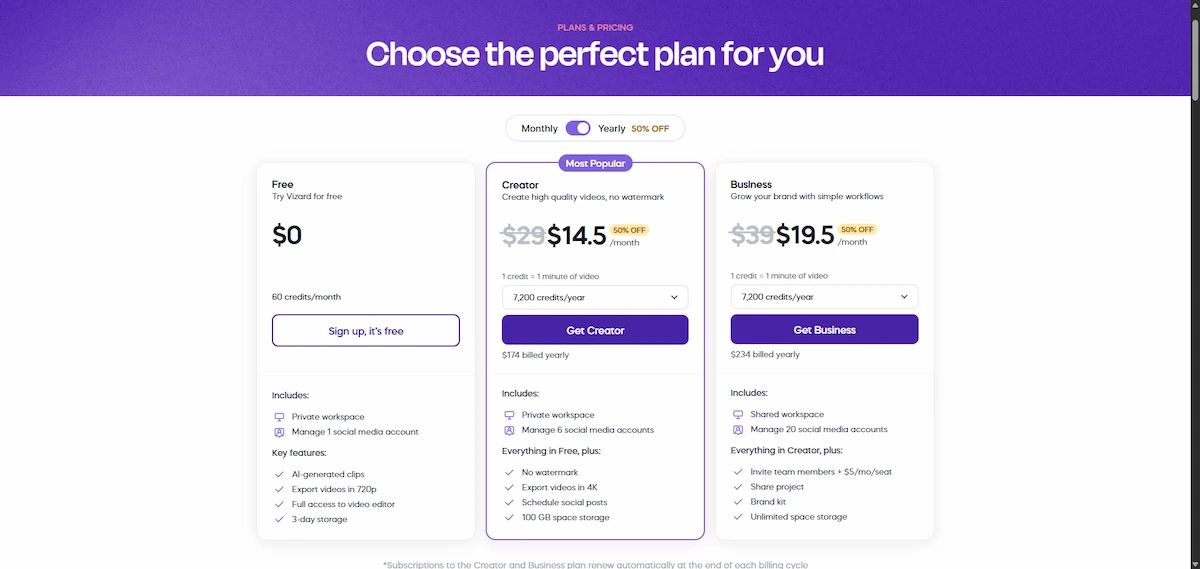
| Plan | Monthly | Annual (per month) | Credits | Export | Storage | Social accounts |
|---|---|---|---|---|---|---|
| Free | $0 | $0 | 60 per month | 720p, up to 10 minutes, watermark | 3 days | 1 |
| Creator | $29 | About $14.50 to $16.90 | From 600 per month | 4K, any length, no watermark | 100 GB | 6 |
| Business | $39 | About $19.50 to $22.80 | From 600 per month | 4K, any length | Unlimited while subscribed | 20 |
| Enterprise | Custom | Custom | 10,000 or more | 4K | Custom | Custom |
Annual billing cuts the price roughly in half, but sources disagree on the exact figure: $14.50 and $19.50 in July and October 2026 listings, and $16.90 and $22.80 in a June 2026 review. Credit tiers go up in steps, to as many as 6,200 credits per month on paid plans, and Enterprise adds a 99.99% uptime guarantee and dedicated support. Extra seats on Business cost about $10 per month each.
How Vizard Credits Work
One Vizard credit equals one minute of uploaded video, not one minute of finished clip. You are charged for the length of the source file before any clip is cut, so a 600-credit Creator plan is 600 minutes, or about 10 hours, of raw footage per month. You can export as many clips as you like from each upload, which keeps the price per finished clip low.
Here is an example. Upload a raw 90-minute podcast with 12 minutes of dead air and Vizard charges 90 credits. Trim it to the 60 minutes that carry the episode before you upload and the same job costs 60 credits. On a weekly show, that habit decides whether the Creator plan lasts the month.
At $29 per month for 600 credits, Creator works out to about 5 cents per minute of source video. Re-clipping a video can use extra credits, and some features that look free, such as transcript export, are reported to sit behind a paid plan after you upload.
What Vizard AI Really Costs in Practice
Three examples show how the credit rule works. A weekly podcast with a 60-minute episode uses about 240 to 300 credits per month, so the 600-credit Creator plan covers it with room for a second show. A creator who uploads one 20-minute video per day uses about 600 credits, which is the whole Creator allowance. An agency that clips 40 hours of client footage per month needs about 2,400 credits, so it has to move up to a higher credit tier or to Business, where the price rises with the credit amount.
How to Choose a Credit Tier
Estimate your monthly source footage in minutes, add 10 to 20 percent for re-uploads and tests, and pick the first tier that covers it. Ten hours of raw footage is 600 minutes, so the entry Creator tier fits most weekly shows. Start there, check your usage after the first month and move up only if you hit the limit.
Is Vizard AI Free?
Yes, Vizard has a free plan, and it is usable for testing. You get 60 credits per month, the full editor, AI clips, 720p export and one connected social account. The limits are the catch: uploads up to 60 minutes and 1 GB, exports up to 10 minutes, a Vizard watermark on every export and storage of only three days. Treat the free plan as a test of the clipping engine, not as a plan for running a channel. Creator removes the watermark and adds 4K export.
Free vs Paid: What Changes
- Watermark: present on free exports, removed on Creator and Business.
- Resolution: 720p on free, 4K on paid plans.
- Export length: up to 10 minutes on free, no limit on paid plans.
- Uploads: up to 60 minutes and 1 GB on free, about 10 hours and 10 GB on paid plans.
- Storage: 3 days on free, 100 GB or more on paid plans, depending on the source.
- Social accounts: 1 on free, 6 on Creator and 20 on Business.
- Team features: a shared workspace, brand kit and client access on Business.
Is Vizard AI Worth It?
For most creators with long-form video, yes. Creator gives about 600 minutes of source video for $29 per month, which is a low price per minute for a clipper, and it adds 4K export, no watermark and native scheduling to six accounts. The credit rule is the main catch, and it works in your favor only if you trim recordings before you upload. For a wider view of picking software, the guide on how to choose AI tools for business covers the same logic across categories.
- Worth it if: you publish a podcast, webinar series or interview show, you want captions and scheduling in one tool, and you are happy to review and trim the clips.
- Skip it if: your recordings are short or noisy, you want fully automatic viral hook detection, or you have no footage to start from.
Vizard AI Pros and Cons
Pros:
- Very fast first pass from a long video to clips
- Low price per upload minute
- Native scheduling and publishing to six platforms on Creator
- Transcript-based editing for more control
- Strong English captions and 4K export on paid plans
- Free plan with the full editor and AI clipping
- API, Zoom app and mobile apps
- Spark prompt-based clipping and clip scores
Cons:
- Credits are charged by upload length
- Free plan has a watermark, 720p export and 3-day storage
- Viral hook detection is weaker than OpusClip, so clips often need trimming
- No built-in audio enhancement for noisy recordings
- The 100-plus language claim overstates tested transcription coverage
- Strict refund policy, and unused credits are reported to be lost on cancellation
- The mobile app is described as clunky
- It needs footage and cannot create video from scratch
Honest Review: What Works and What Does Not
This Vizard AI review is based on official pages, independent reviews and user feedback, not on a personal test. These are the points that came up most often.
Clip Quality
Reviewers praise clip accuracy on spoken-word content such as podcasts and interviews. The weak side is precision: the AI often cuts a second too early or too late, and clip selection, zoom and subtitle placement sometimes need manual correction, so expect to review every clip before you publish.
Captions and Languages
English captions are accurate, with claims of 97% to 98%. Other languages are weaker, and the marketing figure of 100-plus languages combines transcription, translation and dubbing. If you publish in a second language, check every line.
Speed
Speed is a clear strength. A 45-minute video is usually clipped in three to six minutes, and the first usable clip of a 90-minute podcast arrived in about 10 minutes in one nine-tool benchmark. Some users report slow processing on very long videos.
Mobile App and Interface
The web app is easy to learn, and reviewers call the setup immediate. The mobile app is described as clunky, and the product now includes clipping, an agent, an ad maker and an AI studio in one menu, which can make the clipper harder to find.
User Reviews and Complaints
Vizard is rated about 4.7 out of 5 from roughly 367 reviews on G2 and about 4.9 on Software Advice. Users praise ease of use and time saved. Complaints include unused credits that are lost on cancellation, features that look free but sit behind a paywall after upload, and slow processing on long videos.
What Users Praise and What They Complain About
Praise:
- Ease of use and a short learning curve
- Time saved compared with manual editing
- Accurate English captions
- Prompt-based chat and agent commands
- Scheduling in the same tool
Complaints:
- Unused credits lost on cancellation
- Transcript export that sits behind a paywall after upload
- Slow processing on long videos
- A clunky mobile app
- Clip selection, zoom and subtitle placement that need manual fixes
Vizard AI Refund and Cancellation Policy
According to an independent review of the official policy, Vizard offers refunds within 7 days, but only for unused services, and uploading data or using the tools counts as use. Approved refunds return to the original payment method in five to ten business days, and processing fees may be deducted unless the charge was a billing error. Some reviewers also report that unused credits are lost when you cancel. Test the clipping on the free plan first, and treat a paid plan as a commitment, not a trial.
Vizard AI vs OpusClip, Klap, Submagic and Quso
Vizard is most often compared with OpusClip, the best-known tool in the category. The table shows where each tool leads.
| Tool | Best at | Where Vizard is better | Where Vizard loses |
|---|---|---|---|
| OpusClip | Automatic viral hook detection, prompt-based ClipAnything and audio enhancement | Long-form control, transcript editing, price per minute and native scheduling | Hook detection and audio cleanup |
| Klap | AI dubbing and batch work | Free plan, scheduling and a fuller editor | Dubbing into other languages and large libraries |
| Submagic | Caption styling | A complete clipping workflow | Caption customization |
| Quso | Chapters plus clips, content planner, free plan with 7-day retention | Price per minute on paid plans | Planner, chapters and free-plan retention |
In a comparison published by Quso, Vizard Creator at $29 per month buys 600 credits, while Quso Lite at $29 buys 100 credits and Essential at $39 buys 300, which makes Vizard cheaper per minute. Keep in mind that Quso publishes that comparison and sells the competing product. Reviewers frame OpusClip as more aggressive on automation and Vizard as better for editorial control.
Vizard AI vs OpusClip
OpusClip is the bigger brand and leads on automatic viral hook detection, prompt-based ClipAnything and audio enhancement. Vizard leads on transcript editing, price per upload minute and native scheduling.
- Choose Vizard if: you record long podcasts or webinars, want control over the cut and want to schedule posts in the same tool.
- Choose OpusClip if: you want the most automatic hook detection and audio cleanup with less editing.
Vizard AI vs Klap
Klap focuses on fast clipping and AI dubbing into other languages, and the company claims support for 52 languages. Vizard has a fuller editor, a free plan and native scheduling, while Klap is the better pick for translated dubbing and large libraries.
Vizard AI vs Submagic
Submagic is a caption-first tool with more styling options and stronger caption customization. Vizard is a complete clipping workflow with AI clip selection, reframing and scheduling, so it covers more of the job.
Vizard AI vs Quso
Quso, the successor of Vidyo.ai, combines clips with chapters and a content planner, and its free plan keeps files for seven days. Vizard is cheaper per upload minute on paid plans, according to the Quso comparison, which comes from a competitor.
Vizard AI Alternatives
Look at another tool when Vizard does not fit the job:
- No footage at all: Fastlane, Creatify and Pexo create videos from a URL or a script, and the guide on how to make AI avatar videos covers presenter-style video.
- Automatic viral hooks and audio cleanup: OpusClip.
- Stylish captions: Submagic.
- AI dubbing and many languages: Klap.
- Chapters and a content planner: Quso.
- Full editing: Descript or CapCut.
Descript and CapCut for Full Editing
Descript edits video by editing text and covers audio cleanup, filler removal and full projects, while CapCut is a general editor with auto captions and templates. Both give more manual control than Vizard, but neither is built to find clips in a long recording.
Fastlane, Creatify and Pexo for Video Without Footage
These tools generate videos from a URL, a script or a product page, with avatars, voiceovers and ad templates. Choose them when you need a new video and not a clip from an existing one.
How to Use Vizard AI Step by Step
The process is the same on the web app and on mobile. These six steps get the most out of the free plan and the paid plans.
Step 1: Trim Your Video First
Cut dead air, pre-show chatter and long pauses in a basic editor before you upload. Credits are charged by the length of the source file, so a shorter file costs fewer credits.
Step 2: Upload a File or Paste a Link
Create an account, then upload a file or paste a YouTube link. You can also import from Zoom cloud recordings, Google Drive or Vimeo. Check that the file stays within the plan limit, which is 60 minutes and 1 GB on the free plan.
Step 3: Review the Clips and Scores
Vizard returns a set of clips, each with a score. Start with the highest scores, then watch each clip to check that it makes sense without the rest of the video. Try Spark with a prompt if the automatic picks miss a topic.
Step 4: Edit With the Transcript
Open a clip and trim the text to trim the video. Remove filler and false starts, check the first three seconds and make sure the clip ends on a complete thought.
Step 5: Set Captions, Reframe and Brand
Choose a caption style, check that the speaker stays centered, apply your brand template and review any b-roll or emojis the AI added. Fix misheard names, brands and numbers in the captions.
Step 6: Export or Schedule
Export in the size you need, or connect your social accounts and schedule posts from the content calendar. Paid plans remove the watermark and allow 4K export.
How to Work With Podcasts and Webinars in Vizard AI
Podcasts and webinars are the main use case, so a simple routine saves the most time:
- Record the video with clean audio and a stable camera.
- Cut the intro, the sponsor reads and the dead air before you upload.
- Upload the file or paste the link.
- Let the AI pick the clips, then run a Spark prompt such as “moments where the guest tells a story” for extra options.
- Choose 3 to 5 clips per episode and fix captions, names and numbers.
- Add the episode title and brand template, then schedule the posts across the week.
Tips to Get More From Vizard AI
- Pre-trim every upload: it is the single easiest way to save credits.
- Test on the free plan first: upload a short episode before you pay.
- Pick the credit tier carefully: choose a tier that matches your monthly hours of source video.
- Use Spark prompts: describe the topic you want when the automatic picks miss it.
- Review before you publish: check cuts, captions and framing on every clip.
- Be careful with translations: do not publish captions in a language you cannot check.
- Schedule in batches: use the content calendar to fill a week at once.
- Add a matching cover: the guide to creating social media graphics with AI covers sizes and formats for post images.
Is Vizard AI Safe and Legit?
Vizard is a cloud-hosted product from Vizard Corp, a Delaware company, with a public launch in 2023, an iOS app, a Zoom Marketplace listing and several hundred reviews on G2, Capterra and the App Store. Uploaded videos are processed on its servers, and the privacy policy and terms are published at vizard.ai. Some company claims, such as more than 10 million users, come from the company itself and are not audited.
Before you upload client recordings, financial discussions or private meetings, read the privacy policy and check where files are stored. The guide to AI data privacy for business lists the questions to ask a vendor.
Who Should Use Vizard AI and Who Should Skip It
Use Vizard if you fit one of these profiles:
- You run a podcast, webinar series or interview show with video.
- You need captions, reframing and scheduling in one tool.
- You process several hours of video per month and want a low price per minute.
- You want control over the cut through the transcript.
Skip it, or look at another tool, if you fit one of these:
- You have no footage and need a video created from a script or a product page.
- You want fully automatic viral hook detection and audio enhancement.
- Your recordings are short, noisy or mostly screen capture.
- You are not willing to review and trim clips before you post.
Verdict
So what is Vizard AI, and is it worth it? It is a fast, affordable clipper for people who already record long-form video, with transcript-based editing, native scheduling and a free plan that lets you test it. The credit rule, the weak refund terms and the need for footage are the main catches. Pre-trim your uploads, test on the free plan and review every clip, and Vizard is a solid choice. To plan AI across more than video, read how to use AI in business.
Frequently Asked Questions
What Is Vizard AI?
Vizard AI is an AI video clipping and editing tool. You upload a long video or paste a link, and it finds the best moments, cuts them into short clips with captions and reframing, and lets you edit, schedule and publish them to social media.
Is Vizard AI Free?
Yes, with limits. The free plan gives 60 credits per month, 720p export, a watermark, one connected social account and three-day storage. Paid plans start at $29 per month on monthly billing.
How Much Does Vizard AI Cost?
On monthly billing, Creator is $29 and Business is $39 per month. Annual billing brings the price to about $14.50 to $16.90 and $19.50 to $22.80 per month, depending on the source. Enterprise pricing is custom, so check the official pricing page.
Is Vizard AI Worth It?
For creators with long-form video, yes. Creator gives about 600 minutes of source video for $29 per month, with 4K export and scheduling. It is less attractive if you have no footage or want automatic viral hook detection.
Is Vizard AI Good?
For repurposing podcasts, webinars and interviews, yes. It is fast, easy to learn and rated about 4.7 out of 5 on G2. Clips still need review, since the AI sometimes cuts a second early or late.
How Does Vizard AI Work?
You upload a file or paste a link, Vizard transcribes the audio, finds the strongest moments and gives each clip a score. It then reframes the clips to vertical with captions, and you edit, schedule or export them.
Who Is Vizard AI Best For?
Podcasters, YouTubers, coaches, course creators, webinar hosts, consultants, agencies and marketing teams with a steady supply of long-form video. It is a poor fit for people without footage.
What Is Vizard AI Used For?
It is used to turn podcasts, webinars, interviews, meetings and training videos into short captioned clips for TikTok, Instagram Reels, YouTube Shorts and other platforms, and to schedule and publish them.
How Do Vizard Credits Work?
One credit equals one minute of uploaded video, charged on the source file length before any clipping. A 600-credit plan covers about 10 hours of footage per month. Trimming videos before upload saves credits.
Does Vizard AI Add a Watermark?
Yes, on the free plan. Paid plans such as Creator and Business remove the watermark and also add 4K export and longer storage.
Can You Get a Refund From Vizard?
Refunds are available within 7 days, but only for unused services. Uploading data or using the tools counts as use and can void eligibility, so test on the free plan before you subscribe.
Is Vizard Better Than OpusClip?
It depends on the job. Vizard is better for long podcasts and webinars where transcript control, price per minute and scheduling matter. OpusClip is better at automatic viral hook detection and audio enhancement.
Does Vizard Post to TikTok Automatically?
Yes. From the Creator plan, Vizard schedules and publishes to YouTube, TikTok, Instagram, Facebook, LinkedIn and X. Creator connects six social accounts and Business connects 20.
What Languages Does Vizard Support?
The company markets support for 100 or more languages for subtitles and translation, but tested transcription support is closer to 25 languages, with the best accuracy in English. Check captions before you publish in another language.
Does Vizard Have an API?
Yes, a REST API with rate limits exists, and sources disagree on which plans include it. Check the official pricing and help pages to confirm access on your plan.
Is Vizard AI Safe and Legit?
Vizard is a Delaware company that launched in 2023 and has several hundred reviews on G2 and Capterra. Uploads are processed on its servers, so read the privacy policy and avoid sensitive recordings unless the terms fit your needs.
Can Vizard Create Videos From Scratch?
No. Vizard clips and edits footage you provide. It has an AI Studio and an AdMaker for generated visuals and UGC-style ads, but it is not a text-to-video tool for turning a script or a product page into a full video.
What Is the Best Vizard Alternative if I Have No Footage?
Tools that generate video from a URL, script or avatar, such as Fastlane, Creatify and Pexo, fit better when you have nothing to clip. OpusClip, Klap, Submagic and Quso are alternatives when you do have long videos.
How Long Does Vizard AI Take to Clip a Video?
A 45-minute video is usually clipped in three to six minutes, and a 90-minute podcast reached a first usable clip in about 10 minutes in one benchmark. Very long files and busy servers can take more time.
What Types of Video Content Work Best With Vizard AI?
Podcasts, interviews, webinars, lectures, coaching calls and Zoom recordings with clear audio and one or two speakers work best. Software tutorials, gameplay, music videos and fast b-roll are harder for the model.
Can I Try Vizard AI Before Paying?
Yes. The free plan gives 60 credits per month and the full editor, so you can run a short episode through it. Free exports carry a watermark and are limited to 720p.
Does Vizard AI Work With Zoom?
Yes. Vizard has a Zoom Marketplace app and can import Zoom cloud recordings, so you can clip meetings and webinars without downloading the file first.
Does Vizard AI Have a Mobile App?
Yes. There is an iOS app released in 2025 and an Android app on Google Play, but users describe the mobile app as clunky, so use the web app for serious editing.
How Is Vizard AI Different From Other Clipping Tools?
Vizard stands out for transcript-based editing, native scheduling, a low price per upload minute and prompt-based clipping with Spark. OpusClip is stronger on automatic hooks and audio, Submagic on caption styling and Klap on dubbing.
Can I Cancel Vizard AI Anytime?
You can cancel a paid plan, but refunds are limited to 7 days and unused services, and some reviewers report that unused credits are lost after cancellation. Check the terms and cancel before the renewal date if you do not plan to use the credits.
What Is Spark 1.0 in Vizard AI?
Spark 1.0 is the video understanding model behind prompt-based clipping in Vizard. You describe the topic, scene or sound you want, and it finds matching moments in the long video instead of relying only on automatic highlights.