Most people lose hours on the first draft of a deck: the outline, the layout, the images and the wording. Learning how to create a presentation with AI cuts that part down to minutes, because the tool writes a first version from your prompt, a document or a few notes. You still decide the message, check the facts and add your own examples. This guide covers the steps, the tools, free options, prompts and the mistakes to avoid.
What does it mean to create a presentation with AI?
To create a presentation with AI means giving a tool a prompt, a file or a block of text and letting it build the outline, the slides and the design for you. An AI presentation maker turns the idea into a draft deck, and you edit it until it fits your audience.
What AI does well
AI is strong at the work that takes the most time at the start. It can write a presentation outline, split a long document into slides, suggest layouts, add stock images and charts, write speaker notes and rewrite text so it is shorter. It also keeps a consistent look across all slides, which is hard to do by hand when you are in a hurry.
What AI still cannot do
AI does not know your audience, your numbers or your goal unless you tell it. It can invent facts, repeat generic points and produce slides that look like everyone else. A chat tool such as ChatGPT can write the text, but it does not build a finished file with layouts, images and formatting on its own. That is why every step below ends with a human check.
Can AI create a presentation for you?
Yes. AI can create a presentation from a prompt, a Word file, a PDF or a pasted block of text, and many tools export the result to PowerPoint or Google Slides. Copilot works inside PowerPoint, Gemini works inside Google Slides, Canva has Magic Design, and tools such as Gamma, Beautiful.ai, Visme, SlidesGPT and Plus AI build the whole deck on their own. If you ask whether AI can create a presentation for me, the honest answer is that it creates the draft, and you finish it.
The same answer applies to the question of whether AI can create presentation slides in PowerPoint or Google Slides. It can, and the slides arrive as editable objects, so you can change the text, move the layout and swap images like in any other deck. A free AI presentation maker is enough for a first try, and an AI presentation tool built into your office app is enough for daily work.
The quality of the result depends on three things: how clear your prompt is, how good your source material is and how much you edit afterward. A short, vague prompt gives a vague deck. A prompt with the topic, audience, slide count and tone gives something you can use.
Why create presentations with AI?
The main reason is time. A first draft that used to take an evening now takes a few minutes, and you spend your effort on the message instead of formatting.
- Speed: a full draft from a prompt or a document in minutes.
- Outline help: the tool suggests a structure when you do not know where to start.
- Design without skills: layouts, fonts and colors are set for you.
- Consistency: every slide follows the same style and brand kit.
- Less rewriting: long text becomes short slide copy and speaker notes.
- Easy changes: you can change the tone, the length or the language with one new prompt.
There is also a quality reason. When the tool handles the layout, you can read the deck as your audience will, and fix the story instead of the font size. A presentation with AI is not better by default, but it gives you more time to make it better.
When is AI worth using for a presentation?
AI pays off when you need a first draft fast, when you start from a document and when the deck has a standard structure, such as a project update, a training or a class project. It helps less when the presentation depends on a sensitive story, on exact data that must be perfect or on a personal message that only you can tell.
A good rule is simple. Use AI for the outline, the layout and the first wording, and keep the key message, the numbers and the closing slide in your own hands. If the topic is confidential, or the stakes are high, use the tool only for structure and write the content yourself.
How to create a presentation with AI step by step
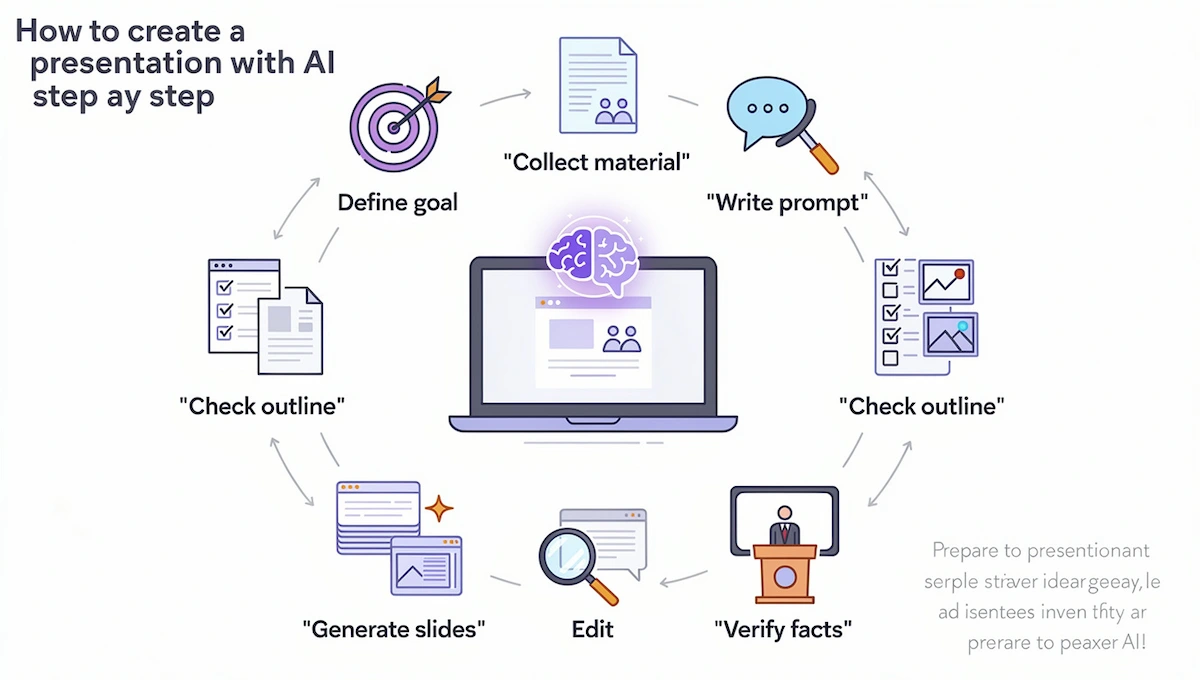
Here is how to create a presentation with AI step by step. The steps are the same in every tool: define the goal, collect material, write a prompt, check the outline, generate slides, edit, verify the facts and prepare to present.
Step 1: Define your topic, audience and goal
Before you open any tool, write down three things: what the presentation is about, who will watch it and what you want them to do afterward. A sales pitch, a school project and a team update need different slides. Students and teachers can also look at the list of AI tools in education to see which apps fit class work. Decide the length too, for example ten slides for a ten minute talk.
Step 2: Collect your source material
AI works better when it has real content to start from. Gather your notes, a report, a Word file, a PDF, a few links or the key numbers. Remove anything outdated. If you have no material, write five or six bullet points with the main ideas, because a rough list is enough for the tool to build an outline. If you want to create a presentation with AI from text, this is the moment to clean the text: remove duplicate paragraphs, shorten long sentences and mark the three points that matter most.
Step 3: Write a prompt that works
The prompt decides the quality of the first draft. Name the topic, the audience, the number of slides, the tone and the purpose. Add what to include and what to avoid. For example: create a ten slide presentation for new customers about our onboarding process, a friendly tone, one idea per slide, with a short summary at the end. The prompt section below has more examples and a simple formula. If the tool allows it, attach a file or a link so the AI presentation maker uses your content and not general knowledge.
Step 4: Generate and edit the outline
Most tools show an outline before they build the slides. This is the best moment to fix the structure, because changing it later costs more time. Check the order of the slides, remove repeated points, add anything missing and rename slide titles so they say something clear. Beautiful.ai, Plus AI, Gemini and Quillbot all let you review or change the outline before generation.
Step 5: Generate the slides
Once the outline is approved, let the tool build the deck. Pick a theme or a style when the tool asks for one, and choose the slide count if it is an option. Generation usually takes from a few seconds to a few minutes. Do not judge the deck by the first look. Treat it as a draft, and go through it slide by slide. This is also the answer to how to create a slide presentation with AI when you only need a few slides: set a low slide count in the prompt, generate and then add more slides only where the story needs them.
Step 6: Edit text, layout and visuals
Cut every slide down to one main idea. Shorten the text, replace generic images with your own and fix charts so the numbers match your data. If you need extra graphics, the guide to creating social media graphics with AI shows how to make images that match your brand. Keep fonts and colors consistent, and leave white space so the audience can read. Check that charts have clear labels and that every image supports the point on the slide. If an image looks generic, ask the tool for another one or upload your own.
Step 7: Fact-check and add your own examples
AI can write confident sentences that are wrong. Check every number, date, name and claim against a source you trust. Replace general statements with a real example, a case from your work or a figure from your own report. This step is what turns a generic deck into one that sounds like you.
Step 8: Add speaker notes, rehearse and export
Ask the tool for speaker notes on each slide, then rewrite them in your own words. Practice out loud, and time yourself against the length you set in step one. Some tools can coach your delivery, and you can also record the talk with a synthetic voice if you need a video version, as shown in the guide on how to create AI voiceovers. Finally, export to PowerPoint, Google Slides or PDF, or share a link.
Types of AI presentation tools
When people search for the best AI to create presentations, they usually find four kinds of tools. Knowing the type helps you pick faster.
Built-in assistants
Copilot in PowerPoint and Gemini in Google Slides work inside the app you already use. You do not move files between tools, and the result is a normal deck you can edit.
Add-ins for PowerPoint and Google Slides
Add-ins such as Plus AI, MagicSlides and SlidesAI connect to PowerPoint or Google Slides. With Plus AI, you install it from the add-ins menu, enter a prompt or a source document, review the outline, choose a theme, edit the slides and share the file.
Standalone presentation apps
Gamma, Beautiful.ai, Visme, Canva, Adobe Express, Quillbot and SlidesGPT are full apps. You write the prompt there, edit there and then export or share a link.
Chat tools
ChatGPT and similar chat tools write the outline, slide text and notes, but they do not build a finished file with layouts and images. They work best as a first step before one of the tools above.
How to make a presentation with AI in each tool
The steps stay the same, but each tool has its own place to start. Use the tool you already work in, and you will spend less time learning a new interface.
PowerPoint with Copilot
Copilot in PowerPoint can generate a presentation draft from a prompt, convert a Word document into slides, improve layouts, add stock images and graphics, create an AI background, summarize the deck, improve the text and write speaker notes.
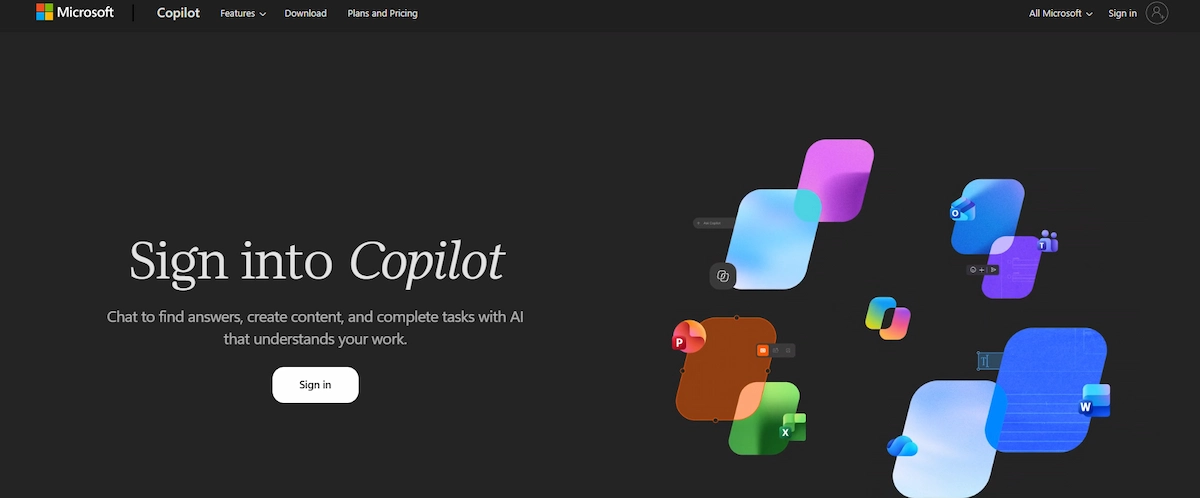
It also has a rehearse option that gives feedback on delivery. If you want to know how to create a PowerPoint with AI, this is the most direct way.
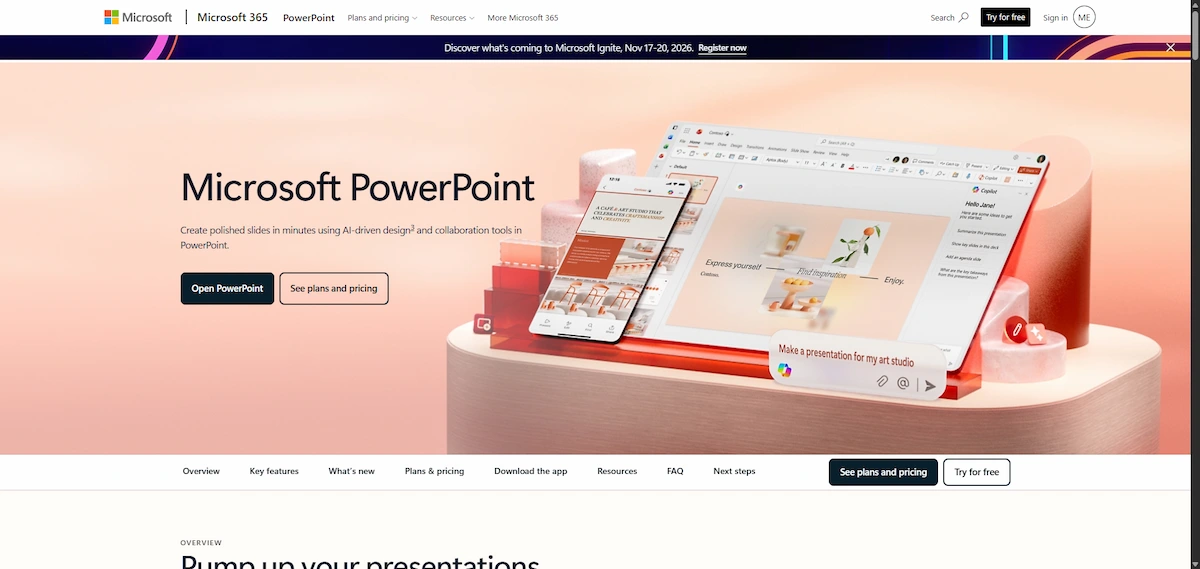
Open PowerPoint, choose Copilot, type your prompt or pick a file and review the draft. The Microsoft guide to presentations with AI lists ten ways to use it.
Google Slides with Gemini
In Google Slides, you open the Gemini side panel, describe the presentation and optionally add files from Drive or an existing deck to match its style. If you ask whether AI can create a Google Slides presentation from a single prompt, this is how it works.
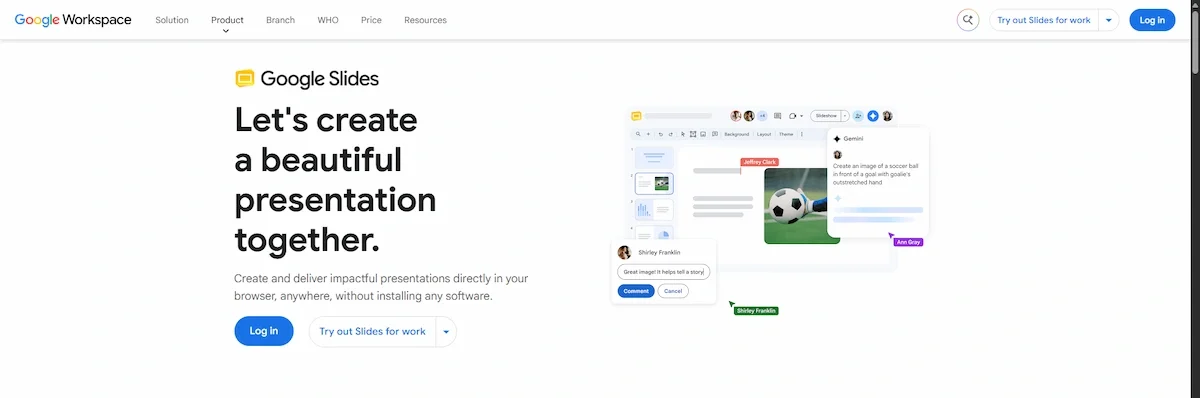
Gemini asks a few questions, then shows a plan with an overview and a slide-by-slide outline. You can edit the titles, add or delete slides, update the plan and approve it. Keep the tab open while it builds the deck. According to the Google Slides help page, the feature needs an eligible Google Workspace or Google AI plan, works on desktop and supports English.

If Gemini does not fit your needs, see the list of Gemini alternatives.
Canva Magic Design
Canva has an AI presentation maker called Magic Design for Presentations. You type a prompt or upload an image or a document, and it builds a deck with layouts and your brand kit. Related tools inside Canva include Magic Write for text and Magic Charts for data.
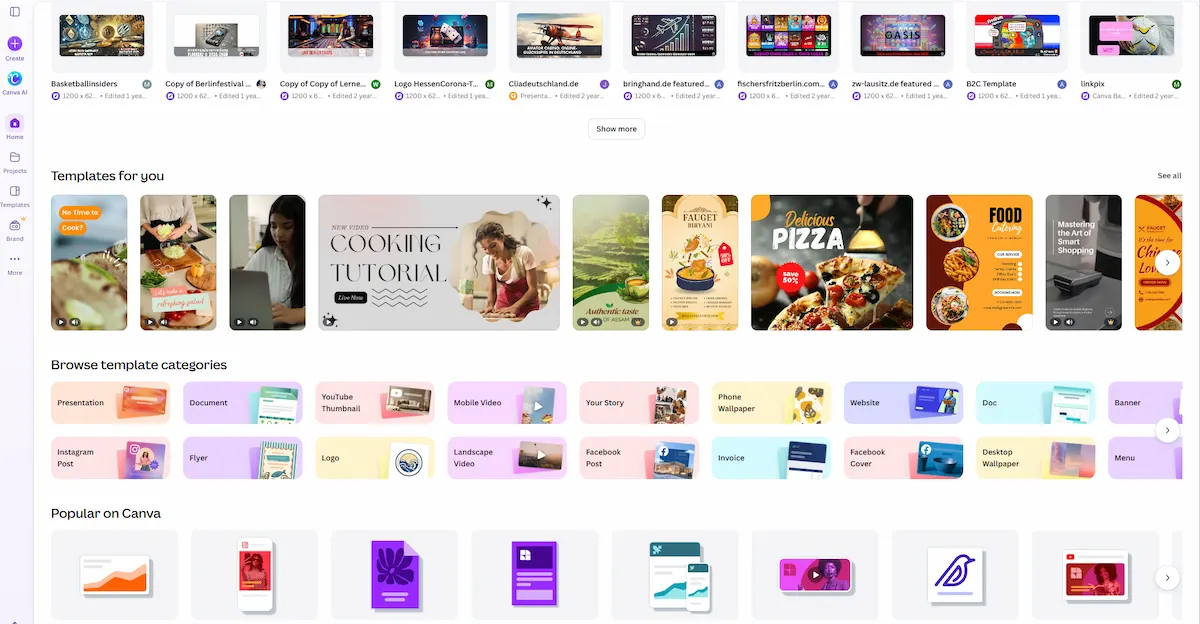
It is a good choice when you want a polished design fast and you already use Canva for other content. If you ask how to create a presentation with AI in Canva, the shortest path is to start from the AI presentation option on the Canva home page and follow the prompt. After the first version appears, change the colors with your brand kit, replace images with Magic Media or your own files and use Magic Charts for data slides. Canva also lets a team edit the same AI presentation at the same time, which helps when several people write different parts.
ChatGPT for outlines and content
Many people ask how to use ChatGPT to create a presentation, and the answer has two parts. First, ChatGPT writes the content. Second, another tool builds the file.
ChatGPT is useful for the thinking part: outline, slide titles, short text and speaker notes. It does not build a finished presentation file with layouts, images and formatting by itself, so you copy the result into PowerPoint, Google Slides or another tool. A practical flow is to ask for a slide-by-slide outline, then for the text of each slide, then for speaker notes, and finally to paste everything into the app you use. Check the facts, since it can state wrong information with confidence. A custom GPT built for presentations can also help with planning and outlining, but you still work in a chat window and cannot edit slides directly there. If you want other chat tools for this job, read about AI tools better than ChatGPT.
Gamma and Beautiful.ai
Gamma and Beautiful.ai are built only for presentations.
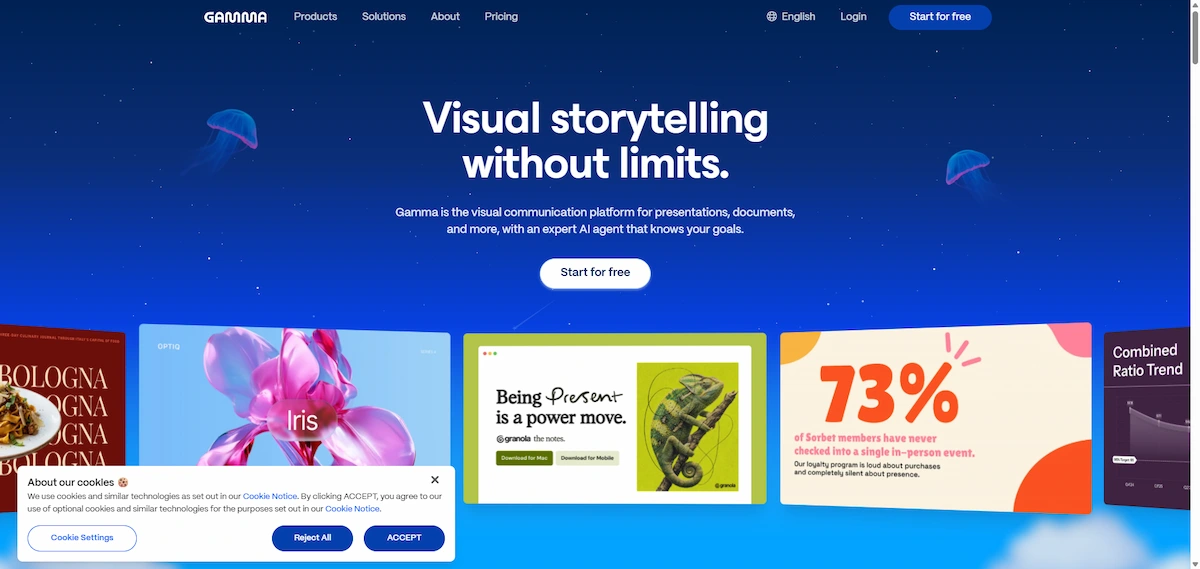
Gamma applies design rules automatically, so a plain draft turns into a clean deck without manual formatting.
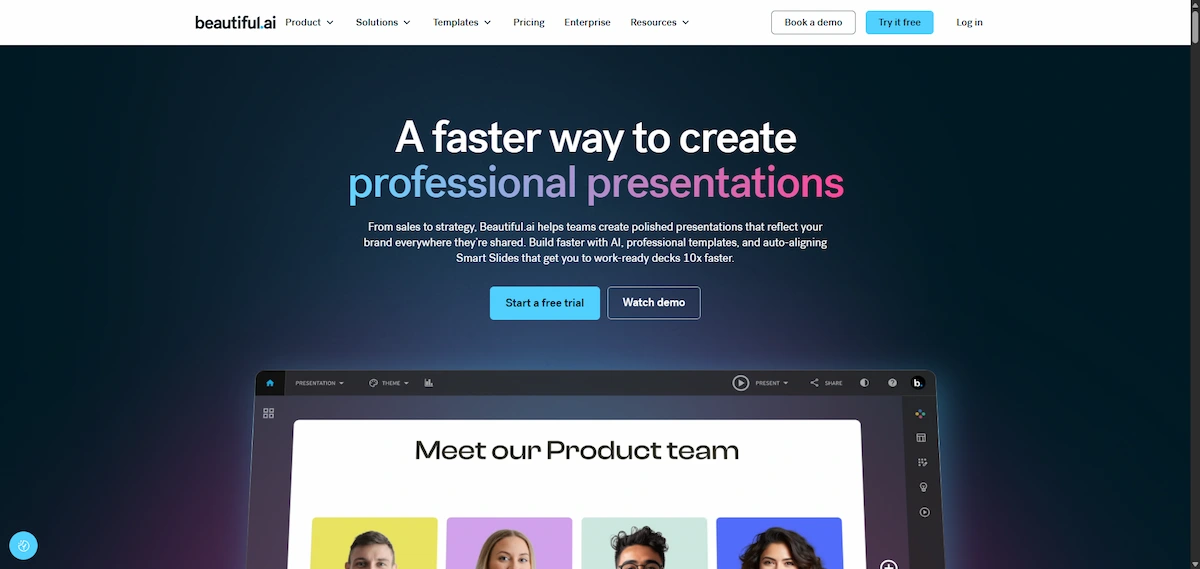
Beautiful.ai follows a clear flow: start with a prompt, turn it into an outline, set the visual preferences and generate the presentation. Both suit people who want a modern look without design work. The trade-off is control: an AI presentation generator picks the layout for you, so if you need a very specific design, a template in PowerPoint or Canva gives you more say.
Visme, Adobe Express and Quillbot
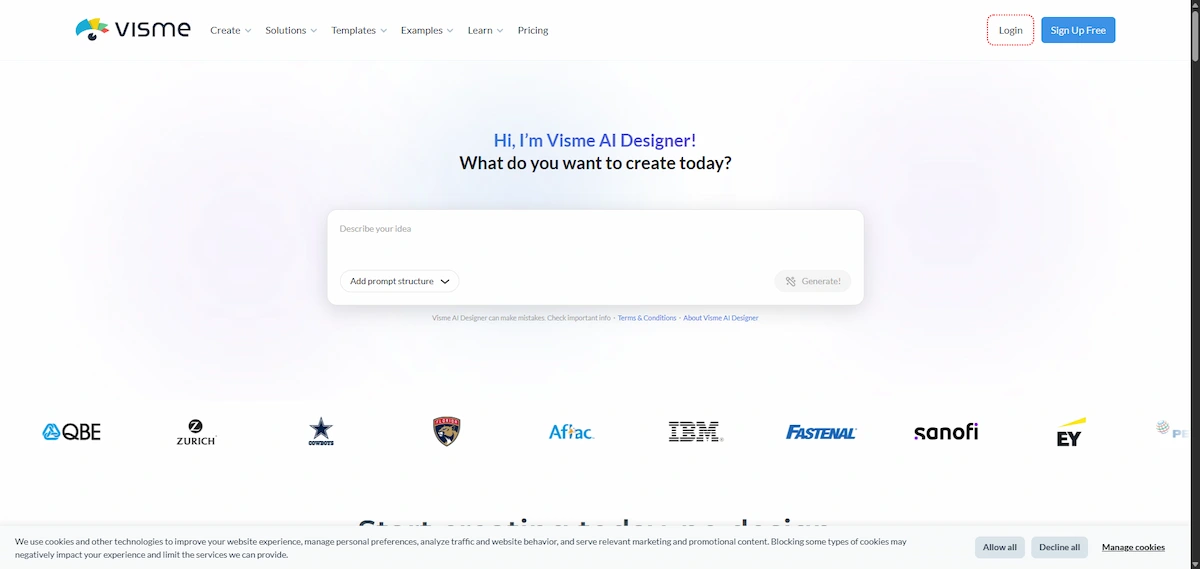
Visme builds a deck from a prompt, a link or an uploaded file, lets you add your branding and exports to PPTX, PDF or HTML5.
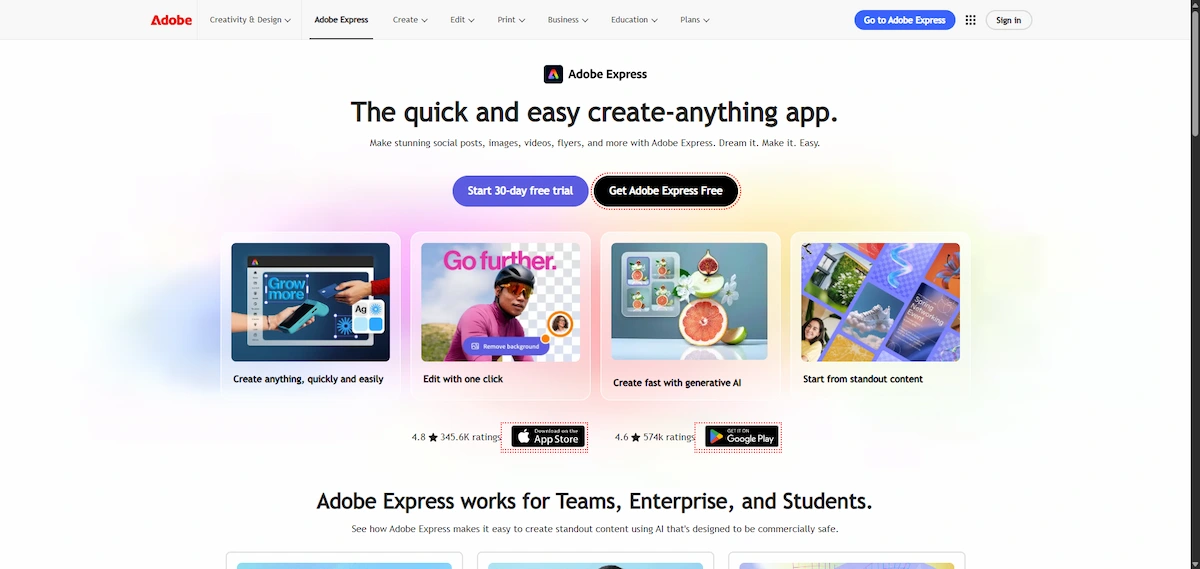
Adobe Express and Adobe Acrobat turn a document into a presentation: upload a file or enter a prompt, pick a style, generate and download.
Quillbot accepts attached files, lets you set the slide count and exports to PowerPoint or Google Slides. If you are looking for the best AI to create presentations from a PDF or from text, these three are good places to start, because all of them accept files and let you edit the result by hand.
Create a presentation with AI from a document, PDF or text
Many people start with a file, not an idea. A report, a proposal or a long article already has the content, and the tool only has to turn it into slides.
From a Word file or PDF
Upload the file in a tool that accepts documents, such as Copilot, Adobe Express, Visme, Quillbot or SlidesGPT. Tell the tool what the presentation is for and how many slides you want. If you do not, it may copy the whole document. After generation, remove detail that belongs in the report and keep the findings, the numbers and the decision you want from the audience.
From text or notes
Paste your notes into the prompt box, or write bullet points with the main ideas. Add the audience and the tone, and ask the tool to turn them into an outline first. This is the fastest way to create a presentation with AI from text when you do not have a finished document.
Restyle or shorten an existing deck
You do not always start from zero. Gemini can take an existing deck to match its style, and other tools let you upload a file and ask for a shorter version. Tell the tool what to cut, which slides must stay and which style to follow, then check that no key point was lost.
Summary or handout from your slides
Copilot can generate a summary of a presentation, and chat tools can turn slide text into a one page handout. Use it for people who missed the talk, and read it once to remove anything the tool added by mistake.
What you can create with AI
AI presentation tools handle most common formats, and the prompt changes with each one.
- Pitch deck: problem, solution, market, product, team and ask.
- Business report: results, charts, risks and next steps.
- Client proposal: goals, scope, timeline and price.
- Lesson or class project: short slides, simple language and questions.
- Training deck: steps, examples and a short quiz.
- Webinar or conference talk: story, key points and a clear closing slide.
Presentation ideas when you have no topic yet
If you start with nothing, ask the tool for ideas. Give the audience and the occasion, and ask for five topic options with a one sentence angle for each. Pick one, then ask for an outline. Copilot can also generate presentation ideas from scratch, and chat tools do the same job.
Charts, images and translation with AI
Beyond text and layout, AI helps with the parts that slow most people down: data, visuals and language.
Charts and data slides
Paste a small table into the prompt, or upload a spreadsheet, and ask for a chart that shows one clear point. Canva has Magic Charts and Visme has charts and graphs, and in PowerPoint you can ask Copilot to change a graph. Always check the numbers against the source, and give each chart a title that states the finding.
AI images, graphics and backgrounds
Describe the image in plain words: the subject, the style, the colors and the mood. Copilot can add stock images and graphics and create an AI background, and Canva has Magic Media for generated images. Keep the style the same on every slide, and avoid images with text inside them, since errors are common.
Translate a presentation
Tools such as Canva include a translate feature, and chat tools can translate slide text and notes. After the translation, check the layout, since a longer language can break a text box. Ask a native speaker to read important decks.
How to create a presentation with AI for free
You can make a presentation with AI for free in several tools, although free plans have limits. If you want to try chat tools first, the list of free ChatGPT alternatives is a good starting point.
If you want the best AI to create presentations without paying, begin with free plans. Searches such as AI presentation maker free or create a presentation with AI free online are common, and the answer is yes: Canva, Gamma, Quillbot, Visme and Adobe Express all offer a free way to start. What changes between them is how much you can do before you hit a limit.
What free plans usually include
Free plans in AI presentation makers often limit the number of presentations, slides or exports, and some add a watermark or restrict download formats. Features and limits change often, so check the plan page of each tool before you start.
A free workflow from prompt to export
Write the outline in a free chat tool, check the facts, then paste the text into a free presentation tool or the free version of Canva, Google Slides or PowerPoint on the web. Add a theme, edit the layout by hand and export to PDF. This takes a bit more work than a paid tool, but the result is yours.
How much does an AI presentation cost?
The cost depends on the tool. Some offer a free plan with limits, some charge a monthly subscription and some are part of an office plan you already pay for. When you compare, look at the number of presentations, the export formats, the brand kit and whether the plan includes team editing. Check the current plan page, because prices change often.
Best AI presentation makers compared
If you want to make a presentation with AI and cannot decide on a tool, the table below compares the main options. For a wider view of what people use, see the list of the most popular AI tools.
| Tool | Best for | Starts from | Exports |
|---|---|---|---|
| Microsoft Copilot in PowerPoint | People who already work in PowerPoint | Prompt or Word file | PowerPoint |
| Gemini in Google Slides | Teams that work in Google Workspace | Prompt, Drive files or an existing deck | Google Slides |
| Canva Magic Design | Fast, branded design | Prompt or uploaded file | Canva, PDF, other formats |
| Gamma | Clean decks with little formatting | Prompt | Link, PDF, other formats |
| Beautiful.ai | Outline-first workflow | Prompt | Presentation file |
| Visme | Branding, charts and interaction | Prompt, link or file | PPTX, PDF, HTML5 |
| Adobe Express | Turning documents into slides | Document or prompt | Download or share |
| Quillbot | Students and quick drafts | Prompt or attached file | PowerPoint, Google Slides |
| Plus AI | PowerPoint and Google Slides add-in | Prompt or source document | PowerPoint, Google Slides |
AI prompts for presentations
The prompt is the part you control most. A clear prompt saves more time than any feature, so spend a minute on it.
A simple prompt formula
Use this order: the task, the topic, the audience, the number of slides, the tone and the extras. For example: create a presentation about our Q3 results for the sales team, eight slides, a direct tone, with one slide on risks and a summary at the end. The more detail you give, the closer the first draft is to what you need.
Example prompts by presentation type
- Business update: create a seven slide update on project status for managers, with progress, risks and next steps.
- Sales pitch: create a ten slide pitch for a small business owner about our service, with the problem, the solution, pricing and one customer example.
- School project: create a presentation about renewable energy for a ninth grade class, eight slides, simple language and one question per slide.
- Training: create a training deck on data privacy for new employees, with short sections and a quiz at the end.
Prompts for outline, speaker notes and script
Ask for the outline first: give me an outline for a ten slide presentation on this topic, with a title and one sentence for each slide. After you edit it, ask for speaker notes on each slide in plain words, about fifty words each. If you need a speech, ask the tool to write a spoken script for the same slides, then read it aloud and rewrite any sentence that feels unnatural. If you wonder how to create a speech with AI, this is the method: the tool writes a first version, and you shorten sentences, add pauses and replace stiff phrases with words you actually use.
Tips for a better AI presentation
The tool gives you a draft. These tips make it look and sound like your own work.
Design and brand
Set your brand colors, fonts and logo before you generate, if the tool supports a brand kit. If you need a logo first, the guide on how to design a logo with AI shows how. Keep one font family, two or three colors and plenty of white space. A deck that looks the same on every slide feels professional.
Slide count and audience
Fewer slides are almost always better. Plan about one slide per minute, and give the tool the number you want. Name the audience in the prompt, because a deck for executives needs fewer details than one for the team that does the work.
Add your own voice
Replace generic lines with a story, a number from your own data or a real customer example. Rewrite the opening and the closing slides yourself, since the audience remembers them most. Read the deck aloud, and change anything you would not say in a meeting.
What makes a good AI presentation
A good deck has one clear message, a simple structure and slides that support the speaker instead of replacing them. A typical structure is the problem, the solution, the proof and the next step. Each slide carries one idea, a short title that states it and only the text a listener can read in a few seconds.
Too much text is the most common reason decks look busy. AI tends to fill every slide, so trim it. A deck that looks stunning but has no clear point still fails, and a plain deck with a sharp message works.
Collaborate, share and present with confidence
Teamwork and sharing
Many tools let several people edit the same presentation, leave comments and share a link. Adobe Express and Visme also support teamwork and sharing, and Visme adds tracking of who opened the deck. Agree on one prompt and one brand kit so every part looks the same.
Presenter view, recording and timer
Before the talk, open the presenter view with your speaker notes, and use a timer to stay within the time. Canva offers remote control notes and a screen recorder, Visme has presenter notes and a presentation timer, and Copilot can rehearse with you and give feedback on delivery. If you need a recorded version, record yourself or add a voice track.
Common mistakes when you create a presentation with AI
- Writing a short, vague prompt and accepting the first result.
- Skipping the outline and fixing structure problems after the slides are built.
- Leaving long paragraphs on slides instead of one idea per slide.
- Trusting numbers, dates and names without checking a source.
- Using stock images that do not match the message.
- Pasting confidential data into a tool without reading its privacy terms.
- Using the default theme, so the deck looks like everyone else.
- Presenting without rehearsal because the deck was ready quickly.
Privacy, accuracy and copyright
An AI tool is a service that stores and processes what you type, so a few basic rules apply before you upload anything.
What not to enter into an AI tool
Do not enter customer data, passwords, financial details, unreleased results or anything covered by a contract that forbids sharing. Read the privacy policy of the tool, and use a business plan if your company requires it. When in doubt, replace real names and numbers with placeholders.
How to check facts
AI can invent sources, statistics and quotes. For every claim, open the original source, compare the number and write the source in the notes. If you cannot find it, remove the claim from the slide.
Who owns AI-generated slides
Rules on ownership differ by tool and by country. Read the terms of the tool you use, especially for images, and be careful with logos, brands and real people. For business use, add your own content so the final deck is clearly your work.
Using AI for school and university work
Students should follow the rules of their school. In most cases it is fine to use AI for ideas, outlines and layout, but not to hand in work that you did not write or understand. Check the facts, write the key points in your own words and state which tool you used if your teacher asks for it.
Who uses AI presentations
People in many roles create presentations with AI, and the way they use the tools is different.
- Students: turn notes or an essay into slides for class.
- Teachers and educators: build lessons and training decks faster.
- Marketers: make campaign reports, pitches and webinar slides. A list of AI tools for marketing shows what else fits this work.
- Founders and startups: prepare investor decks and product demos.
- Sales teams: create client proposals and follow-up decks.
- Consultants and event planners: produce reports and schedules for clients.
Whatever the role, the pattern is the same. The tool writes the first version, and the person who knows the audience decides what stays, what goes and what needs a real example. Teams that agree on a shared prompt and a shared brand kit get decks that look consistent even when several people build them.
Troubleshooting common problems
| Problem | How to fix it |
|---|---|
| The deck is too long | Set the slide count in the prompt and merge slides with the same idea |
| The text is too generic | Add the audience, a real example and your own numbers to the prompt |
| The images do not fit | Replace them with your own, edit photos with a tool from the list of AI tools to edit photos, or ask for a different style |
| The layout looks crowded | Cut text to one idea per slide and use a simpler layout |
| The tool copied the whole document | Tell it what to keep and ask for a summary of key points only |
| The facts are wrong | Check each claim against a source, then rewrite the slide yourself |
| The export looks different | Check fonts and spacing in the target app, then adjust by hand |
What is next for AI presentations
Anyone who plans to make a presentation with AI next year will see the same direction in every product. Tools are moving from simple generation to editing and delivery. They already help with speaker notes, rehearsal feedback and charts, and they are getting better at following a brand kit and at working with company data. The core skill stays the same: a clear message, a clear prompt and a human check before you present.
Final checklist before you present
- You know the topic, the audience and the goal.
- The prompt names the slide count, the tone and the purpose.
- You reviewed and edited the outline before generating slides.
- Each slide has one main idea and short text.
- All numbers, names and dates are checked against a source.
- Brand colors, fonts and logo are consistent.
- Speaker notes are written in your own words.
- You rehearsed and timed the talk.
Where to start
Pick the app you already use, whether PowerPoint, Google Slides or Canva, and try the steps above with a short topic. Write a clear prompt, check the outline and edit the draft by hand. After one or two decks, you will know how to create a presentation with AI in a way that fits your style and saves real time.
AI presentation FAQ
How do I create a presentation with AI?
Define your topic and audience, write a clear prompt, review the outline, generate the slides, then edit, fact-check and add your own examples. Finish with speaker notes, rehearsal and export to PowerPoint, Google Slides or PDF.
Can AI create a presentation for me?
Yes. AI can build a full draft from a prompt, a document or notes. You still need to check the facts, adjust the message for your audience and edit the design before you present.
How do I create a presentation with AI for free?
Use the free plan of an AI presentation maker, or write the outline in a free chat tool and paste it into the free version of Canva, Google Slides or PowerPoint on the web. Check the limits on slides and exports.
How do I make a PowerPoint presentation with AI?
Open PowerPoint, choose Copilot and enter a prompt or select a Word file. Review the draft, change the layout and text, add speaker notes and save. You can also use an add-in such as Plus AI.
How do I make a presentation with AI in Canva?
Start from the AI presentation option in Canva, type a prompt or upload a file and pick a style. Magic Design builds the deck, and you edit text, images and colors with your brand kit.
Can I create a presentation with AI from a PDF or Word document?
Yes. Tools such as Copilot, Adobe Express, Visme, Quillbot and SlidesGPT accept documents. Tell the tool how many slides you want and what to keep, then remove extra detail after generation.
Can I use ChatGPT to create a presentation?
You can use ChatGPT to write the outline, slide text and speaker notes. It does not build a finished file with layouts and images by itself, so paste the result into a presentation tool.
How do I use Gemini in Google Slides?
Open Google Slides on desktop, use the Gemini side panel, describe your presentation and add sources if you want. Review the plan with the outline, approve it and wait while Gemini builds the deck.
How detailed does my prompt need to be?
Detailed enough to name the topic, audience, slide count, tone and purpose. A short prompt gives a generic deck, while a clear prompt gives a draft close to what you need.
Can I edit an AI-generated presentation?
Yes. You can change text, layouts, images, colors and slide order in the same tool, or export to PowerPoint or Google Slides and edit there. Editing is an important part of the process.
Are AI presentations reliable?
They are reliable only after you check them. AI can state wrong numbers, dates and sources with confidence, so verify every claim against a trusted source before you present.
What data should I avoid entering into an AI tool?
Avoid customer data, passwords, financial details, unreleased results and anything covered by a confidentiality agreement. Read the privacy terms of the tool before you upload files.
Can I export to PowerPoint or Google Slides?
Many tools can. Quillbot exports to PowerPoint and Google Slides, Visme exports to PPTX, PDF and HTML5, and Plus AI works inside both apps. Check the export options of your tool first.
How much does it cost to create a presentation with AI?
It depends on the tool. Many offer a free plan with limits, and paid plans charge by month or by user. Check the number of presentations, export formats and team features before you pay.
How many slides can I generate?
The limit depends on the tool and the plan. Most let you set the slide count in the prompt, so ask for the number you need and add or remove slides after generation.
What file formats can I upload?
Most tools accept Word files, PDFs and plain text, and some also take PowerPoint files, links or spreadsheets. Check the list of supported formats in the tool before you upload.
Can several people edit an AI presentation at the same time?
In many tools, yes. Canva, Google Slides, Adobe Express and Visme support teamwork, comments and sharing. Check the plan, because some collaboration features are paid.
What if I have no design sense?
You do not need it. The tool picks the layout, fonts and colors. Keep one idea per slide, use a theme or a brand kit and avoid adding extra effects.
Will my AI presentation look like everyone else?
It can, if you accept the default theme and generic text. Add your brand colors, your own images and a real example, and rewrite the opening and closing slides yourself.
Is it easy to use an AI presentation maker?
Yes. Most tools ask for a prompt or a file, show an outline and build the deck. Learning to write a good prompt and edit the draft takes a few tries.
How long does it take to create a presentation with AI?
A first draft takes a few minutes. Plan extra time for the outline, editing, fact-checking and rehearsal, which usually take longer than generation.
What are appropriate ways to use AI for presentations?
Use it for ideas, outlines, layout, wording and speaker notes. Do not use it to invent facts, to present work you do not understand or to enter confidential data.
Is there a custom GPT for presentations?
Yes, some custom GPTs help with planning and outlining a presentation. They work in a chat window, so you still copy the result into a presentation tool to build the slides.
What is the best AI to create presentations?
It depends on where you work. Use Copilot for PowerPoint, Gemini for Google Slides, Canva for fast branded design and Gamma or Beautiful.ai for decks built only for presentations.