AI tools to edit photos remove objects, replace backgrounds, sharpen blurry shots, retouch portraits, and expand a picture beyond its original edges, often from a single click or a short text prompt. The best AI photo editors now cover jobs that used to need layers, masks, and hours in Photoshop.
The choice is wide. Some AI photo editors suit beginners and social posts, some are built for RAW files, and some focus on product photos for online stores. A G2 category figure cited by PhotoGrid puts AI image tools at 9.18 out of 10 on likelihood to recommend, yet free plans often hide watermarks, daily limits, or credit caps.
This guide covers how an AI photo editor works, a comparison table, the best tool for each use case, free options, a 5 step workflow, prompts you can copy, pricing and credits, limits, privacy, and 24 FAQs.
Quick Answer: Which AI Photo Editor Should You Start With?
The short version for anyone comparing AI tools to edit photos: start with a free plan, test one real photo, and pick the AI photo editor that matches the job instead of the longest feature list. Run each AI photo editor on the same picture, so the results are easy to compare.
- Easiest all round: Canva or Fotor, with one-click fixes and templates.
- Photographers who dislike subscriptions: Luminar Neo, sold as a one-time purchase.
- Free editor in the browser: Pixlr or Photopea, both with layers.
- Product photos: Photoroom or Pixelcut for cutouts, shadows, and batch work.
- Full control and compositing: Adobe Photoshop.
- Quick phone fixes: Google Photos Magic Editor.
- Old family photos: Remini.
What Are AI Tools to Edit Photos?
These tools use machine learning to find the subject, the background, the sky, and the faces in a photo, then change only that part. Typical jobs are background removal, object removal, generative fill, upscaling, portrait retouching, and relighting. A modern AI photo editor does in seconds what masks and brushes did by hand, and many accept a plain text description of the change. Most AI photo editors work in a browser or on a phone, and a few run on the desktop, so you can edit photos with AI wherever you work. For the wider technology, read the guide to generative AI for business.
AI Photo Editor vs AI Image Generator
An AI image generator builds a new picture from a text prompt. An AI photo editor changes a photo you already have: it removes a person, swaps a sky, or brightens a face while keeping the rest.

The line has blurred, because Photoshop, Canva, and Gemini now offer both in one place. If the original scene must stay intact, a good AI photo editor is the safer pick, and you should describe what must not change. For example, ask the tool to keep the faces, the product label, and the shadows unchanged while it replaces only the background. Unfamiliar terms are explained in the AI terms glossary.
Types of AI Photo Editors
Most AI photo editors fall into six groups, and many AI photo editors combine two of them. The table shows what each group does and where it fits.
| Type | What it does | Examples |
|---|---|---|
| Prompt editors | Change a photo from a typed request | Canva Magic Edit, Gemini, ChatGPT, Pixlr |
| One-click enhancers | Fix light, color, and sharpness in one step | Fotor, Google Photos, Remini |
| Background and product tools | Cutouts, shadows, marketplace backgrounds | Photoroom, Pixelcut, Claid |
| Pro suites and RAW editors | Layers, masks, denoise, sky replacement | Photoshop, Lightroom, Luminar Neo, Topaz Photo AI |
| Mobile apps | Edits and effects on a phone | Picsart, Canva, Google Photos |
| Human plus AI services | A retoucher finishes what AI starts | Freelance marketplaces, clipping path studios |
AI Photo Editors at a Glance
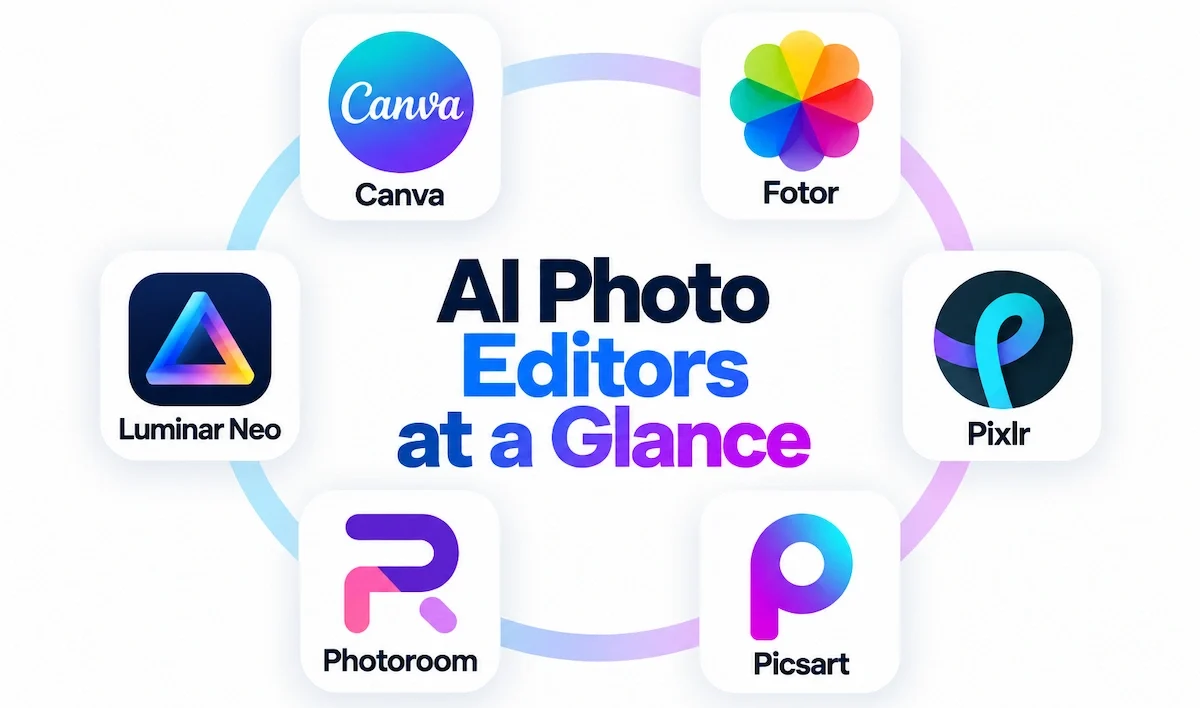
The table lists the tools that appear most often in 2026 reviews. Prices are public starting prices at the time of writing and change often, so confirm them on each vendor page. Every AI photo editor in the table has a free plan or a trial, with one exception noted in the last column.
| Tool | Best for | Free option | Starting price |
|---|---|---|---|
| Luminar Neo | Nature and portrait photographers | Trial only | $99 one-time, Desktop Only license |
| Canva | Social posts and fast edits | Yes | Pro about $13 to $15 a month |
| Fotor | Beginners, headshots, batch edits | Yes, limited | Pro about $9 a month |
| Pixlr | Browser editing with layers | Yes | Plus about $2.49 a month |
| Picsart | Mobile creative edits and effects | Yes | Gold about $7 a month |
| Photoroom | Product photos and catalogs | Yes, limited | About $5 a month on yearly billing |
| Adobe Photoshop | Layered editing and compositing | 7 day trial | About $23 a month |
| Adobe Lightroom | Large photo libraries and RAW | 7 day trial | Photography plan about $20 a month |
| Google Photos Magic Editor | Everyday phone fixes | Yes | Free, unlimited saves need Google One 2TB |
| Remini | Old and blurry portraits | Yes, daily caps | Pro from about $5 a month |
| Topaz Photo AI | Denoise, sharpen, upscale | Limited trial | Check current price, sources differ |
| ChatGPT and Gemini | Edits from a chat request | Yes | About $20 a month |
How These Tools Were Picked
The list is based on public vendor pages and 2026 reviews of AI tools for photo editing, not on hands-on tests of every product. A tool made the table if it appears in several independent reviews, offers a free plan or a trial, and publishes its pricing. Claims about speed and quality come from vendors and reviewers, so treat them as claims. The fastest way to find the best AI photo editor for you is to run two or three of them on the same photo and compare edges, skin texture, and text.
Best AI Tools to Edit Photos by Use Case
No single AI photo editor wins every job, so the sections below group the tools by what you want to do.
Best for Beginners and Social Content
Canva is the quickest start. Magic Edit changes a selected area from a short description, Magic Eraser removes objects, Magic Expand extends a canvas, and Magic Grab separates a subject from its background so you can move it.

The editing sits inside a template library, which is why social managers like it. Fotor offers 30 plus AI tools, one-click enhance, background and object removal, headshots, and batch editing. Picsart adds AI Replace, style transfer, and a large community of filters and stickers, and Pixlr gives a free browser editor with layers and generative fill. Each of these AI photo editors shows ads or limits on the free plan. For ready-made post layouts, see the how-to on creating social media graphics with AI.
Best for Photographers and RAW Editing
Luminar Neo focuses on nature scenes and portraits with Sky AI for sky replacement, Relight AI, portrait tools, and the generative tools GenErase, GenSwap, and GenExpand. It is sold as a one-time purchase, works standalone or as a plugin inside Photoshop and Lightroom Classic, and processes photos on your own machine. Reviewers report that it can feel slow on computers with less than 16 GB of RAM. Adobe Lightroom pairs AI masking, Denoise, Generative Remove, and Adaptive Presets with library management, which suits large shoots.
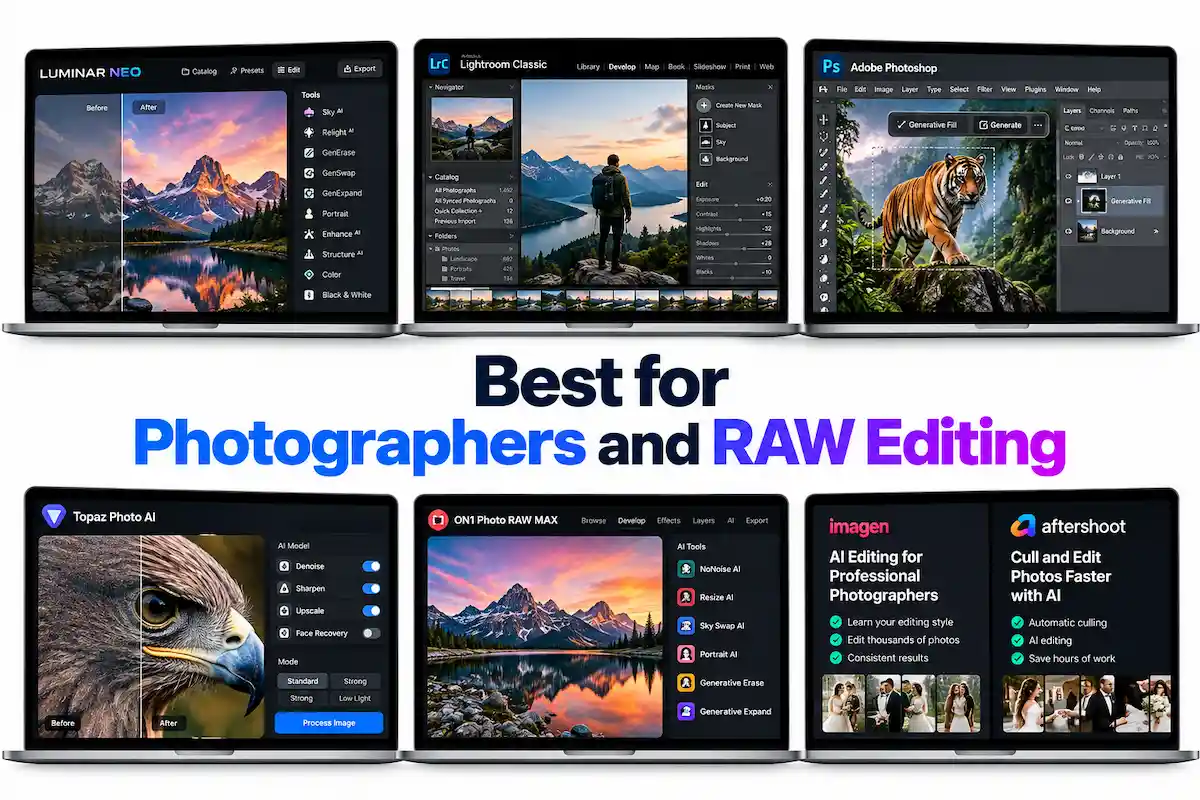
Adobe Photoshop remains the deepest AI photo editor for layered work, with Generative Fill, Generative Expand, and Harmonize, which matches the light and color of an added object to the scene.Topaz Photo AI is the specialist for noise reduction, sharpening, and upscaling, and ON1 Photo RAW MAX bundles NoNoise AI, Resize AI, and portrait tools as a standalone editor. Wedding and event photographers also use Imagen AI and Aftershoot, which learn your editing style and cull or edit thousands of files in one pass.
Best for Product Photos and E-commerce
Photoroom is built for sellers. Its background remover is used by more than 80 million people, according to DataCamp, and AI Shadows keeps a product from looking pasted onto the new backdrop. Batch processing, brand kits, and marketplace sizes cover catalog work. Pixelcut offers similar background removal and shadows with a free plan, and Claid bundles product photo tools for sellers who want more control.

PicWish is another quick option for one-click cutouts. Check every AI photo editor on glass, jewelry, and fabric edges, because those are the cases where automatic masks fail. A full workflow is in the how-to on creating product photos with AI.
Best for Portraits and Headshots
Luminar Neo has Face AI, Skin AI, and Portrait Bokeh with sliders, so you control how much retouching is applied. Fotor turns selfies into headshots with one click, and Remini sharpens faces in soft or old photos. Keep the strength low.

Skin smoothing at full power removes pores and texture, and the portrait starts to look like plastic. Compare the edited face with the original at 100% zoom before you export.
Best for Phones
Google Photos Magic Editor is built into the app, so there is nothing to install. Magic Eraser, Photo Unblur, and Portrait Light are free for everyone, while Magic Editor saves are limited to 10 a month for most non-Pixel users unless they pay for a Google One plan of 2TB or more.

Canva and Picsart are the strongest mobile apps for effects and social formats, and Photoroom works well for product photos shot on a phone. On supported iPhones, Apple Photos has a Clean Up tool that removes distracting objects, and Lensa focuses on selfie and portrait edits.
Best for Old Photos and Restoration
Remini is the most popular choice for faded or soft portraits, and it restores facial detail without manual settings. Topaz Photo AI recovers detail in blurry and noisy files, and Fotor can colorize black and white pictures.
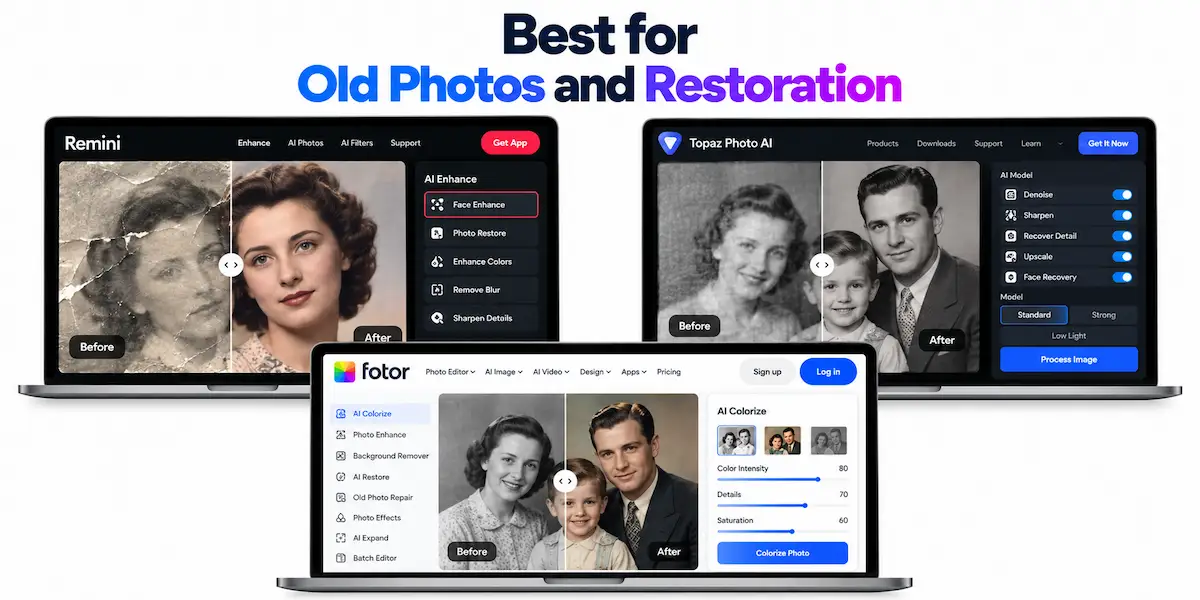
Scan the original at high resolution first, keep the untouched scan, and check that restored faces still look like the person, since AI sometimes invents features.
Best for Background and Object Removal
For quick cutouts, Photoroom, PicWish, and Canva handle most photos in one click. For people, wires, and signs in the background, Canva Magic Eraser, Photoshop Generative Remove, and Lightroom Generative Remove fill the gap with surrounding texture.
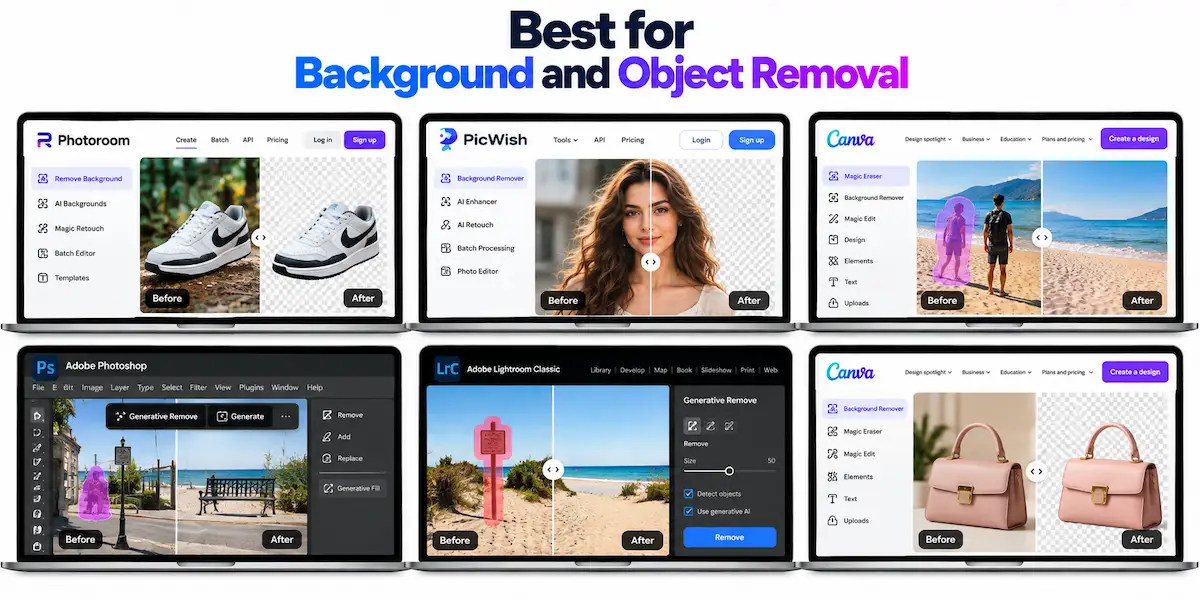
Hair, fur, and transparent objects remain the hard cases for every AI photo editor, so zoom in on the edges and clean them with a brush.
Best for Filters, Anime Styles, and Fun Edits
Style tools turn a photo into an anime, cartoon, or painted look. Fotor and Picsart offer photo-to-anime and cartoon effects, Canva has style presets, and chat tools such as Gemini and ChatGPT can restyle a photo from a prompt.
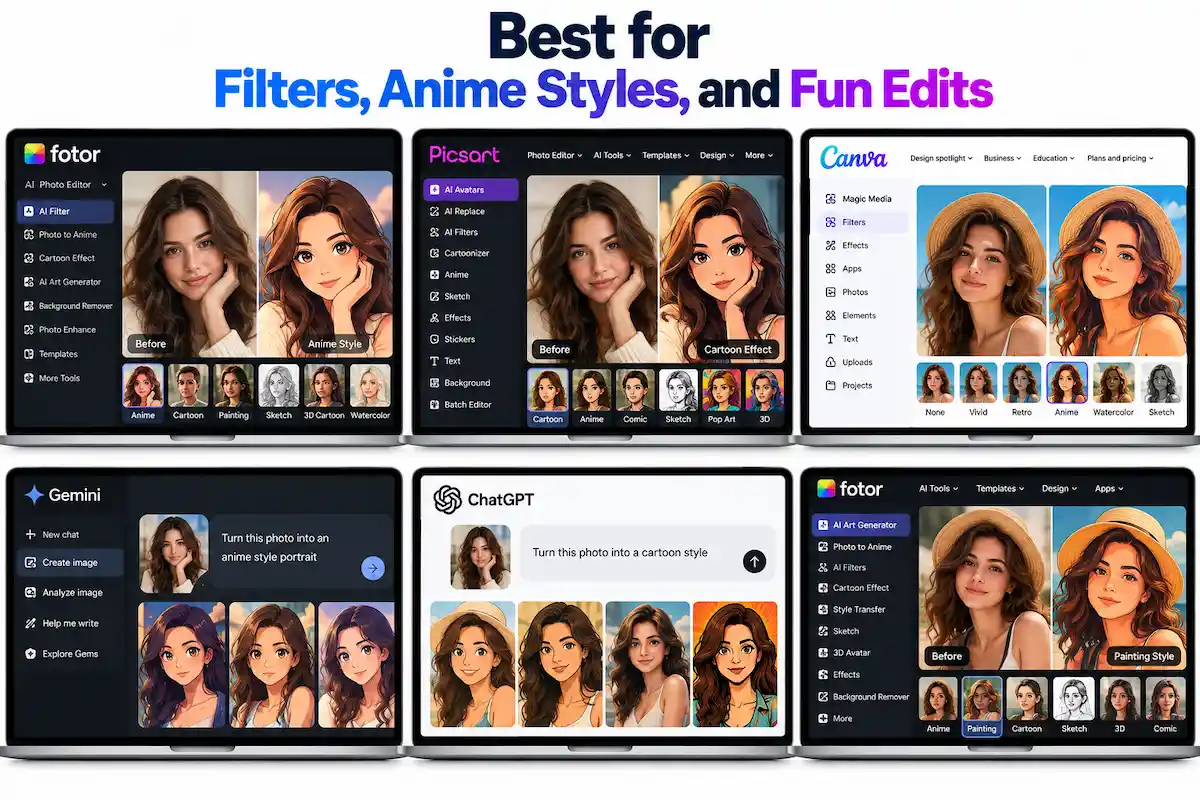
Results vary a lot between attempts, so test a few styles on a photo with a clear face and a simple background. Check the platform rules before you post a restyled picture of another person, since many sites require consent. Free AI photo editors usually cap the number of style exports per day.
Best Chat Editors: Gemini and ChatGPT
Gemini, with its Nano Banana image models, and ChatGPT can edit an uploaded photo from a plain request such as “remove the car and make the sky clearer”.

They are fast and need no learning, but results vary between attempts, faces can change slightly, and output size is often smaller than a dedicated editor gives. Use them for quick concept edits, and switch to a dedicated AI photo editor when edges and likeness matter. More options are listed in the guide to ChatGPT alternatives for image generation.
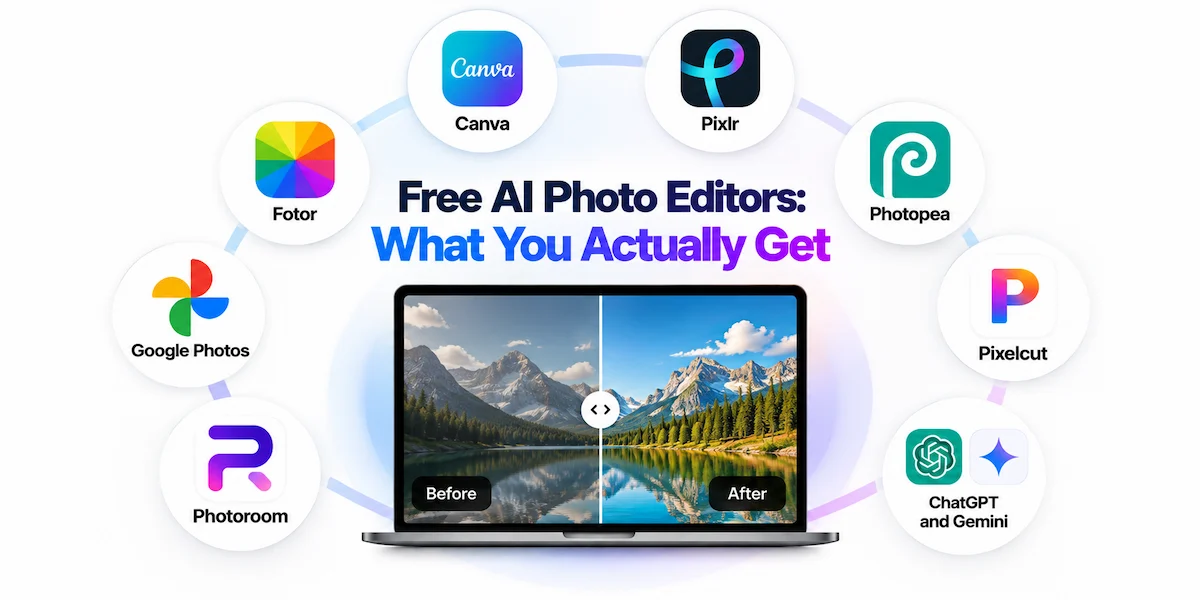
Free AI Photo Editors: What You Actually Get
Most tools have a free tier, which is enough to test your photos. Free AI photo editors usually limit exports, hide detailed tools, or apply a watermark. Free AI photo editors also differ a lot in how many AI edits they allow, so read the limits first.
| Tool | What the free plan gives | Watermark | Main limit |
|---|---|---|---|
| Canva | Core photo tools, background remover, basic Magic tools | Often only on premium assets | Full Magic Studio needs Pro |
| Pixlr | Browser editor with layers, some AI credits | Ads instead | Login to save, credit and save limits differ by source |
| Photopea | Full editor with layers and PSD support | No, ads shown | Generative fill needs Premium |
| Google Photos | Magic Eraser, Unblur, Portrait Light | No | 10 Magic Editor saves a month for most non-Pixel users |
| Fotor | Basic editing, limited AI credits | Yes on some exports | Daily or monthly AI caps |
| Pixelcut | Limited background removal and upscaling | No on exports, per DataCamp | Credits for AI generation |
| Photoroom | Background removal and basic tools | Possible on free exports | Limited credits and exports |
| ChatGPT and Gemini | A few image edits a day | Possible label on AI output | Daily message and image limits |
Free plans change often. Sources disagree, for example, on how many saves Pixlr gives per day, so test the limit with your own photo before you plan a bigger job.
How to Edit a Photo With AI in 5 Steps
The process is the same in almost every AI photo editor, and it takes under five minutes.
- Pick one job. Decide what you want to change: remove an object, swap a background, sharpen a face, or extend the frame. One goal per edit gives cleaner results than a long request.
- Prepare the file. Use the highest resolution original, make a copy, and keep the untouched version. JPG, PNG, WebP, and HEIC are accepted by most tools.
- Upload and run the first edit. Use a one-click tool for simple fixes, or type a short description for generative changes. Say what must stay the same.
- Check at 100% zoom. Look at hair edges, hands, text, shadows, and skin texture. Fix small errors with the brush or eraser, or run the edit again with a clearer description.
- Export and label. Choose the format and size for the place you publish, keep the original, and note that the image was edited with AI if the platform or the client asks.
The biggest mistakes are asking for several changes at once, trusting the first result, and exporting at low resolution. When using any AI photo editor, work in small steps and compare each result with the original.
Prompts for Editing Photos With AI
These prompts work in Canva, Pixlr, Gemini, ChatGPT, and other prompt-based AI photo editors. Replace the details in brackets with your own and keep each request to one change.
- Background: Replace the background with a plain white studio backdrop. Keep the subject, the floor shadow, and the lighting unchanged.
- Object removal: Remove the person in the top right corner and fill the space to match the wall and the floor.
- Relight: Make the light warmer, like late afternoon, and keep the faces natural.
- Sky: Replace the grey sky with a soft sunset sky and match the color of the light on the ground.
- Restore: Restore this old photo: reduce scratches and noise, sharpen the faces, and do not change the facial features.
- Expand: Extend the photo to a 16:9 banner and continue the table surface left and right. Keep the product unchanged.
- Product: Place the product on a light wooden table with a soft shadow. Do not change the logo or the label.
- Portrait: Even out the skin tone and remove small blemishes, but keep pores and natural texture.
Name what must not change, add one change per request, and upload a reference image if the tool allows it. If a face or a label changes, repeat the edit with a stricter instruction. The guide to prompt engineering for business shows how to write clearer instructions for any tool.
AI Features to Look For in a Photo Editor
Check which of these AI photo editing features your tool offers before you pay, since the free tier often hides the best ones.
- Object removal. Erases photobombers, wires, and trash cans and fills the space behind them.
- Background removal. Cuts a subject out in one click, which most product and profile photos need.
- Generative fill. Replaces a selected area with new content from a short description.
- Image expansion. Extends a photo beyond its edges to fit a new size or ratio.
- Portrait retouching. Smooths skin, removes blemishes, and whitens teeth. Use it lightly.
- Upscaling. Enlarges a small or soft photo without stretching pixels, useful for prints.
- Relighting. Changes light and shadows after the shot, without a reshoot.
- Batch editing. Applies one edit to many photos, which matters for catalogs and full shoots.
Also check the supported formats, because browser-based editors usually handle JPG, PNG, and WebP, while only desktop tools such as Photoshop, Lightroom, Luminar Neo, and Topaz read RAW files properly. Any AI photo editor that skips RAW is a poor fit for serious photography.
Pricing: Credits, Subscriptions, and One-Time Licenses
AI photo editors charge in three ways: a monthly or yearly subscription, a one-time license, or credits for each generative action. Many tools mix them. Photoshop, for example, includes a monthly allowance of generative credits in each plan, and Photoroom, Fotor, and Pixlr sell plans with credit allowances and extra credit packs.
| Model | Examples | Good for | Watch out for |
|---|---|---|---|
| Subscription | Photoshop, Lightroom, Canva Pro, Fotor Pro | Regular use and updates | Yearly cost adds up, credits can run out |
| One-time license | Luminar Neo, ON1 Photo RAW MAX | Photographers who dislike monthly fees | AI tools may need a yearly renewal after the first year |
| Credits | Photoroom, Pixlr, Pixelcut, Fotor | Occasional generative edits | Every retry uses credits |
| Free with limits | Photopea, Google Photos, Canva | Testing and light use | Watermarks, save caps, ads |
To compare plans, divide the monthly price by the number of credits and by the credits one edit costs. A cheap plan with a small credit allowance can cost more per edit than a larger one. Tools that need a yearly renewal for AI features, such as Luminar Neo, should be priced over two years. Typical ranges for common plans are in the guide to how much AI tools cost.
A Worked Cost Example
These numbers are an illustration, not a quote. A team of three on a plan of $15 per seat a month pays $45 a month, or $540 a year. If each person edits 40 photos a month, that is about 120 photos and a cost of about $0.38 per photo. Credits work differently: a plan with 1,000 credits for $20, where one generative edit costs 10 credits, gives 100 edits at $0.20 each, and every retry costs the same again. A one-time license of $99 for one person comes to about $8 a month in the first year, but a yearly renewal for AI features can change the math in year two.
E-commerce Workflow: Edit Product Photos With AI and Keep Them Consistent
Online stores need hundreds of photos that look alike. Batch tools in an AI photo editor save time, but only a fixed process keeps the catalog consistent.
- Shoot clean. Use the same light, distance, and angle for every product, on a plain surface. Backgrounds come off more cleanly from a good original.
- Cut out in a batch. Run background removal on the whole set with Photoroom, Pixelcut, or Fotor, then spot-check the edges.
- Standardize. Use one canvas size, one background color, one shadow style, and the same margins on every product.
- Check each image. Compare labels, colors, and edges with the real product, because a wrong color causes returns.
- Export for each channel. Marketplaces such as Amazon require a pure white background on the main image, and your own store may want WebP for speed.
Send glass, jewelry, fabric, and anything with fine edges to a human retoucher or a clipping path studio, and keep AI for the bulk. The time saved comes from the batch step, not from perfecting single images.
Where AI Photo Editing Still Falls Short
Every AI photo editor makes the same kinds of errors, and knowing them saves time.
- Hair, fur, and transparent objects. Cutouts leave halos around curly hair, sheer fabric, and glass.
- Plastic skin. Heavy retouching removes pores and texture, and faces look unreal.
- Text and logos. Letters on packaging and signs can be warped or rewritten.
- Hands and fine details. Fingers, jewelry, and small parts can come out wrong.
- Angle changes. A tool can shift a perspective slightly, but it cannot rebuild a scene from a new camera angle.
- Artifacts. Repeated textures, odd shadows, and mismatched lighting show up after heavy edits, so check at 100% zoom.
For an ad, packaging, a catalog, or a premium listing, use AI for the first pass and a human retoucher for the final cleanup. Many sellers combine a prompt-based AI photo editor with a freelance or studio service for apparel, jewelry, and complex cutouts.
Privacy, Commercial Use, and Disclosure
Most web-based AI photo editors upload your photo to a server, so the image leaves your device. Luminar Neo and Aftershoot process files locally, which suits confidential shoots. Before you upload client work, read how long the tool keeps images, whether they are used to train models, and what the license says. The guide on AI data privacy for business explains what to check in a privacy policy.
For commercial use, licensing depends on the model. Adobe Firefly is trained on licensed Adobe Stock content and is cleared for commercial output, while other tools use models with less clear sources, so check the terms before using an edited image in paid campaigns. Photographers should also check client contracts before sending images to any AI photo editor.
Disclosure is becoming standard. The EU AI Act includes transparency rules for AI-generated and manipulated content, and platforms such as YouTube ask creators to label realistic AI edits. The C2PA content credentials standard records how an image was created or changed, and more editors add it to exports. Check which rules apply where you publish.
How to Choose the Right AI Photo Editor
The right tool is the one that fixes your most common edit. To choose among AI tools to edit photos, run each candidate through these checks:
- Job fit. Does it handle your main edit: cutouts, retouching, restoration, or prompts?
- Output quality. Zoom to 100% and check edges, skin, and text on the same test photo.
- Limits. How many AI edits, saves, and exports does the free plan allow, and is there a watermark?
- Formats and platforms. Does it read your files (RAW, HEIC) and run on your devices?
- Privacy. Where are photos stored, and are they used for training?
- Price over time. What does a year cost, including credits and renewals?
| Goal | Tool type | Examples |
|---|---|---|
| Quick social posts | Design app with AI | Canva, Fotor, Picsart |
| RAW and nature photography | Desktop editor | Luminar Neo, Lightroom, Topaz |
| Layers and compositing | Pro suite or browser editor | Photoshop, Pixlr, Photopea |
| Product photos | Background and product tool | Photoroom, Pixelcut, Claid |
| Phone fixes | Built-in or mobile app | Google Photos, Picsart |
| Old photos | Restoration tool | Remini, Topaz Photo AI |
| Tight budget | Free plans and chat editors | Pixlr, Photopea, Gemini, ChatGPT |
Most people end up with one general AI photo editor and one specialist. The general method for picking any tool is in the guide on how to choose AI tools for business.
Tips for Using AI-Edited Photos Online
Good editing helps only if the image loads fast and is easy to find. Compress exports before upload with a tool such as Squoosh or TinyPNG, and use WebP or AVIF to keep pages quick. Write a plain alt text that describes the picture and uses your topic naturally. Keep image sizes consistent across a page or a product catalog, and strip GPS data from EXIF if you do not want to share a location. Keep a simple naming system for edited files, so the original and the edited version are never mixed up. If you publish many AI-edited images, the guide to AI content creation covers the rest of the workflow.
What Is Coming Next in AI Photo Editing
Several trends are clear. Credit-based pricing is replacing flat plans for generative actions. More processing is moving onto the device, which helps speed and privacy. Content credentials such as C2PA are spreading, so edited images will carry a record of changes. Chat-based editing, where you describe a change and an AI agent applies it, is growing in every AI photo editor. Check plans and limits every few months, because vendors change them often.
Final Thoughts on AI Tools to Edit Photos
The best approach is simple: pick one job, test two tools on the same photo, and zoom in before you export. Free plans are enough to find the right AI photo editor, and a paid plan makes sense only when you hit limits or need RAW, batch editing, or higher resolution. Keep the original, check privacy, and use a human for work that represents your brand.
Frequently Asked Questions
What are the best AI tools to edit photos?
Canva, Fotor, Luminar Neo, Photoshop, Lightroom, Photoroom, Pixlr, and Google Photos are the most common picks. The best AI photo editor depends on the job: Canva for social posts, Luminar Neo for photographers, Photoroom for product photos, and Photoshop for layered work.
What is the best free AI photo editor?
Photopea is a strong free choice for layers and PSD files, Pixlr gives free browser editing with AI features, and Google Photos covers phone fixes at no cost. Canva and Fotor also have useful free plans with limited AI credits.
What is the best AI photo editor with no watermark?
Photopea, Google Photos, and Pixelcut export without a watermark on free plans, according to recent reviews, while Canva, Fotor, and Picsart may add limits or marks on some features. Check the export terms on the tool page before you start.
Can AI edit a photo from a text prompt?
Yes. Canva Magic Edit, Pixlr, Gemini, and ChatGPT change a photo from a typed request. Name what must stay the same, make one change at a time, and check faces and labels afterward.
What is the difference between an AI photo editor and an AI image generator?
An AI photo editor changes a photo you already have, such as removing an object or replacing a background. An AI image generator creates a new picture from a prompt. Many tools now do both in one place.
Are AI photo editors better than Photoshop?
For quick edits, yes: they are faster and easier. For layered compositing, RAW work, and fine control, Photoshop still leads. Many people use an AI photo editor for speed and Photoshop for difficult jobs.
Should I use ChatGPT or a dedicated AI photo editor?
Use ChatGPT or Gemini for quick concept edits and ideas. Use a dedicated AI photo editor when you need exact edges, original resolution, batch work, or the same face and product after the edit.
Is it safe to upload photos to an AI photo editor?
It depends on the tool. Most web editors upload photos to a server, so read the privacy policy and retention rules. Use local tools such as Luminar Neo for confidential work, and avoid uploading private client images to free tools.
Are my photos used to train the AI?
Some services may use uploads to improve their models unless you opt out or use a business plan. Check the terms of each AI photo editor, look for a training opt-out, and delete images you no longer need.
Can photographers use AI photo editors for client work?
In most cases yes, but read the contract and the tool terms. Some clients ban AI edits or require disclosure, and cloud tools may store client images. Agree on the rules in writing, and use local tools for confidential work.
Can I use AI-edited photos commercially?
Often yes, but it depends on the tool license and the model. Adobe Firefly is trained on licensed content and is cleared for commercial output. For other tools, read the terms before using an image in ads, packaging, or client work.
Should I tell people a photo was edited with AI?
Disclosure is expected for realistic or misleading changes, and some platforms and laws require labels. Follow the rules of the platform and the client, and keep the original file as a record.
What is the best AI photo editor for product photos?
Photoroom is the most common pick, with background removal, AI Shadows, batch work, and marketplace formats. Pixelcut and Claid are alternatives, and a human retoucher is still best for glass, jewelry, and apparel.
What is the best AI photo editor for phones?
Google Photos Magic Editor is the easiest because it is built in. Canva and Picsart are strong mobile apps for effects and social formats, and Photoroom works well for product photos taken on a phone.
Which AI photo editor is best for batch editing?
Photoroom, Fotor, and Pixelcut batch product and portrait edits, and Lightroom, Luminar Neo, and Imagen AI suit large photo shoots. Test a batch of ten photos first and check edges and colors.
Do AI photo editors work on RAW files?
Desktop tools such as Photoshop, Lightroom, Luminar Neo, Topaz Photo AI, and ON1 Photo RAW MAX support RAW. Browser tools like Canva and Fotor mainly handle JPG, PNG, and WebP.
Can AI remove a watermark from a photo?
Technically yes, because tools can fill in the marked area, but removing a watermark from a photo you do not own can break copyright. Use it only on your own images, or ask the owner for a clean version.
Is Luminar Neo better than Lightroom?
They solve different problems. Luminar Neo has stronger one-click AI for skies, light, and portraits and a one-time price, while Lightroom has better library management, cloud sync, and tight Adobe integration. Many photographers use Luminar Neo as a Lightroom plugin.
Why do AI-edited photos look fake or plastic?
Too much smoothing and sharpening removes skin texture and detail. Lower the strength, keep pores and grain, and compare with the original at 100% zoom. One light pass usually looks better than a maximum setting.
Can AI fix a blurry photo or remove motion blur?
Mild blur can be reduced, because AI sharpens edges and rebuilds detail. Heavy motion blur is harder to fix, since the original detail may be gone. Topaz Photo AI, Remini, and Google Photos Unblur are common options.
Can AI replace a professional photo retoucher?
Not fully. AI is fast for bulk and routine edits, but hair masks, reflective products, and identity-preserving skin retouching still need a person. Brands often combine an AI photo editor with a human finishing step.
Can I use an AI photo editor for a professional headshot?
Yes for light retouching: brightness, background cleanup, and small blemishes. Do not change your face, body, or age, since employers and platforms expect a real likeness. Fotor and Luminar Neo offer portrait tools, and a simple photo with good light gives the best base.
How much do AI photo editors cost?
Many have free plans, and paid plans usually cost about $5 to $25 a month. Luminar Neo is a one-time purchase from about $99, and Photoshop plans cost more. Check credits, renewals, and watermarks before you pay.
Can AI restore and colorize old photos?
Yes. Remini sharpens faces, Topaz Photo AI recovers detail, and Fotor can colorize black and white pictures. Scan the original at high resolution, keep the untouched copy, and check that faces still look like the person.