AI tools for Excel write formulas, clean messy columns, build pivot tables, draw charts and answer questions about your data in plain English. Some sit inside the workbook as an add-in or a sidebar, others work in a separate app, and a few run over thousands of rows at once. The right one depends on where your data lives, how big the file is and how much you want to spend.
This guide compares 12 of the best AI tools for Excel and spreadsheets by use case, with prices, free plans and the main limit of each one. It also explains how to use AI in Excel step by step, how to choose a tool and what can go wrong. Prices and plan limits change often, so check the current plan on each site before you pay.
AI Tools for Excel at a Glance
- Built-in assistants: Microsoft Copilot in Excel and Gemini in Google Sheets, best when you want help without installing anything.
- Chat assistants with add-ins: ChatGPT for Excel and Claude for Excel, best for explaining, fixing and building models inside a workbook.
- Bulk and in-cell AI: GPT for Work and Numerous.ai, best for classifying or summarizing thousands of rows.
- Formula generators: Formula Bot, GPTExcel and Ajelix, best for one-off formulas, VBA and scripts.
- Analysis and charts: Julius AI, best for data analysis when the file is too big or too messy for Excel.
- Finance and live data: Shortcut for modeling and Coefficient for syncing live business data.
- Typical cost: A free plan for testing, then about $6 to $30 per month for most tools, and more for finance and enterprise plans.
- Main limit: Every tool can return a wrong formula or number, so check the result before you use it.
What Are AI Tools for Excel?
AI tools for Excel are apps, add-ins and built-in assistants that use language models to work with spreadsheet data. You type a request such as “sum sales by region” or “find duplicates in column B”, and the tool returns a formula, a table, a chart or an edited sheet. Instead of searching for the right function or writing a macro, you describe the result you want.
Most of them run on the same large language models behind popular chat assistants, a family covered in the guide to generative AI for business. The difference is how much of the workbook the tool can see and change. A chat window only sees what you paste, while an add-in can read the sheet, write formulas and fix errors in place.
What AI Can Do Inside a Spreadsheet
The common jobs are almost the same across all tools:
- Formulas: write, explain and fix formulas, including XLOOKUP, nested IF and array formulas.
- Pivot tables and charts: build summaries and pick a suitable chart from a plain request.
- Data cleaning: remove duplicates, fix date formats, split names and standardize text.
- Classification and summaries: label rows, score sentiment and shorten long comments.
- Forecasting: project trends from past numbers and compare scenarios.
- Macros and scripts: generate VBA for Excel and Apps Script for Google Sheets.
- Data analysis: find outliers, compare groups and explain what changed.
Does Excel Have Built-In AI?
Yes, but most of it needs a paid license. Microsoft Copilot in Excel is the main built-in option, and it comes with Microsoft 365 Copilot or a premium Microsoft 365 plan. It works in a sidebar, helps with formulas, charts and pivot tables, and its Agent Mode, which reached Excel for the web in December 2025 and Windows and Mac in early 2026, edits the workbook for you. The official page Get started with Copilot in Excel lists the supported plans and the steps to turn it on.

Excel also has a =COPILOT() function that runs a prompt inside a cell and returns the answer to the grid, which makes it a simple way to classify or summarize text in a column. Older features such as Analyze Data and Flash Fill still work without a Copilot license, although they are less flexible than a chat assistant. People on a plain Microsoft 365 plan often add a third-party tool instead. If a term in this section is new, the AI terms glossary explains the basics.
How to Use Copilot in Excel
Copilot needs a Microsoft 365 account with a Copilot license and, in most setups, a workbook stored in OneDrive or SharePoint. Then follow these steps:
- Open the workbook and click the Copilot button on the Home tab (the exact place can change between versions).
- Turn your data into a table with one header row, so Copilot can read it.
- Type a request in the chat pane, such as “highlight the top 10 customers by revenue” or “add a column with profit margin”.
- Review the suggested formula, chart or pivot table, then apply it.
- For multi-step jobs, switch to Agent Mode (shown as Edit with Copilot in some versions) and let it change the workbook.
Older versions may not show Agent Mode. Always check the changes before you save.
Types of AI Tools for Excel
AI tools for Excel fall into six groups, and each group solves a different problem. Knowing the group saves time, because a formula generator cannot do what a bulk processor does, and a built-in assistant cannot open a file that is too large for Excel.
Built-In Assistants
Microsoft Copilot in Excel and Gemini in Google Sheets live inside the app you already use. They need no extra account, but they sit behind a paid plan, and the limits on calls and actions are usually the tightest.
Add-Ins and Sidebars
ChatGPT, Claude, GPT for Work and Ajelix install as an add-in and open a sidebar next to the sheet. They read the workbook, write formulas and, in agent mode, edit cells on request, which is where AI agents for business started to show up in spreadsheets.
Formula Generators
Formula Bot, GPTExcel and Formulas HQ turn a sentence into a formula, a VBA macro or a script. You copy the result into the sheet, so they are cheap and quick, but they do not see your data.
In-Cell AI Functions and Bulk Processing
Numerous.ai, GPT for Work and SheetAI add a function such as =AI() that you fill down a column. Each cell sends a prompt, so these tools suit bulk work like tagging reviews, extracting names or translating thousands of rows.
Chat and Analysis Platforms
Julius AI, Powerdrill and Quadratic take an uploaded file, run code in the background and return charts and written findings. They handle data analysis on files that are too big or too messy for Excel.
Finance and Live Data Tools
Shortcut builds financial models, Datarails and Cube focus on FP&A, and Coefficient pulls live data from CRMs and warehouses into the sheet on a schedule.
Best AI Tools for Excel and Spreadsheets in 2026
The 12 AI tools for Excel below are grouped by what they do best, starting with the built-in options and ending with finance and live data. Each review has a short description, a quick spec table and the main pros and cons. Prices are rounded and come from public pricing pages and recent reviews, so confirm them before you buy.
How the Picks Were Chosen
The picks come from public product pages, pricing pages, official documentation and independent benchmarks, not from a single hands-on test. Each tool was compared on six points:
- Accuracy and checking: how reliable the answers are and whether the tool shows its steps or cell references.
- Fit for the job: formulas, bulk text work, analysis, modeling or live data.
- Where it works: Excel, Google Sheets, a web app or several.
- Ease of use: setup time and how much spreadsheet knowledge you need.
- Price and free plan: the starting price and the limits of the free tier.
- Privacy and control: storage, retention and admin options.
1. Microsoft Copilot in Excel: Best Built-In AI

Microsoft Copilot in Excel is the default pick when your team already works in Microsoft 365. It opens in a sidebar, writes and explains formulas, builds pivot tables and charts, and in Agent Mode edits the workbook step by step while you watch. The =COPILOT() function adds prompts inside cells, and recent updates let you pick between OpenAI and Anthropic models. It works best on a clean table, and it is not built for running a prompt over thousands of rows.
| Detail | Info |
|---|---|
| Best for | Microsoft 365 teams that want built-in help |
| Works in | Excel on Windows, Mac and web (features roll out in stages) |
| Free option | Copilot Chat on eligible accounts, with limits |
| Paid plans from | About $18 to $30 per user per month for business, about $20 for Microsoft 365 Premium |
| Main limit | No bulk row by row processing, and it needs a paid license |
Pros:
- Lives inside Excel with no extra setup
- Agent Mode edits the workbook for you
- Covers formulas, charts and pivot tables
Cons:
- Paid license on top of Microsoft 365
- Does not work in Google Sheets
- Weaker on very large or messy files
2. ChatGPT for Excel: Best Free Starting Point

ChatGPT for Excel is an add-in for Excel and Google Sheets that reached general availability in May 2026 and is open to every plan, including the free one. It reads the workbook, writes formulas, builds charts and edits cells, and it asks for confirmation before it changes anything. It can also pull financial data through connected sources. The free plan has tight usage limits, and big workbooks can hit context limits.
| Detail | Info |
|---|---|
| Best for | Beginners and light users |
| Works in | Excel and Google Sheets |
| Free option | Yes, with low usage limits |
| Paid plans from | About $20 per month (Plus) |
| Main limit | Usage caps, and weak on very large workbooks |
Pros:
- The free plan includes the add-in
- Works in both Excel and Google Sheets
- Confirms before editing cells
Cons:
- Tight limits on the free plan
- Not built for bulk row processing
- Large workbooks can exceed the context window
3. Claude for Excel: Best for Complex Models and Audits

Claude for Excel is an Anthropic add-in that works across several tabs of a workbook and cites the cells it used, which makes it easy to audit a long answer. It handles complex models, traces how a number is built and can connect to financial data sources through MCP. It needs a paid Claude plan, runs in Excel only and can use up its message limit fast on large models. Some older reviews still say the add-in does not exist, so check the current status on the Anthropic site.
| Detail | Info |
|---|---|
| Best for | Analysts working with long, multi-tab models |
| Works in | Excel |
| Free option | No Excel access on the free plan |
| Paid plans from | About $20 per month (Pro), higher for Max |
| Main limit | Message limits on heavy use, and no Google Sheets |
Pros:
- Cell-level citations for every answer
- Handles multi-tab workbooks
- Connects to financial data sources
Cons:
- Excel only
- Needs a paid plan
- Usage limits run out quickly on big files
4. Gemini in Google Sheets: Best Built-In Option for Sheets

Gemini in Google Sheets is the built-in choice for teams on Google Workspace. A side panel builds tables, writes formulas and charts, and the =AI() function runs a prompt on each row for tasks like summarizing or labeling. It is included in eligible Google Workspace and Google AI plans, and limits apply to AI function calls. It does not work in Excel.
| Detail | Info |
|---|---|
| Best for | Google Workspace teams |
| Works in | Google Sheets |
| Free option | Limited, depends on the plan |
| Paid plans from | Included in eligible Workspace plans, Business Standard is about $14 per user per month on annual billing |
| Main limit | Limits on AI calls, and no Excel support |
Pros:
- Built into Google Sheets
- The =AI() function works on rows
- Good fit for Workspace teams
Cons:
- No Excel version
- Call limits on AI functions
- Results vary on messy data
5. GPT for Work: Best for Bulk Processing

GPT for Work adds AI functions and a sidebar to both Excel and Google Sheets. Its main use is bulk work: you fill a function down a column and it classifies, translates, extracts or summarizes thousands of rows. You can choose models from several providers, and an agent mode handles multi-step edits. According to its own site, the product is moving to the name Autosheet, so the name may change.
| Detail | Info |
|---|---|
| Best for | Bulk text tasks across thousands of rows |
| Works in | Excel and Google Sheets |
| Free option | Trial or limited credits |
| Paid plans from | About $25 per month, plus credit packs |
| Main limit | Credit use grows with the row count |
Pros:
- Handles bulk rows
- Several model providers to choose from
- Works in both apps
Cons:
- Credits run out on large jobs
- Setup takes longer than a chat assistant
6. Numerous.ai: Best for AI Functions in Cells
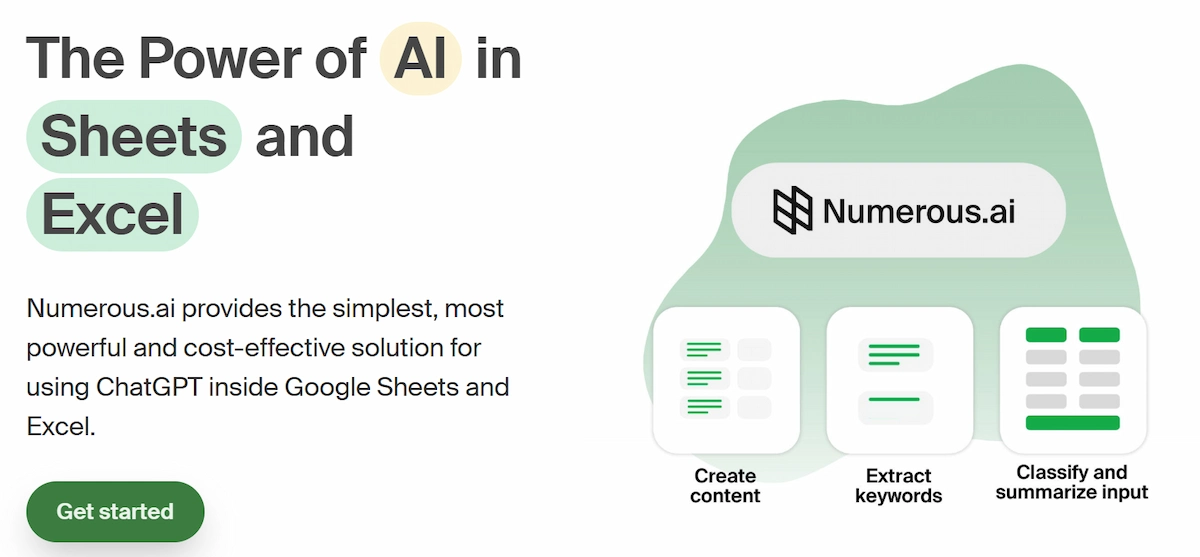
Numerous.ai adds an =AI() function to Excel and Google Sheets. You write a prompt in a cell, then drag the formula down to tag sentiment, group products, clean names or write short descriptions for every row. Results are cached, which keeps repeat runs cheap, and you do not need your own API key. It is a cell-level tool, so it does not build charts or full analyses, and very large runs can time out.
| Detail | Info |
|---|---|
| Best for | Marketing and operations teams tagging large lists |
| Works in | Excel and Google Sheets |
| Free option | Short trial (offers differ by source) |
| Paid plans from | About $8 to $10 per month |
| Main limit | No charts or deep analysis, and large runs can time out |
Pros:
- Simple function based workflow
- Low starting price
- No API key needed
Cons:
- Cell-level only
- Large jobs can fail
- Trial terms differ between sources
7. Formula Bot: Best for Formulas and Quick Analysis

Formula Bot started as a formula generator and now also works as a chat analyst. You describe the formula you need, get it with an explanation, then upload a file to ask questions, build charts or convert a PDF to a spreadsheet. It covers Excel and Google Sheets and also writes VBA, SQL and regex. Some formulas come back wrong on complex logic, and file size limits depend on the plan.
| Detail | Info |
|---|---|
| Best for | Beginners who need formulas explained |
| Works in | Web app for Excel and Google Sheets |
| Free option | Yes, a few messages per month |
| Paid plans from | About $12 to $18 per month |
| Main limit | Complex logic can return wrong formulas |
Pros:
- Explains each formula
- Also writes VBA, SQL and regex
- PDF to Excel conversion
Cons:
- Small free plan
- File size caps on lower plans
8. GPTExcel: Best Low-Cost Formula and Script Generator
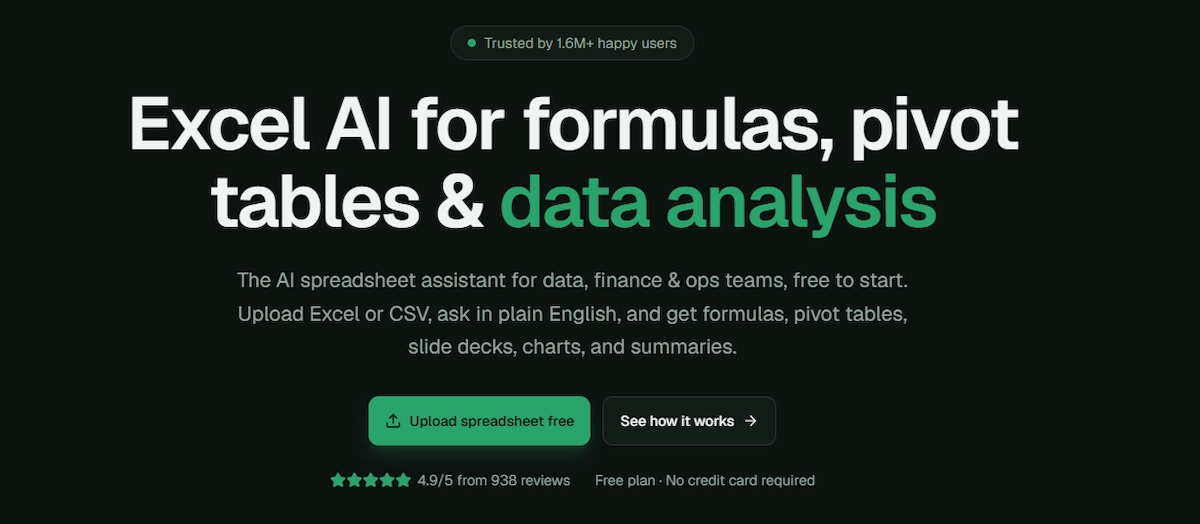
GPTExcel is a simple generator for Excel formulas, VBA, Google Apps Script, SQL and regex. It also creates spreadsheet templates and explains formulas in plain English. You work in a web page and paste the result into the sheet, so the tool never sees your file, which is a plus for privacy and a minus for convenience. It is among the cheapest paid options.
| Detail | Info |
|---|---|
| Best for | Low-cost formula and script help |
| Works in | Web app for Excel and Google Sheets |
| Free option | Yes, about 4 requests per day |
| Paid plans from | About $6 to $13 per month |
| Main limit | Does not read your workbook |
Pros:
- Very low price
- Writes VBA, Apps Script, SQL and regex
- Explains formulas in plain English
Cons:
- No in-sheet add-in
- Narrow feature set
9. Ajelix: Best All-in-One Automation Suite

Ajelix bundles many small tools in one dashboard: a formula and VBA generator, SQL and regex helpers, a data analyzer, chart and dashboard creation, templates and translation. There is an Excel add-in and a Google Sheets add-on, although the Excel add-in covers fewer features than the web platform. It suits people who want one subscription for many small spreadsheet jobs.
| Detail | Info |
|---|---|
| Best for | Users who want many spreadsheet utilities in one place |
| Works in | Web platform, Excel add-in and Google Sheets add-on |
| Free option | Yes, about 10 requests per month |
| Paid plans from | About $15 to $20 per month, higher tiers vary by source |
| Main limit | The Excel add-in has fewer features than the web app |
Pros:
- Wide set of tools
- Works in both apps
- Low entry price
Cons:
- Pricing differs between sources
- The interface can feel crowded
10. Julius AI: Best for Charts and Standalone Analysis

Julius AI works outside the spreadsheet. You upload an Excel or CSV file, ask questions in chat and get charts, tables and written findings, with Python or R running in the background. It handles larger and messier files than most add-ins, can schedule recurring reports and syncs with Google Sheets. Among AI tools for Excel, it is the one to try when the workbook is too heavy to open or the data needs proper statistics.
| Detail | Info |
|---|---|
| Best for | Analysts with large or messy data |
| Works in | Web app, with Excel, CSV and Google Sheets files |
| Free option | Yes, about 15 messages per month |
| Paid plans from | About $16 to $35 per month |
| Main limit | Separate app, so results must be copied back |
Pros:
- Wide range of chart types
- Handles large files
- Scheduled reports
Cons:
- Not inside Excel
- Message limits on lower plans
11. Shortcut: Best for Financial Modeling
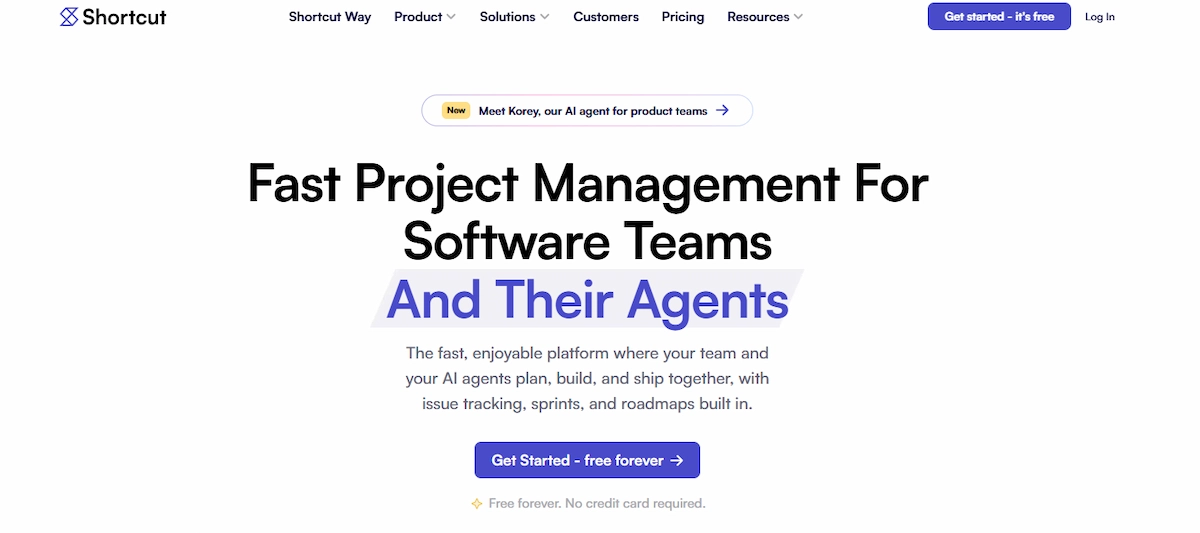
Shortcut is built for finance work in Excel: three-statement models, DCF and LBO builds, formatting and cleanup, with a change log that shows what the agent edited. The company publishes benchmarks that favor its own tool, so treat those numbers as vendor claims until you test them on your own model. Plans cost well above general assistants, and credits can run out on long builds.
| Detail | Info |
|---|---|
| Best for | Analysts and finance teams building models |
| Works in | Excel |
| Free option | Yes, about 20 credits per week |
| Paid plans from | About $40 to $125 per month depending on the plan |
| Main limit | High price and fast credit use |
Pros:
- Built around finance tasks
- Change log of every edit
- Handles full model builds
Cons:
- Expensive compared with general tools
- Benchmark claims come from the vendor
12. Coefficient: Best for Live Business Data
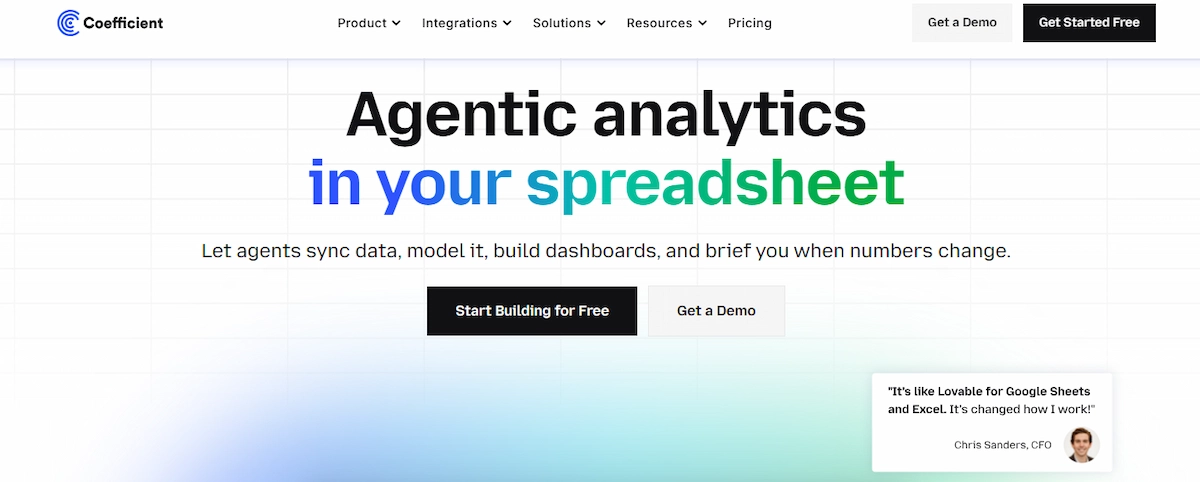
Coefficient connects Excel and Google Sheets to business apps and databases such as Salesforce, HubSpot and Snowflake, and refreshes the data on a schedule. An AI assistant then writes formulas and builds charts on top of that live data. It solves a different problem from the other tools here, since it keeps the sheet current instead of analyzing a static file.
| Detail | Info |
|---|---|
| Best for | Sales, marketing and operations teams reporting from live data |
| Works in | Excel and Google Sheets |
| Free option | Yes, with a small number of imports |
| Paid plans from | About $49 per month |
| Main limit | Not a general analysis tool |
Pros:
- Auto refresh from many sources
- Works in both apps
- AI on top of live data
Cons:
- Priced above formula tools
- Each connection needs setup
Other AI Spreadsheet Tools Worth Testing
Several other AI spreadsheet tools deserve a look. Powerdrill, Quadratic and Sourcetable offer chat based analysis in their own workspace. Datarails and Cube serve FP&A teams. SheetAI, Formulas HQ, Formula Dog and AI ExcelBot are cheap formula and function helpers. Bricks builds dashboards in an AI-native spreadsheet, Power BI Copilot covers reports, PromptLoop runs bulk research on rows, and Sheetgo and Zapier automate data flows between files and apps. Kimi Sheets, Excelly-AI, Formularizer, Arcwise AI, Equals and Akkio round out the list for formulas, Sheets analysis and no-code prediction.
Best AI Tools for Excel by Task
If you already know the task, this shortlist of AI tools for Excel is faster than reading every review. Each group names the tools that handle that job best and what to check before you pick one.
Best AI for Excel Formulas
For one-off formulas, Formula Bot, GPTExcel and Formulas HQ are cheap and quick, and each one explains the formula in plain English. When the formula has to read your own columns, Copilot in Excel and ChatGPT for Excel work better because they see the sheet. Look for three things: an explanation of each step, help with errors such as #REF! and #N/A, and support for the functions you use, including XLOOKUP, SUMIFS and dynamic arrays.
Best AI for Excel Data Analysis
For data analysis, Julius AI and Claude for Excel handle long files, summaries, outliers and charts, while Powerdrill and Quadratic suit larger datasets in their own workspace. Copilot and ChatGPT cover quick pivot tables and trends inside the workbook. Ask the tool to show its steps, because a number without a method is hard to trust.
Best AI for Excel Automation
For repeated work, Copilot Agent Mode plans and edits a workbook in several steps, GPT for Work and Numerous.ai run prompts down thousands of rows, and Ajelix bundles macro and script helpers. To move data between apps on a schedule, Zapier, Sheetgo and Coefficient connect files to the tools your team already uses.
Best Free AI Tools for Excel

Many AI tools for Excel have a free plan, but the limits are small and they differ a lot. Use the free tier to test prompts and compare results on your own data before you pay.
- ChatGPT for Excel: included on the free plan with low usage limits.
- Microsoft Copilot Chat: free chat on eligible Microsoft accounts, without the full in-app agent.
- GPTExcel: about 4 requests per day.
- Formula Bot: a few messages per month on the free plan.
- Ajelix: about 10 requests per month.
- Julius AI: about 15 messages per month.
- Shortcut: about 20 credits per week.
- Coefficient: a free plan with a small number of data imports.
- Numerous.ai: a short trial instead of a long free plan, and the terms differ between sources.
Free plans work for testing and for occasional use. For daily work they run out fast, so a small team on a tight budget can read the guide on AI for small business and pick one paid tool instead of stacking several free ones.
How to Use AI in Excel Step by Step
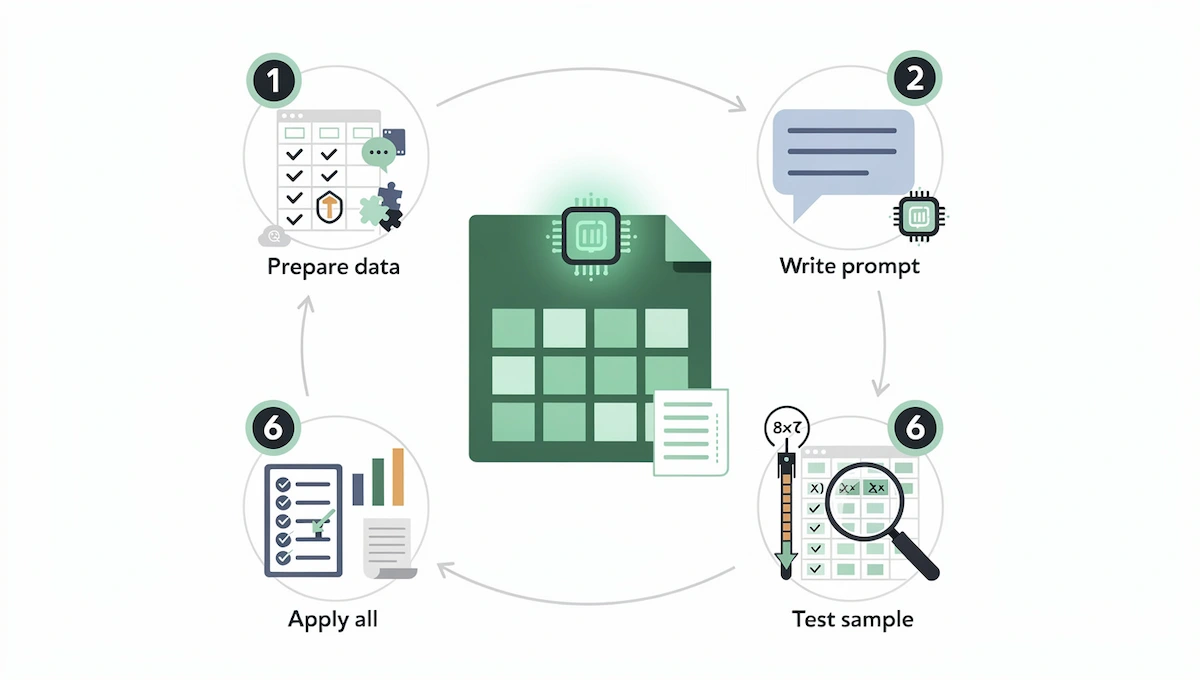
The steps are almost the same in every tool, from a built-in assistant to a bulk add-in. Follow these six steps to get reliable results from AI tools for Excel.
Step 1: Prepare Your Data
Give the tool a clean table. Use one header row, one record per row, no merged cells and no blank columns in the middle. Format dates and numbers the same way in each column, and save a backup copy before you let any tool edit the file.
Step 2: Pick the Right Tool
Match the task to the group of tools. Use a built-in assistant or a chat add-in for formulas and charts, an in-cell function for bulk text work, a formula generator for one-off macros and a standalone platform for large files. Check that the tool supports your app, since some work only in Excel and others only in Google Sheets.
Step 3: Write a Clear Prompt
A good prompt names the columns, the action and the result you expect. The guide to prompt engineering for business shows how to write instructions that need fewer retries. Here are examples you can adapt:
- “Write a formula that sums column D when column B equals West and column C is March.”
- “Explain this formula in plain English and find the error.”
- “Build a pivot table of revenue by month and product category.”
- “Remove duplicate emails in column A and keep the first match.”
- “Classify each review in column C as positive, neutral or negative.”
- “Forecast the next six months of sales from the data in columns A and B.”
- “Write a VBA macro that saves each sheet as a separate PDF.”
Step 4: Test on a Few Rows
Run the prompt on 5 to 10 rows first. Compare the output with a manual result, and adjust the prompt before you apply it to the full range. Bulk functions use credits for every row, so a bad prompt on 5,000 rows is expensive.
Step 5: Apply It to the Full Range
Once the sample looks right, fill the formula down or run the agent on the whole sheet. For long runs, work in batches and save after each batch.
Step 6: Check the Results
Spot check totals, formats and edge cases, and compare the main numbers with the source. Keep the prompt and the tool name in a notes column so you can repeat or audit the work later.
Excel AI Prompt Examples
These prompts work in most AI tools for Excel once you replace the column names with your own.
Formulas
- “Write an XLOOKUP formula that finds the price on the Prices sheet by the product ID in column A.”
- “Sum column E by month using the dates in column B.”
- “Why does this formula return #N/A, and how do I fix it?”
- “Convert this nested IF formula into IFS.”
Data Cleaning
- “Split the full names in column A into first name and last name.”
- “Convert all dates in column C to the YYYY-MM-DD format.”
- “Trim extra spaces and fix capital letters in column D.”
- “Mark rows where the email format is invalid.”
Analysis and Charts
- “Summarize the main trends in this sales data in five bullet points.”
- “Find outliers in column F and explain why they stand out.”
- “Create a line chart of monthly revenue with a trend line.”
- “Compare revenue by region and show the three biggest changes from last quarter.”
Macros and Reports
- “Write a VBA macro that copies each sheet into its own file.”
- “Create a monthly summary sheet with totals, averages and a chart.”
- “Add a dropdown list in column G with the values Open, Closed and Pending.”
- “Explain what this macro does, line by line.”
How to Analyze Data in Excel With AI
Using AI tools for Excel for data analysis follows a short loop that works in any tool:
- Load the data: open the workbook or upload the file, and check that headers and formats are clean.
- Ask for a summary: start with “describe this dataset” to see columns, ranges and missing values.
- Ask specific questions: request totals by group, trends over time and comparisons.
- Request a chart or a pivot table: pick the view that shows the answer.
- Look for outliers and causes: ask what changed and which rows drive the result.
- Verify and save: recalculate two or three numbers by hand, then save the findings and the prompts.
The loop is the same in a built-in assistant, an add-in or a standalone platform. The only difference is how much of the workbook each tool can see, so for very large files use a platform like Julius AI or Quadratic.
How to Choose the Right AI Tool for Excel
Choosing among AI tools for Excel starts with the job, not the price. A tool that is great at one-off formulas can be a poor fit for bulk text work. For the same logic across other software, read how to choose AI tools for business. Compare the options on these points:
- Where your data lives: Excel, Google Sheets, a CSV file or a live app.
- Size of the job: a few formulas, a full model or thousands of rows.
- Accuracy and checking: look for cell citations, change logs and a confirmation step before edits.
- Price and limits: check messages, credits, row caps and file size.
- Privacy: check where files go, how long they are stored and whether they train models.
- Ease of use: a sidebar is simpler than a separate app.
- Models: some tools let you choose between providers.
- Team needs: shared workspaces, admin controls and licenses.
If you already know the job, use this shortlist:
- Built-in help in Microsoft 365: Copilot in Excel.
- Built-in help in Google Workspace: Gemini in Sheets.
- A free place to start: ChatGPT for Excel.
- Audit-friendly work on long models: Claude for Excel.
- Bulk classification of thousands of rows: GPT for Work or Numerous.ai.
- Cheap one-off formulas and macros: GPTExcel or Formula Bot.
- Many small utilities in one plan: Ajelix.
- Big or messy files: Julius AI.
- Financial models: Shortcut.
- Live CRM or warehouse data: Coefficient.
A small team usually does best with one built-in assistant plus one specialist tool. An enterprise team should start with a security review, license cost and admin controls before it compares features.
Best AI Tools for Excel by User Type
- Beginners and students: ChatGPT for Excel or Formula Bot, for explanations and a free plan.
- Small business owners: Copilot or Gemini if you already pay for Microsoft 365 or Google Workspace, plus GPTExcel for cheap formulas.
- Analysts: Julius AI or Claude for Excel for long files and traceable answers.
- Finance teams: Shortcut, Claude for Excel, Datarails or Cube for models and FP&A.
- Marketers: Numerous.ai or GPT for Work for tagging, summarizing and translating lists.
- Sales and operations teams: Coefficient for live CRM and warehouse data.
- Enterprise teams: Microsoft Copilot or a tool with SOC 2 and admin controls, after a security review.
AI Tools for Excel in Finance and Data Analysis
Financial Modeling and FP&A
Finance teams use AI for three-statement models, DCF and LBO builds, variance reports and cleanups. Shortcut is built for this work, Claude for Excel is strong at tracing numbers across tabs, and Datarails and Cube add planning and consolidation for FP&A. Keep a human reviewer on the final model, and treat vendor benchmarks as marketing until you test them on your own files.
Large Datasets and Dashboards
When Excel slows down or the data analysis needs statistics, standalone platforms do better. Julius AI, Powerdrill and Quadratic run code on uploaded files, Power BI Copilot adds report building on the Microsoft side, and Tableau serves heavier dashboard work. Use an add-in for edits inside the workbook, and use these platforms when the question is bigger than a sheet.
AI-Native Spreadsheets as Excel Alternatives
A few spreadsheets are built around AI from the start, and they can replace Excel for some jobs. Quadratic mixes a spreadsheet with Python, SQL and JavaScript and generates code and charts from a prompt. Sourcetable combines a spreadsheet with an AI data analyst and data connectors. Bricks focuses on dashboards and reports, and Equals connects to live business data. Google Sheets with Gemini is the closest everyday alternative to Excel with Copilot. These tools work best for new projects, since moving a large Excel workbook full of macros and links takes time.
Excel vs Google Sheets for AI
Both apps now have built-in AI, but the tools and the limits differ.
- Excel: Microsoft Copilot, Claude for Excel and ChatGPT for Excel work inside the workbook, and Copilot Agent Mode can edit it in several steps.
- Google Sheets: Gemini adds a side panel and the =AI() function, and add-ons such as SheetAI and Numerous.ai fit well.
- Both apps: ChatGPT, GPT for Work, Numerous.ai, Formula Bot, Ajelix and Coefficient support Excel and Sheets.
- Limits: Gemini and Copilot both set caps on calls or actions, so check the plan for the volume you need.
Pick the app first, then the tool. If your team shares files across both, choose a tool that supports both, so nobody needs a second subscription.
Benefits of AI Tools for Excel
The first gain is time. Writing a nested formula, cleaning a column or building a pivot table takes minutes with AI, and the saved hours add up across a team, which is the core of the ROI of AI for business. AI tools for Excel also help people who do not know advanced functions, since the tool explains what a formula does and flags the likely error.
- Speed: formulas, cleaning and summaries in seconds.
- Fewer errors: explanations and error checks catch broken references early.
- Lower skill barrier: people without VBA or advanced functions can still build complex sheets.
- Bulk work: tagging, translating and summarizing thousands of rows becomes possible without code.
- Better reports: charts and written summaries come together faster.
How Accurate Are AI Tools for Excel?
Accuracy differs a lot between tools, and vendor claims are not enough to pick one. An independent test by AIMultiple, updated in June 2026, ran two benchmarks on 15 AI tools for Excel. The first used 20 finance questions such as present value, future value and DCF, scored within a 1% error margin. The second gave each tool two workbooks and 40 questions on reporting, quality control data and small business books.
- Workbook test leaders: GPT for Excel answered 97.5% of questions correctly, while Claude for Excel and Ajelix reached 95%.
- Finance test: Ajelix scored 85%, Quadratic, R2 Copilot and Paradigm about 75%, Formula Bot and GPTExcel about 65% and Shortcut 60%.
- Weak results: Formula Bot dropped to 15% on the workbook test because it misread the questions, the open-source Hugging Face AI Sheets scored 5% and ExcelAIBot answered none correctly.
- Not built for calculation: Numerous.ai is made for text tasks, so it was not useful for numeric problems.
Scores depend on the test, the date and the questions, so treat them as a guide and not a ranking you can copy. The safe habit is the same for every tool: test on your own file, check the main numbers by hand and keep the original data.
Limits, Risks and Mistakes With AI Tools for Excel
AI tools for Excel save time, but they are not always right. Watch for these problems:
- Wrong formulas and numbers: an answer can look correct and still be wrong, especially with complex logic.
- Limited context: very large workbooks may not fit, so the tool sees only part of the data.
- Usage caps: message limits, credits and row caps run out on heavy jobs.
- Privacy: uploaded files may leave your company environment. The guide to AI data privacy for business lists the questions to ask a vendor about storage, retention and training.
- Vendor benchmarks: published test scores often come from the tool maker.
- Cost creep: a license on top of Microsoft 365 or Google Workspace adds up per user.
- No backup: agents that edit cells can overwrite work, so save a copy first.
- Wrong tool for the scale: a formula generator cannot clean 50,000 rows, and a bulk tool cannot build a model.
Check every number that matters, keep the original file and use test rows before a full run.
Security and Privacy Checklist for AI Tools for Excel
Spreadsheets often hold client data, payroll and financial figures, so run this checklist before you upload a file:
- Where the data goes: check whether files are processed in your Microsoft or Google tenant or sent to a third party.
- Retention: find out how long uploaded files and prompts are stored and how to delete them.
- Model training: confirm whether your data is used to train models and whether you can opt out.
- Certifications: look for SOC 2, ISO 27001 and GDPR support.
- Access and admin controls: check single sign-on, roles and audit logs for team use.
- Edit permissions: agents that change cells should ask before editing and keep a change log.
- Sensitive data: remove or mask personal data before you send a file to any tool your company has not approved.
How Much Do AI Tools for Excel Cost?
Pricing for AI tools for Excel runs from free to over $100 per month, but most people pay $6 to $30. The guide on how much AI tools cost covers the wider budget for a full stack. For Copilot, check the official Microsoft 365 Copilot pricing page, since the add-on price and promotions change.
- Free plans: good for testing, with small daily or monthly limits.
- $6 to $13 per month: formula generators and in-cell tools such as GPTExcel and Numerous.ai.
- $12 to $30 per month: Formula Bot, Ajelix, ChatGPT Plus, Claude Pro, Julius AI and most paid add-ins.
- $18 to $30 per user per month: Microsoft Copilot for business, on top of Microsoft 365.
- $40 to $125 and above: finance tools such as Shortcut on higher plans, and team or enterprise plans.
Prices differ between review sites, and many tools discount annual billing, so use monthly plans for testing and switch to annual only after you settle on one tool.
Price Per Tool at a Glance
- Microsoft Copilot in Excel: about $18 to $30 per user per month for business, about $20 for Microsoft 365 Premium.
- ChatGPT for Excel: free plan, then about $20 per month (Plus).
- Claude for Excel: paid plans from about $20 per month (Pro).
- Gemini in Google Sheets: included in eligible Workspace and Google AI plans.
- GPT for Work: from about $25 per month, plus credit packs.
- Numerous.ai: about $8 to $10 per month.
- Formula Bot: about $12 to $18 per month, with a small free plan.
- GPTExcel: about $6 to $13 per month, with a free daily quota.
- Ajelix: about $15 to $20 per month, with a free monthly quota.
- Julius AI: about $16 to $35 per month, with a free monthly message limit.
- Shortcut: about $40 to $125 per month, with free weekly credits.
- Coefficient: from about $49 per month, with a free plan.
Prices come from public pages and recent reviews and are rounded, so confirm them on the official site.
AI Tools for Excel Trends in 2026
Four trends show up in almost every recent review:
- Built-in assistants caught up: Copilot added Agent Mode and model choice, and ChatGPT and Claude shipped official add-ins.
- In-cell AI functions: =COPILOT(), =AI() and similar functions put prompts inside the grid.
- Split pricing: some tools charge per seat, some charge credits and some bundle AI into a plan.
- Live data and connectors: tools now connect to CRMs, warehouses and financial data providers, and MCP is spreading.
Some tools did not last. According to a recent review from Rework, Rows shut down in May 2026, so check the status of a vendor before you commit to a yearly plan.
What to Do Next
- Pick one task you repeat every week, such as cleaning a report or writing the same formulas.
- Choose two tools from the shortlist and test them on a copy of the same file.
- Compare accuracy, time saved and cost after one week.
- Keep one tool, write down the prompts that worked and share them with your team.
Conclusion
The best AI tools for Excel depend on the job. Start with Copilot or Gemini if you want a built-in assistant, try ChatGPT for Excel for a free test, pick GPT for Work or Numerous.ai for bulk text work, and use Julius AI or Shortcut when the file or the model is heavy. Whichever of the AI tools for Excel you choose, test two tools on the same sheet, check every number and keep a backup. To plan AI across more than spreadsheets, read how to use AI in business.
Frequently Asked Questions
What Is the Best AI Tool for Excel?
There is no single best tool. Microsoft Copilot is the best built-in option for Microsoft 365 teams, ChatGPT for Excel is a good free start, Claude for Excel suits long models, and Julius AI fits large files. Pick the tool that matches your data size and task, then test it on a copy of your file.
Does Excel Have a Built-In AI Tool?
Yes, Microsoft Copilot in Excel is built in, but it needs a Copilot license or a premium Microsoft 365 plan. Excel also has the =COPILOT() function, Analyze Data and Flash Fill.
Is There a Free AI for Excel?
Yes, with limits. ChatGPT for Excel is available on the free plan, GPTExcel gives about 4 requests per day, Ajelix about 10 per month and Julius AI about 15 messages per month. Free plans are best for testing.
Can ChatGPT Analyze Excel Data?
Yes. You can upload a file in ChatGPT or use the ChatGPT add-in inside Excel and Google Sheets. It can write formulas, build charts and summarize data, but large workbooks may hit context limits, so check the result.
Does Claude Work Inside Excel?
Yes, Claude for Excel is an add-in that works across tabs and cites the cells it used. It needs a paid Claude plan and runs only in Excel. Some older reviews say otherwise, so check the current status on the Anthropic site.
Can AI Create a Complete Excel Spreadsheet?
Yes, for simple and medium sheets. Tools like Copilot, ChatGPT, GPTExcel and Formula Bot can generate templates, tables, formulas and charts from a description. For financial models or large workbooks, expect to edit and verify the output.
Do AI Tools for Excel Work With Google Sheets?
Some do. ChatGPT, GPT for Work, Numerous.ai, Formula Bot, Ajelix and Coefficient work in both apps, while Copilot and Claude for Excel work only in Excel, and Gemini works only in Google Sheets. Many AI tools for Excel also offer a separate Sheets version, so check the supported apps before you subscribe.
What Is the Best AI for Excel Formulas?
Formula Bot and GPTExcel are the simple picks for one-off formulas, with explanations and VBA. Copilot and ChatGPT work better when the formula must read your sheet. Test the formula on sample rows before you apply it.
What Is the Best AI for Excel Financial Modeling?
Shortcut is built for finance models and keeps a change log, Claude for Excel is strong at tracing numbers across tabs, and Copilot suits Microsoft 365 teams. Review the model by hand and treat vendor benchmarks with care.
Do I Need Coding Skills to Use AI With Excel?
No. You write prompts in plain English. Basic knowledge of formulas helps you check the result, and the tools can also generate VBA, SQL or scripts if you need them.
What Is the Difference Between AI Spreadsheet Tools and BI Platforms?
AI spreadsheet tools work inside or next to a sheet and answer a question or edit cells. BI platforms such as Power BI and Tableau build reports and dashboards on large data sources with shared access. Many teams use both.
Is It Safe to Upload Excel Files to AI Tools?
It depends on the tool and the data. Check where files are stored, how long they stay, whether they train models and whether the vendor has security certifications. For sensitive data, use a tool approved by your company or one that keeps data in your own environment.
What Is the Best AI for Google Sheets?
Gemini in Google Sheets is the built-in choice for Workspace teams. ChatGPT, GPT for Work, Numerous.ai, SheetAI and Coefficient also work in Sheets, and the best one depends on whether you need formulas, bulk text tasks or live data.
What Is the Best Free AI Tool for Data Analysis?
Julius AI gives about 15 free messages per month, ChatGPT for Excel is free with low limits, and Quadratic has a free plan. All three work for light analysis, but check the results on a copy of your data.
Which AI Tool Is Best for a Small Team Versus an Enterprise?
A small team usually does best with Copilot or Gemini plus one low-cost specialist such as GPTExcel or Numerous.ai. An enterprise team should start with security, admin controls and license cost, which usually points to Microsoft Copilot or a vendor with SOC 2.
What Is the =COPILOT() Function in Excel?
=COPILOT() is an Excel function that sends a prompt and cell values to Copilot and returns the answer in the sheet. It works for tasks like classifying text, summarizing comments and extracting names, and it needs a Copilot license.
Can AI Fix Excel Formula Errors?
Yes. Paste the formula and the error, such as #REF!, #N/A or #VALUE!, into Copilot, ChatGPT, Formula Bot or GPTExcel and ask for the cause and a fix. Test the corrected formula on sample rows before you use it.
Can AI Write VBA Macros?
Yes. GPTExcel, Formula Bot, Ajelix, ChatGPT and Copilot can write VBA from a description and explain it line by line. Test every macro on a backup copy, because a wrong macro can delete or overwrite data.
How Much Does Copilot in Excel Cost?
For business, the Copilot add-on is about $18 to $30 per user per month on top of Microsoft 365, and Microsoft 365 Premium for individuals is about $20 per month. Prices and promotions change, so check the official Microsoft page.
Are AI Tools for Excel Accurate?
Not always. An independent June 2026 test found workbook accuracy from 15% to 97.5% depending on the tool, so results differ a lot. Always check the main numbers, keep a backup and test on a few rows first.