If you want to know how to turn off AI tools in Gmail, the short answer is that you need to switch off the smart features in your Gmail settings, and then switch off the separate Google Workspace smart features. On a computer you do it from the gear icon, then See all settings, then the General tab. On a phone you do it from the menu, then Settings, then your account. We went through the steps for every device and account type, and we put them below in a simple order, with the things you will lose and the things that cannot be switched off.
Quick answer: how to turn off AI tools in Gmail
Here is the fast version for people who only want the steps. Each point has its own section further down.
- Desktop: gear icon, See all settings, General, then clear Turn on smart features in Gmail, Chat, and Meet and use Manage Workspace smart feature settings to switch off the two Workspace options.
- Android: menu, Settings, your account, then clear Smart features and open Google Workspace smart features.
- iPhone and iPad: menu, Settings, your account, Data privacy, then switch off Smart features.
- Work or school account: the choice may belong to your admin, not to you.
- What you lose: Smart Compose, Smart Reply, summary cards, inbox categories and a few Calendar and Drive features.
What are the AI tools in Gmail?
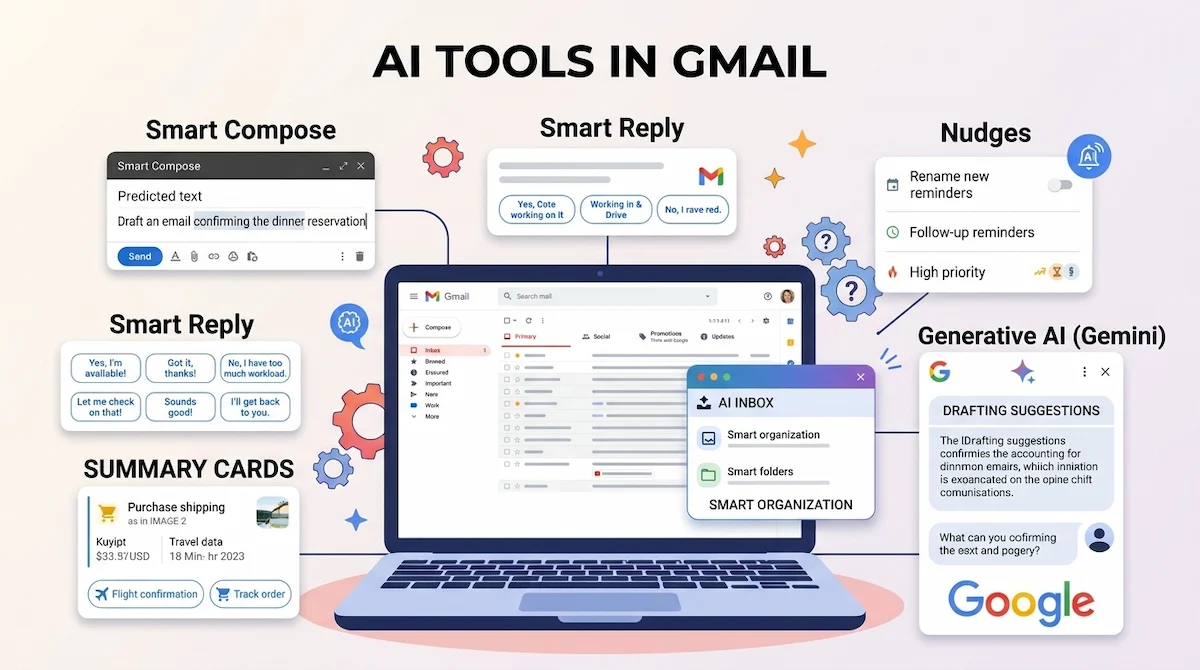
Google does not use the words AI tools in the Gmail settings. Inside the app you will see names such as smart features, Smart Compose, Smart Reply, summary cards and Gemini. When people search for AI tools in Gmail, they usually mean all of these together. If one of those terms is new to you, our AI terms glossary explains them in plain language.
The three smart feature settings
The part that confuses most people is that there is not one switch but three, and each one works on its own. Turning off the first does not turn off the other two. We think this is the main reason why people say the AI keeps coming back.
| Setting | What it controls |
|---|---|
| Smart features in Gmail, Chat, and Meet | Email categories, Smart Compose, Smart Reply and summary cards |
| Smart features in Google Workspace | Gmail events in Calendar, personalized Drive search, Gemini features and recommendations |
| Smart features in other Google products | Maps reservations, Wallet passes and Personal Intelligence |
Gemini and other AI features you may see
The features most users notice are a short summary above a long email, grey suggestions while you type, quick reply buttons at the bottom of a message and a Gemini button or side panel. Some accounts also show a writing helper that drafts or polishes text. Which of these you see depends on your account type, your plan and your country.
Are the settings on by default?
It depends on where you live. Smart features and controls are off by default in the European Economic Area, the UK, Switzerland and Japan. In other regions they are on by default, which means most readers of this guide will need to switch them off by hand.
Why does Google add these features to Gmail?
Google says the features save time, for example by summarizing long threads or suggesting short replies. We also think there is a business reason, because every product that uses Gemini keeps people inside the Google system. That is only our reading, and it is fine to value the features and still want control over them.
Why turn off AI in Gmail?
People have different reasons, and the four below are the ones we hear most.
- Privacy: you handle client mail, medical details or private messages and prefer that a feature does not process them.
- Distraction: grey suggestions while you type can break your train of thought, and some people simply write better without them.
- Wrong summaries: a short summary can miss a condition, a date or a tone, and an email is a bad place for a guess.
- Personalization across products: the Workspace settings let Gmail data feed features in Calendar, Drive and other Google products, and some people want to cut that link.
If none of these apply to you, keeping the features is a perfectly reasonable choice.
How to turn off AI tools in Gmail on desktop
The desktop browser is the best place to do this, because it is the only place where every switch is visible. Plan for about two minutes, and do it for each Gmail account you use. Gmail on a computer shows every switch, while Gmail on a phone hides some of them, so we always start in the browser and use the phone only for a second check.
Step 1: Open Gmail settings
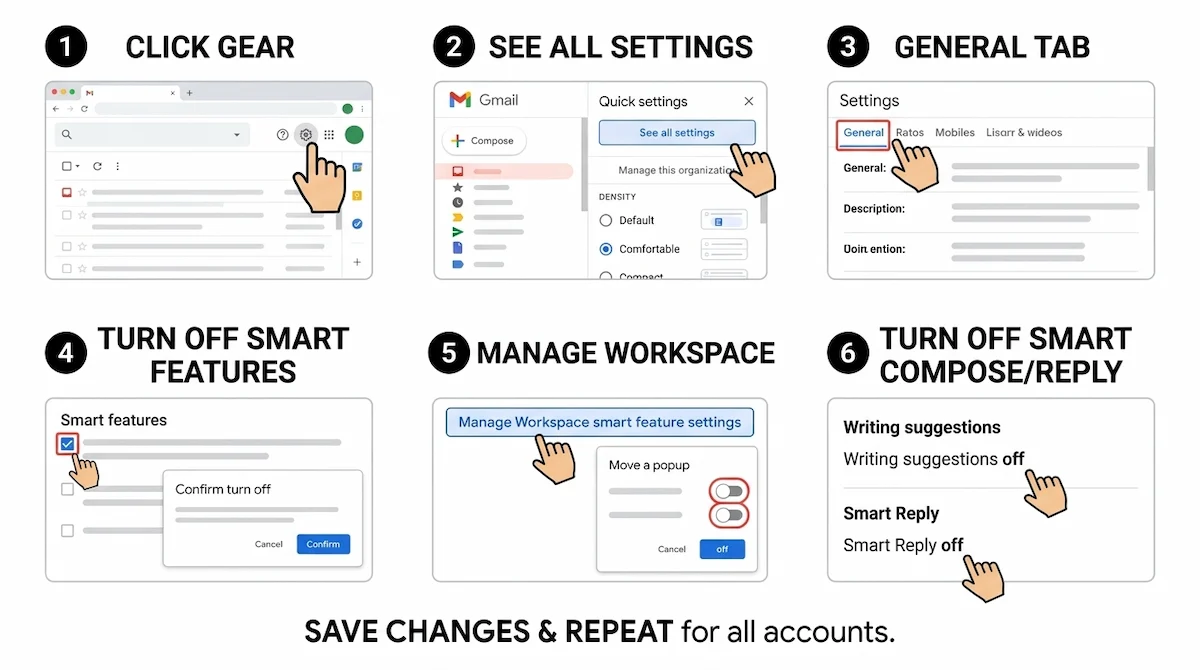
Open Gmail in your browser and click the gear icon in the top right corner. Then click See all settings and stay on the General tab. Most of the switches in this guide are on that one page.
Step 2: Turn off smart features in Gmail, Chat, and Meet
Scroll down to the section called Smart features. Clear the box next to Turn on smart features in Gmail, Chat, and Meet. Gmail will ask you to confirm, so click Turn off and reload. This is the main switch, and it removes categories, summary cards and the personalized suggestions.
Step 3: Turn off Google Workspace smart features
Go back to the General tab and find Google Workspace smart features. Click Manage Workspace smart feature settings. In the new window, turn off Smart features in Google Workspace and also Smart features in other Google products. Then click Save. In our view this is the step people forget most often, and it is the one that affects Gemini features.
Step 4: Turn off Smart Compose and Smart Reply
Scroll to the Smart Compose section and select Writing suggestions off. If you see a personalization option under it, select Personalization off. Next, find Smart Reply and select Smart Reply off. On some accounts these options disappear when the main switch is off, and that is fine.
Step 5: Save and check the result
Scroll to the very bottom of the page and click Save Changes. Then open a long email and look at the top. If the summary card is gone and no grey text appears when you write a reply, the settings worked. If something is still there, repeat Step 3, because the Workspace switch is the one most people miss.
How to turn off Gemini without turning off Smart Compose
This is a common wish, and the answer is only partly yes. Gemini features are tied to the Smart features in Google Workspace switch from Step 3, while Smart Compose has its own option in the Smart Compose section of the General tab. In theory you can turn off the Workspace switch and leave Writing suggestions on.
The catch is that the main Smart features in Gmail, Chat, and Meet setting can hide or remove the writing options when it is off. We could not confirm one combination that works on every account, so test it. Change one switch at a time, save, reload Gmail and check what is still there.
How to turn off AI features in Gmail on Android
The mobile app has fewer options than the browser, but the main switches are there. Open the Gmail app and tap the menu icon in the upper left corner. Scroll down and tap Settings, then tap the account you want to change.
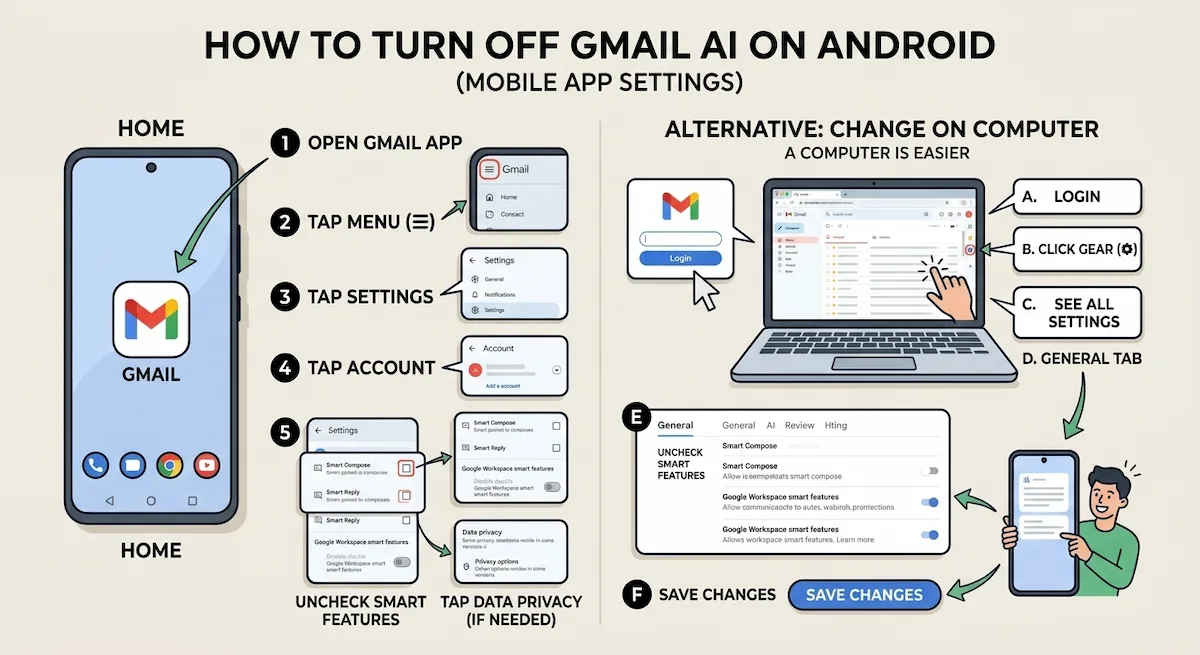
Clear the checkbox for Smart features. If you see Smart Compose and Smart Reply on the same screen, clear those as well. Then tap Google Workspace smart features and clear both options. On some versions of the app these settings sit under Data privacy, so look there if you cannot find them in the main list. Repeat this for every account in the app, because each account keeps its own settings.
If you cannot find the setting in the Gmail app
Menus in the Gmail app change between versions, and a screen on your phone may not match the one we describe. If you do not see Smart features, update the app first. If it is still missing, open Gmail in a browser, make the change there and then come back to the phone. The setting belongs to your Gmail account, so a change made on a computer applies to the app as well, though the app may need a restart to show it.
How to turn off AI features in Gmail on iPhone and iPad
The steps on Apple devices are almost the same. Open the Gmail app, tap the menu icon, then tap Settings and choose your account. Open Data privacy and switch off Smart features.
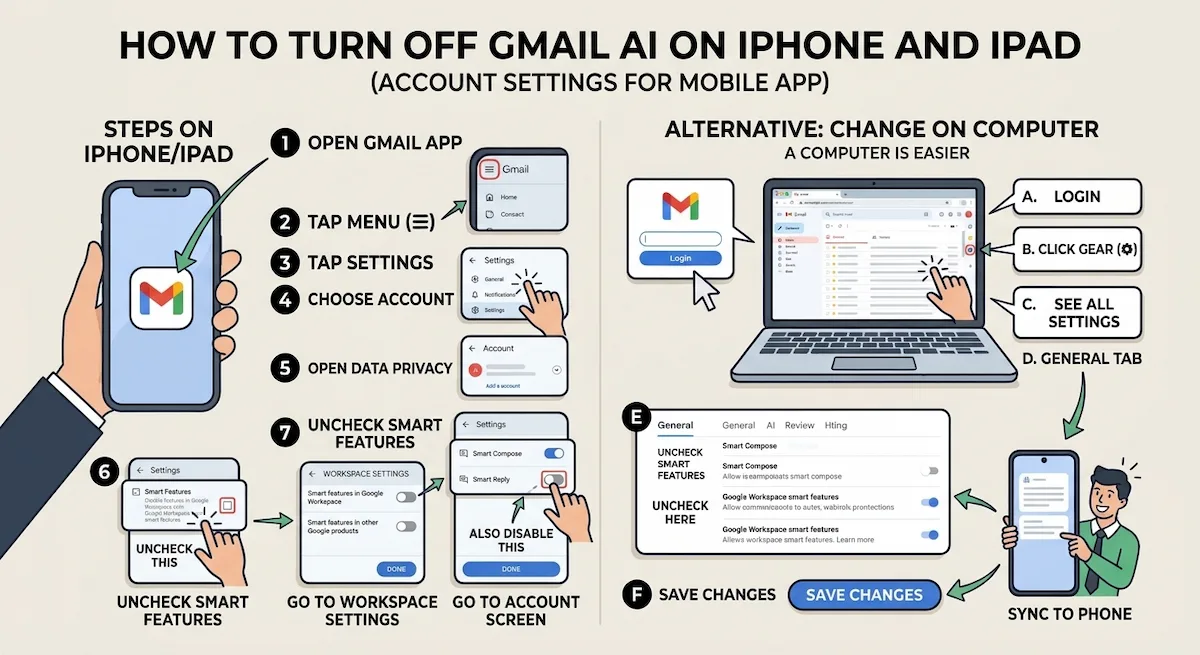
After that, tap Google Workspace smart features and switch off Smart features in Google Workspace and Smart features in other Google products. Smart Reply and Smart Compose have their own toggles on the account screen, so switch them off too and tap Done. If the mobile app still shows old behavior after you change the settings in a browser, update the app and restart it.
How to turn off the Gemini side panel
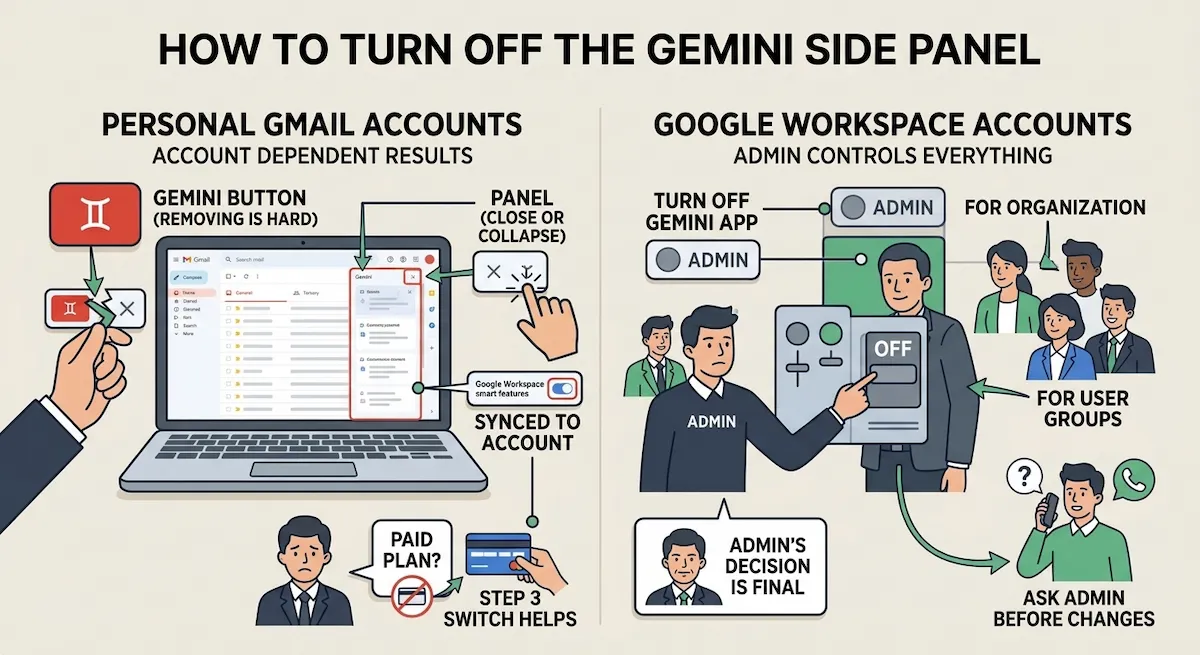
The Gemini button and side panel are the part many people want gone first. The honest answer is that the result depends on your account.
Personal Gmail accounts
On a free personal account you can usually close or collapse the panel, but we did not find a way to remove the button for good. What helps is the Google Workspace smart features switch from Step 3, because it controls the Gemini features. If you pay for a Google AI plan, canceling that plan is another way to stop the panel from coming back.
Google Workspace accounts
On a work or school account, the admin decides. The admin can turn the Gemini app off for the whole organization or only for one group of users. If the button is there and you cannot remove it, ask your admin before you spend time on settings.
How to turn off AI summaries in Gmail
The short summary above a long email is called a summary card. According to Google, summary cards belong to the Smart features in Gmail, Chat, and Meet setting, so Step 2 turns them off. Some guides also point to the Workspace switch from Step 3, and our advice is to turn off both so that you do not have to guess.
A caution here. If you only want to hide the summary and keep Smart Compose or the inbox categories, we could not find a clean way to do it. Google keeps these features in one bundle, and for now you either keep them together or lose them together.
How to turn off Help Me Write and suggested replies
Suggested replies are the quick answer buttons below an email, and they belong to Smart Reply. Switch them off in the Smart Reply section of the General tab, as described in Step 4. If you only want help with wording, our guide on how to write marketing emails with AI shows another way to do it outside Gmail.
The writing helper often called Help Me Write is a different case. Some guides list a separate switch for it, but we could not confirm the same switch on every account. Check the General tab on your own account. If you do not see a separate option, the Workspace smart features switch is the one to turn off.
How to turn off Gemini Apps Activity and delete your data
Turning off smart features in Gmail does not delete what Gemini has already saved. Gemini keeps its own activity history, and it has its own switch. Open myactivity.google.com, choose Gemini Apps Activity and turn it off. Then use the delete option to remove the history you already have, and pick the time range that fits you.
We think this step is worth doing even if you rarely open Gemini, because it takes less than a minute. It also shows how Google splits the controls: one set for Gmail, another for the Gemini app.
If you want to keep Gemini but do not want a long history, the same activity page lets you delete old chats and keep new ones off. We think this is a sensible middle path for people who use Gemini now and then.
How to turn off Gemini on your phone
The Gemini app is separate from Gmail, so a phone can still show Gemini after you have cleaned up your inbox. On Android, open Settings, go to Apps, then Default apps and choose Digital assistant app. Set it to None or back to Google Assistant. You can also open the Gemini app in the app list and disable or uninstall it if your phone allows that.
On an iPhone, Gemini is a normal app, so you can sign out of it or delete it like any other app. In both cases, remember that removing the app does not delete the history stored in your Google account, so turn off Gemini Apps Activity as described above.
How to turn off AI in Gmail on a work or school account
Work and school accounts follow different rules, because the organization sets the defaults. Many readers get stuck here, so we want to be clear about what you can and cannot do.
What admins can do
A super administrator can change the setting in the Google Admin console. According to the Google Workspace admin help page, the path is Menu, Account, Account settings, then Smart features for Google Workspace. The admin can choose Don’t set a default experience, so users decide for themselves, or Set a default, so the organization turns the features on or off. A change can take up to 24 hours to show, though it is often faster. Some guides also describe a Gemini service switch under the generative AI section of the console, but the menu names can differ, so check yours.
Why you cannot turn it off yourself
If the switches are gray or missing, your admin has probably locked them. Nothing is wrong with your browser. Ask the person who manages your accounts, and tell them which of the three settings you want changed. For companies that are still deciding on a policy, our overview of AI in the workplace covers the questions a team should answer first.
How to turn off Gemini in other Google apps
Gmail is only one place where Google adds Gemini. The same company also puts it in Drive, Docs, Chrome, Photos and on Android phones, and each app has its own switch.
In Google Drive, click the gear icon, open Settings, go to Manage apps, find Gemini and clear Use by default. The Workspace smart features switch from Step 3 also covers Gemini features across Docs, Sheets and Drive. Chrome, Photos and Android have separate settings inside each app, and the steps change often. If you are comparing other options, our page on Gemini alternatives lists the main ones.
AI Overviews and AI Mode in Google Search and Chrome
The AI answers on top of Google Search have no official off switch. Two workarounds are common: use the Web filter on the results page, or add a search engine in Chrome with the address {google:baseURL}search?q=%s&udm=14 and set it as default. For the AI Mode button in the Chrome address bar, open chrome://flags, search for AI Mode Omnibox entrypoint, set it to Disabled and relaunch Chrome. These flags change between versions, so treat them as a temporary fix.
How to check that AI is really off in Gmail
After you save the settings, it is worth spending a minute to confirm that they worked. Open a long email in Gmail and look at the top of the message, where a summary card would appear. Start a reply and see whether grey text shows up while you type. Check the bottom of an email for quick reply buttons, and open the Gmail settings once more to see that the boxes are still cleared.
Do the same on every account you use. A quick checklist is easier than trying to remember:
- Main smart features switch is off and Gmail was reloaded.
- Both Workspace options are off and saved.
- Smart Compose and Smart Reply are off.
- Gemini Apps Activity is off, and old history is deleted if you want that.
- The same steps were done on the phone app and on every second account.
What do you lose when you turn off Gmail AI?
Turning the features off has a price. Google says that the experiences tied to each setting stop working until you turn the setting back on. The table shows what we expect you to notice first.
| Feature | What happens when it is off |
|---|---|
| Smart Compose | No grey writing suggestions while you type |
| Smart Reply | No quick reply buttons |
| Summary cards | No short summary above long emails |
| Inbox categories | Tabs such as Promotions may stop sorting mail |
| Calendar events from Gmail | Flights and bookings may stop showing in Calendar |
| Drive search | Search results are less personalized |
| Spelling and grammar | Some users report fewer suggestions |
Our view is simple. If you rely on Calendar events from your inbox or on the categories, test the change for a week before you decide. You can always switch the features back on.
What can you not turn off?
A few things stay, and it is better to know that now. On a personal account the Gemini panel can be closed, but not removed. On a work or school account, the admin has the last word. Some features also sit inside the same bundle, so you cannot keep categories and remove summaries.
Basic spam filtering and the normal search box keep working after you turn off smart features. Google also says that some smart features in other products can still appear through screen actions when the setting is off. This is a limit of the controls, not a mistake in your settings.
Why do Gmail AI settings turn back on?
This is the question we see most, and the reasons are usually simple. Check the list below before you assume that Google ignored your choice.
- Another account: each Gmail account has its own settings, so a second account still has the features on.
- Only one of the three switches: turning off the first setting does not touch the Workspace setting.
- A new device or app: a fresh install may start with the default settings.
- An admin default: on a work account the organization can set the default again.
- An update: Google adds new features, and a new feature can arrive with its own setting.
Our advice is to look at the General tab every few months and to repeat the three steps after a large Gmail update.
Can you turn off AI in Gmail for just one account?
Yes. Every Gmail account has its own settings, so you can switch the features off on your work address and leave them on for a hobby address, or the other way around. This is useful when you keep private mail in one inbox and newsletters in another. The only limit is a managed account, where the admin may decide for you. We think it is a good habit to treat each inbox as a separate decision and to write down which ones you have already changed.
Does Google use your Gmail to train AI?
This is the question that worries people most, and we want to answer it with only what Google states. According to the Google help page on smart features, when you turn a setting off, your content stops being used to provide those features and stops being actively used to improve them. The same page adds that what Google has already learned may stay.
Personal accounts follow the Google Privacy Policy, and work or school accounts follow the Google Cloud Privacy Notice. You can read the full text on the Google smart features help page. We cannot see inside Google, so we would not promise more than that. If privacy is your main concern, our guide on AI data privacy for business explains what to check before you paste anything into an AI tool.
Does Gemini read your emails?
When the Workspace smart features are on, Gemini features can use your Gmail content to answer you, for example when you ask for a summary. Google states that your content is used to provide the feature you asked for. Because we cannot inspect how it works inside, we prefer the cautious route: if a thread is sensitive, do not use the feature on it, and turn the settings off if you want a firm line.
Will turning it off change the ads you see?
Not directly. Smart features and ad personalization are separate settings in your Google account. If you want fewer personalized ads, open your Google Account ad settings and change them there. Switching off Gmail smart features will not do that for you.
Should you turn off AI in Gmail or keep it?
We do not think there is one right answer. For us the decision depends on how you use your inbox, and the list below shows how we would think about it.
- Turn it off if you handle private or client mail, dislike suggestions while you type or do not trust summaries.
- Keep it if you get a lot of long emails and the summaries save you time.
- Turn off only part of it if you want the categories but not the writing help, though Google makes that hard.
There is also a middle way that we like: keep the smart features off in Gmail and use an AI chat only when you decide to, with the text you choose to paste. That way the tool works when you ask, not all the time. If your goal is to work faster without giving up control, a routine that you choose is better than a feature that appears on its own. We cover that idea in our guide on how to use AI for productivity.
If you share a family or small team inbox, talk to the other people before you change anything, because the settings affect the Gmail account they use too. A feature that looks useless to you may be the reason someone else finds their mail quickly.
Other privacy settings worth checking
Review third-party AI extensions and connected apps
Open your Google Account, go to the section for third-party apps and services with account access, and read the list. Remove every app you do not recognize or no longer use. Then open your browser extensions page and look at anything that reads your inbox, because some email helpers add their own AI features on top of Gmail.
Other steps for a safer inbox
It also helps to turn on two-step verification or a passkey, to check your forwarding rules and filters for anything you did not create and to look at the recent activity on your account. Be careful with what you paste into any AI chat, and never paste passwords or private contracts.
Final thoughts on turning off Gmail AI
Gmail has no single button for this, so the job takes three steps: the main smart features switch, the Workspace switch and the separate Smart Compose and Smart Reply options. Do it on every account and every device, then check again after a big update. If you want to understand what these tools are and how they fit with the others on the market, our article on standalone AI tools is a good place to continue.
FAQ
How do I turn off AI in Gmail?
Open Gmail on a computer, click the gear icon, choose See all settings and stay on the General tab. Clear Turn on smart features in Gmail, Chat, and Meet, click Turn off and reload, then open Manage Workspace smart feature settings and turn off both Workspace options. Save the changes.
Does turning off smart features remove Gemini completely?
Not completely. It stops the Gemini features that depend on the Workspace smart features setting, but on a personal account the Gemini panel can often still be opened or closed by hand. Gemini Apps Activity has its own switch.
Can I turn off AI summaries without losing Smart Compose?
We could not find a clean way to do it. Summary cards, Smart Compose and Smart Reply sit in the same group of settings, so turning off one usually removes the others.
Why can I not turn off Gmail AI on my work or school account?
Your admin controls the setting. A super administrator can turn smart features on or off for the whole organization, so ask your admin to change it.
Why did my Gmail AI settings turn back on?
The most common reasons are a second account, a Workspace switch that was left on, a new device, an admin default or an update with a new feature. Check the General tab on each account and repeat the three steps.