If you want to know how to use AI for productivity, start with the tasks that eat most of your day: email, meeting notes, first drafts, research and scheduling. Those are the best jobs to hand to AI first, because the work repeats and you can check the result in a minute. Once you use AI on those first tasks and the results hold up, you can add more.
This guide shows 13 practical ways to use AI for productivity, with example prompts, a table of AI productivity tools by task, a daily setup and a five day plan for your first week. You also get the risks, the limits and a simple way to measure what you gain, so you can tell real time savings from extra busy work. Every section is written for people who have a job to do, not a lab to run.
Key takeaways
- Start with one task that repeats, takes time and has a result you can check, such as email replies or meeting notes.
- You can use AI to be more productive in 13 areas: drafting, summaries, email, meetings, scheduling, planning, research, data, brainstorming, translation, automation, learning and teamwork.
- A clear prompt with a role, a task, context and a format beats a long vague one, and good prompts can be saved as templates.
- Pick three to five AI tools and test them on real work before you pay for anything.
- Check every output, and keep private data out of tools your company has not approved.
- Measure the time a task takes before and after, so you know what AI really changes.
What does AI for productivity mean?
AI for productivity means using AI tools to finish routine work faster and with less effort, so you keep more time for tasks that need your own judgment. The tools read text, write drafts, summarize long documents, sort email, take notes in meetings and answer questions in plain language. Learning how to use AI for productivity does not mean giving your job away. It means handing the repeat parts to a tool and keeping the decisions for yourself. Used well, AI at work is a helper for routine jobs, not a second manager.
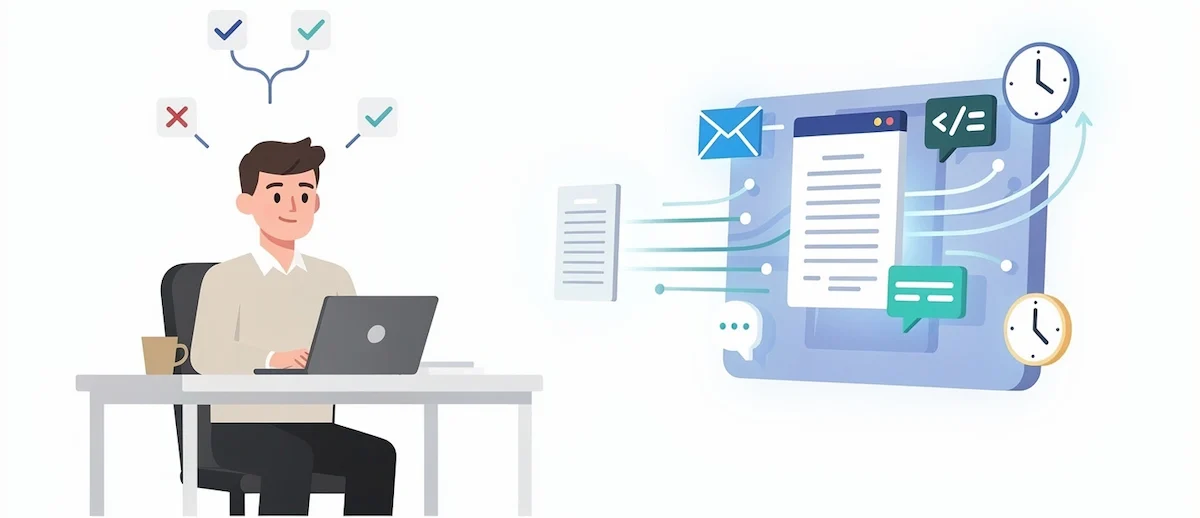
Most of these tools run on generative AI, which creates new text, images or code from a prompt that you type or speak. If a term in this guide is new to you, the AI terms glossary explains it in plain words.
What counts as an AI productivity tool
An AI productivity tool is any app that uses AI to save you time on a work task. That covers chatbots such as ChatGPT, Claude and Gemini, AI features inside apps you already use, such as Microsoft 365 Copilot or Notion AI, and single purpose tools for meeting notes, scheduling or writing.
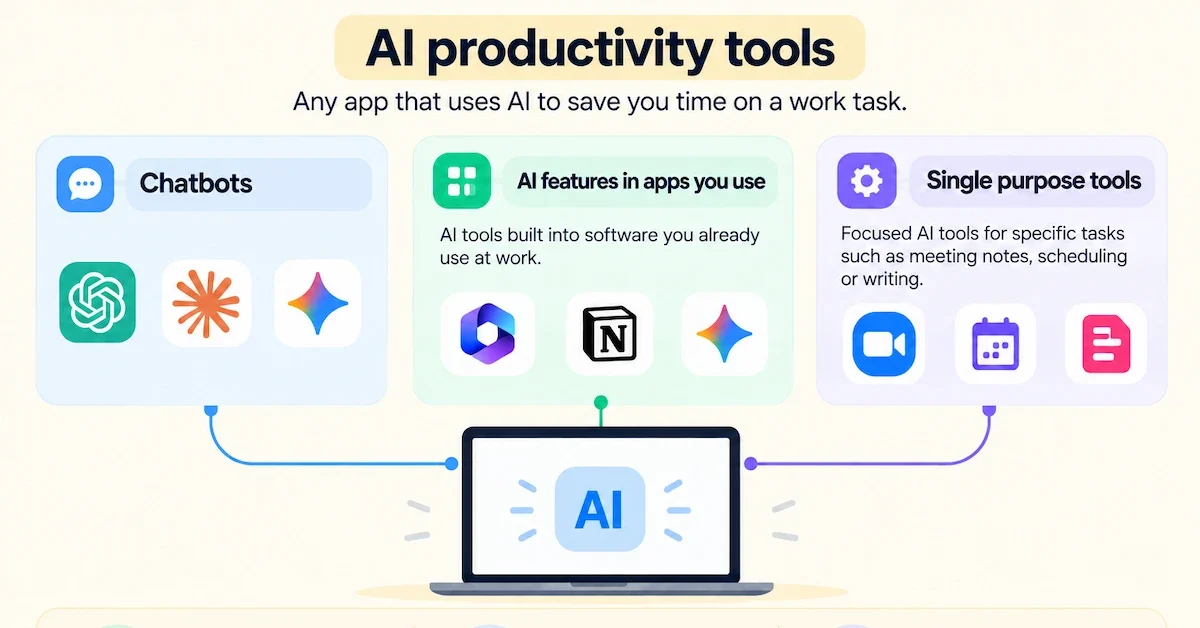
Some are free, some come with a work plan, and some need a company license, so check what your employer already pays for before you sign up for something new.
AI tools vs automation tools
Automation tools follow fixed rules: when a form is submitted, send an email. AI tools work with text and context, so they can read the email, decide what it asks and draft a reply. Many workflows use both. A tool such as Zapier can move data between apps while an AI step writes the summary, and you review the result before it goes out. This mix is where AI workflows save the most effort.
How AI productivity tools work
You do not need to know the technology to use these tools, but a short picture helps you judge them. Most AI productivity tools rely on a few building blocks. Machine learning lets software find patterns in large amounts of data. Natural language processing lets it read and write human language. Generative AI and large language models create new text, summaries and answers from a prompt. Some tools add speech recognition for meeting transcripts and connect to your calendar, mail and files through integrations.
This also explains the limits. These models predict likely words, they do not check facts the way a person does, and they work from what they were trained on, what you give them and, in some tools, what they can look up. That is why context in your prompt and a check on the result matter so much.
Why use AI at work: the problems it solves
Most workdays are filled with the same few time drains. Email piles up, meetings produce notes nobody has time to write, and switching between apps breaks your concentration. Context switching is costly because each return to a task takes a moment of refocus, and those moments add up across a week. AI is useful here because it takes over the small repeat jobs around your real work, and it does so in seconds. That is why more people use AI at work for the small jobs first.
The numbers show how fast this is spreading. In the 2024 Work Trend Index, a survey of 31,000 people in 31 countries by Microsoft and LinkedIn, 75 percent of knowledge workers said they use AI at work, and 78 percent of AI users bring their own tools to work. The same Microsoft report found that 59 percent worry about quantifying the productivity gains of AI. That last point is why this guide ends with a section on measuring results.
Benefits of using AI for productivity
When AI is used on the right tasks, these are the main gains:
- Time saved on drafts, summaries, notes and email replies.
- Less manual work on repeat tasks such as sorting, tagging and copying data between apps.
- Faster decisions, because research and data checks come back in minutes.
- More consistent quality, since a saved prompt gives similar results each time.
- More room for deep work, because small interruptions are handled in the background.
These gains depend on the task and on how well you check the output. A tool that saves ten minutes on a summary can cost twenty if you accept a wrong answer without reading it. If you want the wider picture for teams and managers, our guide on AI in the workplace covers roles, rules and change.
Downsides of using AI for productivity
AI also has costs, and a fair guide should name them. Answers can be wrong, so every output needs a check. Data can leak if you use the wrong tool. New tools take time to learn, and subscriptions add up. Heavy use can also weaken your own skills if you stop doing the thinking. None of this is a reason to avoid AI, but it is a reason to start small, set rules and keep a person in charge of the result.
How to use AI for productivity: 13 ways
Each way below follows the same pattern: what the AI does, one prompt you can copy, and the check you should do yourself. Pick two or three that match your week and ignore the rest until the first ones feel normal. You can use AI to be more productive in all thirteen, but nobody needs all thirteen on day one. Most AI tools can do several of these jobs, so you do not need a separate app for each.
1. Draft text, documents and slides faster
Give the AI tool the goal, the reader and the tone, and ask for a first draft. Then edit it with your own facts and voice. You can use AI for the first draft and keep the final edit for yourself. An AI writing assistant is a good fit for emails, reports, job descriptions, agendas and short posts. For a longer piece, ask for an outline first, approve it, then request one section at a time. Our guide on how to write blog posts with AI shows this process step by step. For slides, presentation tools such as Gamma, Beautiful.ai and Canva can turn an outline into a first deck, which you then fix for design, facts and length.
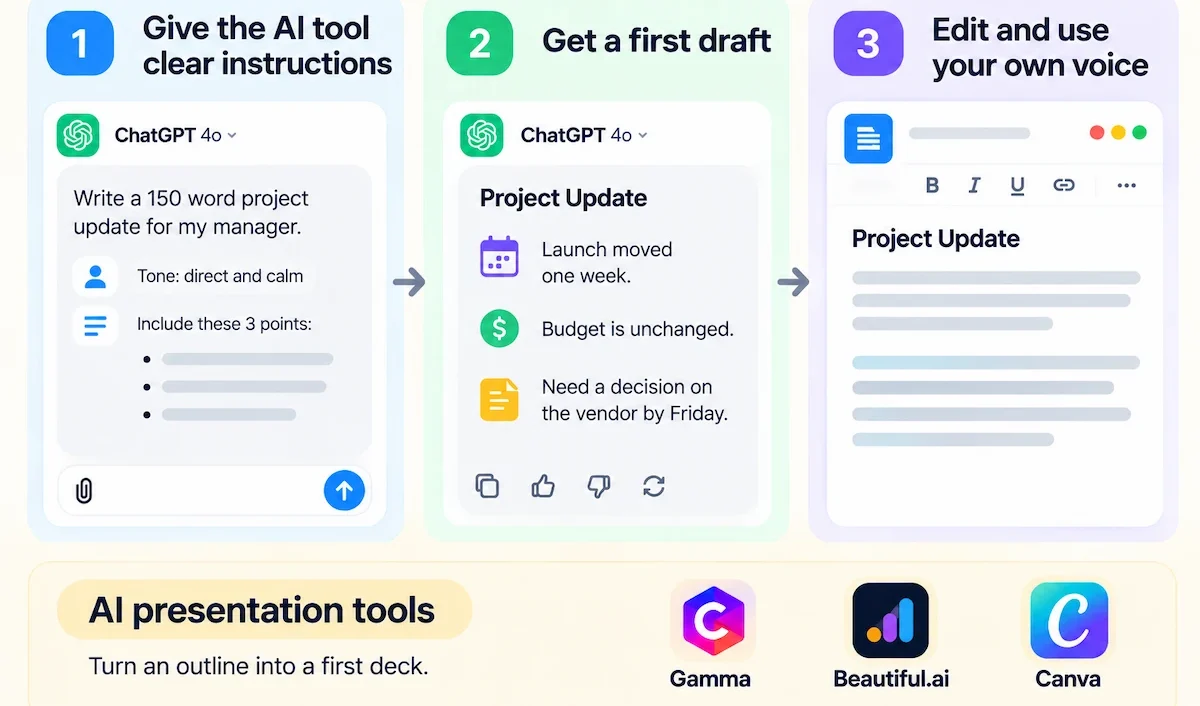
Prompt example: Write a 150 word project update for my manager. Tone: direct and calm. Include these three points: the launch moved one week, the budget is unchanged, I need a decision on the vendor by Friday.
2. Summarize long documents before you read them
Paste a report, a contract or a long thread into the tool and ask for the key points, the decisions and the open questions. Read the original only where the summary points to something that matters. This saves the most time on material you need to scan, not study. Always compare numbers and names in the summary with the source, because summaries can drop details or change them.
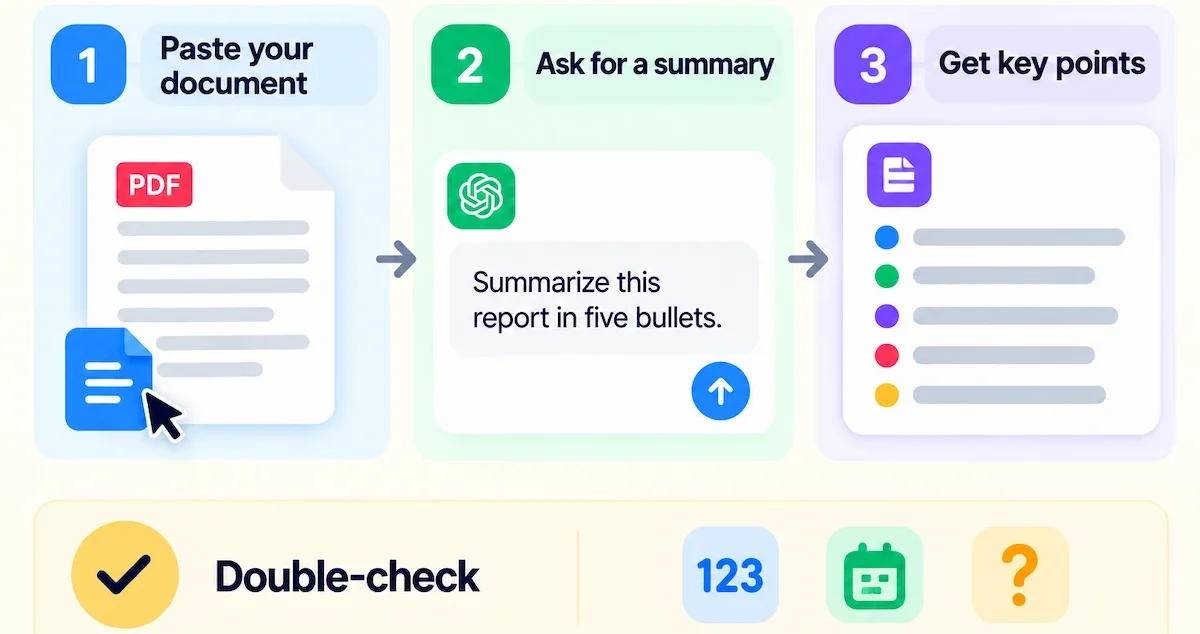
Prompt example: Summarize this report in five bullets. List every number, date and deadline you find, then list the questions the report leaves open.
3. Manage your email with an AI assistant
An AI email assistant can sort your inbox, draft replies and change the tone of a message. Tools such as Superhuman, Gmail with Gemini and Outlook with Copilot offer this inside the mail app. Start with replies you write every week, such as meeting requests, status questions and thank you notes. Read every draft before you send it, and never let a tool answer a sensitive message without you. A tidy inbox is also a good first test of AI, because the result is easy to judge.
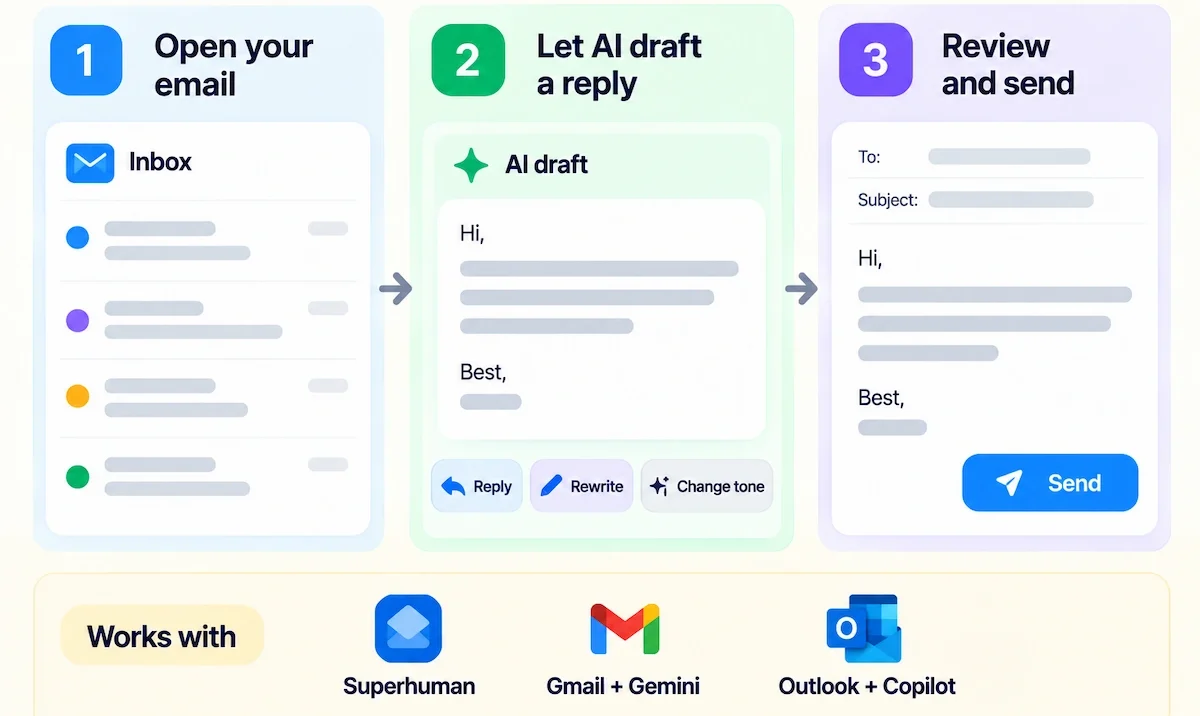
Prompt example: Reply to this email in three sentences. Say yes to the call, offer Tuesday or Thursday afternoon, and ask for the agenda in advance.
4. Record and summarize meetings
AI meeting notes are one of the clearest time savers. Tools such as Otter.ai, Fireflies.ai and Microsoft Teams with Copilot record or transcribe a call and produce meeting summaries with action items. Tell everyone in the meeting that you are recording, and check your company rules first. After the call, read the AI note-taking output once, fix names and numbers, and send it to the group the same day.
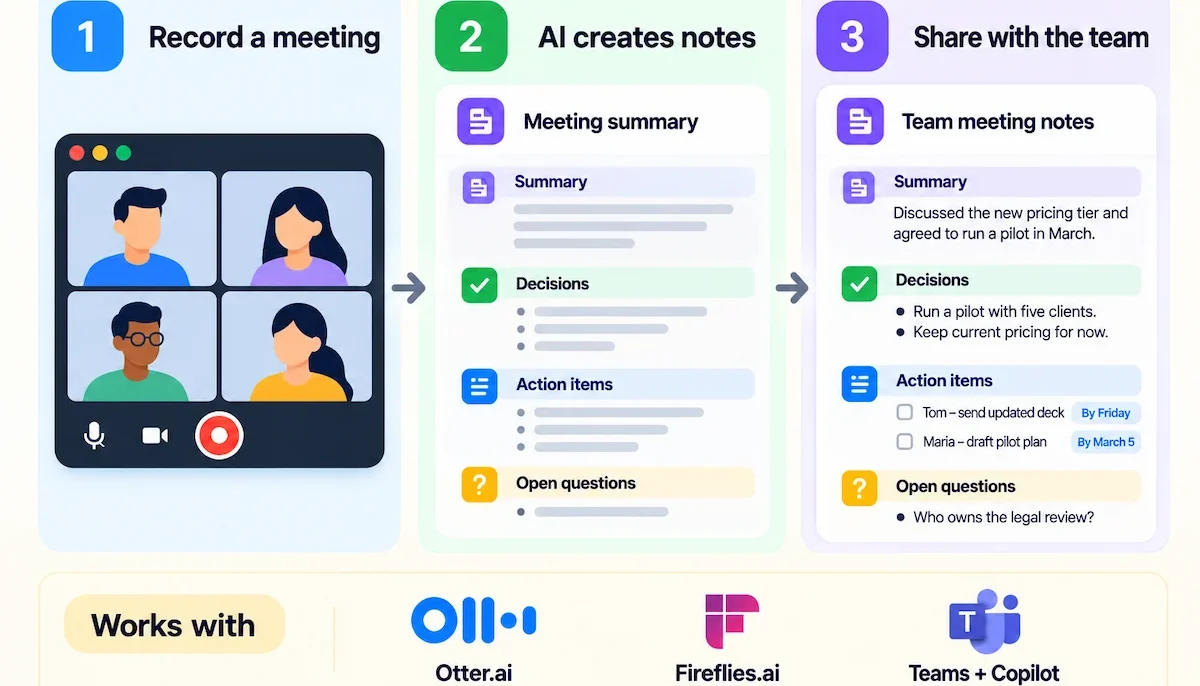
Prompt example: From this transcript, list decisions, action items with owners and dates, and any question left unanswered.
5. Schedule meetings and protect focus time
An AI scheduling assistant looks at your calendar, finds a slot that works for everyone and moves tasks when plans change. Reclaim, Motion and Clockwise are examples. The same AI calendar tools can block focus time for deep work so that meetings do not fill every gap. Set your own rules first: the hours you want to keep free, the maximum number of meetings per day and the buffer between calls.
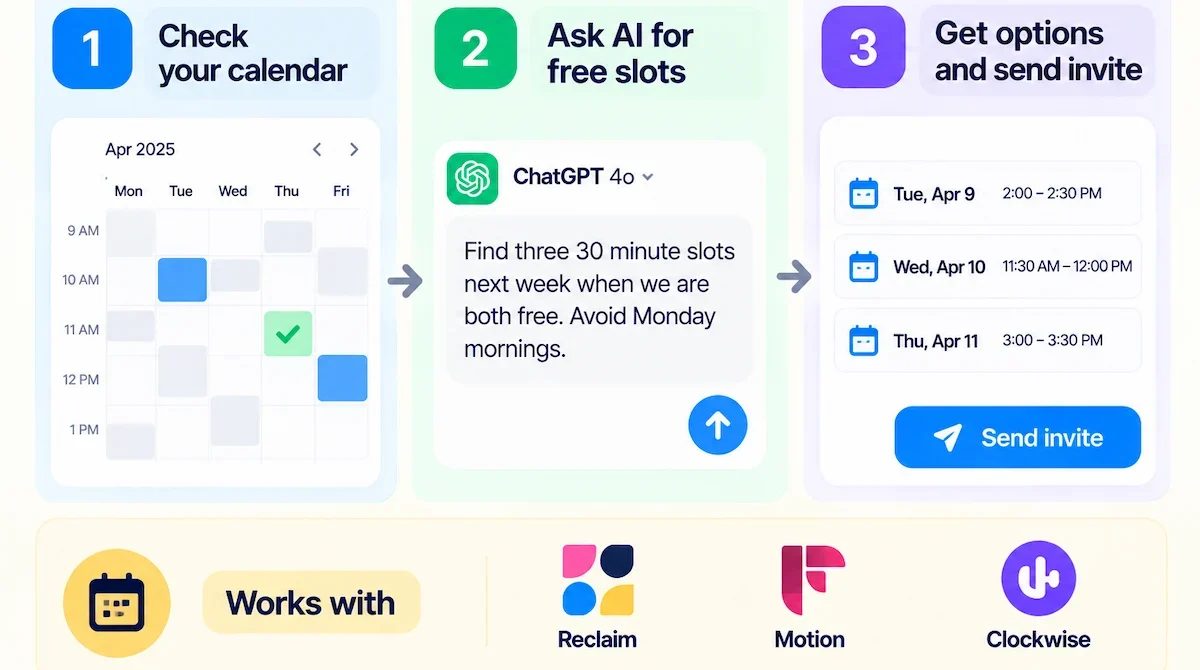
Prompt example: Find three 30 minute slots next week when both of us are free, avoid Monday mornings, and write a short invite.
6. Plan tasks and manage projects
AI task management tools can turn a goal into a list of tasks, suggest an order and write status updates from your board. Asana, ClickUp, Todoist and Notion AI all include features like this. In project management, the best use is breaking a large job into small steps and spotting what is missing. You still decide who owns what, and you check dates against real capacity.
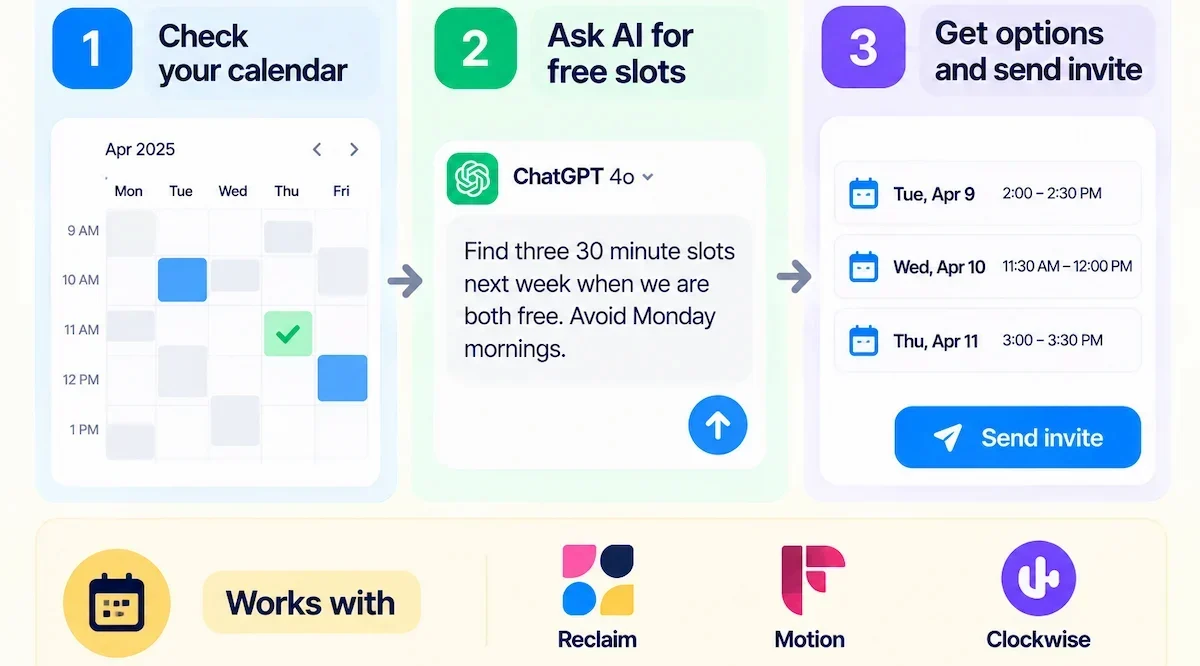
Prompt example: Break this project into tasks with an owner role, an estimate in hours and a due date. Flag any task that depends on another one.
7. Research faster
An AI research assistant such as Perplexity, ChatGPT or Gemini can scan a topic, compare options and list sources in a few minutes. Use it for smart research on competitors, tools, rules or background reading. Ask for links, then open them. If a source does not exist or does not say what the answer claims, drop the claim.
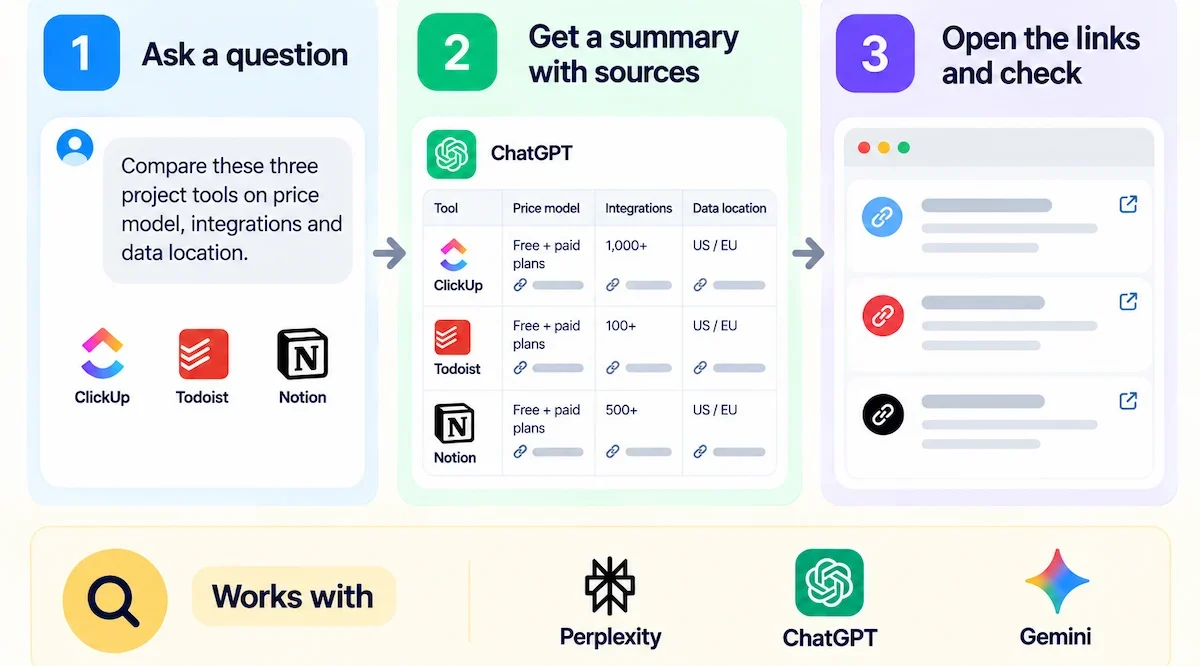
Prompt example: Compare these three project tools on price model, integrations and data location. Give a link for every claim.
8. Analyze data without code
You can upload a spreadsheet to a chatbot or use Copilot in Excel and ask in plain language for trends, outliers and summaries. Data analysis with AI is useful when you know the question but not the formula. Ask the tool to show how it reached the answer, and test the result on a small sample you can calculate by hand. Remove names, emails and other private data before you upload anything.
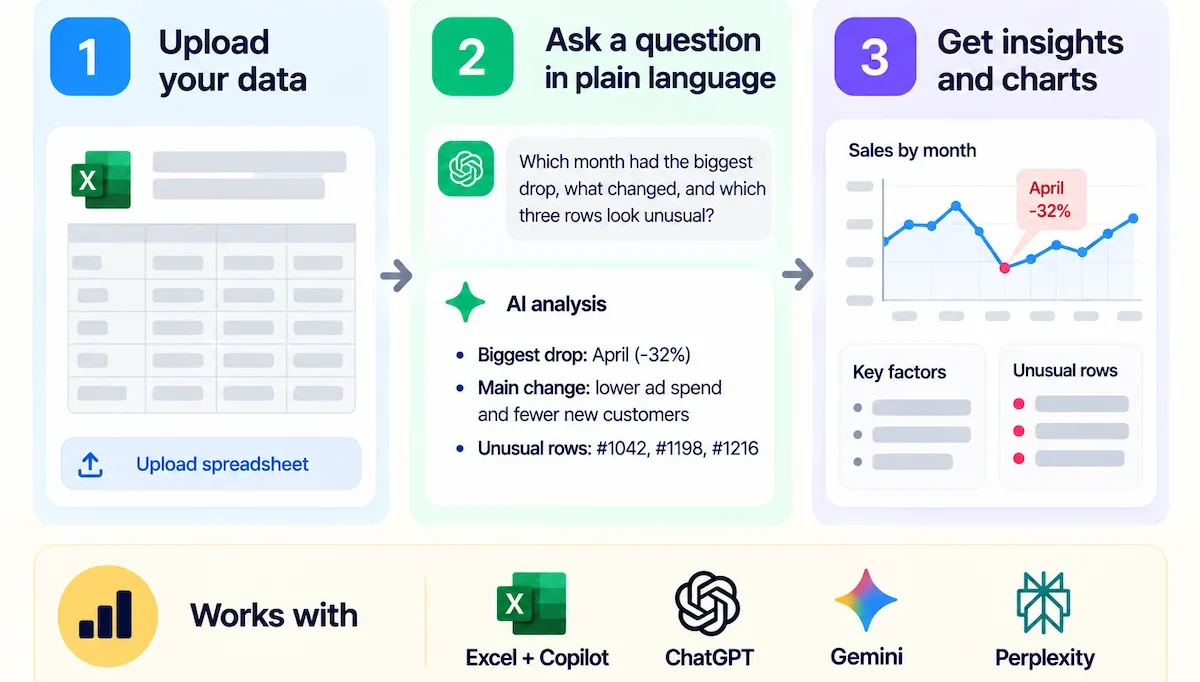
Prompt example: Look at this sales table. Which month had the biggest drop, what changed in that month, and which three rows look unusual?
9. Brainstorm and think through decisions
Use AI for thinking, not only for doing. Ask for ten options, then ask for the strongest objection to each one. Ask what you might be missing, or ask it to argue the other side. Brainstorming with AI works because the tool never gets tired of giving alternatives. The choice stays with you, and you should keep notes on why you made it.
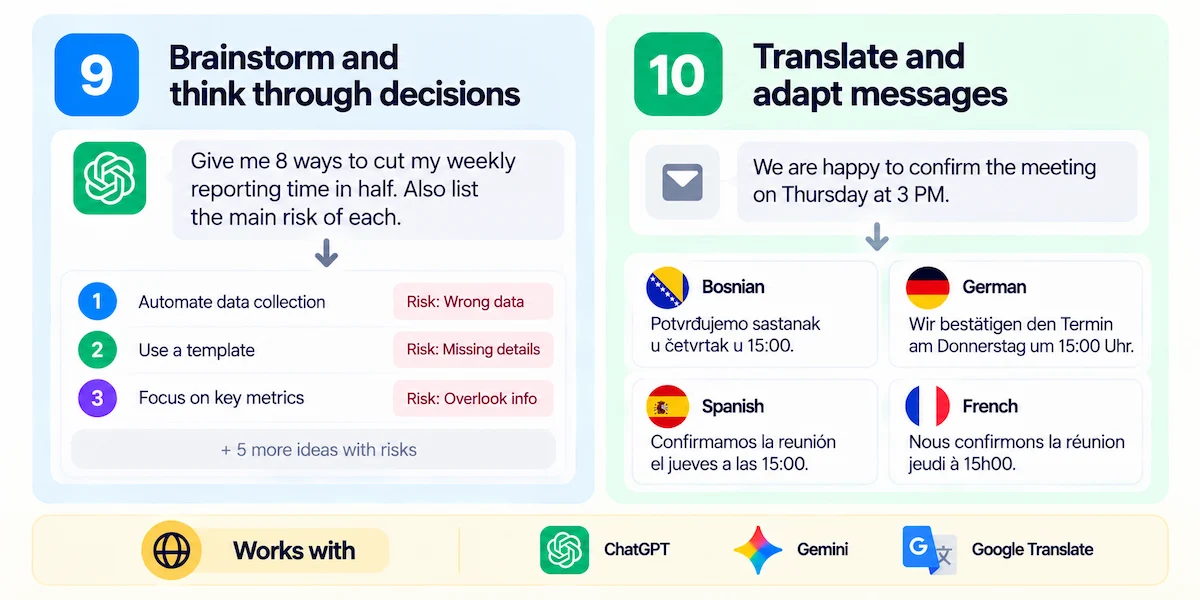
Prompt example: I need to cut my weekly reporting time in half. Give me eight ways to do it, then list the main risk of each.
10. Translate and adapt messages
AI can translate languages and also change the tone of a message from formal to friendly or from long to short. This helps with customer emails, team updates and notes for partners abroad. For anything with legal, medical or financial weight, ask a native speaker to read the result before it goes out.
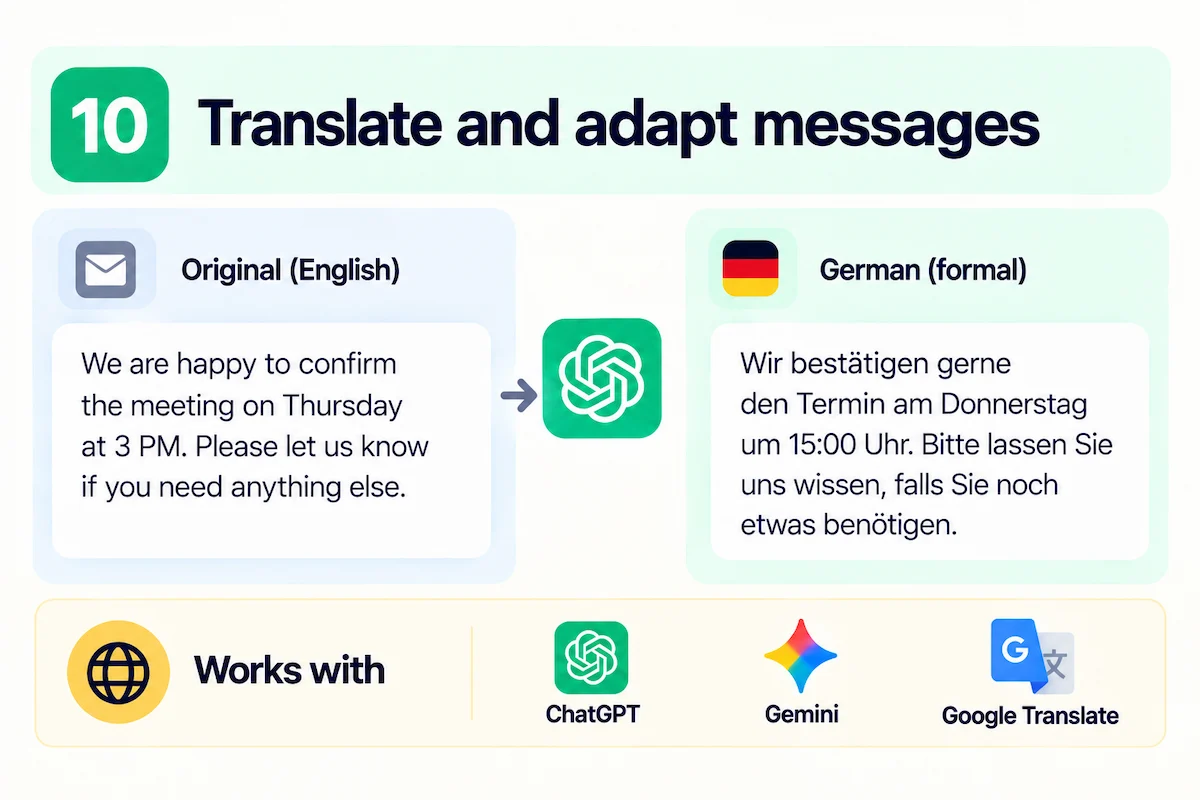
Prompt example: Translate this message into German. Keep it polite and short, and use the formal form of address.
11. Automate repetitive tasks
To automate repetitive tasks, look for work that follows the same steps each time: a form comes in, data moves to a sheet, a message goes to a channel. Workflow automation tools such as Zapier connect apps, and an AI step can read, sort or summarize the content in the middle. Good AI-ready tasks are rule based, frequent and low risk. Start with one workflow and run it by hand a few times first, so you know what the steps are. Once it runs well, you can add an AI step and build simple AI workflows around it. Our guide to building an AI tool stack for business shows how to keep these tools connected without piling up subscriptions.
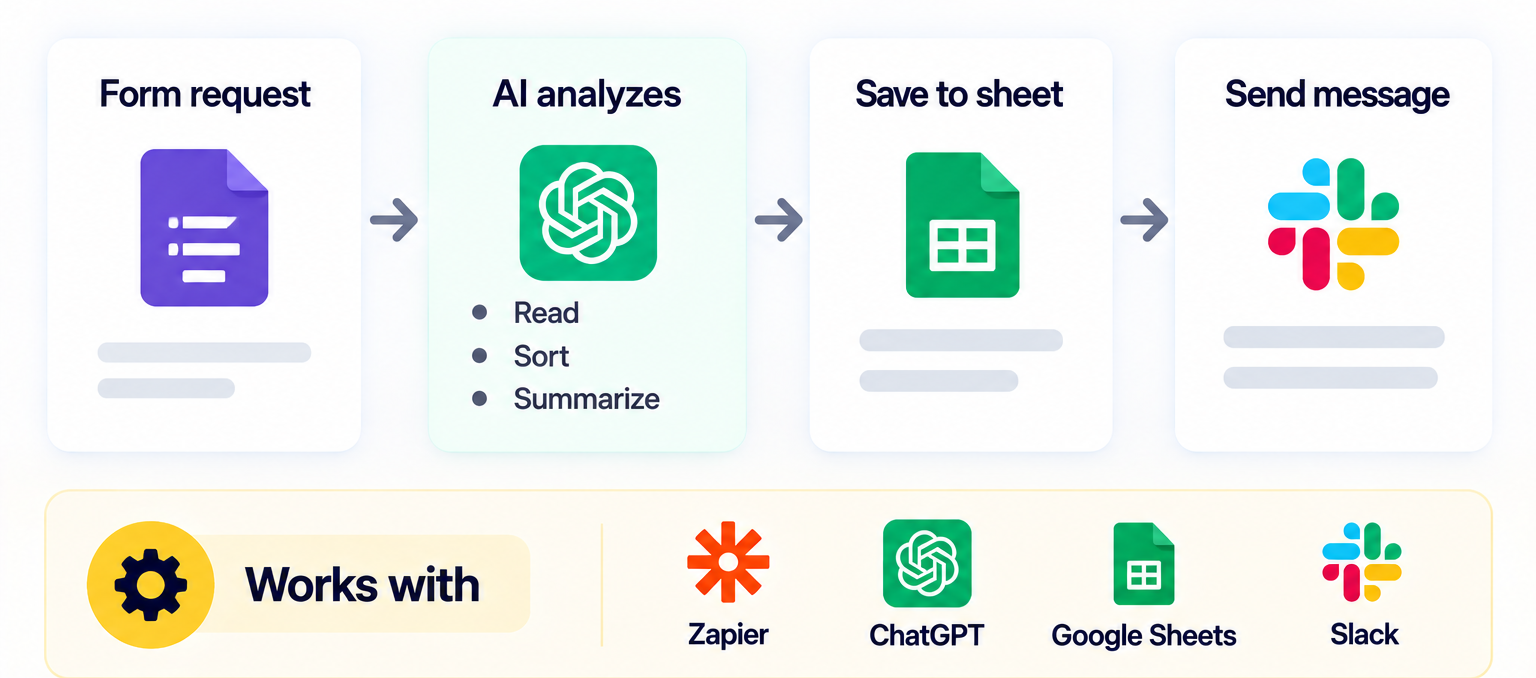
Prompt example: Here are the five steps I follow each Monday to build the weekly report. Tell me which steps an AI tool can do and which need me.
12. Learn new skills faster
AI works as a patient tutor. Ask for an explanation at your level, a short quiz and a practice task, then ask for feedback on your answer. This is useful for a new tool, a new subject or a skill you need for a project. AI literacy, meaning knowing what these tools do well and where they fail, is also a skill worth building on purpose.
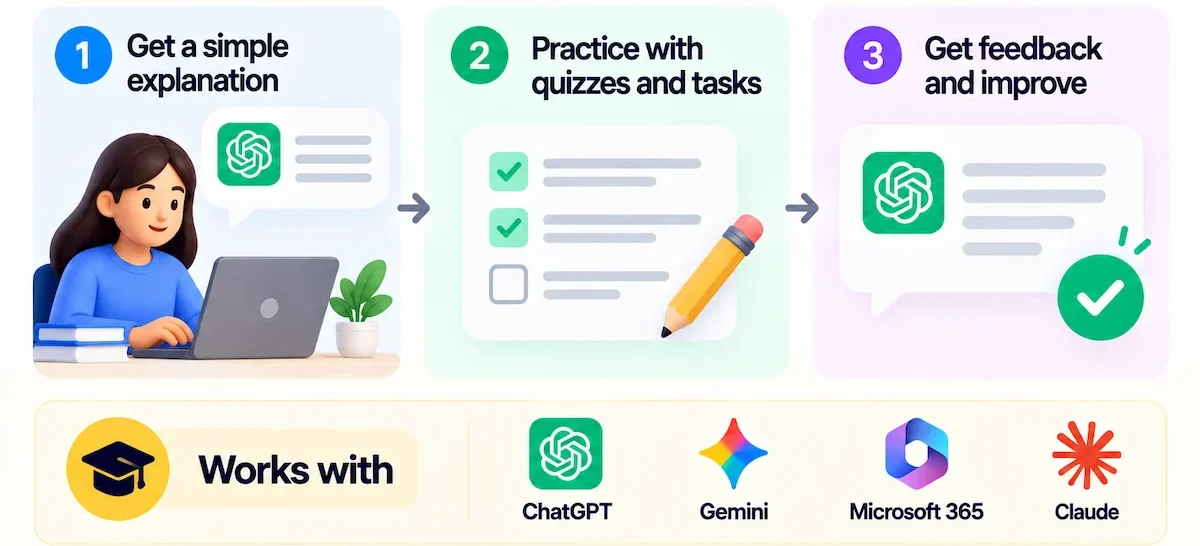
Prompt example: Explain pivot tables to someone who only knows basic Excel. Then give me three practice questions and check my answers.
13. Work with your team and share knowledge
AI also helps teams stay in sync. Ask an AI tool to turn a long chat thread into a short update, to write a handover note or to answer a question from your shared documents. Tools such as Microsoft 365 Copilot, Notion AI and Slack AI add summary and search features to apps that teams already use. This cuts the time spent on status meetings and repeat questions, especially for teams in different time zones. Agree on rules first: which channels the AI can read, who checks summaries before they are shared, and where the final version lives.
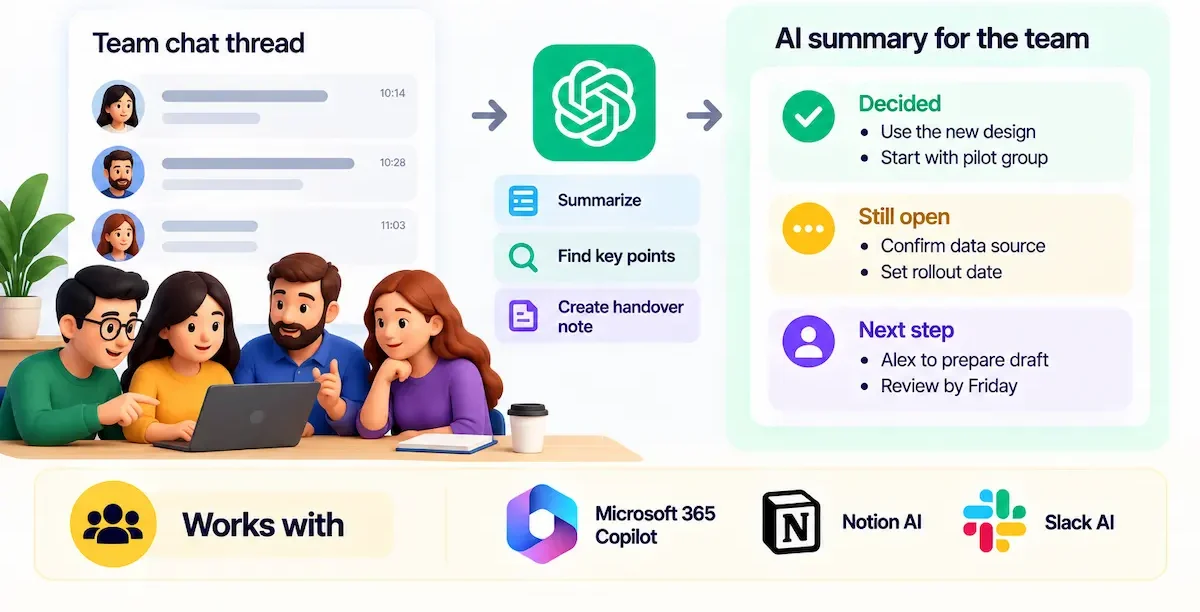
Prompt example: Summarize this thread for someone who was not in it. List what was decided, what is still open and who owns the next step.
How to write prompts that save time
A prompt is the instruction you give an AI tool, and its quality decides how much time you save. A vague prompt gives a vague answer, which you then fix by hand. A clear prompt gives a draft you can use after a quick edit. If you want to use AI to be more productive, learning to write good AI prompts for work pays off faster than learning a new tool. Our guide to prompt engineering for business goes deeper into roles, examples and formats.
Reusable prompt templates
Reusable prompt templates are the fastest way to get steady results. Write a template once, save it in a note or in your tool, and fill in the blanks each time. A good template has six parts:
- Role: who the AI should act as, for example an editor or an analyst.
- Task: the one thing you want done.
- Context: the facts, files or background the tool needs.
- Audience: who will read the result.
- Tone: formal, friendly, short, direct.
- Format: bullets, a table, three paragraphs, a number of words.
Example prompts for work
| Task | Prompt | What you check |
|---|---|---|
| Email reply | Reply in four sentences. Confirm the date, ask for the file, keep the tone friendly. | Dates, names and promises |
| Meeting summary | List decisions, action items with owners and open questions from this transcript. | Owners and deadlines |
| Report summary | Give me five bullets and every number in this report. | Numbers against the source |
| Research | Compare these three options on cost, setup time and risk. Link every claim. | Each link opens and supports the claim |
| Planning | Turn this goal into tasks with owners, estimates and dates. | Dates against real capacity |
Batch your AI-assisted work
Group similar tasks and run them in one sitting. Answer all routine emails in one block, summarize all documents in another and draft all short posts in a third. Batching keeps you in one type of thinking, and it lets you reuse the same prompt template several times in a row. It also makes it easier to see how much time AI really saves, because you can time the whole block.
AI productivity tools by task
There are hundreds of AI productivity tools, and most lists on the web are long and vague. The table below groups a few well known examples by task, so you can look for what fits your work. Features and plans change often, so check the current details on the official site before you rely on a tool.
| Task | Examples | What to check |
|---|---|---|
| Writing and editing | ChatGPT, Claude, Gemini, Grammarly | Privacy settings, tone options |
| Presentations and visuals | Gamma, Beautiful.ai, Canva | Templates, export formats, brand rules |
| Team knowledge | Microsoft 365 Copilot, Notion AI, Slack AI | Which files and channels the AI can read |
| Superhuman, Gmail with Gemini, Outlook with Copilot | Which mailbox it works with | |
| Meetings | Otter.ai, Fireflies.ai, Microsoft Teams with Copilot | Recording consent, transcript accuracy |
| Scheduling | Reclaim, Motion, Clockwise | Calendar support, team features |
| Tasks and projects | Asana, ClickUp, Todoist, Notion AI | Integration with tools you use |
| Research | Perplexity, ChatGPT, Gemini | Whether sources are shown |
| Data | Copilot in Excel, ChatGPT | File limits, data handling |
| Automation | Zapier | App support, error handling |
Our own guide to choosing AI tools for business has a longer checklist if you are buying for a team.
A daily AI productivity stack
A stack is the small set of tools you use every day. More is not better, because each new tool adds a login, a price and a place where your data lives. Three to five tools are enough for most people. Here is a simple setup you can copy and change.
- Morning: open your email assistant, sort the inbox and draft replies to routine messages. Ask a chatbot to turn your task list into a plan for the day.
- Midday: let your meeting tool record and summarize calls, then clean the notes and send action items.
- Afternoon: use a research assistant or a chatbot for the hard questions, and use a writing tool for reports and updates.
- End of day: ask the AI to summarize what is done and what moves to tomorrow, and check your calendar for focus time.
Connect the steps into simple AI workflows only after each one works on its own. Use AI for the morning and end of day steps first, because they are short and easy to check. Run this setup for a week and note which step you skip. That is the step to drop or replace.
How to choose an AI productivity tool
Before you pay for an AI productivity tool, test it on a real task from your own work. Try two or three AI tools side by side on the same job. A demo uses clean examples, and your own files will show what the tool can do. Use these five checks.
- Ease of use: can you get a useful result in the first ten minutes without a manual?
- Integration: does it work with the apps you already use, such as your mail, calendar and files?
- Scale: will it still work when more people join or the volume grows?
- Cost: what is the full price, including seats, usage limits and add-ons? Our guide on how much AI tools cost explains the common price models.
- Data safety: where is your data stored, who can see it and can you turn off training on your inputs?
How to start using AI at work: a 5 day plan
A short plan beats a big plan. Spend about 30 minutes a day for one week, and you will know which AI tools earn a place in your routine.
- Day 1: list your time drains. Write down the tasks that repeat and take the most time, then pick one that you can check easily.
- Day 2: choose one tool. Use one that your company already allows, or a free plan, and read its data policy.
- Day 3: write a prompt template for your task. Include role, task, context, audience, tone and format.
- Day 4: run a small pilot. Do the task with AI on real work, and time it.
- Day 5: compare. Did it save time, and was the result good enough? Keep it, change it or drop it.
Then repeat the week with the next task. After a month, you will have a short list of workflows that work.
AI for small business productivity
Small teams feel time drains more, because one person often covers sales, support, admin and finance. AI can help with the same tasks in this guide: quick replies to customers, first drafts of quotes and posts, meeting notes, simple reports and scheduling. Start with free or low cost tools, pick the one task that costs you the most hours, and measure the result before you add more. Keep customer data out of tools you have not checked, and write down two or three simple rules for anyone who joins the team.
The aim is not to copy a large company. It is to remove one or two time drains a month, so the work you charge for gets more of your day.
How to roll out AI productivity tools in a team
Rolling out AI in a team needs more than a shared login. Use these steps in order.
- Find workflow gaps. Ask each person which tasks eat the most time and which ones repeat.
- Write a short policy. List approved tools, banned data and who to ask.
- Run a pilot. Pick one team, one task and a clear start and end date.
- Train people. Share prompt templates, examples and common mistakes in one place.
- Name a few champions. They answer questions and collect what works.
- Review and adjust. Check results after a month, drop what does not help and keep what does.
Change takes time, and some people will worry about their jobs or their skills. Talk about it openly, explain which tasks AI should take over, and show how the saved time will be used.
Skills you need to use AI well
You do not need to code, but a few skills make a big difference.
- Prompt writing: giving clear instructions with context, audience and format.
- Critical thinking: spotting weak claims, missing sources and answers that sound right but are not.
- AI literacy: knowing what these tools do well, where they fail and how they handle data.
- Workflow thinking: seeing which steps of a job can be handed to a tool and which need you.
- Subject knowledge: you can only check an answer in a field you understand, so keep learning your own work.
Keep practicing the skills that AI now does for you from time to time, such as writing a first draft or doing a quick calculation, so you stay able to spot errors.
Best practices for using AI at work
The people who get the most from AI at work follow a few simple habits. None of them needs technical skill.
- Set a clear goal. Know what a good result looks like before you write the prompt.
- Give enough context. Add the facts, the reader and the format, so the tool does not guess.
- Check the output. Read it as if a new colleague wrote it, and verify names, numbers and claims.
- Fit AI into your workflow. Use the tools inside the apps where you already work, so there is no extra copying.
- Automate repetitive tasks first. Use AI for work that repeats and carries low risk, because the gain is easy to see.
- Keep a human in the loop. A person should approve anything that reaches a customer, a client or a decision.
- Use AI to be more productive on one task at a time. Add the next task only when the first one is stable.
Common mistakes that hurt AI productivity
Using too many tools
Every new app adds setup time, cost and a new place to store data. Three to five tools cover most needs.
Writing vague prompts
A short request such as write a report gives a generic result. Add the reader, the goal, the length and the tone, and the draft improves at once.
Trusting the output without a check
AI can sound sure and be wrong. Verify facts, figures and quotes before you share them.
Skipping the pilot
A tool that looks great in a demo may fail on your files. Test on one real task before you roll it out to a team.
Ignoring company rules
Some employers limit which AI tools you can use and which data you can enter. Ask before you paste anything that is not public.
Risks of using AI at work: privacy, accuracy and bias
AI saves time, and it also adds risks that you can manage with a few rules. Treat every new tool like a new vendor, and give it the least access that works. When you use AI at work, treat every output as a draft until you have checked it.
Data privacy and security
Do not enter customer data, passwords, contracts or internal numbers into a tool unless your company has approved it. Read the data policy, find out whether the vendor stores your inputs or trains on them, and use work accounts instead of personal ones. For a fuller look at the rules, see our guide to AI data privacy for business.
AI hallucinations and wrong answers
AI hallucinations are answers that sound correct but are made up. They show up most with names, dates, numbers, quotes and sources. Ask for links, open them and compare the answer with the original. When a claim has no source, treat it as a guess.
Bias and ethics
AI tools learn from data that carries human bias, and results can reflect it. Take extra care with anything that affects people, such as hiring, performance reviews or customer decisions. A person should make and own those calls. On disclosure, follow your company rules and be open when AI wrote or shaped something that people rely on, such as a report for a client.
Company AI policy
A written policy tells you which tools are allowed, which data is off limits and who to ask. If your employer has no policy, ask your manager or your IT team for one, and review it when tools change. Tell your manager and your team how you use AI, so nobody is surprised and good methods can spread.
What AI cannot do for you
At work, AI cannot take responsibility for a result, understand your team the way you do or judge what matters most to your client. It also works well on some tasks and badly on others, and the edge is not always easy to see. A Harvard Business School working paper, done with Boston Consulting Group, tested 758 knowledge workers on management consulting tasks. On tasks inside what AI handles well, people with AI finished 12.2 percent more tasks, finished 25.1 percent faster and produced better quality. On one complex task chosen to sit outside that range, people using AI were 19 percent less likely to give a correct answer.
The lesson is practical. Use AI where the task is clear and the result is easy to check, and use extra care where the problem is new, complex or tied to a decision. Keep building your own skills as well, because they are what lets you spot a bad answer.
How to measure AI productivity gains
Many people worry about showing what AI saved, and a few simple steps solve most of that. Pick one task, time it for a week without AI, then time it for a week with AI. Note the number of errors and the amount of editing needed, and write down how the result was received. Those success metrics tell you whether the tool is worth keeping.
For teams, the same idea works at a bigger scale. Track hours saved, cost per task and quality scores before and after a pilot, and measure results again after a month. Our guide on AI ROI for business shows which numbers to track and how to present them.
What is next: agentic AI and AI agents
The next step after chatbots is agentic AI. An AI agent does not only answer a question. It can plan steps, use tools and finish a multi-step task, such as collecting data, writing a report and sending it for approval. Agents are still new, they need clear limits, and a person should review what they do. Today the safe pattern is to let an agent prepare the work, such as a draft, a data pull or a list of next steps, and to let a person approve it. As more AI tools add agent features, the same rule applies to each of them: define the task, set the limits, check the output. If you want to see where they already help in a company, read our guide on AI agents for business.
Final thoughts on how to use AI for productivity
Knowing how to use AI for productivity comes down to a few habits: pick one task, write a clear prompt, check the result and measure the time you save. Start small, keep a human in the loop and add new AI tools only when the old ones earn their place. A week of careful testing will tell you more than any list of the best tools.
Frequently asked questions
How can I use AI to be more productive at work?
Pick one task that repeats and takes time, such as email replies or meeting notes. Write a clear prompt, test it on real work and check the result. Add a second task only when the first one saves time without extra fixing.
What is the best way to start using AI for productivity?
Start with the five day plan in this guide. List your time drains, choose one tool your company allows, write a prompt template, run a small pilot and compare the time. That is the simplest answer to how to use AI for productivity without risk.
Which AI tool is best for productivity?
No single tool wins for everyone. The best AI productivity tools are the ones that fit your task and work with the apps you already use. Test two or three on the same job, then keep the one that gives the best result with the least editing.
Are there free AI productivity tools?
Some tools offer a free plan or a trial, and some AI features come with software you may already pay for. Free plans usually have limits on usage or features, so check them on the official page. A free tool is enough to run a first test.
Can AI really increase productivity?
It can on the right tasks. A Harvard Business School working paper found faster work and better quality on tasks inside the range AI handles well, and worse accuracy on a task outside it. Gains depend on the task, the prompt and how well you check the output.
How many people use AI at work?
In the 2024 Work Trend Index from Microsoft and LinkedIn, based on a survey of 31,000 people in 31 countries, 75 percent of knowledge workers said they use AI at work. Numbers change quickly, so check the latest report for your region and industry.
What tasks should I automate with AI first?
Start with tasks that repeat, follow clear steps and have a result you can check in a minute. Email replies, meeting summaries, short drafts and data cleanup are common first choices. Leave decisions about people and money for later.
What is the difference between automation tools and AI productivity tools?
Automation tools follow fixed rules, such as sending a message when a form arrives. AI productivity tools understand text and context, so they can read, summarize and write. Many workflows combine both.
How many AI tools should I use?
Three to five are enough for most people. Each extra tool adds a login, a cost and another place for your data, so add one only when it clearly saves time on a task you do often.
Is it safe to put company data into AI tools?
Only if your company has approved the tool and its data policy. Never paste customer data, passwords or private contracts into a tool you have not checked. Use work accounts and ask your IT team when you are unsure.
Is it ethical to use AI for daily tasks at work?
Usually yes, if you follow your company rules, protect private data, check the output and take responsibility for the result. Be open about AI use where it matters, such as client work, and do not present AI output as a checked fact.
Should I tell my manager that I use AI at work?
In most workplaces, yes. It avoids policy problems, lets you ask for approved tools and helps your team learn what works. Check your company policy first.
Will AI replace human decision-making or jobs?
AI can take over parts of tasks, and it changes how many jobs are done. It does not carry responsibility, and people still need to review results and make the final call. Building your own skills and AI literacy keeps you in control of the work.
How do I write better AI prompts for work?
Give the tool a role, a task, context, an audience, a tone and a format. Add an example when you can, and ask for changes in a second message instead of starting over. Save prompts that work as templates.
Can AI tools work with older systems?
Sometimes. Many tools connect through integrations or automation platforms, but older systems may need extra setup or a developer. Ask the vendor what is supported before you buy.
Is AI worth it for small businesses?
It can be, because small teams have fewer people to cover many tasks. Start with free or low cost AI tools, test them on one task and measure the time saved before you spend more.