Knowing how to add AI subtitles to video saves hours of typing. You upload a clip, the tool listens to the speech, writes the text, and places each line on the timeline. Then you check the words, pick a style, and export. Most tools finish a short video in a few minutes.
This guide shows the steps that work in almost every tool, plus quick walkthroughs for CapCut, Canva, Clipchamp, VEED, Kapwing, and Premiere Pro. You will also see free options, how to fix common mistakes, how to post on YouTube, Reels, and TikTok, and what to do when the subtitles do not line up.
The Short Answer
Here is how to add AI subtitles to video in five steps:
- Upload the video to a subtitle tool
- Pick the spoken language in the video
- Generate the AI subtitles with the auto captions button
- Review and edit every line
- Style and export the video or an SRT file
The whole process takes about 5 to 10 minutes for a short clip, and most of that time goes to checking the text.
What Are AI Subtitles?
AI subtitles are subtitles written by speech recognition software instead of a person. The tool listens to the audio, turns the speech into text, and sets each line to appear at the right moment. The text then shows on screen as subtitles, or it is saved as a separate file.
Learning how to add AI subtitles to video starts with knowing what the tool actually does. Typing subtitles by hand can take several times the length of the video, while an AI tool does the first pass in minutes. This is the fastest way to add subtitles to a video. A person still has to review the result, because no tool gets every word right.
How AI Subtitles Work
Every AI subtitle tool follows the same four stages. Terms like speech recognition, transcript, and SRT come up in all of them, and the AI terms glossary explains each one in plain words.
- Speech detection: finds where people talk and where there is only music or silence
- Transcription: turns the speech into text
- Timing: places each line on the timeline so it matches the voice
- Styling: sets the font, color, size, and position
Subtitles vs Captions
People use the two words as if they mean the same thing, but they do not. Subtitles show the words that are spoken. Captions also describe sounds, such as music or laughter, so viewers who cannot hear get the full picture. In most tools the same feature creates both.
| Type | What It Shows | Can Viewers Turn It Off | Best For |
|---|---|---|---|
| Subtitles | Spoken words, often translated | Yes | Viewers who can hear but need another language |
| Closed captions | Spoken words and sounds | Yes | Accessibility and players with a CC button |
| SDH | Subtitles for the deaf and hard of hearing, with speaker names and sounds | Yes | Streaming and broadcast |
| Open captions | Text burned into the picture | No | Social media and silent autoplay |
How Accurate Are AI Subtitles?
AI subtitle accuracy depends on the audio. With one clear speaker, a good microphone, and no music, most tools get about 90 to 95% of the words right. Background noise, strong accents, fast speech, and several people talking at once lower the score. Some tools advertise rates close to 99%, but those numbers come from clean test audio.
YouTube auto captions are free, though accuracy varies from one source to another, from about 60% to about 90%. Treat every AI result as a first draft. A quick review of 5 to 10 minutes fixes most errors.
Before You Start: Prepare Your Video
A few minutes of prep gives better results when you add AI subtitles to video than any setting inside the tool. Check these points before you upload:
- Finish the edit first, because cuts and moved clips shift the timing
- Use clear audio and lower the background music under speech
- Cut long silences, dead air at the start, and filler words if your tool allows it
- Know the spoken language and the main accent
- Split videos longer than 30 minutes into parts, since many free plans set a length limit
- Keep a list of names, brands, and technical words for the review step
If you make videos with AI tools too, the AI video creation guide explains how to get clean audio and voiceover from the start.
How to Add AI Subtitles to Video in 5 Steps
This is how to add AI subtitles to video in any tool. The buttons have different names, but the order stays the same.

Step 1: Upload Your Video
Open the tool where you plan to add subtitles to the video, then import the file or drag it into the editor. Common formats such as MP4 and MOV work in almost every tool. For long files, check the size and length limit on the free plan before you wait for the upload. Some tools also accept a link or a file from cloud storage.
Step 2: Pick the Spoken Language
Select the language spoken in the video, not the language you want to read. A wrong choice is the most common reason for a messy transcript. If the video has two languages, split it into parts and run each part with its own language setting. In some tools you can also turn on a filter that hides bad words in the text.
Step 3: Generate the Subtitles
Click Generate or Auto captions and wait. A one-minute clip usually takes under a minute, and a 10-minute video takes a few minutes. The text appears as a list of lines next to the video, and the same lines show on the timeline.
Step 4: Review and Edit the Text
Play the video and read along. Click any line to fix a word, add punctuation, or split a long line in two. Pay extra attention to names, numbers, brand words, and technical terms. Check the timing too, since a line that appears too early or too late is hard to read.
Step 5: Style and Export
Pick a font, size, color, and position. Keep the text large, high in contrast, and away from the face and from the bottom edge where apps place buttons. Then export. Choose burned-in subtitles to save them inside the video, or download an SRT file to upload separately. Many tools also export a TXT transcript.
SRT File vs Burned-In Subtitles
This choice decides where the subtitles can be used, so make it before you export.
| Format | What It Is | Can Viewers Turn It Off | Best For |
|---|---|---|---|
| Burned-in (open) | Text saved inside the video picture | No | Reels, TikTok, Shorts, and ads |
| SRT file | Separate text file with timing | Yes | YouTube, Vimeo, and websites |
| VTT file | Web version of an SRT file | Yes | Websites and video players |
| TXT transcript | Plain text with no timing | Not applicable | Blog posts, notes, and translation |
A separate file, also called a sidecar file, is easy to fix later, and search engines can read it. Burned-in text always shows, but you cannot change it without exporting the video again. Many creators keep both: a burned-in version for social media and an SRT file for YouTube.
How to Write or Edit an SRT File
An SRT file is plain text, so you can fix it in any text editor. Each subtitle is a block with four parts:
- A number for the order of the line, such as 1
- The start and end time, written as 00:00:01,000 –> 00:00:03,500
- One or two lines of text
- An empty line before the next block
Time uses hours, minutes, seconds, and milliseconds, with a comma before the milliseconds. Save the file with the .srt extension and UTF-8 encoding so special letters display correctly.
How to Upload an Existing SRT File
If you already have an SRT or VTT file, most tools let you import it. In Kapwing, choose the import option under Subtitles. In YouTube Studio, open Subtitles, click Add, and choose Upload file. Check that the timing matches your final cut before you publish.
How to Add AI Subtitles to Video for Free
Yes, you can add AI subtitles to video for free. Several editors let you add subtitles to a video with auto captions on the free plan, and YouTube Studio generates them at no cost. The tradeoffs are limits on length, export quality, and watermarks, so check the free plan before you start. If you are choosing tools for a team, this guide on how to choose AI tools for business gives a short checklist.
Free Tools Compared
Free plans change often, so check each pricing page before you sign up.
| Tool | Free Option | Watermark on Free Export | Best For |
|---|---|---|---|
| Clipchamp | Auto captions on the free plan | No | Quick edits in the browser or on Windows |
| CapCut | Auto captions | Check the export settings | Short vertical videos and animated captions |
| Canva | Auto captions in the video editor | No for most free exports | Social posts and simple edits |
| VEED | Free plan with limits | Yes | Browser-based subtitles and translation |
| Kapwing | Free plan with limits | Yes | Subtitle editing and brand styles |
| YouTube Studio | Free auto captions | No | Videos you publish on YouTube |
What Free Plans Usually Limit
Almost every free plan sets some of these limits:
- Export resolution, often 720p or 1080p
- Video length per file
- Number of exports per month
- A watermark on the finished video
- Languages available for transcription and translation
- SRT download, which is sometimes paid
For a full price breakdown, see this guide on how much AI tools cost.
How to Avoid a Watermark
A watermark is a logo that the tool adds to the finished video. To avoid it, pick a tool that does not add one on the free plan, such as Clipchamp, Canva, or YouTube Studio. You can also export only the SRT file, which has no logo, and upload it to the platform. If a paid plan is the only way to remove the logo, compare one month of the price with the time it saves before you subscribe.
How to Add AI Subtitles to Video in Popular Editors
The steps below cover six common tools. Menu names change after updates, so use them as a guide.
CapCut
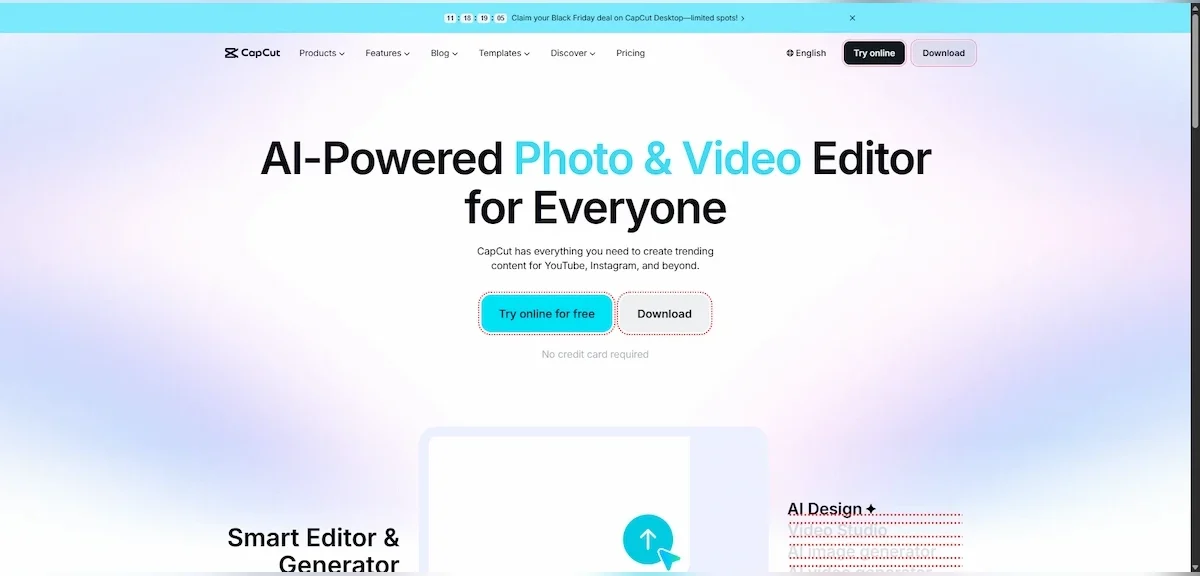
Import the video to the timeline, open the Captions tab, and choose Auto captions. Select the spoken language, click Generate, and edit the text in the caption list. Then pick a style or an animated preset and export. CapCut works well for short vertical videos, and you can burn the text into the picture or export it as a file.
Canva
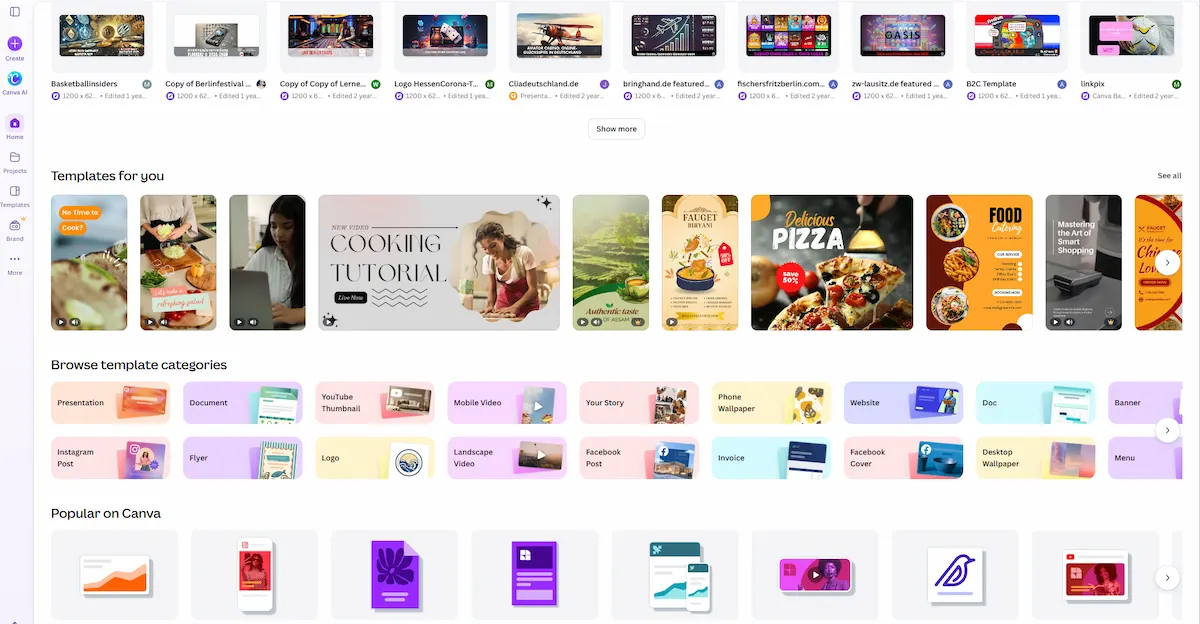
Upload the video to a design, click it, then open Text and find Captions under dynamic text. Click Generate captions, pick the language, and fix the lines in the editor. Style the text in the same panel, then download the video as MP4. Canva suits social posts and simple edits.
Clipchamp
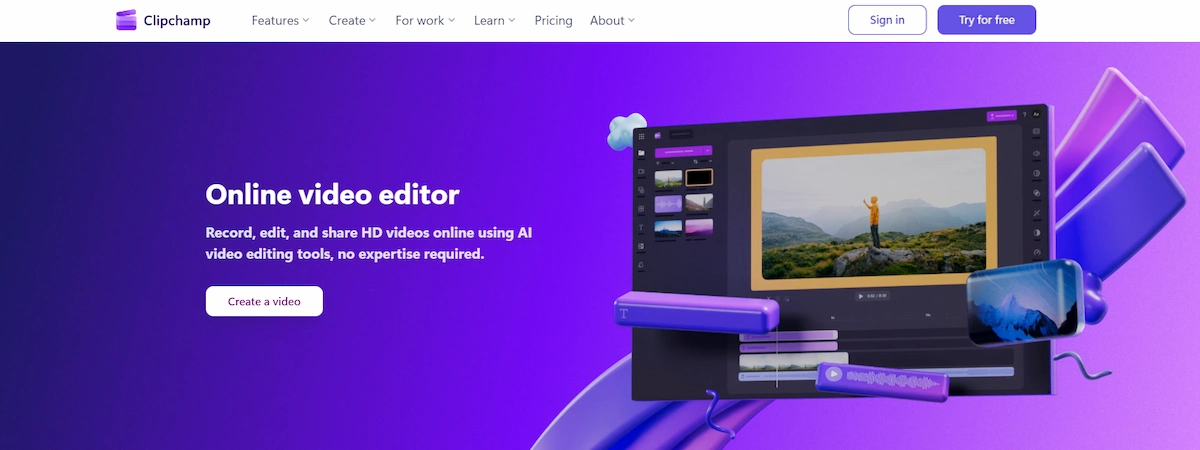
Add the video to the timeline, open the Captions tab in the property panel, and click Transcribe media. Choose the language and turn the profanity filter on or off. Click Next to create the captions, edit the transcript, and change the font, color, alignment, and size. Export the video, and download the transcript if you need it.
VEED
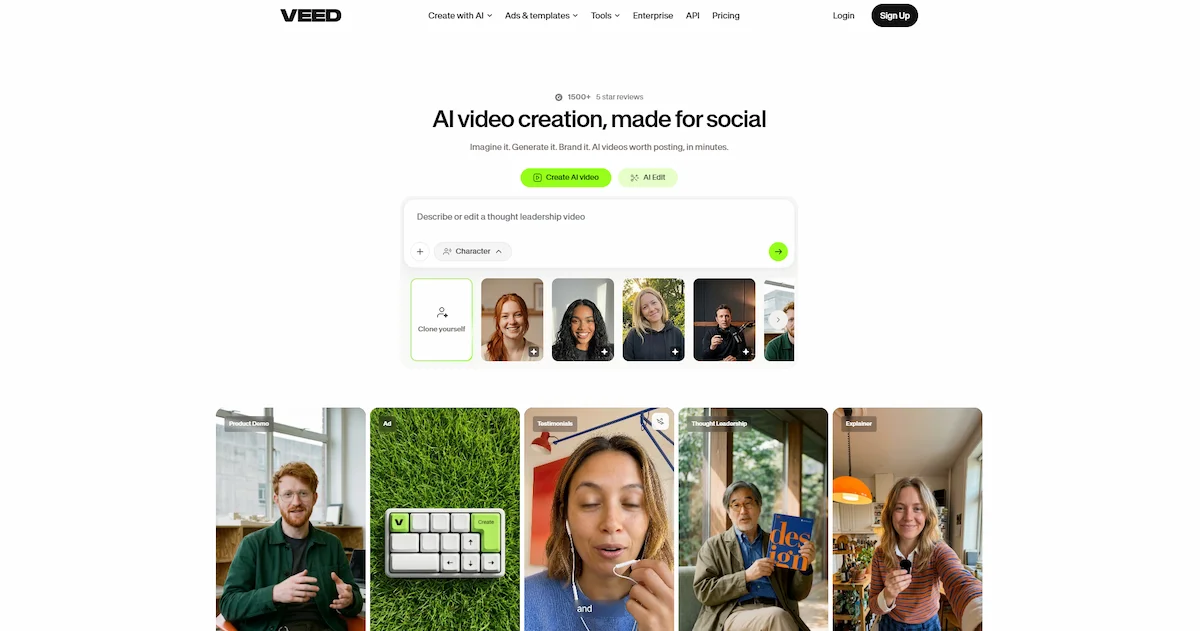
Upload the video, open Subtitles, and choose Auto Subtitle. Pick the language, generate the text, and edit it in the editor. Change the style and animation, then export the video or download the subtitle file. VEED also translates subtitles into many languages.
Kapwing
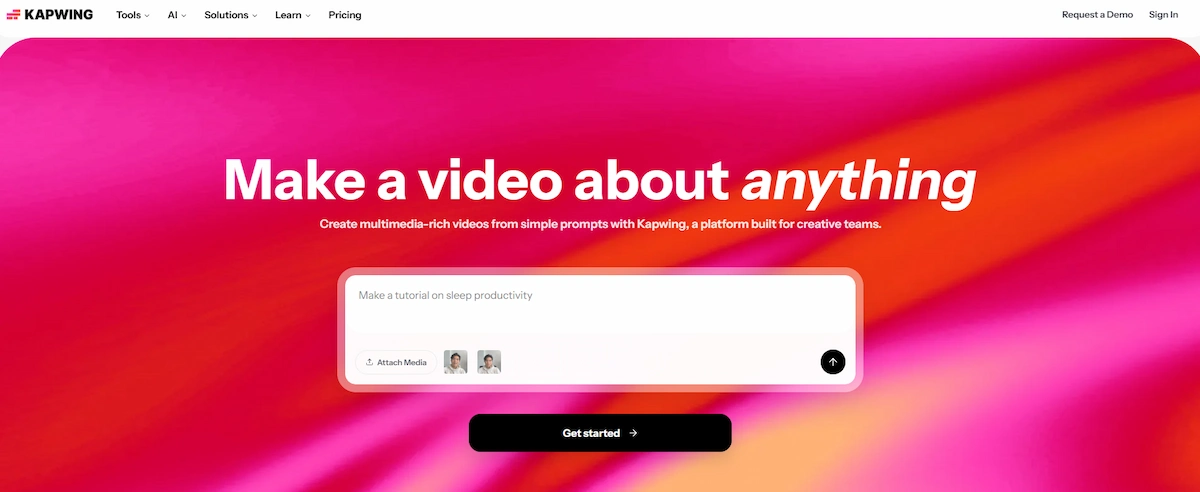
Upload the video, click Subtitles, and choose Auto Subtitles. Select the language and generate the text. Edit lines on the timeline, adjust position and style, then export. Kapwing also lets you import an SRT or VTT file and has a glossary for names and brand terms.
Premiere Pro
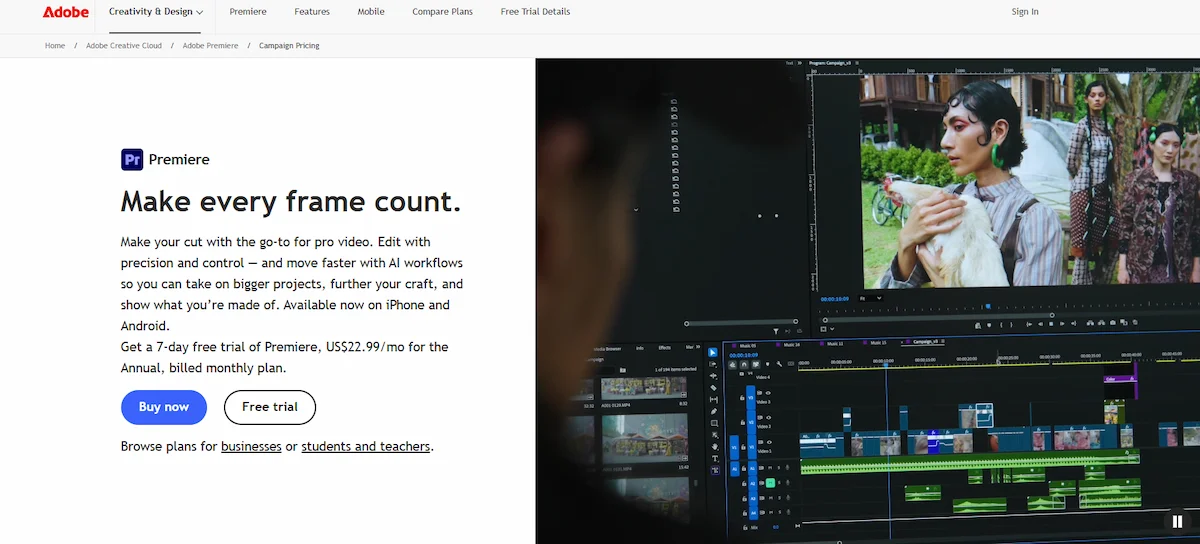
Open the Text panel, click Transcribe sequence, and pick the language. When the transcript is ready, click Create captions, choose the format and line length, and check the captions on the timeline. Export with captions burned in or as a separate file. This route suits editors who already work in Premiere.
DaVinci Resolve

Open your timeline in DaVinci Resolve, go to the Timeline menu, and choose Create Subtitles from Audio. Pick the language and the caption preset, then click Create. Edit the lines in the subtitle track and export with subtitles burned in or as a separate file. Some AI features need the Studio version, so check which version you have.
Which AI Subtitle Tool Should You Pick?
The best way to add AI subtitles to video is with the tool that fits your platform and your editor. Use this table as a quick guide.
| Your Situation | Pick | Why |
|---|---|---|
| Long YouTube video | YouTube Studio with an SRT file | Free, easy to edit, and viewers can turn it off |
| Short vertical video | CapCut | Animated styles for fast social content |
| Social post with design | Canva | Captions and graphics in one editor |
| Quick edit in the browser | Clipchamp | Simple steps and no watermark on the free plan |
| Many languages | VEED or Kapwing | Built-in subtitle translation |
| Professional edit | Premiere Pro | Full control over format and timing |
Switching tools in the middle of a project costs more time than a small gap in features, so choose once and stay with it.
Other AI Subtitle Tools Worth Trying
Standalone tools focus on subtitles, and some add editing or clip features. Check features and pricing before you pick one.
| Tool | Best For |
|---|---|
| Submagic | Short vertical videos with animated word-by-word captions |
| Descript | Editing a video by editing its transcript |
| Happy Scribe | Subtitles and translation for longer projects, with a human review option |
| Rev | Transcripts and captions with a human review option |
| OpusClip | Cutting long videos into short clips with captions |
Add AI Subtitles to YouTube, Instagram, and TikTok

Each platform handles subtitles differently, so this is how to add AI subtitles to video before you post.
YouTube
YouTube Studio creates automatic captions for most videos. Open Subtitles in YouTube Studio, select the video, choose the video language first, and click the captions to edit them. You can also click Add and upload an SRT file, use Auto-sync with pasted text, or type the lines by hand. Review the automatic captions before you publish, because they often miss names and technical words.
Instagram Reels
Reels support automatic captions as a sticker, but when you add AI subtitles to video in your editor you get more control over style. Add subtitles to the video in your editor, export it, then upload it. Keep the text inside the safe zone, away from the buttons and the caption area at the bottom and right side.
TikTok and YouTube Shorts
Short videos work best with burned-in subtitles in large, high-contrast text, often one to three words at a time. Add the subtitles in your editor, check the safe zone, and export in vertical 9:16. If you work from longer recordings, this guide on turning long videos into shorts with AI shows how to cut them first.
A Video You Do Not Own
You cannot add subtitles to another channel video on YouTube. Use the CC button to turn on the existing captions. If you have a copy you are allowed to edit, add subtitles to the video in an editor and export your own version.
On Your Phone
Most editors above have mobile apps with auto captions. Open the app, import the video, tap the captions option, pick the language, and edit the text. CapCut and Canva both have mobile apps, and the steps match the desktop steps.
How to Fix Common AI Subtitle Mistakes
Learning how to add AI subtitles to video is only half of the job. The other half is the review. These are the errors that show up most often in AI subtitles.
| Mistake | Why It Happens | How to Fix It |
|---|---|---|
| Wrong names and brands | The tool has not seen the word before | Fix the line, then add the word to a custom dictionary if the tool has one |
| Wrong numbers and dates | Numbers sound alike | Check each one against the script or source |
| Missing punctuation | Speech has no commas or periods | Add them by hand |
| Words that sound alike | Homophones such as their and there | Read the line aloud and fix the meaning |
| Mixed-up speakers | Several people talk at once | Add speaker labels or split lines by speaker |
| Text appears too early or late | Timing drifts after edits | Drag the line, or re-run captions after the final cut |
| Sounds not marked | The tool skips music and laughter | Add notes such as [music] or [laughter] if you need captions |
Read the whole transcript once without the video, then watch the video with the sound on. The first pass catches typos, and the second catches timing.
How to Make AI Subtitles Easy to Read
When you add subtitles to a video, they should blend into the picture. Bad ones pull the eye away from it. These rules come up in almost every subtitle guide, and they apply when you add AI subtitles to video for social platforms too. More ideas for on-screen text are in this guide on AI content creation.
- Two lines at most on screen at one time
- 32 to 42 characters per line
- 15 to 21 characters per second reading speed, about 160 to 180 words per minute
- High contrast: white text with a dark outline or a semi-transparent box
- Clear face: keep text in the lower third, and move it up if it covers buttons
- One style for the whole video, matched to your brand font and colors
- No all caps and no heavy animation, since both slow down reading
- One highlighted word at most per line, if you use a keyword color
- Natural breaks: split lines at pauses, not in the middle of a phrase
- Phone check: most viewers watch on a small screen
Animated word-by-word captions work for fast social videos, but plain static text is easier to read in tutorials, interviews, and longer videos.
How Long Should Each Line Stay on Screen?
Each subtitle should stay long enough to read, but not so long that it blocks the next line. A common rule is a minimum of about 1 second and a maximum of about 6 to 7 seconds. Short lines such as Yes or Okay still need at least a second. If a sentence runs longer than the limit, split it into two lines at a natural pause.
How to Translate AI Subtitles
Translation works in two steps. First, add AI subtitles to video in the spoken language and fix the mistakes. Then translate the clean text. If you translate before the review, the errors carry over and double.
- VEED, Kapwing, and Canva offer built-in subtitle translation
- Some tools, including Clipchamp, create subtitles in one language per video, so run the video once per language
- For a custom result, translate the TXT transcript and import it back as an SRT file
- Dual subtitles show two languages on screen at once, and a few tools such as Kapwing support them
Burned-in subtitles can show only one language. For several languages, export a separate SRT file for each one and upload them to YouTube, or export one video version per language. You can also paste the transcript into a chat assistant such as ChatGPT to translate it, then ask someone who speaks the language to check the AI subtitles, since AI translation can miss idioms and tone.
AI Subtitle Problems and Quick Fixes
| Problem | Quick Fix |
|---|---|
| Subtitles are out of sync | Re-run captions after the final cut, or drag the lines on the timeline |
| Wrong language in the text | Delete the captions and run again with the correct spoken language |
| No speech detected | Check that the video has an audio track and raise the volume |
| Lines are too long or too fast | Split the lines and shorten the text |
| Text covers the face or buttons | Move the text up and keep it inside the safe zone |
| Subtitles are missing in the export | Turn on burn-in, or export the SRT file separately |
| Special letters show as boxes or question marks | Save the SRT file with UTF-8 encoding |
To remove or turn off AI subtitles in an editor, delete the caption track or switch off the captions option in the Captions tab. On YouTube, viewers can turn them off with the CC button. Burned-in subtitles cannot be removed from an exported file, so export the video again without them.
Are AI Subtitle Generators Private and Safe?
Most online AI subtitle generators upload your video to a server for processing. Check the privacy page for how long files are stored, whether your content is used to train models, and how to delete it. Some tools process the file in the browser, and many editors let you delete the project and the transcript. For confidential videos such as client calls or internal training, use a business plan with clear data terms or an offline tool. More on this topic is in this guide on AI data privacy for business.
Why Add AI Subtitles to Your Videos?
Once you know how to add AI subtitles to video, the benefits are easy to see:
- Viewers watch without sound. A 2019 study by Verizon Media and Publicis Media found that 69% of people watch video with the sound off in public places, and 80% say they are more likely to watch a video to the end when captions are available, as reported by Forbes.
- Accessibility. Subtitles and captions help people who are deaf or hard of hearing, and WCAG requires captions for prerecorded video with audio, as the W3C guidance explains.
- Language. Viewers with another native language or a strong accent follow the video more easily.
- Search and reuse. A caption file or a transcript gives search engines text to read and gives you text to turn into a blog post.
- Better editing. Reading the transcript shows filler words and repeated phrases you missed in the cut.
Accessibility rules such as the ADA in the United States and the European Accessibility Act make captions a legal duty for many organizations, so check what applies to you.
Final Thoughts
Learn how to add AI subtitles to video once, and every future video gets faster. Prepare clean audio, generate the text, review every line, and export in the format your platform needs. The AI does the typing, and you do the checking. If you plan to use more AI tools in your video work, this guide on building an AI tool stack for business helps you keep the cost down.
FAQ
How do I add AI subtitles to a video?
Upload the video to a subtitle tool, select the spoken language, click generate, fix the mistakes, and export. That is how to add AI subtitles to video in about 5 to 10 minutes for a short clip.
Is there an AI that can generate subtitles?
Yes. CapCut, Canva, Clipchamp, VEED, Kapwing, Premiere Pro, and YouTube Studio all create subtitles from speech. Standalone tools such as Descript and Submagic do the same.
How do I add AI subtitles to a video for free?
Use a free plan. Clipchamp, CapCut, Canva, and YouTube Studio generate captions at no cost. Check the limits on length, export quality, watermarks, and SRT download before you start.
How accurate are AI subtitles?
With clear audio and one speaker, about 90 to 95%. Noise, accents, and overlapping speech lower the score. Always review the text before you publish.
What is the difference between subtitles and captions?
Subtitles show spoken words, often in another language. Captions also include sounds such as music or laughter and are made for viewers who cannot hear. Tools often use both words for the same feature. To close caption a video means to add captions that viewers can turn on or off, usually with an SRT file.
Should I use an SRT file or burn subtitles into the video?
Use an SRT file for YouTube and websites, where viewers can turn subtitles on or off and you can edit them later. Burn subtitles in for Reels, TikTok, Shorts, and ads.
How do I add AI subtitles to a YouTube video?
Open YouTube Studio, select the video, go to Subtitles, choose the video language, and edit the automatic captions. You can also upload an SRT file made in a subtitle tool.
How do I add subtitles to a YouTube video that is not mine?
You cannot add subtitles to another channel video on YouTube. Turn on the CC button to see existing captions, or edit your own licensed copy in a subtitle tool and export a new version.
Can AI add subtitles in another language?
Yes. Most tools translate the finished transcript into many languages. Fix the original text first, translate it, and ask a native speaker to check the result.
Are AI subtitle generators safe and private?
It depends on the tool. Read how long files are stored and whether your content is used to train models. For confidential videos, use a business plan or a tool that processes files locally.
Can I add AI subtitles to a video with a voiceover?
Yes. The tool reads the audio track, so a voiceover works the same way as live speech. Make sure the voiceover is included in the clip you upload, and check the text for brand names and technical words.
Can I add AI subtitles to a downloaded video or an MP4 file?
Yes. Upload the file to any subtitle tool and follow the same steps. Only add subtitles to videos you own or have permission to edit.
Can AI subtitles handle several speakers?
Partly. Most tools write all the speech as one stream, so lines from different people can run together. Choose a tool with speaker labels, or split the lines by hand in the review step.
How do I add AI subtitles on my phone?
Open a mobile editor such as CapCut or Canva, import the video, tap the captions option, pick the language, edit the text, and export.
How do I add subtitles to a video without a watermark?
Choose a tool that does not add a logo on the free plan, such as Clipchamp, Canva, or YouTube Studio. Another option is to export only the SRT file and upload it to the platform, since the file has no watermark.
How do I remove or turn off AI subtitles?
In an editor, delete the caption track or switch off the captions option. On YouTube, viewers use the CC button. Burned-in subtitles cannot be removed from an exported file, so export the video again without them.
How long does it take to add AI subtitles to a video?
Generating the text takes a few minutes for most videos. Reviewing takes about as long as the video itself, so plan 5 to 15 minutes for a short clip.