Weavy AI is a browser tool where you make images and video by connecting boxes on a canvas instead of typing one prompt and hoping for the best. Each box is called a node and does a single job, like generating a picture, cutting out a subject or upscaling the result. Figma bought the company in October 2025 and renamed the product Figma Weave, so you will see both names online. This guide covers what the tool does, how the credits work, what every plan costs in October 2026 and who should skip it.
Weavy AI in short
Weavy AI, now called Figma Weave, is a node-based canvas that puts dozens of image and video models plus editing tools in one place. You build a workflow once and run it again with new inputs, which is why teams use it for product shots, ad variations and short video.
There is a free plan with 150 credits a month, and paid plans start at $24 a month when billed monthly. Credits are separate from your Figma subscription and from Figma AI credits.
Weavy at a glance
| Question | Answer |
|---|---|
| What it is | Node-based canvas for images, video, 3D and media editing |
| Made by | Weavy, a startup from Tel Aviv founded in 2024, owned by Figma since October 2025 |
| Where it runs | In the browser at weave.figma.com (the old weavy.ai address forwards there) |
| Free plan | Yes, 150 credits a month, 5 workflows, commercial license |
| Paid plans | Starter, Professional, Max, Team and Enterprise |
| Best for | Teams that make the same kind of visuals again and again |
| Not for | Editable app screens, layouts or code |
Key takeaways
- Weavy is the old name and Figma Weave is the new one, but it is one product.
- One canvas gives access to many image and video models plus editing tools.
- Any workflow can be turned into a simple Tool for people who do not know nodes.
- Pricing runs from a free plan to Max, and credits are separate from Figma.
- It suits teams that repeat the same visual job, and it is too much for an occasional social image.
What is Weavy AI?
Most AI image tools work like a slot machine. You type a prompt, pull the lever and accept whatever comes out. Weavy works differently because every step of the job is visible on the screen. A prompt node holds your text, an image node holds a reference photo, a model node does the generating, and editing nodes fix the result. Wires carry the output of one node into the next one.
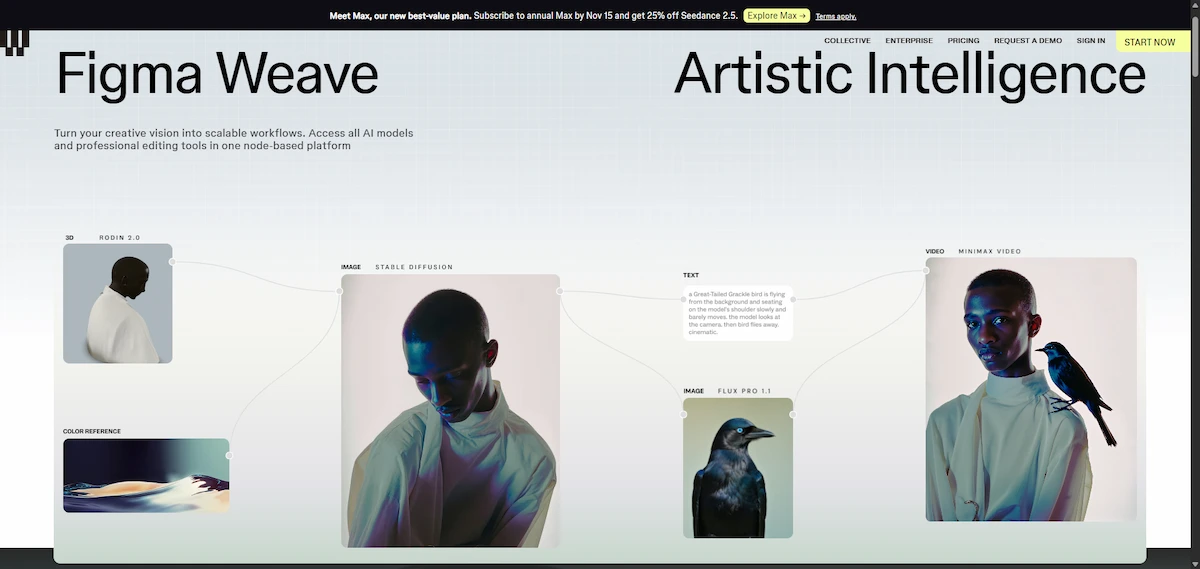
The big gain is control. If the lighting looks wrong, you rerun the relight node and keep the base image you already like. If a client wants the same look on 200 products, you swap the input photo and press run. A prompt is a one-off, while a workflow is something you can reuse and hand to a teammate.
People often call it a node-based AI tool for creatives, and that is accurate. It sits closer to ComfyUI than to Midjourney, but it runs in the cloud, so there is nothing to install and no graphics card to buy.
Weavy and Figma Weave: same product, new name
Weavy and Figma Weave are the same product. Figma announced the acquisition on 30 October 2025 and said Weavy would continue as a standalone product under the Figma Weave name. Existing users kept their accounts and workflows. The help center now calls Figma Weave the new name for Weavy, and the app still signs in at app.weavy.ai. You can read the original announcement on the Figma blog.
Some articles still say Weavy, some say Figma Weave and some use both in the same paragraph. When you search for a review, treat all three spellings (Weavy, Weavy AI, Figma Weave) as one tool.
From Weavy to Figma Weave: timeline
- 2024: Weavy is founded in Tel Aviv.
- 30 October 2025: Figma announces it has acquired Weavy and will rename it Figma Weave.
- June 2026: More than 20 Weave tools appear inside Figma Design as an open beta, and workflows can be shared through Figma Community.
- September 2026: Anyone building in Weave can publish tools to Figma Community.
Weavy AI vs weavy.com
Do not mix up Weavy AI with weavy.com. That is a different company that sells chat and AI components for developers to put inside their own apps. The creative canvas lives at weave.figma.com. Figma Weave is also not Figma Variables, which is a design feature inside Figma itself.
How Weavy works
Weavy opens on an infinite canvas, not a chat window. You add nodes from a toolbox, connect them and press run.
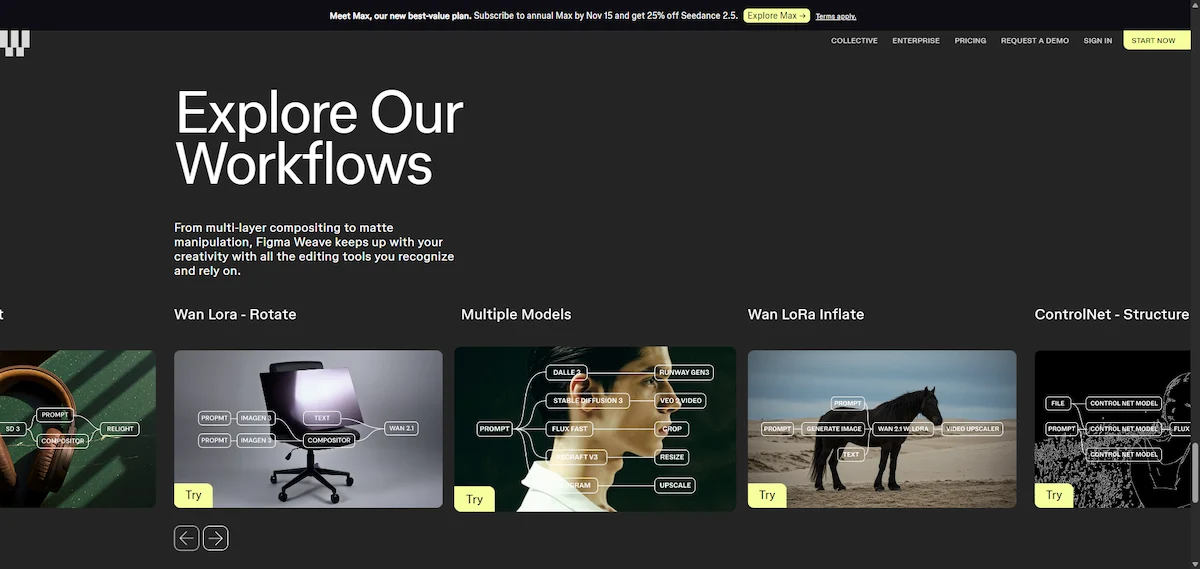
The node-based layout looks like a flowchart, and it shows exactly how an output was made. That makes it easy to change one step without redoing the rest.
Nodes, wires and data types
Each node has inputs on one side and outputs on the other. The wires are colour-coded by what they carry: images, text, video, masks, LoRA files, arrays and 3D. This sounds technical, but it has a practical effect. You cannot plug a video into a node that expects a mask, so many mistakes are blocked before they cost you credits.
A simple chain might look like this: a prompt node feeds a model node, the model node feeds an upscale node, and the upscale node feeds an output node. More advanced canvases add branches that send one prompt to three models at once, so you can compare results side by side.
Generative and non-generative nodes
The help center splits nodes into two groups. Generative nodes have a Run button and spend credits every time they create an image, video or other asset. Non-generative nodes such as painter, blur, multi-layer composition and prompt concatenation cost nothing to run. That split matters for budgeting, because you can do a lot of editing and testing without touching your credit balance.
Figma Weave features
The features fall into four groups: many models, editing tools, simple tools for teammates, and team features. Here is what each one does in practice.
Many AI models in one canvas
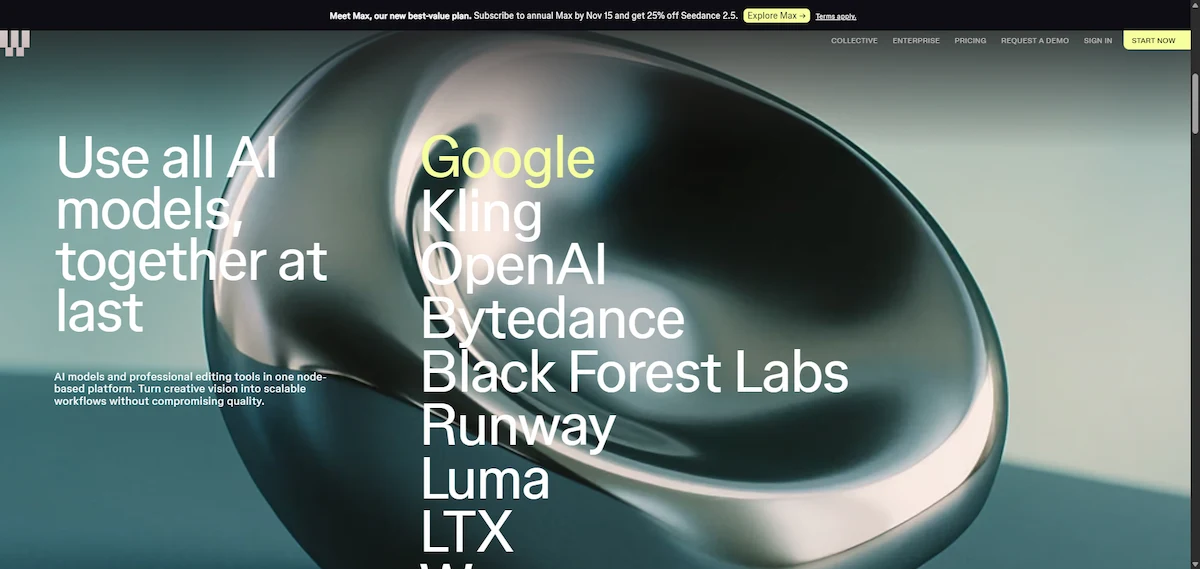
The Figma Weave homepage lists models from Google, OpenAI, Black Forest Labs, Runway, Luma, Kling, ByteDance, LTX, Wan, Grok, Recraft and Bria. Well-known names include Flux and Ideogram for realistic images, Nano Banana and Seedream for precise edits, and Seedance, Sora and Veo for video. The catalogue changes often, so check that a model is still listed before you build a workflow around it.
The practical benefit is simple. You can send one brief to three models, keep the best result and skip three separate subscriptions. The downside is choice overload, because picking the right model is a skill and a wrong pick costs credits.
Professional editing tools
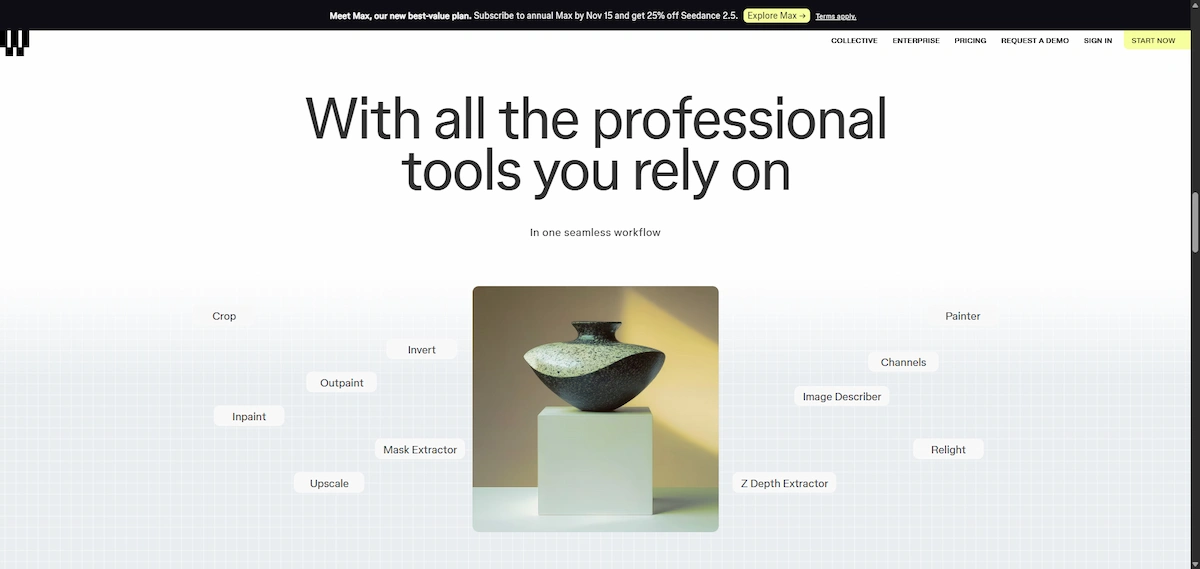
Weavy is more than a generator because it includes real editing nodes:
- inpaint and outpaint to change or extend part of an image
- relight to change the lighting on a person or product
- upscale for larger, sharper output
- mask extractor and matte tools, including selecting a region by text
- z-depth extraction, channels, invert, crop, blur and painter
- image describer, which turns a picture into a prompt
- layers, type and blend modes for compositing
Tools and workflow apps
The feature once called Design Apps is now called Tools. You add an output node, choose which inputs stay editable (for example a prompt and an uploaded photo) and click Create tool. People you share it with see a simple form instead of the canvas. You can share with invited people, your workspace or anyone with the link, and you can keep versions.
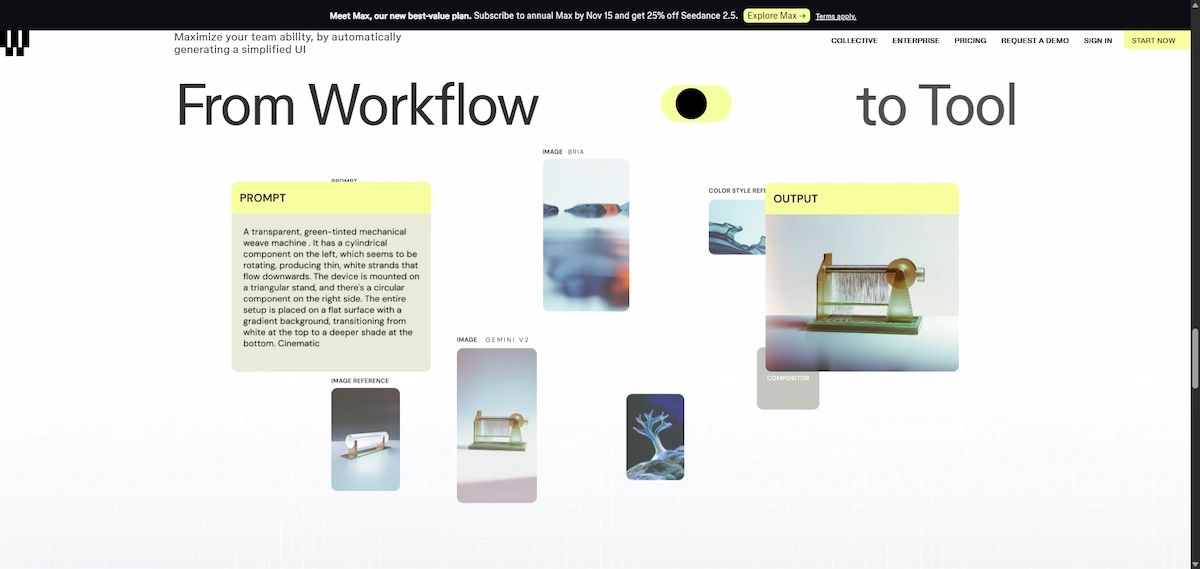
This is the feature that makes a node-based workflow useful for a whole company. A designer builds the canvas once, and marketing or sales staff run it without learning nodes.
LoRA and ControlNet for style control
Weavy can import LoRA files, which lets you apply a trained style or character to supported models. ControlNet-style references help keep structure, such as pose or layout, while the style changes. Chase Jarvis points out that LoRA support narrows the gap with ComfyUI.
Team sharing and Community workflows
You can create a team, add users and share files and workflows. On the Team plan the credits sit in a shared pool, and admins can divide them between members. Figma also lets you publish image or vector tools to Figma Community, so other people can run your workflows.
Pre-built workflows and templates
You do not have to start from an empty canvas. Weave ships a library of ready workflows for common jobs such as changing the camera angle, relighting a product or rotating an object. Open one, swap in your own image and run it. It is the quickest way to see how nodes fit together, and you can copy a template and change a single step to make it your own.
Images, video, 3D and audio
The model list now covers images, video and 3D, with vector outputs for some tools. Video is the most expensive part, since it burns credits much faster than images. If video is your main use, read our guide to AI video creation first and compare the cost per second before you commit to a plan.
Security, data and commercial rights
Figma says Weave gives you full commercial rights to what you make and does not train on your content. It lists a SOC 2 Type II report and a Trust Center that shows the status of each model. Commercial status depends on the model, and the Trust Center separates verified models from unverified ones. Check it before you use any output in paid ads. The same goes for client work, where the contract may say what tools you are allowed to use. If your team handles customer data, our guide to AI data privacy for business explains what to ask a vendor.
Figma Weave and Figma: how they connect
Figma Weave is still a separate product with its own billing, but the two apps are getting closer. You can sign up with your Figma login, though you need a Weave account to use it fully.
Weave tools in Figma Design
Figma has put more than 20 pre-built Weave tasks into the left panel of Figma Design. Examples include style transfer, product shoots, background replacement and material extraction. Each one packages a Weave workflow behind a simple form, so you do not wire nodes or pick models. They are free during the open beta and will use Figma AI credits once they leave beta.
The Figma node
According to the Figma Weave FAQ, a Figma node brings a frame from Figma Design into a workflow. You choose which layers Weave may change, and the original file stays untouched. Updates can be sent back to Figma and pulled the other way. This feature has been rolling out in stages, so open the app and check what is live for your account.
Separate billing and credits
A Figma seat does not include Weave. Figma Weave credits and Figma AI credits are two different balances, and the plans are billed separately. A designer on a Figma Professional seat still pays for Weave on its own. Figma has said more integration and plan changes will come over the next year, without a date.
Figma Weave vs Figma Make and Figma AI
Figma now sells several AI features, and they do different jobs. Figma Weave makes images, video and edited media. Figma Make builds working app prototypes from a prompt, and the AI inside Figma Design and Dev Mode helps with layouts and code. If you need a screen, use one of those. If you need the picture that goes inside the screen, use Weave.
Figma Weave pricing
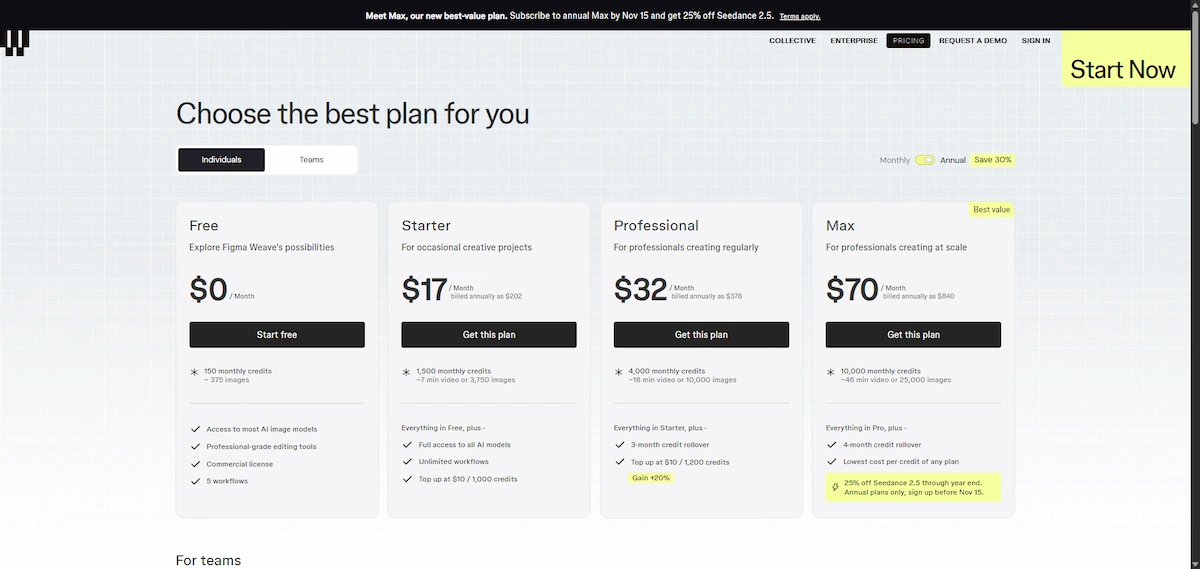
Weave uses monthly credits. Every plan includes an allowance, and you can buy extra credits when you run out. The figures below come from the official Figma Weave pricing page, checked in October 2026. The page has a monthly and annual toggle, and annual billing is marked as saving 30%.
Plans and prices
| Plan | Monthly billing | Annual billing | Credits per month | Notes |
|---|---|---|---|---|
| Free | $0 | $0 | 150 (about 375 images) | Most image models, editing tools, commercial license, 5 workflows |
| Starter | $24 | $202 a year | 1,500 (about 3,750 images or 7 minutes of video) | All models, unlimited workflows, no rollover |
| Professional | $45 | $378 a year | 4,000 (about 10,000 images or 18 minutes of video) | Credit rollover |
| Max | $100 | $840 a year | 10,000 (about 25,000 images or 46 minutes of video) | Lowest cost per credit, longest rollover |
| Team | $42 per user | $504 per user a year | 4,500 per user (about 11,250 images) | Shared credit pool, unified billing, admin tools |
| Enterprise | Custom | Custom | Custom | Training, premium support, own API keys, API workflows |
Older articles quote $19, $36 and $48 for Starter, Professional and Team. Those numbers are outdated, and the Max plan did not exist when they were written. The page also shows the Team price as one per-user figure, so confirm whether it changes with the billing toggle before you buy seats.
How Weavy credits work
Weavy has two costs: the monthly plan and the credits you spend on every generation. One credit system covers all models, so you do not pay each vendor separately. Credits are not a fixed amount of work. Each model has its own price, and some models change price with settings such as duration or resolution. The cost shows in the top-right corner when you select a node, and you see it before you press run.
That upfront number is a real advantage. You always know what a run will cost, which makes a budget easier to plan than with tools that only show usage afterwards. If you want a wider view of what AI software costs a company, our guide on how much AI tools cost gives useful context.
What credits buy per model
Prices differ a lot between models. In one review from late 2025, Nano Banana Pro images cost 15 credits and Veo videos cost 120, while Flux images cost 5 and Wan videos cost 24. Those figures may have changed, so check the live number in the app. The rule stays the same: video costs far more than images, and premium models cost more than light ones.
If you plan your budget around the newest premium models, you will use credits fast. Using a cheaper model for tests and a premium one for the final render is the simplest way to stretch a plan.
Is Weavy AI free?
Yes, Weavy AI has a free plan. It gives you 150 credits a month, which Figma estimates at about 375 images, plus most image models, the editing tools, a commercial license and up to five workflows. Some directory sites say there is no free plan, and that is wrong. The limits are no top-ups, no rollover and no access to every model. Full model access and unlimited workflows start with Starter.
Rollover, top-ups and refunds
Rollover depends on the plan:
- Free and Starter: unused credits are lost when the monthly cycle resets.
- Professional and Team: unused credits roll over for up to three months.
- Max: unused credits roll over for up to four months.
Top-ups cost $10 for 1,000 credits on Starter and $10 for 1,200 credits on Professional, Max and Team. Top-up credits carry over on any paid plan and stay valid for one year, even if you switch plans. Free has no top-ups. The pricing page does not state a refund policy, so ask support before you buy a large plan.
Which plan fits which user
Start on Free and build one real workflow. If you hit the credit limit within a week, Starter is the next step for a solo creator. Professional makes sense when you run video or need rollover for busy and quiet months. Max suits heavy users who generate every day, because the cost per credit is lowest. Team is for groups that want one invoice and a shared pool. Our guide on how to choose AI tools for business covers the questions to ask before you pay for any of them. Compare the real pricing per approved output, not the headline credit number.
Who should use Weavy AI
Weavy suits people who want control over every step and who repeat the same job often.
Good fit
- Marketing teams that need many ad and social variations with the same look
- E-commerce stores that relight, recrop and recompose product photos
- Agencies that build a locked workflow and run it across a whole catalog
- Design teams in Figma that want product shots next to their layouts
- Art directors who like to pick the model for each shot
Poor fit
Skip Weavy if you need one quick image a month, because a single-model app is cheaper and simpler. It is also the wrong tool for editable screens, flows or components, since it makes pictures and video, not layouts with live text. Beginners who want to be guided step by step will find the node canvas hard at first. Chase Jarvis calls it the most pro-oriented tool in its category, aimed at power users more than at beginners.
Weavy use cases
The same canvas covers very different jobs. These are the ones teams use it for most.
E-commerce product shots
A typical chain goes from packshot to cut-out, then a lifestyle background, then relight and crops for each marketplace. Once built, the same lighting and style repeat across hundreds of products. For a wider look at this job, read our guide on how to create product photos with AI.
Ad and social variations
Start with one key visual, generate ten backgrounds, then output three formats with fixed text layers. The brand elements stay locked while the scenes change. If you only need simple posts, a node graph is more than you need, so a basic design app is a lighter starting point.
Real estate staging and interiors
An empty room photo can become a staged room in day and evening versions. Architects and agents use it to keep one staging style across a whole listing.
Branding and UI assets
Weavy is good at hero images, textures and feature illustrations that look like a family. It is weaker at logos, which need vector output and exact letters. Treat any generated logo as a sketch. Our guide on how to design a logo with AI shows a better route for that job.
Video, storyboards and collages
Image nodes can feed video models, so one still can become a short loop or a product teaser. You can also run the same input through several video models and compare them. Budget carefully, because this is where credits disappear fastest.
How to get started with Figma Weave
The fastest way to learn the tool is to build one small workflow on the free plan.
- Go to weave.figma.com and sign up with your Figma login or an email address.
- Pick one recurring task, such as product images for a new collection.
- Add a prompt node and an image node with a reference photo.
- Connect them to one image model and check the credit cost in the corner before you run.
- Add an editing node, for example upscale or relight, and run only that step.
- Test it on three different inputs.
- Add an output node and turn the canvas into a Tool for a teammate.
- Count credits per approved image, not per generation.
Counting per approved image matters. One agency that built four campaigns in Weave in 2026 reported 361 renders and 45 photos that an art director kept, about eight renders per keeper. Plan your credits with that ratio in mind, not with the number of images printed on the plan card.
Prompt tips that save credits
Bad prompts cost real money, because every failed render spends credits. The agency that tested Weave on four campaigns found that prompts behind the photos they kept ran about 140 to 200 words on Nano Banana models and about 300 words on GPT Image. Short prompts gave more random results.
The same agency built every canvas in three zones: inputs, a locked block of fixed instructions and an output fan-out of about ten shots. That layout keeps the look fixed while only the product changes.
- Test on a cheap model first and switch to a premium model for the final render.
- Rerun only the node you want to change, not the whole canvas.
- Use a reference image for style instead of describing it in words.
- Save a working canvas as a template before you experiment on it.
Weavy pros and cons
| Pros | Cons |
|---|---|
| Visible and repeatable workflows | The node canvas has a learning curve |
| Many models for images, video and 3D | Too many choices for beginners |
| Credit cost shown before every run | Premium models and video use credits quickly |
| Real editing tools such as relight, inpaint and upscale | Logos and brand marks are not a strength |
| Workflows can be packaged as simple tools | Separate subscription from Figma |
| Commercial license on every plan | Makes images, not editable screens |
Weavy vs alternatives
Weavy is not the only node-based or multi-model tool. The main options differ in hosting, control and price.
Weavy vs ComfyUI
ComfyUI is free and open source, and it runs on your own computer or in the cloud. It gives you the most control and no platform fee per image, but you manage the hardware, updates and plugins yourself. Weavy is hosted, easy to share and includes commercial models such as Sora and Veo that ComfyUI cannot run locally. Comfy Cloud now offers a hosted version, and Weavy can import LoRA files, so the gap is smaller than it was. A solo artist who loves to tinker may prefer ComfyUI. A team that wants no setup will prefer Weavy.
Weavy vs Flora
Flora is the closest match. It is also an infinite node canvas that chains image, video and audio models, and it focuses on real-time team work and experiments. It bills each model at its listed price, with plans reported from $18 per seat a month. Some users find it better for ideas than for heavy production.
Weavy vs Krea and Freepik Spaces
Krea mixes real-time generation, many models, upscaling and video in one app, with a lighter learning curve than a full node graph. Freepik Spaces is a node canvas next to a large stock library, which helps content teams. Its workflows are simpler and lack advanced nodes such as arrays and iterators.
Higgsfield, Leonardo, Midjourney and Adobe Project Graph
Higgsfield is a template and credit studio that is strongest at video. Leonardo is aimed at hobbyists and lighter work. Midjourney is still a favourite for stylised single images, and Adobe Project Graph is Adobe’s own node-style tool. If you only need single images and no pipeline, compare them in our list of ChatGPT alternatives for image generation.
Custom API pipelines
High-volume shops that must push images straight into a store or CMS often build their own pipeline with model APIs. It automates everything from generation to upload, but it needs developers and ongoing maintenance. Weavy covers the creative steps well, while the upload and naming steps usually need a separate integration. Enterprise plans list API workflow runs, so ask sales for the current status.
Limits to know before you pay
A few things can catch new users out:
- Pricing depends on the model. The same plan gives very different output for images and for video.
- Credits vanish on video. Starter buys about 3,750 images but only about seven minutes of video.
- Model availability changes. A model in your workflow can be renamed or removed.
- Commercial rights vary by model. Check the Trust Center before paid use.
- Your own API keys are Enterprise only. On other plans every call is paid in Weave credits.
- It does not design screens. Output is images and video, not components or code.
- Someone must build and maintain the canvas. A finished set from a brief does not happen without setup.
Is Weavy AI worth it? Final verdict
For teams that make lots of visuals, yes. The node canvas makes image work repeatable, the model range is wide, the editing tools go well beyond generation and the credit cost is visible before every run. The free plan is enough to learn the tool and decide. The weak points are the learning curve, the price of premium models and video, and a second subscription next to Figma.
For a single image now and then, a simpler app costs less. If you are building a whole toolset around AI, our guide to the AI tool stack for business shows where a tool like this fits next to writing, voice and support software.
FAQ
What is Weavy AI?
Weavy AI is a node-based canvas for making images, video and 3D with many AI models and editing tools in one browser app. You connect nodes into a workflow and rerun it with new inputs. Figma bought it in October 2025 and renamed it Figma Weave.
Is Weavy the same as Figma Weave?
Yes. Figma acquired Weavy and renamed it Figma Weave, and the help center calls it the new name for Weavy. The old weavy.ai address forwards to weave.figma.com, and existing users kept their accounts and workflows.
Is Weavy AI free?
Yes, there is a free plan with 150 credits a month, about 375 images according to Figma. It includes most image models, the editing tools, a commercial license and five workflows. It has no top-ups and no rollover.
How much does Figma Weave cost?
In October 2026 Starter costs $24 a month, or $202 a year. Professional costs $45 a month, or $378 a year. Max costs $100 a month, or $840 a year, and Team costs $42 per user with $504 per user billed yearly. Enterprise is custom.
Can I use Weavy images commercially?
In most cases, yes. Figma Weave states that you get commercial rights to your output. Status still depends on the model, so check the Trust Center for each model you used before putting results into ads or products.
Is Figma Weave included in a Figma subscription?
No. Weave is billed separately, and its credits are separate from Figma AI credits. Your Figma plan gives access to Weave tools inside Figma Design, which are free during the open beta.
Does Figma Weave support API keys?
Only on the Enterprise plan, which lists your own API keys and the option to run workflows through an API. On other plans every model call is paid with Weave credits.
What is the difference between Weavy and ComfyUI?
Both use node-based workflows. Weavy is a hosted service with commercial models, credits and easy sharing. ComfyUI is open source software you run on your own hardware or cloud, with more control and no platform fee, but a steeper learning curve.
Which AI models does Figma Weave support?
The site lists models from Google, OpenAI, Black Forest Labs, Runway, Luma, Kling, ByteDance, LTX, Wan, Grok, Recraft and Bria. Examples include Flux, Nano Banana, Veo, Sora, Seedance and Ideogram. The list changes often, and every run shows its credit cost first.
Does Figma Weave train on my images?
No. Figma says Weave never trains on your work, and you keep full commercial rights to what you make. Read the Trust Center for the status of each model before you publish results.
Do I need design skills to use Weavy?
Not to run a Tool. A designer builds the workflow and teammates fill in a simple form. Building your own canvas is easier with basic image knowledge such as masks, layers and lighting, because Weavy shows those steps as nodes.
Is Weavy AI hard to learn?
There is a learning curve. Moving from one prompt box to a chain of nodes takes a few hours, and it suits people who think in steps. Start with a pre-built workflow on the free plan and change one node at a time.
Can Figma Weave design UI screens?
Not really. Weave produces images, video and edited media, not editable screens with live text and components. Use it for hero images, product shots and textures, then place them in your design tool.