Learning how to automate social media with AI comes down to one split: let software handle the repeat work, such as drafting, repurposing, scheduling, and reporting, and keep the decisions with a person. A chat tool can write a month of captions in ten minutes. It cannot tell you which offer to push this week, which comment needs a human reply, or when a scheduled post has become tone-deaf after the news changed.
This guide covers 8 steps: auditing your time, setting voice and approval rules, generating content, repurposing it, choosing tools, building one full workflow, automating replies, and measuring results. It also compares free and paid plans, shows the posting rules and limits of each platform, and explains when you must label AI content. Prices and rules were checked in October 2026 from vendor pages and published reviews, and platforms change them often, so confirm each number before you pay or build on it.
The 8 steps to automate social media with AI at a glance
To automate social media with AI, list the tasks that repeat, write down your voice and approval rules, let AI draft captions and repurpose one piece of content into many posts, connect a scheduling tool, and add an approval step before anything goes live. A basic setup for two or three channels takes a weekend and saves a few hours every week.
| Step | What you do | Typical time |
|---|---|---|
| 1. Audit your time | Track a week of tasks and pick what to automate | 1 week, 15 minutes a day |
| 2. Set rules | Write voice, content pillars, and approval rules | 1 to 2 hours |
| 3. Generate content | Ideas, captions, and hooks with saved prompts | 2 hours |
| 4. Repurpose | Turn one blog post, video, or voice note into a week of posts | 1 hour per source |
| 5. Create visuals | Graphics and short video from brand templates | 1 to 2 hours |
| 6. Choose tools | Pick a scheduler, a workflow tool, and a writing tool | 1 to 2 hours |
| 7. Build the workflow | Source, AI step, approval, schedule, pause button | 2 to 4 hours |
| 8. Measure | Review hours saved and results every week | 30 minutes a week |
The times are estimates for a small brand with two or three channels. They grow with the number of platforms and approvers.
What social media automation with AI is, and what it is not
Social media automation means software does a task on its own once you set a trigger and a rule, such as posting a new blog article to LinkedIn when it is published. AI social media automation adds a step that can read, write, and choose, such as turning that article into three posts that sound like your brand.
Scheduling, automation, and AI agents
Three layers sit under the label automation, and they do different jobs. Scheduling puts a post you wrote in a queue for a set time. Automation connects tools and moves information without you, and an AI agent goes a step further by deciding what to do with that information inside limits you set. For the agent side, see our guide to AI agents for business.
| Layer | What it does | Example | Main risk |
|---|---|---|---|
| Scheduling | Posts at a time you pick | Queue 10 posts for next week | A post goes out at a bad moment |
| Automation | Moves content between tools on a trigger | New blog post to a draft in your scheduler | A broken connection fails silently |
| AI step | Drafts, rewrites, sorts, and summarizes | Turns an article into 3 platform versions | Generic or wrong text |
| AI agent | Plans steps and takes actions with tools | Finds a trend, drafts a post, asks for approval | Wrong actions on live accounts |
Two layers of social media automation: inside your tool and outside it
Most social media automation setups use two layers. Inside your scheduling tool you automate the basics: queues, best-time posting, recurring posts, saved replies, and AI caption help. Outside the tool you connect other apps with a workflow tool such as Zapier or Make, so a new row in a spreadsheet, a new video, or a new article creates a draft with no copy and paste. Start with the inside layer, since it is simpler and safer, and add the outside layer when you hit a task the tool cannot do alone.
What to automate and what to keep human
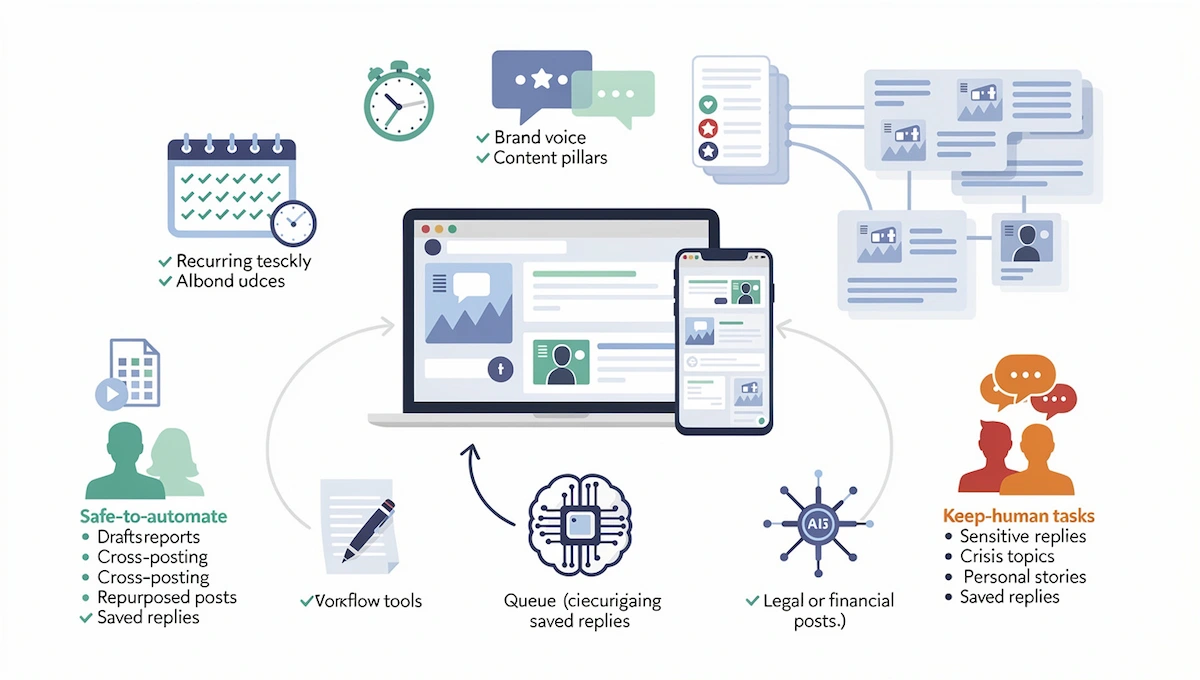
| Safe to automate | Draft with AI, then a person approves | Keep human |
|---|---|---|
| Scheduling and queues | Captions, hooks, and hashtags | Crisis and sensitive topics |
| Cross-posting of approved content | Repurposed posts and threads | Angry or complaint messages |
| Weekly reports and alerts | Replies to common questions | Anything legal, medical, or financial |
| Saving ideas and tagging content | Captions for graphics and clips | Real opinions, personal stories, and jokes |
| Recycling evergreen posts | Comment replies for low-risk topics | Partner and sponsor posts |
Step 1: audit your time and choose what to automate on social media
Social media automation saves time only if it replaces work you really do. A short audit shows where the hours go and which tasks repeat, so you do not build a clever workflow for a job that takes five minutes a week.
A one-week time study
For one week, write down what you do on social media every 15 minutes or at the end of each task: writing captions, finding images, resizing, scheduling, answering comments, checking numbers, and building reports. Use a simple note or a spreadsheet with four columns: task, time spent, how often, and how much you dislike it. By Friday you will see two or three tasks that take most of the time, and these are your first candidates.
Score tasks: automate, delegate, or delete
| Question | If yes |
|---|---|
| Does the task repeat every week in the same way? | Good to automate |
| Does it take more than 30 minutes a week? | Worth the setup |
| Is a mistake easy to spot and undo? | Safe to automate |
| Does it need judgment, taste, or a personal voice? | Draft with AI, keep the decision human |
| Does nobody read or use the result? | Delete the task |
| Could a teammate or freelancer do it better? | Delegate it |
The first three tasks to automate
Most small brands get the best return from the same three: drafting captions from a content source, scheduling and cross-posting approved content, and the weekly report. Caption drafting saves thinking time, scheduling saves clicking time, and the report saves the hour you would spend collecting numbers. Build these three first, run them for a month, and add more only after they work without surprises.
Step 2: set your voice, pillars, and approval rules
Social media automation multiplies whatever you give it. If your voice is vague and your rules are loose, you will publish vague posts faster. An hour spent on these rules makes every later step easier.
Content pillars and the 5-3-1 mix
Pick three to five content pillars, such as tips, behind the scenes, customer stories, product news, and industry views. Each post should belong to one pillar, and the pillars give AI a frame to draft ideas without drifting. Many social teams use a 5-3-1 rule of thumb: five posts that share other useful content, three of your own posts, and one personal or fun post. Treat it as a starting mix to adjust to your audience.
A brand voice document you can paste into any prompt
Write one brand voice page that says who you speak to, how you sound, which words you use, and which you avoid. Include three example posts you like and one you dislike. A short brand voice sample looks like this: “We write for busy shop owners. We are direct, warm, and plain. We use short sentences and real numbers. We never use hype words or too many exclamation marks.” Save the page and paste it at the top of every AI prompt, since the model copies tone from examples far better than from adjectives. For more on writing prompts that hold up, read our guide to prompt engineering for business.
What goes live alone and what needs a person
Decide in advance which social media automation actions are allowed without a person. A typical rule: scheduling and cross-posting of approved content run alone, AI-written posts wait in a draft queue for approval, replies to complaints, news, and sensitive topics stay fully human, and anything with a price, a claim, or a person name is checked before it publishes. Write these rules on one page and share them with everyone who has access, so the approval step is a habit and not a hope.
Step 3: generate ideas, captions, and hooks with AI
AI is fastest at volume and variation. Give it the brief, the voice document, and the pillar, and it returns drafts in seconds. Your job is to pick, cut, and sharpen.
Build a month of ideas and a content calendar with one prompt
Ask for ideas, not finished posts, then choose the best ones. A prompt that works: “You are a social media editor for [business]. Our audience is [audience]. Our voice is [voice document]. Give me 30 post ideas for the next month across these pillars: [pillars]. For each idea give a working title, the platform it fits best, and one sentence on why the audience would care.” Pick 12 to 15 and discard the rest, then paste them into a content calendar with a date, a platform, and an owner for each post. An AI content calendar is only a draft until a person assigns the dates. Ideas that you rejected also teach you what to add to the next prompt.
Caption prompts for each platform
Each platform wants a different shape, so ask for each one separately. Character limits change, so check the composer of each app before you rely on a number.
| Platform | Shape that works | Prompt note |
|---|---|---|
| A short hook, a few lines of value, a clear call to action, caption up to 2,200 characters | Ask for the first line to work before the “more” cut | |
| A plain opening, short paragraphs, one idea, posts up to 3,000 characters | Ask for a professional but personal tone, with no jargon | |
| X | One sharp point in 280 characters for a standard account | Ask for three versions at different lengths |
| A friendly post with a question or a link | Ask for a version that invites comments | |
| TikTok | A short caption that supports the video hook | Ask for a caption and an on-screen text line |
Hooks and hashtags
The first line decides whether anyone reads the rest, so ask the model for five hooks for every post and pick one. Good hook types are a question the audience asks itself, a surprising number, a contrast, and a direct statement of a result. For hashtags, ask for a short list of relevant tags in three groups: broad, niche, and branded. Use a few that fit the post and skip long lists, since stuffed hashtags rarely help.
Edit the draft: what to change in AI output
Read each draft as if a stranger wrote it. Cut stock openings you have seen many times, add one detail that only you know, such as a number, a name, or a place, and remove stacked adjectives. Check every fact and every link, shorten long sentences, and read the post out loud once. Plan to rewrite part of every draft, because the value you add is the part the model cannot know.
Step 4: repurpose one piece of content into a week of posts
To automate social media with AI at scale, start from content you already have. Repurposing is the highest return on time, because the thinking is already done. One article, video, or recording can feed a full week of posts on several platforms.
Blog post to social posts
Paste the article into your AI tool and ask for five posts that each use a different angle: one key point, a surprising number, a short story, a common mistake, and a question for the audience. Ask for LinkedIn, X, and Instagram versions of the best two. Keep the link in the first comment or at the end, and add a custom image. If you also write the articles with AI, see our how-to on writing blog posts with AI.
Long video to short clips and subtitles
Upload a webinar, interview, or podcast video to a clipping tool, which finds the strongest moments, cuts them into vertical clips, and adds captions. Review each clip for context, since a cut sentence can change its meaning, and check that the captions match the speech. Post the clips on Reels, Shorts, and TikTok, with a caption written for each platform. Keep each clip under a minute and test two versions of the opening seconds on one clip to see which holds attention. Spread the clips across the week and link back to the full video once. Our how-to on turning long videos into shorts with AI covers the tools and steps in detail.
Voice notes and podcasts to posts
If talking is easier than writing, record a voice note, transcribe it, and ask AI to turn the transcript into posts in your voice. This works well in a workflow tool: a new audio file triggers a transcript, the transcript goes into an AI step, and the drafts land in your scheduler as drafts. The posts keep your real phrases, which makes them sound less generic.
Customer reviews and comments to posts
Reviews, questions, and comments are free content. Ask AI to group the questions customers ask most and draft a short answer post for each. Turn a strong review into a quote graphic, with the customer permission. Never invent a review or a testimonial, and never change a real one beyond fixing typos.
User-generated and creator content
Posts from customers and creators carry more trust than your own. Ask for permission, collect the posts in one sheet with the link, the author, and the date, and let AI group them by theme and draft a thank-you reply for each. Some listening tools also find video posts that mention your brand without a tag. Credit the author, keep the original wording, and never edit a post in a way that changes its meaning.
Step 5: create graphics and video with AI
Text posts are the easiest part of social media automation, and visuals decide whether people stop. Text posts are fast to automate, and visuals decide whether people stop. Use templates so every graphic looks like your brand, and let AI fill in the text and variations.
Graphics with brand templates
Build three or four templates in a design tool such as Canva: a quote card, a tip card, a product card, and a carousel. Lock your fonts, colors, and logo, and let the tool resize each design for every platform. Then ask AI for the text on each card and for a few image ideas, and use bulk creation to produce a week of graphics from a spreadsheet. For more on this step, read our how-to on creating social media graphics with AI.
AI video, avatars, and voiceovers
AI video tools can turn a script into a short video with stock footage, captions, and a voiceover, and avatar tools can present a script on screen. They save time on tips and explainers, and they are weaker for anything that depends on your face and personality. Keep the first seconds strong, add captions for people who watch with the sound off, and label realistic synthetic video where a platform requires it, as the labels section below explains.
Alt text and accessibility
Add alt text to every image so screen reader users can follow your posts. Ask AI to describe each image in one plain sentence, then check it. Instagram supports an alt text field for image posts, and most schedulers let you add one in the composer. Add captions to videos and avoid text that only appears in an image.
Step 6: choose your social media automation tools
A social media automation setup needs three kinds of tools: a scheduler that publishes, a workflow tool that connects your apps, and a writing tool that drafts. Many products now combine the first and the third, so the question is how much you want inside one tool and how much you want to connect yourself.
The best social media automation tools compared
Prices below are list prices reported in mid-2026 and change often. Check each pricing page before you buy.
| Tool | Best for | Free plan | Paid from |
|---|---|---|---|
| Buffer | Small brands and creators | 3 channels, 10 scheduled posts per channel | $5 per channel a month billed annually, $6 monthly |
| Publer | Low cost across many networks | 3 accounts, no X, 10 pending posts per account | About $5 a month for one account, $4 billed annually |
| Metricool | Posting plus analytics | 1 brand, 20 posts a month, no LinkedIn or X | Check the pricing page |
| SocialPilot | Small agencies | No permanent free plan | About $20 a month for 5 accounts |
| Agorapulse | Teams with inbox and reports | No | About $79 per user a month billed annually |
| Hootsuite | Larger teams and governance | No | Standard at $99 per user a month billed annually, Professional at $199 |
| Sprout Social | Large teams and reporting | No | An entry plan at $79 per seat a month billed annually, Standard at $199 |
| Planable | Freelancers and small agencies with approvals | First 50 posts free, no time limit | $33 per workspace a month billed annually |
| Later | Visual planning and Instagram | Limited | Around $25 a month |
| Statusbrew | Agencies with approval workflows | 14-day trial | $69 a month, agency plans from $49 per client |
Workflow tools: Zapier, Make, n8n, and Gumloop
Workflow tools move information between apps without code. Zapier has the widest app list and a free plan with 100 tasks a month, with Professional from $19.99 a month billed annually for 750 tasks. Make is cheaper per run, with a free plan of 1,000 credits and Core at $9 a month for 10,000 credits. n8n can be self-hosted for free and suits people with some technical skill. Gumloop builds AI workflows with a visual canvas and a per-credit plan. Pick the tool you can understand in an afternoon, since a workflow you cannot read is a workflow you cannot fix.
AI writing tools: ChatGPT, Claude, and Gemini
A general chat tool is enough for drafting. ChatGPT, Claude, and Gemini all offer free plans with limits and paid plans around $20 a month. Use one with a saved project or custom instructions, so your voice document is always loaded. If you want a tool inside the scheduler, Buffer, Hootsuite, and Later include AI assistants for captions and ideas, which are convenient and less flexible than a chat tool you control.
Standalone AI or built-in AI: the 15-posts rule
One guide offers a rule of thumb for the first big choice. If you publish fewer than about 15 posts a week, the AI built into your scheduler is usually enough, and a single tool is simpler to run. Above that, a separate chat tool such as ChatGPT or Claude, paired with a scheduler, tends to give better drafts and more control over voice, at the cost of one extra step. Treat 15 as a guide and not a law, and test both with your own content.
AI agents and MCP: letting your AI tool post for you
MCP is a standard that lets an AI assistant use other apps. With it, you can ask Claude or ChatGPT to draft a week of posts and send them straight to a scheduler as drafts, without copying text between windows. Zapier MCP is included on its plans and connects thousands of apps, and Buffer and Hootsuite both document ways to connect assistants. It is a convenient layer when you already work in a chat tool, and the approval rule still applies: drafts first, a person approves. AI agents can also do research for you. One example is an agent that watches your brand mentions and trending topics and posts an alert in Slack, and another reads which Instagram and TikTok posts performed best, then drafts a content calendar in Google Sheets for you to review.
How to choose: primary platform, team size, content volume
- Primary platform: if most of your results come from one network, pick a tool that is strong there, such as a visual planner for Instagram or a tool with document uploads for LinkedIn, and add a general scheduler for the rest.
- Team size: solo owners and teams of two or three do better with fewer tools that cover more. Larger teams can justify one specialist tool per job, since the setup cost is shared.
- Content volume: below about 15 posts a week, built-in AI is enough. Above that, add a separate chat tool for drafting.
Which stack for which team
Your team size and budget decide the stack. Our how-to on choosing AI tools for business has a longer checklist for any software choice.
| Situation | Start with |
|---|---|
| Solo creator or very small brand | Buffer or Publer, a free chat tool, and a free design plan |
| Small business with a website and a blog | A scheduler, plus Zapier or Make to turn new articles into drafts |
| Agency with several clients | SocialPilot, Agorapulse, or Sendible, with approval workflows |
| Team with a strict approval process | Hootsuite or Sprout Social, with roles and audit logs |
| Technical team | n8n or Make, an API, and a chat tool with a saved prompt |
| Video-first brand | A clipping tool and a scheduler with Reels, Shorts, and TikTok support |
What social media automation tools cost per month
| Setup | Tools | Monthly cost |
|---|---|---|
| Free | Buffer free, Make free, a free chat plan, a free design plan | $0 |
| Starter | The Buffer entry plan for 3 channels, Make Core, a free chat plan | About $24 |
| Growing | Buffer or Publer for 5 channels, Zapier Professional, a $20 chat plan | About $65 to $75 |
| Team | Hootsuite or Agorapulse for 3 users, a workflow tool, a chat plan | $300 and up |
Add AI usage if your workflow calls a model through an API, since that is billed by volume. For a wider view of what AI tools cost across categories, read our guide on how much AI tools cost.
Three example setups by budget
These setups illustrate how the pieces fit, and the time figures are rough estimates from one guide, not measurements.
- Solo creator, $0 to $50 a month: a free chat plan plus the free Buffer plan. Spend about 45 minutes on a weekly session to draft the week of posts from your voice document, edit them heavily, load them into the queue, and review the numbers on Friday.
- Small team, $100 to $300 a month: a paid chat plan, a scheduler with content categories and recycling, and a design tool. The content lead drafts a month of posts, the team edits by category, and a short weekly meeting covers the numbers.
- B2B company focused on LinkedIn, $200 to $500 a month: a chat tool, a scheduler that supports document posts, and a LinkedIn-specific tool for timing and ideas. Document carousels are built in a design tool, exported as PDF, and scheduled with the rest.
A free or low-cost social media automation setup
You can automate a surprising amount without paying. Free plans are enough to test the idea and to run a small brand, as long as you accept limits on posts, accounts, and speed.
What free social media automation plans include
| Tool | What the free plan gives you | Where it stops |
|---|---|---|
| Buffer | 3 channels, 10 scheduled posts per channel | Limited queue and analytics |
| Publer | 3 accounts, 10 pending posts per account | X is not included |
| Metricool | 1 brand, 20 posts a month | No LinkedIn or X |
| Zapier | 100 tasks a month, plus a free trial of Professional | A busy workflow uses the tasks fast |
| Make | 1,000 credits a month | 15-minute minimum run interval |
| ChatGPT, Claude, Gemini | Free chat with daily or session limits | Caps on long chats and files |
| Canva | Free design plan with templates | Some tools and exports are paid |
A free trial is not a free plan. Gumloop, Hootsuite, and Statusbrew offer 14-day trials, Sprout Social offers 30 days, and the paid tools stop working when the trial ends. Buffer and Planable are the two schedulers in this guide with a plan that does not expire.
A starter stack under 30 dollars a month
A realistic low-cost stack is the Buffer entry plan for three channels, which is about $15 a month billed annually, plus Make Core at $9 a month for the workflow, plus a free chat plan for drafting. That comes to about $24 a month before any AI usage fees. If you use only the free plans, the stack costs nothing, and you give up volume, speed, and the number of channels.
When to pay
Pay when you hit the same limit three weeks in a row, when you add a channel, when a teammate needs access, or when an approval step has to be tracked. Do not pay for features you have not used. Review the bill every quarter and drop what you do not open.
Step 7: build the workflow, a full example from idea to published post
The example below uses a fictional business, Harbor Coffee Roasters, to show how the pieces of a social media automation workflow fit, from the content calendar to auto-posting. It illustrates the process, and the times and problems are illustrative, not the result of a real test.
The trigger and the source
Harbor writes one blog post a week. The trigger is a new item in the blog RSS feed. The workflow tool picks up the title, the link, and the full text and passes them to the next step. A second trigger covers ideas: a new row in a Google Sheet with a topic and a platform, filled by the owner on a phone.
The AI step with a saved prompt
The AI step receives the article text and the brand voice document and returns three drafts: a LinkedIn post, an Instagram caption, and an X post. The saved prompt reads: “You write social posts for Harbor Coffee Roasters. Voice: [voice document]. From the article below write three posts: a LinkedIn post under 1,000 characters, an Instagram caption under 600 characters, and an X post under 260 characters. Use one fact from the article in each. Never invent numbers. Return the three posts in a table with the platform name.” The output goes to the next step as plain text.
The approval step
The three drafts are saved in the scheduler as drafts, not as scheduled posts, and the owner gets a message in Slack or email with a link. She reads each draft, changes a line, adds an image, and moves it to the queue. Nothing publishes before this click. This is the most important step in the whole workflow, and it takes about ten minutes a week.
The scheduling and publish step
Approved posts go into the queue at times the scheduler suggests, one per platform per day across the week. The scheduler publishes, and the workflow tool logs the result in a Google Sheet: date, platform, link, and status. A post that fails to publish produces a row with the error, so nothing disappears quietly.
The pause button and the error alert
Add two safety nets. The first is a pause: most schedulers let you pause a channel queue with one click, so confirm yours does and write down where the button is. Anyone on the team should know how to use it in a crisis. The second is an error alert: set the workflow tool to email you when a step fails, because a broken connection in a workflow looks like silence, not like an error.
Time spent and what went wrong
In this illustration the build takes about 4 hours: 1 hour for the voice document and the prompt, 1 hour for the workflow, 1 hour for testing with ten past articles, and 1 hour for the approval and error alerts. Three problems appear in testing. The model repeats the article title in all three posts, so the prompt gets a rule against it. The Instagram caption has no line breaks, so a formatting instruction is added. The first live run fails because the scheduler connection expired after 60 days, which the error alert catches the same day.
How to automate social media with AI on each platform
Every platform has its own rules for social media automation and auto-posting, and these decide what your tools can do. A scheduling tool has already passed the platform checks, so you rarely deal with them directly. If you build your own workflow with an API, you do.
| Platform | Access | Limit or catch | Cost |
|---|---|---|---|
| Business or Creator account | 100 API-published posts in a 24-hour moving period | Free | |
| Pages, through the API | No publishing to personal profiles through the API, as reported | Free | |
| Approved partner integrations | Marketing APIs are limited to approved partners | Through your tool | |
| X | Developer account | Pay-per-use billing, as reported | About $0.015 per post, $0.20 with a link |
| TikTok | Content Posting API | Unaudited apps can post privately only, 6 requests a minute | Free |
| Pinterest, Threads, Bluesky | Public APIs | Rate limits that change | Free |
Instagram: Business or Creator account and the 100-post limit
Automatic publishing to Instagram works only for professional accounts, so switch a personal account to Business or Creator in the settings. Meta documents a limit of 100 API-published posts in a 24-hour moving period, and some older guides still quote lower numbers such as 25 or 50, so check the current documentation in the Instagram content publishing guide. Stories published through an API cannot use interactive stickers such as polls, so plan those by hand.
LinkedIn: partner-only API and what tools can do

LinkedIn gives its marketing APIs to approved partners, so individual workflows have fewer options than on other networks. Scheduling tools use their approved integrations to publish to personal profiles and company pages. If you build your own flow, expect to use a tool that already holds the access, and keep the human approval step, since LinkedIn audiences notice generic posts quickly. Carousel-style document posts, which are PDFs that people swipe through, need a tool that supports document uploads, and Publer is one that reviews mention for this.
X: pay-per-use posting costs

New X developers pay per use, with no flat free tier, according to summaries of its pricing from mid-2026: about $0.015 for a post and $0.20 for a post that contains a link. That makes link-heavy posts cost more than plain ones, and a scheduling tool that bundles X access hides the bill inside its own price. Confirm the current rates on the X developer pricing page before you build a custom flow.
TikTok: the audit gate and private posts
The TikTok Content Posting API is free, but an app that has not passed the platform audit can post only as private. The audit takes from a few days to a couple of weeks, and the limit is 6 requests a minute per user, with around 15 posts a day suggested per creator account. If you use a scheduling tool that supports TikTok, it carries the approval for you. If you build your own flow, expect drafts that you finish in the app.
Facebook Pages, Pinterest, Threads, and Bluesky

Facebook publishing through the API works for Pages, and personal profiles are not available for automated posting, as reported. Pinterest, Threads, and Bluesky allow publishing through their own APIs with rate limits, and most schedulers support them. Bluesky documents a rate cap per hour for API actions. Check each tool for supported networks before you buy, because plans differ in which ones they include.
Link in bio and Google Business Profile
Two small surfaces are easy to forget. A link-in-bio page, such as Later Linkin.bio or the link-in-bio grid of Statusbrew, turns your Instagram or TikTok bio into a clickable page, and it should change when the content changes, so connect it to the same source as your posts. Google Business Profile and Pinterest are supported by tools such as Planable, and local businesses can post offers and updates there with the same workflow.
Automate social media engagement: comments, DMs, and social listening
Replies are where AI social media automation can hurt you most, since a wrong answer is public and personal. Automate the sorting and the drafting, and be strict about what sends alone.
A three-tier rule for replies: auto, draft, human
| Tier | Type of message | What happens |
|---|---|---|
| Auto | Simple thanks, opening hours, links to a page | A saved reply goes out alone |
| Draft | Product questions, order status, how-to questions | AI drafts a reply and a person approves it |
| Human | Complaints, refunds, legal, health, news, and anything angry | Goes to a person at once, no AI reply |
Start with the Draft tier only. After a few weeks of clean results, move the most boring questions to Auto.
Comment-to-DM automation and chatbots
Comment-to-DM flows reply to a keyword in a comment, such as “guide,” with a private message that sends a link or starts a short conversation. They work well for lead magnets and product links. Use tools that follow each platform rules, keep messages short, and give a way to reach a person. For a full walkthrough of building one, see our how-to on building a chatbot without coding.
Team amplification: tell the team when a post goes live
Early engagement helps a post, and staff and partners are the easiest people to ask. Set the workflow to send a Slack message with the link when a post publishes, and ask the team to leave a real comment. Do not automate likes, comments, or reposts from many accounts, because platforms treat repeated automated activity as spam and can restrict the accounts involved.
Listening alerts and sentiment
Social listening tools watch for your brand name, product names, and key phrases and alert you when volume or tone changes. Set alerts for sudden spikes in mentions and for negative sentiment, and send them to a channel your team checks every day. Use AI to summarize the mentions each morning, and treat the summary as a pointer, not as proof.
A crisis plan: pause everything
When something happens in the world or in your business, scheduled posts can look tone-deaf within hours. Write a plan with four steps: pause every queue, check what is scheduled for the next 48 hours, tell the team in one message, and resume only after a person reviews each post. Practice the pause once a quarter, so nobody has to search for the button in a hurry.
Labels, disclosure, and privacy
Rules about AI content are still moving, and the EU AI Act adds transparency duties for some of it. Most of them target realistic images, audio, and video, and a few target text published to inform the public.
When to label AI content: realistic images, audio, and video
Meta, TikTok, and YouTube ask you to label realistic AI-generated or heavily altered images, audio, and video, such as a lifelike person or a scene that never happened. According to summaries of the policies, AI-written captions, titles, and hashtags are exempt on TikTok and YouTube. Platforms also detect AI through embedded signals and may add their own label. Under the EU AI Act, Article 50 of the AI Act asks deployers to disclose deepfakes and AI-generated text published to inform the public on matters of public interest, with an exception where a person has reviewed the text and holds editorial responsibility. Most marketing captions fall outside this, and the safe habit is to label realistic synthetic media and to check the current rules for your case.
Do not invent reviews or endorsements with AI
Never use AI to write fake customer reviews, testimonials, or endorsements, and never present a model as a real customer. Regulators in the US and the EU treat fake reviews and endorsements as deceptive practice, and platforms remove them. Use real quotes with permission, and ask AI only to help format them.
Customer data in prompts and DMs
Do not paste customer names, emails, order details, or private messages into a public chat tool. Use anonymous examples, check what your tool does with the data, and keep a short rule on what staff may paste. If you handle personal data of people in the EU, GDPR applies to DMs and comments too, and the same duty covers any export from your scheduler or inbox tool. Our guide to AI data privacy for business covers settings and policies.
Security: permissions, two-factor login, API keys
Turn on two-factor login for every social account and for the scheduling and workflow tools. Give each person the lowest role they need, remove access when someone leaves, and review connected apps every quarter. Store API keys in a password manager, never in a shared document, and revoke any key that has been exposed.
Measure results and improve
Social media automation that nobody checks drifts. A short weekly review keeps the workflow useful and shows whether the time you saved turned into results.
Does social media automation improve engagement?
Not by itself. Social media automation does not turn weak posts into strong ones. What it does is free hours for the work that moves engagement: answering comments quickly, joining conversations, testing new formats, and adding a personal detail to each post. If you automate the repeat tasks and keep the time for these, engagement tends to improve. If you use the saved time to post more of the same, it will not.
Hours saved and cost per post
Compare the week from your time study with the week after automation, and treat the result as your social media ROI. Count the hours saved and the tool costs, then check the ROI by dividing the monthly cost by the number of posts to get a cost per post. A setup that saves five hours a week and costs $30 a month is easy to defend, and one that saves thirty minutes and costs $150 is not. Our how-to on AI ROI for business shows how to run the calculation.
Show the impact: connect social posts to results
Reach and likes show activity, and sales show impact. Add tracking parameters to every link, so your analytics tool shows which posts bring visits, signups, and orders, and import that data into your report. A weekly line such as how many leads came from social posts is easier to defend than a screenshot of impressions.
Four numbers to watch on each platform
- Reach or impressions: how many people saw the post.
- Engagement rate: likes, comments, saves, and shares compared with reach.
- Clicks: visits to your site from the post or the bio link.
- Follower growth: net new followers over the week.
Feed winners back into your prompts
Every month, export the five best and five worst posts from your content calendar. Paste them into your AI tool and ask what the winners have in common and what the losers lack, then add the answers to your voice document and your prompt. Over a few rounds the prompt carries what your audience likes, which makes every later draft closer to a keeper.
Recycle evergreen posts
Pick your 20 best posts from the last six months, rewrite each into three or four variations so recycled posts do not look repeated, and load them into an evergreen queue. A common rule is to show each post no more than once every 45 to 60 days. Tag posts that stay useful, such as tips and how-tos, and ask AI to rewrite the opening for each repost. Audit the queue every quarter and remove anything with old prices, expired offers, or outdated statistics.
Mistakes that make social media automation fail
| Mistake | Problem | Fix |
|---|---|---|
| Automating before you know your voice | Generic posts at higher speed | Write the voice document first |
| No approval step | A wrong or tone-deaf post goes live | Drafts first, a person approves |
| Auto-replying to complaints | Angry customers get a robotic answer | Route complaints to a person |
| Posting the same text everywhere | Each platform feels wrong | Draft a version per platform |
| No pause plan | Scheduled posts run during a crisis | Know where the pause button is |
| Trusting numbers and claims from AI | Wrong facts reach your audience | Check every fact and link |
| Never reviewing results | The workflow drifts and nobody notices | A weekly 30-minute review |
| Using one tool for everything | Each job is done badly | Combine two or three tools that each do one job well |
| Never auditing the evergreen queue | Old prices and offers keep reposting | Review the queue every quarter |
Social media automation ideas by business type
| Business type | First task to automate | Example flow |
|---|---|---|
| Local shop or cafe | Weekly specials and opening hours | A sheet row becomes a post and a story draft |
| Online store | New product posts and restock alerts | A new product creates drafts with an image |
| Agency or consultant | Blog and case study repurposing | A new article becomes three posts for approval |
| Software company | Release notes and tips | A changelog entry becomes a short thread |
| Creator or podcaster | Clips from each episode | A new episode becomes clips and quote cards |
| Real estate agent | New listings | A new listing creates a carousel and a caption |
Where to start this week
Start your social media automation with a one-week time study. Run the study, write the one-page voice document, and pick one repeat task, such as turning a blog post into three drafts. Connect it to a scheduler in draft mode, approve everything by hand for the first month, and write down hours saved. That small loop is the fastest way to learn how to automate social media with AI, and each new task you add takes a fraction of the time of the first.
Frequently asked questions
What is social media automation?
Social media automation is using software to do repeat tasks on its own, such as scheduling posts, moving content between tools, saving replies, and building reports. AI adds drafting, rewriting, and sorting. You still set the rules and approve anything risky.
How do I automate social media with AI?
AI social media automation starts with a list of repeat tasks. Write a voice document, let AI draft captions from a source such as a blog post, save the drafts in a scheduler, and approve them by hand. Add a workflow tool to connect the steps, and review results weekly.
Can AI automate social media completely?
Not safely. AI social media automation can draft, repurpose, schedule, and report, and a person should set the strategy, approve posts, and handle complaints and sensitive topics. Fully automatic accounts tend to sound generic and risk mistakes that are public.
What is the difference between scheduling and social media automation?
Scheduling puts posts you wrote in a queue for a set time. Automation connects tools and moves content or data on a trigger, such as turning a new article into drafts. Most setups use both.
What is the best AI tool to automate social media?
It depends on your size. Among social media automation tools, Buffer or Publer suits a small brand, Zapier or Make connects your apps, and a chat tool such as ChatGPT, Claude, or Gemini drafts the text. Hootsuite and Agorapulse suit larger teams with approvals.
Can I automate social media for free?
Yes, on a small scale. Free social media automation tools such as Buffer, Publer, and Metricool have free plans with limits on channels and queued posts, Zapier and Make have free tiers, and chat tools have free plans. Expect limits on volume and some networks.
Does automated posting hurt engagement?
Scheduling alone does not. Generic AI text, repeated posts, and robotic replies do. Edit every draft, vary the format, and answer comments yourself to keep engagement healthy.
Is automated posting safe, and will platforms ban me?
Approved social media automation tools and official APIs are safe. Bots that mass follow, mass comment, or bypass limits risk restrictions or bans. Use tools that connect through official integrations and respect each platform rules.
How much does social media automation cost?
A free social media automation setup costs nothing, and a starter stack runs about $20 to $30 a month. Teams that need approvals and several users pay $100 to $300 a month or more. Add AI usage if your workflow calls a model through an API.
How long does it take to set up social media automation?
A basic social media automation setup for two or three channels takes a weekend, including the voice document, a workflow, and testing. Plan another month of approving every post by hand before you loosen any rule.
Can ChatGPT post to social media by itself?
A chat tool drafts text, and it needs a connection to publish. With a workflow tool or MCP, it can send drafts to your scheduler. Keep an approval step before anything goes live.
What should you never automate on social media?
Never automate crisis posts, replies to complaints, legal, medical, or financial advice, real opinions, and sponsor posts. Do not automate fake reviews or anything that pretends to be a real person.
How do I keep my brand voice when I use AI?
Write a one-page voice document with examples, paste it into every prompt, and edit each draft. Add your best posts as examples and update the document monthly with what worked.
Can I automate Instagram posts?
Yes, with a Business or Creator account and a scheduling tool or an approved API. Meta documents a limit of 100 API-published posts in a 24-hour period. Some features, such as interactive stickers in Stories, need manual posting.
Can I automate LinkedIn posts or X posts with AI?
Yes, through scheduling tools that hold approved access. LinkedIn restricts its marketing API to partners, and X charges per use for developers, so a scheduling tool is simpler than a custom build.
Do I need to label AI-generated posts?
Label realistic AI-generated images, audio, and video where the platform asks for it. AI-written captions and hashtags are generally exempt on TikTok and YouTube. In the EU, check Article 50 of the AI Act for text published to inform the public.
How do I automate replies to comments and DMs?
Sort replies into three tiers: send simple thanks automatically, draft product answers with AI for a person to approve, and send complaints and sensitive topics straight to a person.
How do I automate social media without coding?
Use a scheduler with built-in AI, connect your apps through Zapier or Make with ready templates, and draft text in a chat tool. Everything in this guide works without writing code.
Can AI replace a social media manager?
No. AI cuts the production work, such as drafting, repurposing, scheduling, and reporting, so one person can handle more. Strategy, community, crisis handling, and judgment stay with a person.
Which AI tool writes the best social media captions?
General chat tools such as ChatGPT, Claude, and Gemini write well when you give them a voice document and examples. Scheduler AI is convenient for quick drafts. Test two tools on the same brief and keep the one that needs the least editing.
Is AI-generated social media content detectable?
Platforms do not publicly penalize AI text, but readers notice generic posts. Add a specific detail, a number, or a personal view to each draft, and edit the opening, and the post reads as yours.
Do I need a separate AI tool or is the one in my scheduler enough?
For about 15 posts a week or fewer, the AI built into your scheduler is usually enough. For higher volume or tighter voice control, a separate chat tool with a saved voice document gives better drafts.
What is the difference between a free plan and a free trial?
A free plan has no end date and limits features or volume. A free trial gives full features for a set time, usually 14 or 30 days, and then you pay or lose access.