To learn how to automate business tasks with AI, start with one repetitive task, connect it to an automation tool, add an AI step that reads or writes text, test the result for a few weeks, and only then turn it on for good. Sorting email, answering the same customer questions, copying data between apps and writing weekly reports are the usual first picks, because they happen often and follow clear rules.
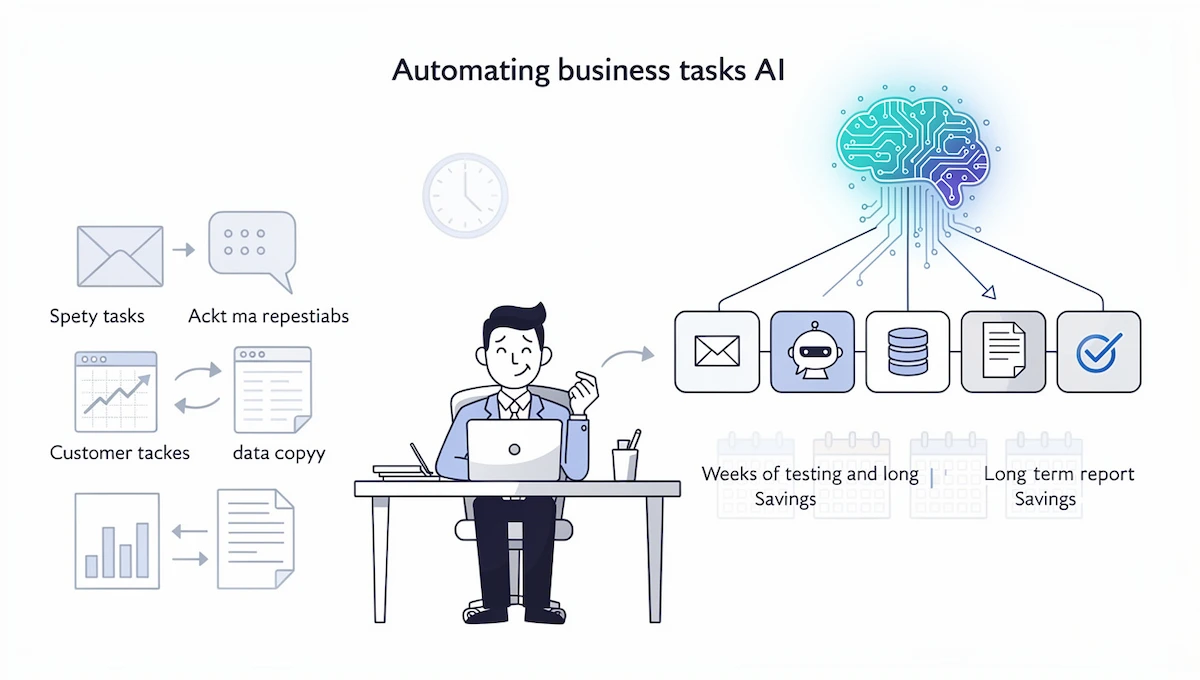
This guide explains the seven steps in order, shows ten sample prompts you can copy, compares the main AI automation tools with prices checked in October 2026, and lists the tasks you should keep away from automation. You do not need to write code. Most people finish a first working version in an afternoon, and the time you save grows with every week the workflow runs.
Quick answer: how to automate business tasks with AI
Follow these steps in this order to automate tasks with AI. Each one is explained in detail below.
- List your repetitive tasks and write down how long each one takes.
- Pick one task that is frequent, rule based and low risk.
- Prepare your data and check which accounts and permissions the workflow needs.
- Choose an AI automation tool that connects the apps you already use.
- Build your first AI workflow with a trigger, an AI step and an output.
- Test it and keep a person in the loop for two to four weeks.
- Measure the result and scale to the next task.
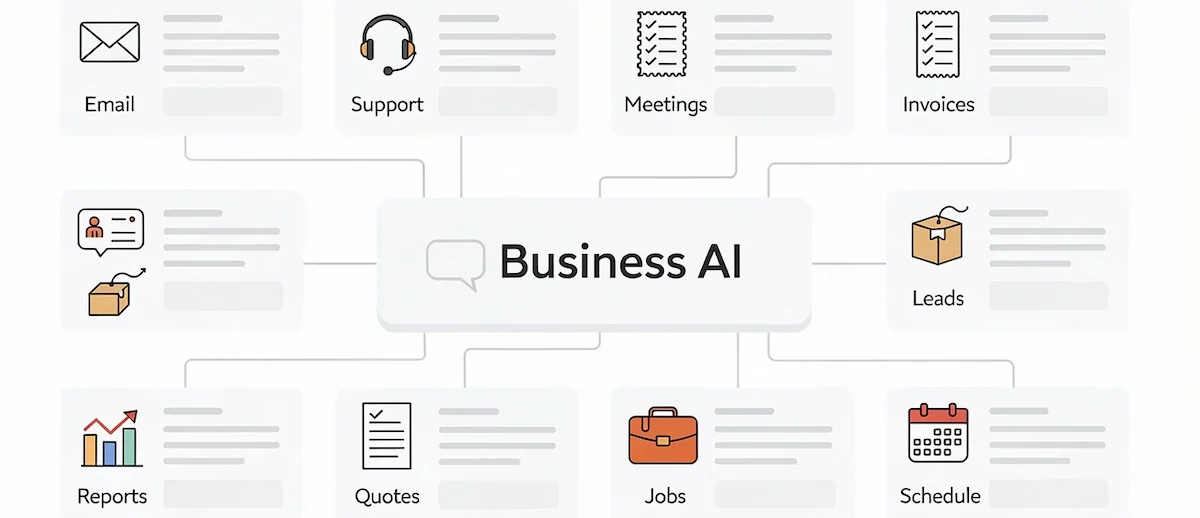
The table shows how the most common tasks look as a workflow.
| Task | Trigger | AI step | Output |
|---|---|---|---|
| Email sorting | New email arrives | Label as urgent, routine or promotional | Label and draft reply |
| Support replies | New ticket or chat | Read the question and draft an answer | Draft in the help desk for a person to send |
| Lead follow-up | Form submitted | Summarize the request and score the lead | CRM record and Slack message |
| Invoice data entry | Invoice PDF received | Extract vendor, date and amount | Row in a spreadsheet or accounting tool |
| Meeting notes | Recording finished | Transcribe and list action items | Notes in a shared document |
| Weekly report | Every Monday | Summarize numbers into plain text | Email to the team |
What is AI automation for business tasks?
AI automation means a workflow that runs by itself and uses an AI model for the parts that need reading, writing or judgment. A classic automation moves data from one place to another when something happens. An AI step lets the same workflow understand a message, pull facts out of a document or write a draft.

Many guides call this AI task automation, and the idea behind it is simple: the software does the repetitive work, and people check the results. If a term in this guide is new to you, the AI terms glossary explains it in plain words.
AI automation vs rule-based automation
Rule-based tools follow fixed instructions. If an order total is above a set amount, send it for approval. They work well when the input is always the same and fail when it changes. AI automation handles messy input such as a free text email, a scanned invoice or a customer message written in a hurry.
| Dimension | Rule-based automation | AI automation |
|---|---|---|
| Input | Structured fields | Text, documents, images and voice |
| Decision logic | Fixed if and then rules | Reads context and suggests an answer |
| Changes in input | Breaks when the format changes | Copes with different wording |
| Exceptions | Stops and waits for a person | Can classify the exception and route it |
| Best for | Moving data, sending alerts | Sorting, summarizing, drafting, extracting |
| Main limit | Needs clean data | Can be wrong, so it needs checks |
AI automation vs RPA and AI agents
RPA (robotic process automation) copies the clicks a person makes on a screen. It is useful for older systems with no connection options, but it is fragile when the screen changes.

AI agents go one step further: you give them a goal, and they decide which steps to take and which tools to use. A workflow follows a path you built. An agent chooses its own path, which is why agents suit complex jobs and need more supervision. Most small teams get more value from simple workflows first.
Why automate business tasks with AI
Manual, time-consuming tasks take hours that nobody plans for. A person who spends two hours a week sorting email and copying data spends over one hundred hours a year on it. Learning to automate tasks with AI gives that time back and brings three further gains.
- Fewer errors. A workflow does not mistype a number or forget a step on a busy day.
- Faster answers. Leads and customers get a reply in minutes instead of hours.
- Growth without extra hiring. The same team handles more requests because routine work runs in the background.
These gains matter most for owners and teams with no spare capacity, which is why AI for small business usually starts with automation of routine tasks. The time savings in this guide are examples, not promises. Your numbers depend on how often the task runs and how clean your data is, so measure your own before and after.
Benefits of AI automation for business tasks
- Faster cycle times. A request that waited a day for a person is sorted and answered in minutes, because the workflow starts the moment the message arrives.
- Lower costs. Routine work takes fewer paid hours, and the same team handles more volume without extra hiring.
- Better quality. A workflow applies the same checklist every time, so forms, summaries and data entries look the same from one week to the next.
- Room to grow. When orders or leads double, a tested workflow handles the increase, while a manual process needs more people.
- Less boring work. People spend their time on conversations, decisions and problems that need judgment.
- Clear records. Every run is logged, so you can see what happened, when it happened and who approved it.
Common misconceptions about AI automation
AI replaces people. In most small teams it replaces tasks, not roles. The workflow handles the routine part, and a person handles exceptions, relationships and final decisions. You need a developer. No-code tools let a non-technical person build a first workflow. It is only for large companies. Free plans and small workflows make it a good fit for a team of two or three. It works perfectly from day one. Every new workflow needs testing and small changes to the prompt in the first weeks. More automation is always better. A few reliable workflows beat many fragile ones, and some tasks should stay manual.
Which business tasks you can automate with AI
The best candidates share three traits: they repeat, they follow a pattern and a mistake is easy to catch. The table groups them by department and marks the risk level of each, so you can pick the safe ones first.
| Department | Tasks to automate | Risk level |
|---|---|---|
| Customer support | Reply drafts, ticket sorting, order status answers | Medium |
| Sales | Lead capture, lead scoring, follow-up drafts, CRM updates | Low to medium |
| Marketing | Product descriptions, social posts, campaign reports | Low |
| Finance | Invoice data entry, payment reminders, expense sorting | Medium to high |
| HR | Job listings, onboarding checklists, interview scheduling | Medium to high |
| Operations | Data sync between tools, status reports, supplier quote comparison | Low to medium |
In customer support, an AI step reads the incoming message, finds the answer in your help articles and writes a draft that an agent approves. Teams that want to go deeper can read about AI customer service, where chatbots and ticket routing get more space than a task list allows.
Email is the easiest place to begin. An AI step sorts messages into urgent, routine and promotional, labels them and prepares a first reply. Meetings come next: a transcription tool records the call, and the AI lists decisions and action items. Sales teams automate follow-up after a form is submitted, so every lead gets a quick, relevant reply. Finance teams automate data entry from invoices and send payment reminders at fixed intervals, for example after seven, fourteen and twenty-one days. Smaller jobs also fit: comparing supplier quotes, writing job listings, building staff rosters and turning raw numbers into a weekly summary.
Marketing tasks are a good fit because the output is a draft that a person edits. Teams that want to connect campaigns, email and reporting can use the same workflow pattern described below for each campaign task.
Before and after examples
The times below are illustrations for planning, not measured results. Your own numbers depend on volume, data quality and how much of the work a person still checks.
| Task | Before (manual) | After (with a workflow) | What the person still does |
|---|---|---|---|
| Email sorting | About 45 minutes a day reading and labeling | About 10 minutes a day reviewing labels and drafts | Approves replies and handles urgent messages |
| Meeting notes | About 30 minutes of writing after each call | About 5 minutes of checking the summary | Confirms decisions and owners |
| Invoice data entry | Typing each invoice into a sheet | Extraction runs automatically, with a quick review | Checks amounts and approves payment |
| Lead follow-up | Writing each reply from scratch | A draft with the lead request is ready on arrival | Edits the draft and sends it |
| Weekly report | Collecting numbers and writing a summary | The summary arrives every Monday | Reads it and adds context |
AI tools for each type of task
The platforms above connect your apps. For each task you also need an app that holds the data or does the AI work. The table lists tools that guides and vendors commonly pair with each task, so you can check which ones you already own before you buy anything new.
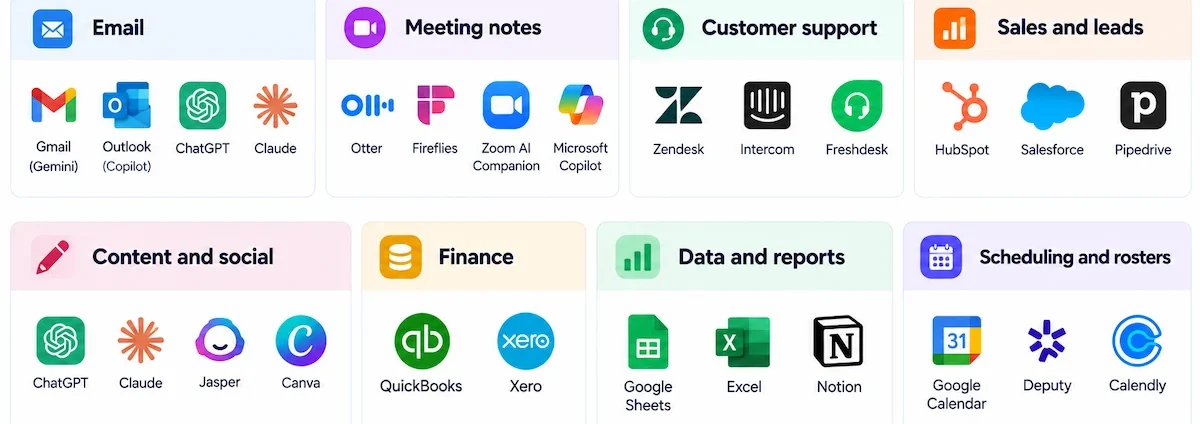
| Task type | Tools to look at | How they fit into a workflow |
|---|---|---|
| Gmail with Gemini, Outlook with Microsoft Copilot, ChatGPT, Claude | Labels messages and writes first drafts | |
| Meeting notes | Otter, Fireflies, Zoom AI Companion, Microsoft Copilot | Transcribes calls and lists action items |
| Customer support | Zendesk, Intercom, Freshdesk | Sorts tickets and drafts answers from help articles |
| Sales and leads | HubSpot, Salesforce, Pipedrive | Stores contacts and receives AI summaries and scores |
| Content and social | ChatGPT, Claude, Jasper, Canva | Writes product descriptions, posts and visuals |
| Finance | QuickBooks, Xero | Receives extracted invoice data and sends reminders |
| Data and reports | Google Sheets, Excel, Notion | Holds the numbers that the AI step summarizes |
| Scheduling and rosters | Google Calendar, Deputy, Calendly | Receives shifts and meeting times from the workflow |
Before you add a new tool, check whether your current software already has an AI feature. Many email, CRM and help desk products now include drafting and summary functions that need no extra connection.
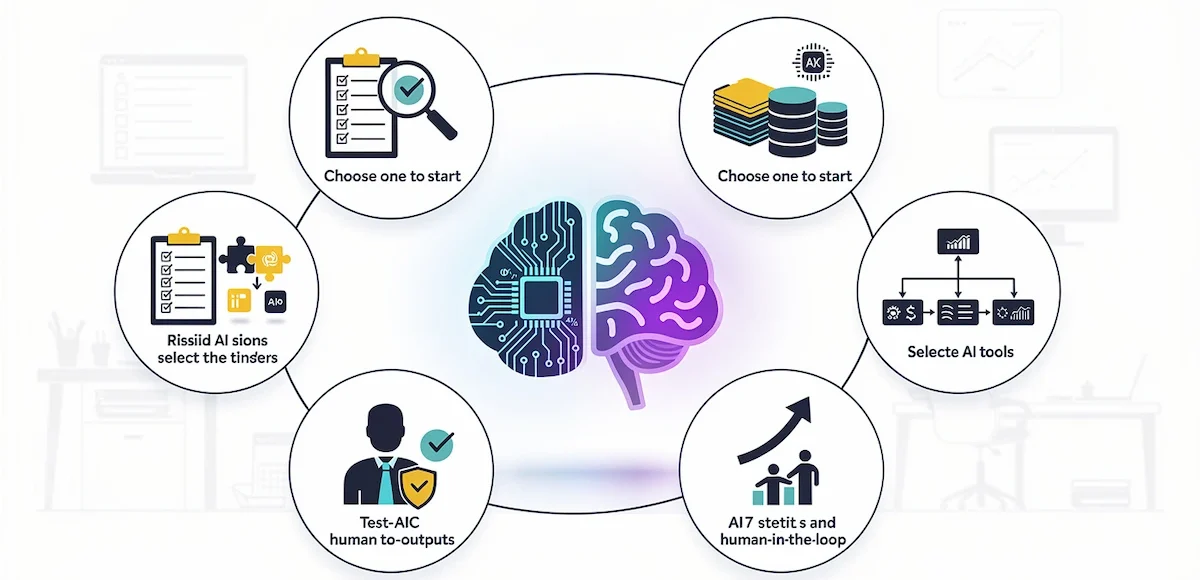
How to automate business tasks with AI in 7 steps
These steps work for any task and any tool. If you follow them in order, you build one reliable workflow before you add the next one.
Step 1: List your repetitive tasks
Track your week. For five working days, write down every task you do more than once, plus how long it takes. Most people find ten to twenty candidates in a few days. Use these questions to spot the right ones.
- Which repetitive tasks do I do daily or weekly without much thinking?
- Where do I copy data from one tool to another by hand?
- Which manual tasks create waiting time for other people?
- Where do mistakes happen because the work is boring?
- Which tasks does nobody enjoy, but everybody needs done?
Write each task as one line: what triggers it, what you do and what the result is. This line becomes the blueprint for the workflow in step 5.
Step 2: Pick one task to start with
Do not automate everything at once. Score each task on four points: how often it runs, how long it takes, how clear the rules are and how bad a mistake would be. A common rule of thumb says a task is worth automating if it happens at least three times a week and takes more than fifteen minutes. Treat that as a guide and not as a law.
Choose a task with high volume, clear rules and low risk. A weekly report or email sorting is safer than payments or hiring decisions. Starting small also makes it easier to see whether the workflow works, because you can compare the result with what you did by hand.
Name one process owner for the task. This is the person who knows how the work should look, approves the result and decides when the workflow changes. Tell everyone who touches the task what will change, because a workflow that surprises the team is often ignored or worked around. Finally, set one measurable goal, for example a first reply within one hour or ten fewer hours of data entry a month, so you can tell later whether it worked.
Step 3: Prepare your data and access
An automation is only as good as the data it reads. Before you build, check three things. First, the input should be in one place, such as one inbox, one form or one folder. Second, the data should be clean enough for a person to follow it, because an AI model will struggle with the same gaps. Third, you need the right permissions in each app, which usually means an account that can read the source and write to the destination.
Decide at this point which information the AI may see. Customer names, payment details and health data need extra care, and the section on privacy below explains what to leave out.
Step 4: Choose an AI automation tool
You need a tool that connects your apps and runs an AI step. No-code platforms let you build a workflow by dragging blocks, so you do not need a developer. Match the tool to your skills and to the apps you use. The guide to choosing AI tools for business gives a longer checklist, and the tools section below compares prices.
Four questions help you decide. Does the tool connect to the apps you already use? Can a non-technical person build and change a workflow? Does it show a log of every run, so you can see what happened? And does the price stay reasonable when your volume grows?
Step 5: Build your first AI workflow
Every workflow you use to automate tasks with AI has the same three parts: a trigger, an AI step and an output. Take a simple example. A customer fills in a contact form. The trigger starts the workflow, a new contact is created in your CRM, the AI step writes a short summary of the request and marks it as high or low value, and the output posts high value leads to a Slack channel for the sales team.
Build it in this order. Set the trigger first and run it once with test data. Add the AI step and write a clear prompt that says what the input is, what to do and what format the answer must have. Connect the output last. Keep the first version short, with three to five blocks, because a long chain is harder to fix when something breaks.
Step 6: Test it and keep a person in the loop
Do not let a new workflow act alone. For the first two to four weeks, send every result to a person for approval, so that drafts are checked before they go out. Review a sample of results each week and write down the mistakes. Change the prompt when the same error appears twice.
Before you turn any workflow on for good, check this list.
- The workflow ran correctly on at least twenty real examples.
- Edge cases such as empty fields or very long messages were tested.
- A person approves anything that goes to a customer or involves money.
- An alert tells you when a run fails.
- You know how to switch the workflow off quickly.
Keeping a human in the loop is not a sign of weak automation. It is how teams catch the rare wrong answer before it reaches a customer.
Prepare the team as well. Show the people who approve results what the workflow does, where it can fail and how to report a wrong answer. A short walkthrough of fifteen to thirty minutes is usually enough, and it makes feedback arrive early, when the prompt is easy to change.
Step 7: Measure the result and scale
After a month, compare the numbers with your starting point. Count the time saved per week, the number of errors and the speed of replies. If the workflow works, copy the pattern to the next task on your list. If it does not, fix the prompt, the data or the trigger before you build anything new. Scale in small steps, one workflow at a time, and keep the old manual process documented until you trust the new one.
How to know if your AI automation is working
Judge the workflow by what it produces, not by whether it runs. Check four signs each week for the first month.
- Time saved compared with the manual process you measured in step 1.
- Edit rate: how often a person changes the draft before sending it.
- Error rate: wrong labels, wrong numbers or answers that missed the point.
- Failed runs: how many runs stopped, timed out or sent an alert.
Scale when the edit rate is low and stable, errors are rare and the people who approve results trust the output. Fix instead when the same mistake appears more than once, when approvers skip the review because it takes too long or when a change in the source data breaks the trigger. Keep one person responsible for checking logs, updating prompts when your products or policies change and switching the workflow off if it starts producing bad results.
A worked example: automating customer emails for a small online shop
Take a shop with three employees and about sixty customer emails a day. Most messages ask about delivery status, returns or product details, and one person spends most of the morning answering them. This example is an illustration of the method and not a measured case.
- Trigger: a new email arrives in the support inbox.
- AI step one: the model classifies the message as delivery, return, product question or other.
- Data step: for delivery questions, the workflow looks up the order status in the shop system.
- AI step two: the model writes a short reply using only the order data and the help text provided.
- Approval: the draft appears in the help desk, and the support lead edits and sends it. Messages classified as other go straight to a person.
- Log: every run is written to a sheet with the label, the time and whether the draft was edited.
The support lead is the process owner and the goal is a first reply within one hour. After three weeks of approvals, the team reviews the edit rate and the labels that were wrong, adjusts the prompt and decides whether delivery questions can be sent without approval. Returns and complaints stay with a person.
The same pattern works in other fields. A construction company can route requests for information from subcontractors: the AI reads each email, labels the project and trade, and sends it to the right engineer, who answers it. An accounting office can read incoming invoices, extract the fields and place them in a sheet for review. In each case the structure is the same: trigger, AI step, approval and log.
Where to start if you run a small business
If you run a small business, you often do the routine work yourself, which makes the first workflow easy to choose: pick the task you like least and that repeats most. Begin with a free plan, one tool and one task. Typical first picks are sorting the inbox, answering the five most common customer questions, writing product descriptions and turning meeting calls into notes.
Keep your costs predictable by staying inside the free plan limits until the workflow proves itself. Keep a short document that records what each workflow does, which accounts it uses and who checks it, so the work does not depend on one person. Add the second workflow only after the first one has run for a month without major problems.
Sample prompts for 10 business tasks
A good prompt names the role, the input, the task and the format of the answer. Short, specific prompts give better and more consistent results in a workflow, and the guide on prompt engineering for business covers the method in more detail. Replace the text in square brackets with your own details.
Email sorting and reply drafts
Prompt: You are an assistant for [company]. Read the email below and label it as urgent, routine or promotional. Then write a polite reply of no more than 100 words that answers the question and offers one next step. Email: [email text]
Customer support replies and ticket sorting
Prompt: Read the customer message below. Classify it as billing, shipping, technical or other. Using only the help article text provided, write a reply that solves the problem in three sentences. If the article does not contain the answer, write: needs a person. Message: [message]. Help articles: [text]
Meeting notes and action items
Prompt: Below is a meeting transcript. List the decisions made, then list each action item with the person responsible and the due date. Keep the summary under 150 words. Transcript: [text]
Invoice and document data extraction
Prompt: Extract the vendor name, invoice number, invoice date, total amount and currency from the invoice text below. Return the result as five lines in the format field: value. If a field is missing, write: not found. Invoice: [text]
Lead follow-up and CRM updates
Prompt: A new lead submitted this form: [form data]. Summarize what the lead wants in two sentences, rate the lead as high, medium or low based on [your criteria] and write a short follow-up email that mentions the specific request.
Product descriptions and social posts
Prompt: Write a product description of 80 words for the item below. Use a friendly tone, mention the two main benefits and end with a clear call to action. Then write one social post of 30 words for the same item. Product data: [name, features, price]
Weekly reports and KPI summaries
Prompt: Here are this week numbers: [data]. Write a summary for the team in five short bullet points. Say what went up, what went down and what needs attention. Compare with last week: [data]
Job listings and application screening
Prompt: Write a job listing for [role] with a short description, five responsibilities and five requirements. Use neutral language and avoid terms that exclude any group. Do not rank or reject candidates. A person makes every hiring decision.
Supplier quote comparison
Prompt: Compare the three supplier quotes below. Show price, delivery time, payment terms and warranty in a table. Point out any hidden costs or missing details. Do not recommend a supplier. Quotes: [text]
Staff scheduling
Prompt: Create a weekly roster for [number] employees using these availability notes and shift requirements: [data]. Make sure nobody works more than [hours] hours and that every shift has at least [number] people. List any conflicts you could not solve.
Best AI automation tools for business tasks
The right tools to automate tasks depend on how technical you are and how many tasks you plan to run. The prices below come from the vendor pricing pages and were checked in October 2026. Plans change often, so confirm the current price before you buy.

No-code tools for beginners
No-code platforms connect apps, run an AI step and let you see each run. Zapier is built around tasks, where each action in a workflow counts as one task. Make is built around credits, and it offers a visual canvas that shows how data moves between steps. n8n can be hosted by the vendor or installed on your own server.
| Tool | Free plan | Paid plans (checked October 2026) | Best for |
|---|---|---|---|
| Zapier | 100 tasks per month, two-step workflows | Professional from $19.99 per month, Team from $69 per month | Beginners who want many app connections |
| Make | 1,000 credits per month, 2 active scenarios | Core $12, Pro $21 and Teams $38 per month for 10,000 credits | Visual workflows with branches |
| n8n | Self-hosted Community Edition on GitHub | Starter 20 euro per month with 2,500 executions, Pro 50 euro per month with 10,000 executions (annual billing) | Technical teams that want control |
The free plans are enough to test one workflow. Paid plans become necessary when you need more runs, faster checks or several people working in the same account.
Tools for teams and agents
Larger teams often use Microsoft Power Automate when they already work in Microsoft 365, and platforms such as Gumloop when they want to build workflows and agents with natural language. For the AI step itself, ChatGPT, Claude and Gemini are the three assistants most workflows call. Each one has its own plan and API pricing, so check the vendor page for the current numbers before you connect it. If you want a wider view of how tools fit together, the guide to an set of AI tools for business shows how teams combine them.
How much it costs to automate business tasks with AI
The cost has three parts. First, the automation platform, which can start at zero on a free plan and rise to a few dozen dollars a month for a small team, as the table above shows. Second, the AI model, which is billed by usage or included in a subscription. Third, your own time to build and check the workflow, which is the biggest cost at the start and falls quickly after the first workflow runs.
A first workflow on a free plan costs close to nothing in money. Costs grow with volume, since every run uses tasks, credits or executions. To estimate your own bill, multiply the runs per month by the number of steps in the workflow and compare that with the plan limits. For a full overview of subscriptions and usage fees, read how much AI tools cost.
When to move from workflows to AI agents
A workflow is the right choice when the steps are known in advance. Move to an AI agent when the task needs research, several decisions or a changing path, for example finding information about a company, writing a short brief and updating the CRM. Agents can browse, call tools and pick the next step, but they make more mistakes than a fixed workflow, and their results are harder to predict.
Start with one agent for one job, give it a narrow goal, limit the tools it can use and review its output until you trust it. A deeper explanation of how agents work in a company is in the guide to AI agents for business.
Tasks you should not automate with AI
Some work should stay with people, or at least have a person who approves every result.
- Final hiring and firing decisions. AI can draft a listing, but a person must decide about people.
- Legal and compliance documents. A wrong sentence can cost far more than the time saved.
- Payments and money transfers without approval from a person.
- Sensitive customer cases such as complaints about safety, health or a serious loss.
- Anything that uses personal data you are not allowed to send to an outside service.
- Tasks you do not understand yet. You cannot check a result when you do not know what a good one looks like.
Risks, data privacy and limits of AI automation
Automation brings risks that grow with the number of workflows. Knowing them in advance makes them easy to manage.
Data privacy and what not to upload
Every AI step sends text to an outside service. Before you connect a workflow, check where the data goes and how the vendor uses it. Leave out passwords, payment card numbers, health records and anything covered by a contract that forbids sharing. Replace names with codes when the task does not need them. The guide on AI data privacy for business lists the questions to ask a vendor.
Errors, wrong answers and how to catch them
AI models sometimes state a wrong fact with full confidence. Reduce the risk in three ways. Give the model the source text and tell it to answer only from that text. Ask for a fixed output format, so a broken answer is easy to detect. And add a check, for example a rule that sends any answer without a known value to a person.
Bias in hiring and customer decisions
Models can repeat bias from the data they learned from. Do not use AI to rank or reject job candidates, and do not let it decide who gets a refund, a discount or a loan. Use it to prepare information, and let a person decide.
Best practices for automating tasks with AI
| Practice | Why it matters |
|---|---|
| Start with one task | You can see clearly whether the workflow works |
| Write the manual steps down first | You cannot automate what you cannot describe |
| Give the model source text | Answers stay tied to facts you control |
| Fix the output format | Broken answers are easy to detect and route to a person |
| Keep a person in the loop at first | Mistakes are caught before customers see them |
| Log every run | You can trace a problem back to its cause |
| Review prompts when things change | New products, prices and policies make old prompts wrong |
| Document each workflow | Others can fix and update it when you are away |
Common mistakes when you automate business tasks
Most failed projects fail for the same reasons. When you automate business tasks, avoid these.
- Starting with a big, complex process. Pick a small task and prove it works first.
- Skipping the manual test. Run the task by hand at least once so you know what the result should look like.
- Writing vague prompts. A prompt with no format and no limits produces results that change from run to run.
- Letting the workflow run without a check. Review results weekly, even when everything looks fine.
- Automating a broken process. If the task is confusing for people, a workflow will only make the confusion faster.
- Forgetting to track the result. Without a starting number you cannot show that the automation helped.
- Using too many tools at once. Each new tool adds accounts, costs and places where something can break.
How to measure ROI of AI automation
The calculation is simple. Multiply the hours saved per week by the hourly cost of the person who did the task, multiply that by the weeks in a year and subtract the yearly cost of the tools and the time spent on checks. Here is an example with round numbers. If a workflow saves two hours a week, the person earns 30 dollars an hour and the tools cost 240 dollars a year, the yearly saving is 2 x 30 x 52 = 3,120 dollars, and the net result is 3,120 – 240 = 2,880 dollars. These numbers are an illustration, so replace them with your own.
Besides money, track error rate, response time and how many tasks the team finishes in a week. A longer method for companies is described in the guide to AI ROI for business. Review the numbers after one month and again after three, because the first month includes setup time that does not repeat.
A 10-minute starter task
You can test the idea today. Open the AI assistant you already use, paste the last ten customer emails you answered and use the prompt for email sorting from the list above. Compare the labels and drafts with what you did yourself. If the results are close, you have found your first task to automate.
Final verdict
The fastest way to learn how to automate business tasks with AI, and to automate tasks with AI safely, is to choose one task, build a short workflow, test it with a person in the loop and measure the time saved. Keep the first version small, protect your data and add new workflows only after the previous one works. Teams that follow this order get steady savings without large risks, and the same pattern then applies to the next task on your list.
FAQ about how to automate business tasks with AI
How do you measure the ROI of AI automation?
Multiply the hours saved per week by the hourly cost of the person doing the task, then by the weeks in a year, and subtract the cost of tools and review time. Track error rate and response time as well, because they show gains that money alone does not.
What tasks should not be automated with AI?
Avoid final decisions about hiring, legal documents, payments without approval, sensitive customer cases and anything that needs personal data you cannot share. In these areas, use AI to prepare information and let a person decide.
How is automating tasks with AI different from using AI agents?
A workflow follows steps you define, with an AI step inside it. An agent receives a goal and chooses the steps and tools itself. Workflows are easier to predict and check, while agents suit complex jobs that need research or several decisions.
Do you need technical skills to automate business tasks?
No. You can automate tasks with AI using no-code tools such as Zapier and Make, which let you build workflows with blocks and forms. You do need to describe the task clearly and write a good prompt, and technical skills help only when you want custom connections or self-hosted tools.
Which AI tool is best for workflow automation?
It depends on your skills and apps. Zapier suits beginners with many app connections, Make suits visual workflows with branches and n8n suits technical teams that want control. Test the free plan of each one with the same small task before you pay.
What is the easiest business task to automate with AI?
Email sorting and meeting notes are the easiest. Both repeat often, follow a clear pattern and are easy to check, and a wrong result does little harm.
How long does it take to set up AI automation?
A simple workflow with three to five blocks can be built in an afternoon. Plan two to four more weeks of testing with a person approving results before you let it run alone. Complex processes in larger companies take longer.
Can small businesses use AI automation?
Yes. Small businesses often gain the most, because routine tasks take a large share of the owner time. Free plans are enough to test a first workflow, and costs stay low while volumes are small.
How much does AI automation cost?
A first workflow can run on a free plan. Paid plans in October 2026 start at about 12 to 20 dollars a month for the platforms compared above, plus the cost of the AI model. Costs rise with the number of runs, so estimate your volume first.
Is AI automation safe for customer-facing tasks?
It is safe when a person approves what reaches the customer, when the model answers only from approved text and when private data is kept out. Start with drafts and move to automatic replies only for simple, low risk questions.
How is AI automation different from RPA?
RPA repeats screen clicks according to fixed rules and breaks when the screen changes. AI automation understands text, documents and context, so it copes with varied input. Many companies use both together.
How long until I see results?
Most teams see time savings in the first week the workflow runs, and a reliable result after the first month of checks. Measure at one month and again at three months for a fair picture.
What is the 30% rule for AI?
The term has more than one meaning. One common use says AI should handle about 70 percent of a repetitive task while a person handles the remaining 30 percent that needs judgment. It is a rough guide and not a measured standard, so set your own split after testing.
Will AI automation replace jobs?
For routine tasks it takes over part of the work, but most small teams use it to free people from repetitive work, not to remove roles. Tasks that need judgment, relationships and responsibility stay with people, and a person should approve anything important.
Do I need AI at all, or is simple automation enough?
If the input is always the same, for example a form with fixed fields, a rule-based workflow is enough and costs less. Add an AI step when the input is free text, a document or a message that varies, because that is where fixed rules fail.
What should I check before I turn an automation on?
Confirm that it ran correctly on at least twenty real examples, that edge cases were tested, that a person approves customer-facing output, that you receive an alert when a run fails and that you know how to switch it off quickly.